
Fortinet white logo
Fortinet white logo

Administration Guide

Support Using Primus HSM Certificates for Admin GUI Access (8.0.0)

Support Using Primus HSM Certificates for Admin GUI Access (8.0.0)

FortiWeb 8.0.0 extends integration with Securosys Primus HSM to support administrator GUI access. In addition to server policy encryption, FortiWeb can now use an HSM-backed certificate to secure HTTPS access to the web-based management interface.

This capability allows administrators to assign a certificate—whose private key is generated, stored, and accessed exclusively within a configured Primus HSM partition—to the HTTPS Server Certificate setting under Administrator Settings. During TLS session establishment for GUI access, FortiWeb delegates all private key operations (e.g., RSA decryption or ECDSA signing) to the HSM via the PKCS#11 interface. The private key remains within the secure HSM boundary throughout its lifecycle, ensuring strong cryptographic isolation and compliance with high-assurance key protection requirements.

Applying HSM-Backed Certificates for Admin GUI Access

To secure HTTPS access to the FortiWeb GUI using a certificate stored in a Securosys Primus HSM, administrators must complete a multi-step configuration process. This includes enabling HSM support, configuring the HSM partition, generating an Admin CSR tied to the HSM, and applying the signed certificate in the administrator settings.

Once integrated, all SSL/TLS handshakes for administrative access are completed using the private key stored in the HSM. Key material never exits the hardware boundary, ensuring cryptographic isolation and enhanced protection for sensitive management traffic.

Configuration Workflow
  1. Enable HSM support via CLI

    Configure FortiWeb to recognize and use an HSM for cryptographic operations by enabling HSM support and specifying the manufacturer in the CLI.

  2. Configure the HSM in FortiWeb

    Set up the HSM connection by uploading the configuration file and defining partition credentials (PKCS#11 PIN, permanent secret, and Slot ID).

  3. Generate an Admin Local CSR on FortiWeb

    Create a certificate signing request (CSR) that binds the resulting certificate to the HSM partition, ensuring the private key remains protected by the HSM.

  4. Obtain a Signed Admin Certificate

    Submit the CSR to a trusted certificate authority (CA) to obtain a signed certificate for securing HTTPS-based administrative sessions.

  5. Import the Signed Admin Certificate into FortiWeb

    Upload the signed certificate and bind it to the key material stored in the HSM, enabling FortiWeb to use the certificate for GUI encryption.

  6. Assign the Certificate in Administrator Settings

    Configure FortiWeb to use the imported HSM-backed certificate in the Administrator Settings to secure HTTPS connections to the web interface.

Enable HSM support via CLI

Before configuring the HSM, FortiWeb must be explicitly configured to use an HSM for cryptographic operations. This is done through the CLI by enabling HSM support and specifying the manufacturer. Without this step, FortiWeb will not recognize the HSM for certificate storage and cryptographic functions.

  1. Access the FortiWeb CLI via SSH or console.

  2. Enter the following commands:

    config server-policy setting
      set hsm enable
      set hsm-manufacturer primus
    end
    
  3. Save the configuration and verify that HSM support is enabled.
    When HSM is successfully enabled, the Securosys Primus HSM page becomes accessible in the GUI, and the CLI command config system nethsm can be configured.

Configure the HSM in FortiWeb

Before FortiWeb can utilize Securosys Primus HSM, you must establish a connection between FortiWeb and the HSM. This requires uploading the Primus HSM configuration file and specifying authentication credentials, including the PKCS#11 password and permanent secret obtained during the prerequisite steps. FortiWeb uses these credentials to authenticate with the HSM, enabling secure key storage and cryptographic operations. Proper authentication ensures that only authorized systems can access and utilize the HSM.

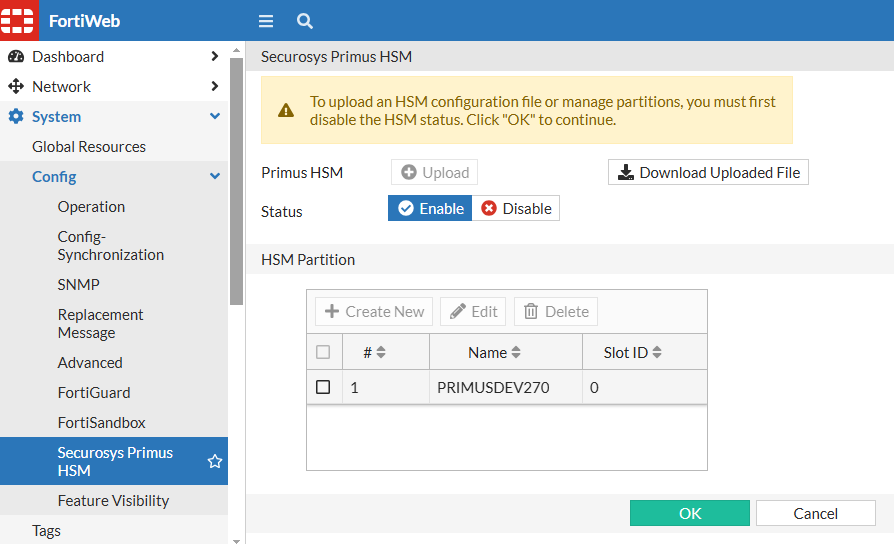
  1. Navigate to System > Config > Securosys Primus HSM.

  2. Upload the Primus HSM configuration file.

  3. Configure the HSM Partition.

    1. Under the HSM Partition section, click Create New to add a new Primus HSM Partition.

    2. Configure the following HSM Partition settings:

      Name

      Define the partition name. This value must exactly match the user_name field in the uploaded Primus HSM configuration file to ensure authentication.

      For more information, see the Securosys documentation.

      PKCS11 PIN Enter the PKCS#11 authentication PIN required to establish a secure session with the HSM. This PIN is used for cryptographic operations and must correspond to the PIN configured on the HSM.
      Secret Provide the Permanent Secret associated with the partition. This secret serves as a cryptographic key to authenticate and encrypt communications between FortiWeb and the HSM.
      Slot ID

      Specify the Slot ID corresponding to the HSM partition. This value must match the id defined in the uploaded configuration file. It corresponds to the PKCS#11 Slot ID assigned to the partition, serving as a unique identifier within the HSM. The correct Slot ID is required to establish secure access and ensure proper key management operations.

      For more information, see the Securosys documentation.

  4. Enable the Status to activate the Primus HSM integration.

  5. Click OK to apply the configuration.
    Once saved, FortiWeb validates the configuration file and partition parameters. If all values match the expected HSM settings, the Primus HSM integration is established. At this point, cryptographic operations can be performed securely using the configured partition.
    If proxyd fails to establish a connection to the Primus HSM during initialization, any policy that relies on an Primus HSM certificate will not bind to its configured service port. This can prevent affected services from accepting connections. Ensure that FortiWeb can reach the Primus HSM server and that authentication parameters are correctly configured to avoid service disruptions.

When Primus HSM is enabled, ASan debugging for proxyd cannot be used. The diagnose debug asan proxyd enable command is unavailable due to a conflict between ASan memory debugging and Primus HSM integration.

Disabling the Primus HSM Configuration

Before disabling the Primus HSM configuration, you must remove all associated HSM-dependent configurations, including local certificates and CSRs of the Primus HSM type. After clearing these dependencies, you can modify or delete the HSM partition.

Generate an Admin Local CSR on FortiWeb

To enable HTTPS access using an HSM-backed certificate, begin by generating an Admin Certificate Signing Request (CSR) under the Admin Cert Local tab. The CSR is linked to a specific HSM partition, and the associated private key is generated and stored within the Securosys Primus HSM. The key material remains confined to the hardware security boundary and is not exposed to FortiWeb at any stage, ensuring strict cryptographic isolation.

  1. Navigate to System > Admin > Certificates.
    The configuration page displays the Admin Cert Local tab.

  2. Click Generate to generate a new Certificate Signing Request.

  3. Configure the following key settings:

    • Primus HSM: Enable to apply the Primus HSM configuration.
    • Partition Name: Select the HSM partition.
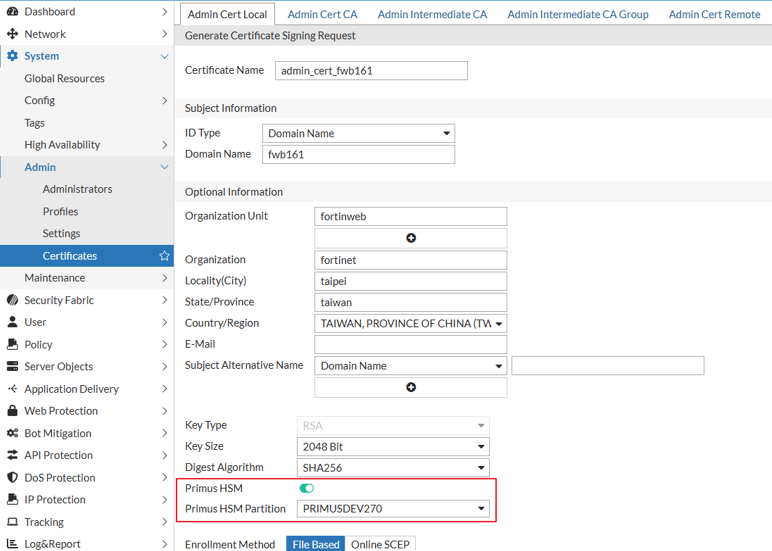
  4. Click OK to save the configuration.

For details, see Configuring SSL certificate for the administrator access to FortiWeb GUI via HTTPS.

Obtain a Signed Admin Certificate

After generating the Admin CSR, it must be downloaded and submitted to a trusted Certificate Authority (CA) for signing. The resulting signed certificate represents the public component of the key pair anchored in the HSM, enabling FortiWeb to establish HTTPS connections that are cryptographically bound to the protected private key.

  1. Navigate to System > Admin > Certificates.
    The Admin Cert Local tab displays the configuration page, where the previously generated CSR will be listed.

  2. Select the CSR from the list, then click Download in the top navigation. Follow the prompts to save the CSR file.

For details, see Configuring SSL certificate for the administrator access to FortiWeb GUI via HTTPS.

Import the Signed Admin Certificate into FortiWeb

Once the signed certificate is issued by the CA, import it into FortiWeb to associate it with the corresponding HSM-resident private key. This step enables FortiWeb to reference the HSM-backed key material for cryptographic operations without requiring direct access to the private key, preserving key integrity and hardware-enforced isolation.

  1. Navigate to System > Admin > Certificates.
    The configuration page displays the Admin Cert Local tab.

  2. Click Import to display the configuration page.

  3. Set the Type to Local Certificate and click Upload. Follow the prompts to upload the certificate file with the private key stored in the HSM.

  4. Click OK to save the configuration.

For details, see Configuring SSL certificate for the administrator access to FortiWeb GUI via HTTPS.

Assign the Certificate in Administrator Settings

To enforce the use of the HSM-backed certificate for administrative HTTPS access, assign the imported certificate in System > Admin > Settings. FortiWeb will then delegate all cryptographic key operations related to management session encryption to the configured HSM partition, enhancing the security posture of the administrative interface.

  1. Navigate to System > Admin > Settings.

  2. From the HTTPS Server Certificate field, select the Primus HSM certificate.
    Please note the certificate used here must have a key size of 2048 bits or higher (including 2048), and the Digest Algorithm must be SHA256 or stronger (including SHA256).

  3. Click Apply to save the configuration.

For details, see HTTPS Server Certificate.

Support Using Primus HSM Certificates for Admin GUI Access (8.0.0)

Support Using Primus HSM Certificates for Admin GUI Access (8.0.0)

FortiWeb 8.0.0 extends integration with Securosys Primus HSM to support administrator GUI access. In addition to server policy encryption, FortiWeb can now use an HSM-backed certificate to secure HTTPS access to the web-based management interface.

This capability allows administrators to assign a certificate—whose private key is generated, stored, and accessed exclusively within a configured Primus HSM partition—to the HTTPS Server Certificate setting under Administrator Settings. During TLS session establishment for GUI access, FortiWeb delegates all private key operations (e.g., RSA decryption or ECDSA signing) to the HSM via the PKCS#11 interface. The private key remains within the secure HSM boundary throughout its lifecycle, ensuring strong cryptographic isolation and compliance with high-assurance key protection requirements.

Applying HSM-Backed Certificates for Admin GUI Access

To secure HTTPS access to the FortiWeb GUI using a certificate stored in a Securosys Primus HSM, administrators must complete a multi-step configuration process. This includes enabling HSM support, configuring the HSM partition, generating an Admin CSR tied to the HSM, and applying the signed certificate in the administrator settings.

Once integrated, all SSL/TLS handshakes for administrative access are completed using the private key stored in the HSM. Key material never exits the hardware boundary, ensuring cryptographic isolation and enhanced protection for sensitive management traffic.

Configuration Workflow
  1. Enable HSM support via CLI

    Configure FortiWeb to recognize and use an HSM for cryptographic operations by enabling HSM support and specifying the manufacturer in the CLI.

  2. Configure the HSM in FortiWeb

    Set up the HSM connection by uploading the configuration file and defining partition credentials (PKCS#11 PIN, permanent secret, and Slot ID).

  3. Generate an Admin Local CSR on FortiWeb

    Create a certificate signing request (CSR) that binds the resulting certificate to the HSM partition, ensuring the private key remains protected by the HSM.

  4. Obtain a Signed Admin Certificate

    Submit the CSR to a trusted certificate authority (CA) to obtain a signed certificate for securing HTTPS-based administrative sessions.

  5. Import the Signed Admin Certificate into FortiWeb

    Upload the signed certificate and bind it to the key material stored in the HSM, enabling FortiWeb to use the certificate for GUI encryption.

  6. Assign the Certificate in Administrator Settings

    Configure FortiWeb to use the imported HSM-backed certificate in the Administrator Settings to secure HTTPS connections to the web interface.

Enable HSM support via CLI

Before configuring the HSM, FortiWeb must be explicitly configured to use an HSM for cryptographic operations. This is done through the CLI by enabling HSM support and specifying the manufacturer. Without this step, FortiWeb will not recognize the HSM for certificate storage and cryptographic functions.

  1. Access the FortiWeb CLI via SSH or console.

  2. Enter the following commands:

    config server-policy setting
      set hsm enable
      set hsm-manufacturer primus
    end
    
  3. Save the configuration and verify that HSM support is enabled.
    When HSM is successfully enabled, the Securosys Primus HSM page becomes accessible in the GUI, and the CLI command config system nethsm can be configured.

Configure the HSM in FortiWeb

Before FortiWeb can utilize Securosys Primus HSM, you must establish a connection between FortiWeb and the HSM. This requires uploading the Primus HSM configuration file and specifying authentication credentials, including the PKCS#11 password and permanent secret obtained during the prerequisite steps. FortiWeb uses these credentials to authenticate with the HSM, enabling secure key storage and cryptographic operations. Proper authentication ensures that only authorized systems can access and utilize the HSM.

  1. Navigate to System > Config > Securosys Primus HSM.

  2. Upload the Primus HSM configuration file.

  3. Configure the HSM Partition.

    1. Under the HSM Partition section, click Create New to add a new Primus HSM Partition.

    2. Configure the following HSM Partition settings:

      Name

      Define the partition name. This value must exactly match the user_name field in the uploaded Primus HSM configuration file to ensure authentication.

      For more information, see the Securosys documentation.

      PKCS11 PIN Enter the PKCS#11 authentication PIN required to establish a secure session with the HSM. This PIN is used for cryptographic operations and must correspond to the PIN configured on the HSM.
      Secret Provide the Permanent Secret associated with the partition. This secret serves as a cryptographic key to authenticate and encrypt communications between FortiWeb and the HSM.
      Slot ID

      Specify the Slot ID corresponding to the HSM partition. This value must match the id defined in the uploaded configuration file. It corresponds to the PKCS#11 Slot ID assigned to the partition, serving as a unique identifier within the HSM. The correct Slot ID is required to establish secure access and ensure proper key management operations.

      For more information, see the Securosys documentation.

  4. Enable the Status to activate the Primus HSM integration.

  5. Click OK to apply the configuration.
    Once saved, FortiWeb validates the configuration file and partition parameters. If all values match the expected HSM settings, the Primus HSM integration is established. At this point, cryptographic operations can be performed securely using the configured partition.

    If proxyd fails to establish a connection to the Primus HSM during initialization, any policy that relies on an Primus HSM certificate will not bind to its configured service port. This can prevent affected services from accepting connections. Ensure that FortiWeb can reach the Primus HSM server and that authentication parameters are correctly configured to avoid service disruptions.

When Primus HSM is enabled, ASan debugging for proxyd cannot be used. The diagnose debug asan proxyd enable command is unavailable due to a conflict between ASan memory debugging and Primus HSM integration.

Disabling the Primus HSM Configuration

Before disabling the Primus HSM configuration, you must remove all associated HSM-dependent configurations, including local certificates and CSRs of the Primus HSM type. After clearing these dependencies, you can modify or delete the HSM partition.

Generate an Admin Local CSR on FortiWeb

To enable HTTPS access using an HSM-backed certificate, begin by generating an Admin Certificate Signing Request (CSR) under the Admin Cert Local tab. The CSR is linked to a specific HSM partition, and the associated private key is generated and stored within the Securosys Primus HSM. The key material remains confined to the hardware security boundary and is not exposed to FortiWeb at any stage, ensuring strict cryptographic isolation.

  1. Navigate to System > Admin > Certificates.
    The configuration page displays the Admin Cert Local tab.

  2. Click Generate to generate a new Certificate Signing Request.

  3. Configure the following key settings:

    • Primus HSM: Enable to apply the Primus HSM configuration.
    • Partition Name: Select the HSM partition.

  4. Click OK to save the configuration.

For details, see Configuring SSL certificate for the administrator access to FortiWeb GUI via HTTPS.

Obtain a Signed Admin Certificate

After generating the Admin CSR, it must be downloaded and submitted to a trusted Certificate Authority (CA) for signing. The resulting signed certificate represents the public component of the key pair anchored in the HSM, enabling FortiWeb to establish HTTPS connections that are cryptographically bound to the protected private key.

  1. Navigate to System > Admin > Certificates.
    The Admin Cert Local tab displays the configuration page, where the previously generated CSR will be listed.

  2. Select the CSR from the list, then click Download in the top navigation. Follow the prompts to save the CSR file.

For details, see Configuring SSL certificate for the administrator access to FortiWeb GUI via HTTPS.

Import the Signed Admin Certificate into FortiWeb

Once the signed certificate is issued by the CA, import it into FortiWeb to associate it with the corresponding HSM-resident private key. This step enables FortiWeb to reference the HSM-backed key material for cryptographic operations without requiring direct access to the private key, preserving key integrity and hardware-enforced isolation.

  1. Navigate to System > Admin > Certificates.
    The configuration page displays the Admin Cert Local tab.

  2. Click Import to display the configuration page.

  3. Set the Type to Local Certificate and click Upload. Follow the prompts to upload the certificate file with the private key stored in the HSM.

  4. Click OK to save the configuration.

For details, see Configuring SSL certificate for the administrator access to FortiWeb GUI via HTTPS.

Assign the Certificate in Administrator Settings

To enforce the use of the HSM-backed certificate for administrative HTTPS access, assign the imported certificate in System > Admin > Settings. FortiWeb will then delegate all cryptographic key operations related to management session encryption to the configured HSM partition, enhancing the security posture of the administrative interface.

  1. Navigate to System > Admin > Settings.

  2. From the HTTPS Server Certificate field, select the Primus HSM certificate.
    Please note the certificate used here must have a key size of 2048 bits or higher (including 2048), and the Digest Algorithm must be SHA256 or stronger (including SHA256).

  3. Click Apply to save the configuration.

For details, see HTTPS Server Certificate.