

FortiWeb Log trigger
Define a FortiWeb Log trigger so that when system prints certain even logs or attack logs, corresponding actions will be executed.
To create a FortiWeb Log trigger:
- Go to Security Fabric > Automation.
- Select the Trigger tab.
- Click Create New to display the configuration editor.
- Select FortiWeb Log.
- Enter a name and description for the trigger.
- Click the Add icon beside the Event field, then select the type of the log.
- Click the Add icon beside the Field filters, then enter the field name and value to narrow down to specific logs.
To find the appropriate values for the specified field, you can try add a filter in Log&Report > Log Access > Event with the desired log field name and then check its values.
Please note that the trigger field name should match the name used in the log. For example, one of the filters in the GUI is "Sub Type", but the name is "sub_type" in attack logs. When there is inconsistency, make sure to use the field name as it appears in the logs. - Alternatively, you can go to Log&Report > Log Access > Event or Log&Report > Log Access > Attack, find the desired log, right click the log item, then click Create Automation Trigger.
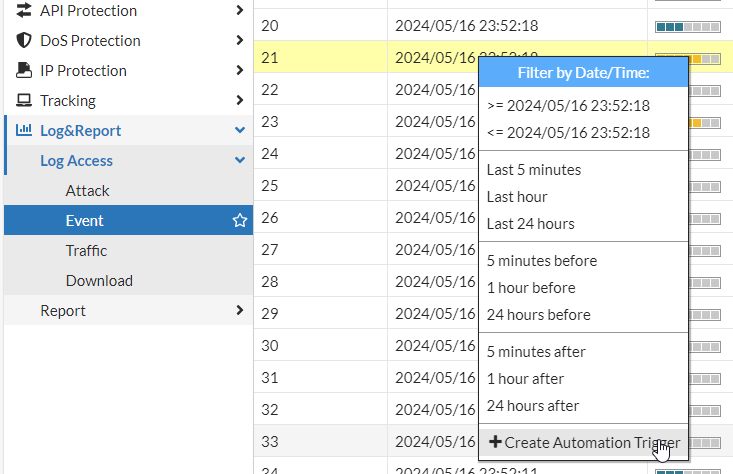
- Click OK.
Refer to Use case: Automatic IP banning for an example of the use case.