
Fortinet white logo
Fortinet white logo

Administration Guide

Use case: Blocking repeated attacks from an IP address

Use case: Blocking repeated attacks from an IP address

Scenario

An online store experiences a series of repeated attacks from specific IP addresses. The threat score of the client exceeds the threshold configured in Client Management.

How FortiWeb responses to this issue
  1. Trigger Detection: FortiWeb detects repeated attack attempts from certain IP addresses. A Client Management attack log is recorded in the system.
  2. Automated Response: The IP address is added to FortiWeb's Block IP List so that future requests from this IP address will be blocked.
  3. Notification: An alert is sent to the security team via Teams, highlighting the malicious activity.
  4. Review and Audit: A Jira ticket is created for the security team to review the incident and ensure no legitimate traffic was blocked.

This automation improves response time to threats and reduces manual intervention, ensuring your site remains secure and available to legitimate users.

Configurations on FortiWeb

Before performing the following steps, make sure:

Perform the following steps on FortiWeb:

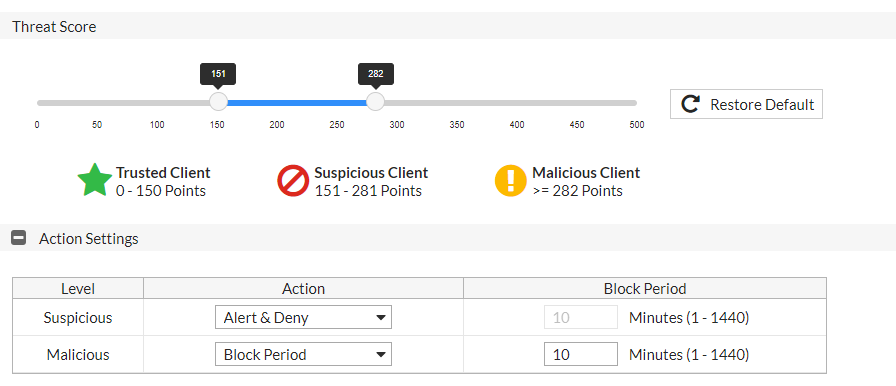
  1. Under Root ADOM, go to Policy > Client Management, and check whether the actions for Suspicious Client and Malicious Client are set to Alert&Deny or Block Period.
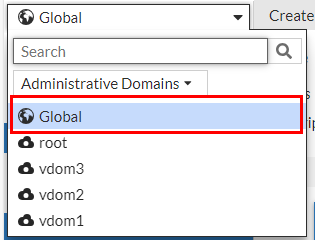
  2. Switch the Administrative Domain to Global.
  3. Go to Security Fabric > Automation.
  4. Select the Trigger tab.
  5. Click Create New.
  6. Select FortiWeb Log to filter out the Client Management logs, which means FortiWeb has detected repeated attacks from certain IP address.
  7. Configure the settings:
    Name

    Enter a name.

    Description

    Enter a description.

    EventClick the Add icon, enter "20000052" in the search box, then select the client management block event.
    Field Filter(s)

    This is optional. If you don't add any filters, all client management logs will serve as a trigger. However, if you apply filters, the logs will be further filtered to match the specified conditions.

    Filter 1:

    Field Name: Action

    Equal

    Value: Period_Block

    Filter 2:

    Field Name: Action

    Equal

    Value: Alert_Deny

  8. Click OK.
  9. Go to Security Fabric > Automation.
  10. Click Create New to create a CLI Script action that adds the malicious IP address to the Block IP list in FortiWeb.
  11. Select CLI Script.
  12. Enter a name and description.
  13. Enter the following command:
    config waf ip-list
      edit "from-automation"
        config  members
          edit 0
            set type black-ip
            set group-type ip-string
            set ip "%%log.srcip%%"
          next
        end
      next
    end
    show fu waf ip-list from-automation
  14. Click OK.
  15. Click Create New to create a Teams Notification action.
  16. Select Microsoft Teams Notification. Configure the settings:
    Name

    Enter a name.

    Description

    Enter a description.

    URLPaste the webhook URL you got from Teams.
  17. Please leave the "https://" out when you paste the URL because the system will automatically append "https://" to the URL you enter.
  18. Message TypeText
    Message

    FortiWeb has detected a malicious client. Refer to the following log:

    %%log%%

    The attack source %%log.srcip%% has been added to FortiWeb's IP list. Refer to the current configuration of IP List:

    %%results%%

    Please review the incident and ensure no legitimate traffic was blocked.

  19. Click OK.
  20. Click Create New to create a Jira notification action.
  21. Select Jira Notification. Configure the settings:
    Name

    Enter a name.

    Description

    Enter a description.

    AccountEnter the Jira account name. This account must have User Management Access privilege.

    Token

    Enter the API token.

    URL

    Enter the URL of your Jira account. Please leave the "https://" out when you paste the URL because the system will automatically append "https://" to the URL you enter.

    Message

    The Jira message body is slightly different from the Teams message as the %%results%% variable is omitted. This is due to the potential parsing errors that could arise if the outcome of the message contains paragraph tags such as Tab or Enter. Using %%results%% in this context is inappropriate as the output may contain these paragraph tags.

    {
      "fields": {
        "project": {
          "key": "KAN"
        },
        "summary": "FortiWeb Automation Notification",
        "description": {
          "type": "doc",
          "version": 1,
          "content": [
            {
              "type": "paragraph",
              "content": [
                {
                  "type": "text",
                  "text": "FortiWeb has detected a malicious client. Refer to the following log:\n%%log%%\nThe attack source %%log.srcip%% has been added to FortiWeb's IP list. Refer to the current configuration of IP List:%%results%%
    .\nPlease review the incident and ensure no legitimate traffic was blocked."
                }
              ]
            }
          ]
        },
        "issuetype": {
          "name": "Task"
        }
      }
    }
  22. Click OK.
  23. Select the Stitch tab.
  24. Enter a name and brief description for this stitch. Enable the status.
  25. Click Add Trigger, select the FortiWeb Log trigger, then click Apply.
  26. Click Add Action, select the CLI Script action you just created, then click Apply.
  27. Click Add Action, select the Microsoft Teams Notification action you just created, then click Apply.
  28. Click Add Action, select the Jira Notification action you just created, then click Apply.
  29. Click OK.

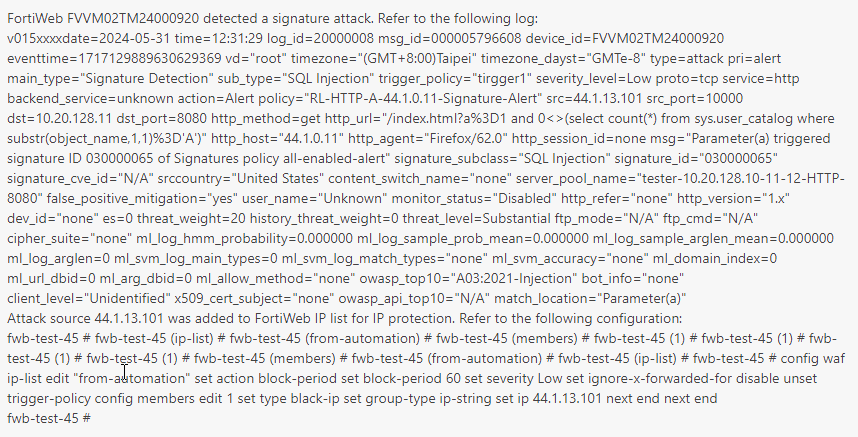
When this automation stitch is triggered, the CLI script will run to add the malicious IP to FortiWeb's block IP list. You will receive the following message in Microsoft Teams and Jira. Please note that the following is just an example and may not correspond exactly to the messages configured for this use case.
Related Videos

sidebar video

FortiWeb: Automation Stitches Blocking Repeated Attacks from an IP Address

  • 461 views
  • 1 years ago

Use case: Blocking repeated attacks from an IP address

Use case: Blocking repeated attacks from an IP address

Scenario

An online store experiences a series of repeated attacks from specific IP addresses. The threat score of the client exceeds the threshold configured in Client Management.

How FortiWeb responses to this issue
  1. Trigger Detection: FortiWeb detects repeated attack attempts from certain IP addresses. A Client Management attack log is recorded in the system.
  2. Automated Response: The IP address is added to FortiWeb's Block IP List so that future requests from this IP address will be blocked.
  3. Notification: An alert is sent to the security team via Teams, highlighting the malicious activity.
  4. Review and Audit: A Jira ticket is created for the security team to review the incident and ensure no legitimate traffic was blocked.

This automation improves response time to threats and reduces manual intervention, ensuring your site remains secure and available to legitimate users.

Configurations on FortiWeb

Before performing the following steps, make sure:

Perform the following steps on FortiWeb:

  1. Under Root ADOM, go to Policy > Client Management, and check whether the actions for Suspicious Client and Malicious Client are set to Alert&Deny or Block Period.
  2. Switch the Administrative Domain to Global.
  3. Go to Security Fabric > Automation.
  4. Select the Trigger tab.
  5. Click Create New.
  6. Select FortiWeb Log to filter out the Client Management logs, which means FortiWeb has detected repeated attacks from certain IP address.
  7. Configure the settings:
    Name

    Enter a name.

    Description

    Enter a description.

    EventClick the Add icon, enter "20000052" in the search box, then select the client management block event.
    Field Filter(s)

    This is optional. If you don't add any filters, all client management logs will serve as a trigger. However, if you apply filters, the logs will be further filtered to match the specified conditions.

    Filter 1:

    Field Name: Action

    Equal

    Value: Period_Block

    Filter 2:

    Field Name: Action

    Equal

    Value: Alert_Deny

  8. Click OK.
  9. Go to Security Fabric > Automation.
  10. Click Create New to create a CLI Script action that adds the malicious IP address to the Block IP list in FortiWeb.
  11. Select CLI Script.
  12. Enter a name and description.
  13. Enter the following command:
    config waf ip-list
      edit "from-automation"
        config  members
          edit 0
            set type black-ip
            set group-type ip-string
            set ip "%%log.srcip%%"
          next
        end
      next
    end
    show fu waf ip-list from-automation
  14. Click OK.
  15. Click Create New to create a Teams Notification action.
  16. Select Microsoft Teams Notification. Configure the settings:
    Name

    Enter a name.

    Description

    Enter a description.

    URLPaste the webhook URL you got from Teams.
  17. Please leave the "https://" out when you paste the URL because the system will automatically append "https://" to the URL you enter.
  18. Message TypeText
    Message

    FortiWeb has detected a malicious client. Refer to the following log:

    %%log%%

    The attack source %%log.srcip%% has been added to FortiWeb's IP list. Refer to the current configuration of IP List:

    %%results%%

    Please review the incident and ensure no legitimate traffic was blocked.

  19. Click OK.
  20. Click Create New to create a Jira notification action.
  21. Select Jira Notification. Configure the settings:
    Name

    Enter a name.

    Description

    Enter a description.

    AccountEnter the Jira account name. This account must have User Management Access privilege.

    Token

    Enter the API token.

    URL

    Enter the URL of your Jira account. Please leave the "https://" out when you paste the URL because the system will automatically append "https://" to the URL you enter.

    Message

    The Jira message body is slightly different from the Teams message as the %%results%% variable is omitted. This is due to the potential parsing errors that could arise if the outcome of the message contains paragraph tags such as Tab or Enter. Using %%results%% in this context is inappropriate as the output may contain these paragraph tags.

    {
      "fields": {
        "project": {
          "key": "KAN"
        },
        "summary": "FortiWeb Automation Notification",
        "description": {
          "type": "doc",
          "version": 1,
          "content": [
            {
              "type": "paragraph",
              "content": [
                {
                  "type": "text",
                  "text": "FortiWeb has detected a malicious client. Refer to the following log:\n%%log%%\nThe attack source %%log.srcip%% has been added to FortiWeb's IP list. Refer to the current configuration of IP List:%%results%%
    .\nPlease review the incident and ensure no legitimate traffic was blocked."
                }
              ]
            }
          ]
        },
        "issuetype": {
          "name": "Task"
        }
      }
    }
  22. Click OK.
  23. Select the Stitch tab.
  24. Enter a name and brief description for this stitch. Enable the status.
  25. Click Add Trigger, select the FortiWeb Log trigger, then click Apply.
  26. Click Add Action, select the CLI Script action you just created, then click Apply.
  27. Click Add Action, select the Microsoft Teams Notification action you just created, then click Apply.
  28. Click Add Action, select the Jira Notification action you just created, then click Apply.
  29. Click OK.

When this automation stitch is triggered, the CLI script will run to add the malicious IP to FortiWeb's block IP list. You will receive the following message in Microsoft Teams and Jira. Please note that the following is just an example and may not correspond exactly to the messages configured for this use case.