

Fortinet Automation Service
The Fortinet Automation Service integration streamlines and automates security operations within FortiNDR Cloud. This service enables security teams to execute predefined playbooks that perform specific actions based on connector configurations and conditional logic. A playbook can range from a simple API call to a complex, multi-step process involving several queries. Users can trigger playbooks without needing to understand the underlying logic, allowing them to focus on the intended outcome rather than the implementation details. This service enhances operational efficiency by simplifying tasks such as isolating devices, retrieving deployment network details, and executing other automated actions.
FortiNDR Essentials Solution Pack
The FortiNDR Essentials Solution Pack provides a set of automation playbooks that simplify incident response and security operations across multiple connectors. It connects with Fortinet products to perform common tasks automatically. These tasks include retrieving endpoint and agent details, isolating or restoring network connectivity for compromised systems, and managing IP blocks on firewalls.
The latest version of the service pack is downloaded to your account when the automation service is provisioned. Service pack updates must be applied manually. To view the contents of the latest solution pack, see Solution pack versions.

|
The Fortinet Automation Service is based on the FortSOAR platform. Fortinet will regularly release solution packs that include updated connectors and new playbooks. To request any new connectors and actions, please contact your designated TSM or log a support ticket. |
Getting started with the Fortinet Automation Service
Follow these steps to begin using the Fortinet Automation Service:
|
Task |
Description |
|---|---|
| Provision the service |
Contact your TSM to provision the service. |
| Install the Local Agent (if needed) |
Only one agent is needed for all integrations within the same network. |
| Configure the connectors | Set up the connectors you intend to use. |
| Run the playbooks | Once the connectors are configured, related playbooks will appear in the Entity Panel. |
Provisioning the service
When the Fortinet Automation Service is provisioned, the FortiNDR Essentials Solution Pack is installed automatically. This service pack contains both connectors and playbooks.
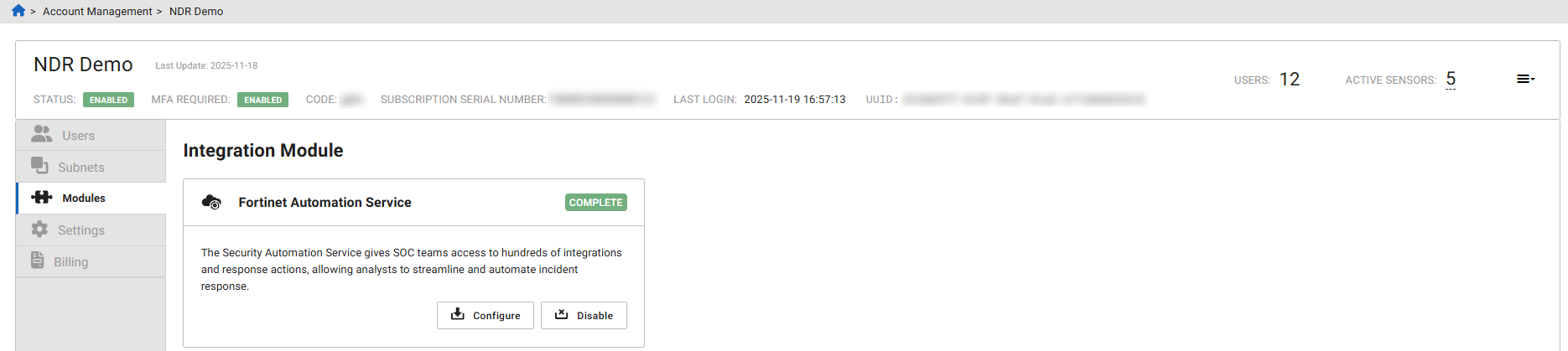
Log into the FortiNDR Cloud portal and go to Account Management > Modules. The Fortinet Automation Service module will appear near the top of the page.
If you have purchased the module but do not see it listed, please contact your account team or TSM.
Installing the agent
The Fortinet Automation Service agent is a lightweight software component deployed within your environment. Its primary role is to facilitate secure communication between FortiNDR Cloud and the target systems or infrastructure. Agents execute playbook actions locally, such as running scripts, collecting data, or interacting with third-party tools, based on instructions received from the automation service. This allows for real-time automation while maintaining control and visibility within your network.
Only one agent is needed for all integrations within the same network.
- If you plan to use on-premise integrations, install the local agent.
-
Cloud-only integrations do not require a local agent; they use a Cloud agent.
|
Connector |
Agent Required |
|---|---|
|
FortiClientEMS |
Yes |
| FortiDeceptor |
Yes |
| FortiEDR |
No |
|
FortiGate |
Yes |
|
FortiProxy |
Yes |
| SentinelOne |
No |
|
|
Connectors should only be installed on a single agent. The automation service does not support using both cloud and on‑premises agents with the same connector. |
Recommended resource requirements
- 1 GB RAM
- 1 vCPU
- 16 GB of available disk space
- Rocky Linux 9.3/9.4/9.5 or Red Hat Enterprise Linux (RHEL) Server 9.3/9.4/9.5.
Agent requirements
- Ensure that
repo.fortisoar.fortinet.comis reachable or resolvable from the VM where you plan to install the agent. - Ensure that the device where you plan to install the agent has outbound access to FortiNDR Cloud on ports 443 and 5671.
- Ensure connectivity to the RabbitMQ server.
To install the automation service agent:
- Click the gear icon at the top-right of the portal and select Account Management.
- Click Modules. The Modules page opens.
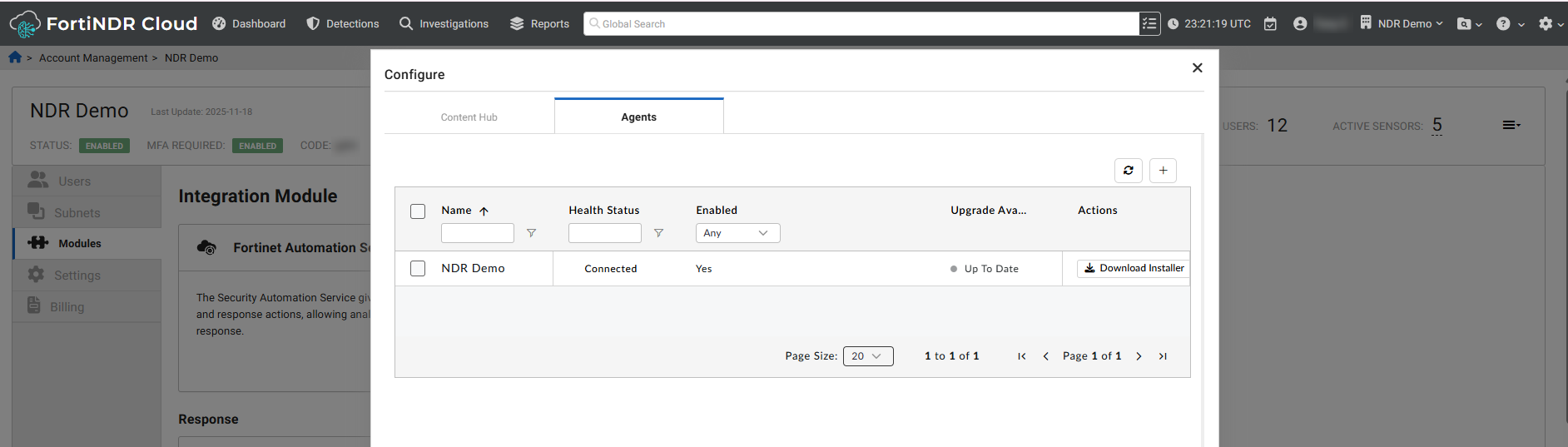
- In the Fortinet Automation Service module, click Configure.
- Click the Agents tab.
- On the Agents page, click Create New agent.
- Click Download Installer.
- Choose the connectors you want to include while installing the Agent. You can choose from the following options:
- Do not install connectors by default
- Custom
- All connectors installed on the current node
- Include pre-existing connectors on agent
- Set the Installer type to Bash Script.
- Copy the downloaded installer script on the Agent device.
- Run the installer script to install the Agent.
Troubleshooting agent installation
Incorrect installed connector list displayed after reconfiguring the Agent on a new VM
When reconfiguring an existing Agent on a new device, the connector list from the previous agent may incorrectly be displayed on the new Agent. This occurs when the Do not install connector by default option is selected during reconfiguration.
Resolution
To resolve this, select the Include pre-existing connectors on Agent option when reconfiguring the agent on the new VM.
Installing and configuring connectors
A connector allows the FortiNDR Cloud to interact with external systems, applications, or endpoints. It executes specific actions such as data collection, enrichment, or remediation as part of automated workflows that are triggered by playbooks and depend on network connectivity to the target systems.
To install and configure a connector:
- Click the gear icon at the top-right of the portal and select Account Management.
- Click Modules.
- In the Fortinet Security Automation Service module, click Configure.
-
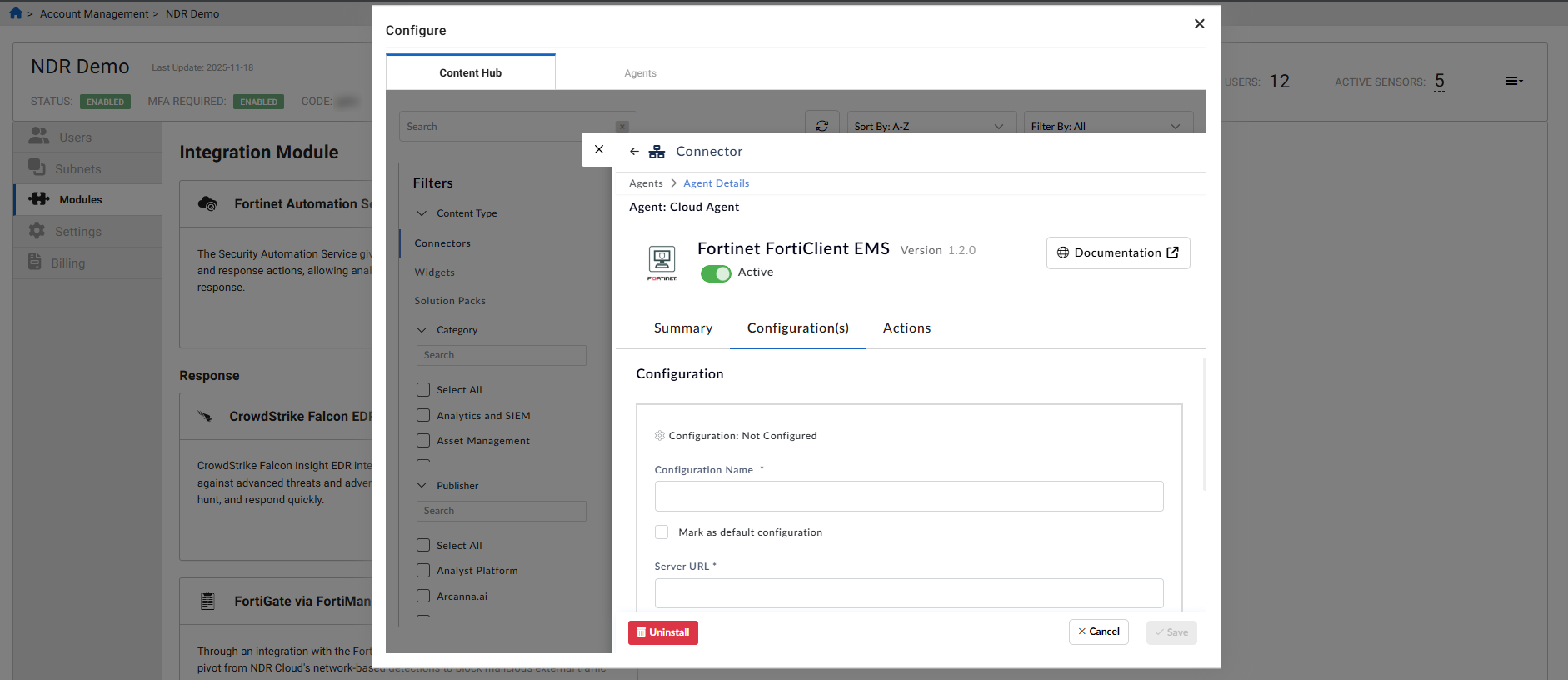
In the Content Hub tab, click the connector that you want to install.
-
In the Connector pop-up, click Install.
- In the Confirmation dialog, click Yes, Confirm. If successful, a confirmation message appears and the Configuration(s) tab opens.
- Configure the required fields for the connector and click Save.
When configuring a connector, make sure to set the configuration you want to use as Mark as default configuration. You can create multiple configurations, but only the default configuration will be used to run playbooks.

|
For detailed information to configure the connector, click the Documentation button. |
Running playbooks
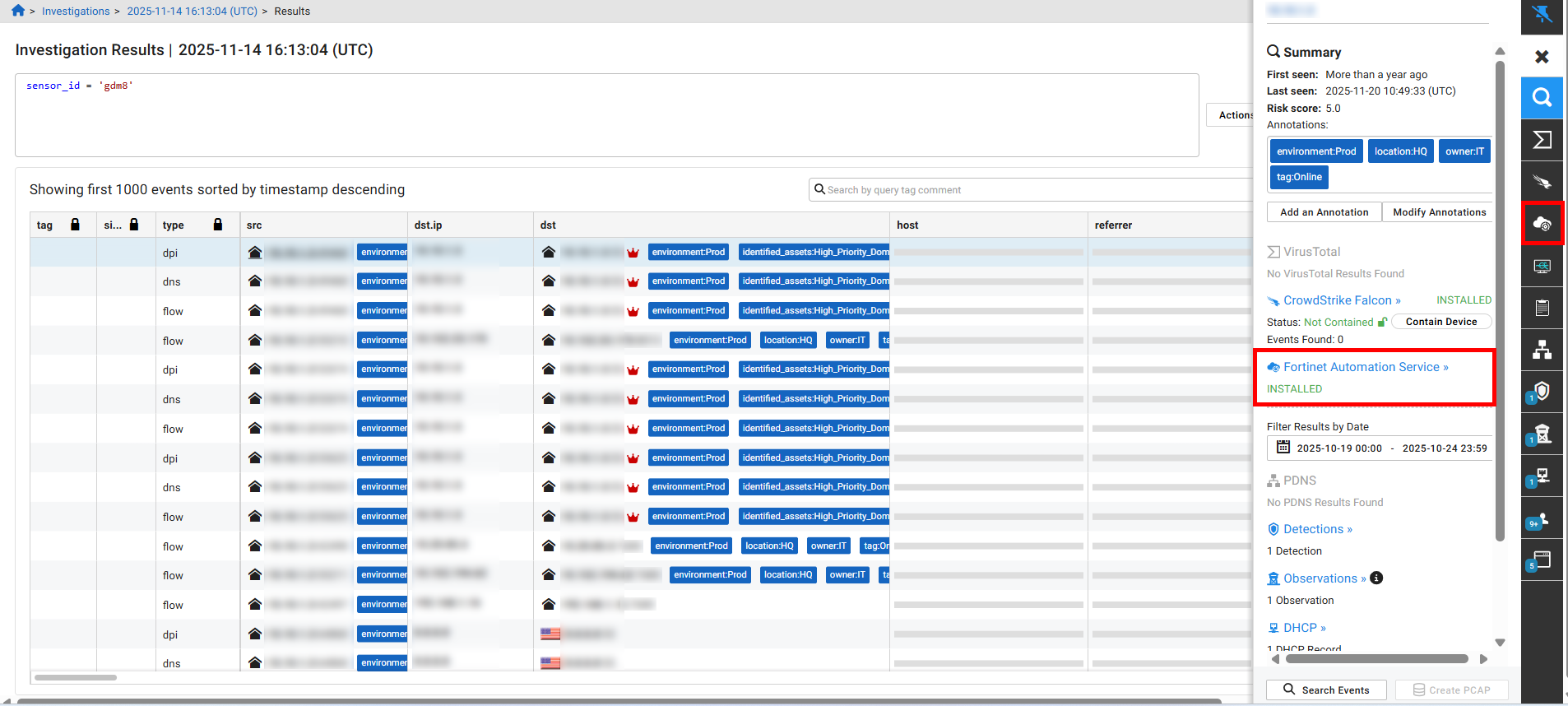
Playbooks are executed from the Entity Panel. When the Fortinet Automation Service is enabled, a link and a corresponding tab will appear in the Entity Panel, allowing you to access and execute playbooks.
The following playbooks are available:
|
Connector |
Playbook |
Description |
|---|---|---|
|
FortiClientEMS
|
Get Endpoint Details via FortiClient |
Show information the FortiClientEMS has on the endpoint, including user information, security posture and configuration. |
|
Quarantine Endpoint via FortiClient |
Block all network traffic to or from the endpoint via FortiClientEMS. |
|
|
Unquarantine Endpoints via FortiClient |
Restore network connectivity to and from the endpoint via FortiClientEMS. |
|
| FortiDeceptor | Show All FortiDeceptor Decoys |
Get details on all decoys from FortiDeceptor. |
| FortiEDR
|
Get Collector Details from FortiEDR |
Get Collector details from FortiEDR including user details, discovered assets and vulnerabilities. |
| Unisolate Collector via FortiEDR |
Restore normal network connectivity for the endpoint using FortiEDR. |
|
|
Isolate Collector via FortiEDR |
Restrict the endpoint from accessing the internet via FortiEDR. |
|
|
FortiGate
|
Unblock IP address on FortiGate |
Unblocks IP address on Fortinet FortiGate and removes IP from the banned IP list. |
|
Block IP address on FortiGate |
Blocks IP address on Fortinet FortiGate by Quarantine based and adds IP into the banned IP list. |
|
|
FortiProxy |
Ban User by IP |
Bans IP address on Fortinet FortiProxy and adds IP into the banned users by IP list. |
|
|
Unban User by IP |
Unbans IP address on Fortinet FortiProxy and removes IP from the banned users IP list. |
|
SentinelOne
|
Reconnect Agent via SentinelOne |
Restore normal network connectivity for the agent using SentinelOne (reconnect agent). |
|
Disconnect Agent via SentinelOne |
Restrict the agent from accessing the internet via SentinelOne (isolate agent). |
|
|
Get Agent Details from SentinelOne |
Show the information from SentinelOne including agent information, security posture, and configuration. |
To run a playbook:
-
Open the Entity Panel by doing one of the following:
- Click any entity (such as an IP address) anywhere in the portal.
- Click an IP address in the detector details tabs.
- Click View Device Details in the Actions menu.
- Click a device IP in the High Risk Devices dashboard widget.
- Click the IP label on the Detections Device Timeline.
- In the Entity Panel, click the Fortinet Automation Service link or tab. The Playbook List opens.
- For information about the playbook, hover over the information icon (
i). - Click the View icons to view the playbooks as a list or categories.
- Enter a keyword in the Search field to find a playbook by name.
- Click the filter icon to filter based on a tag.
Open the Entity Panel by doing one of the following:
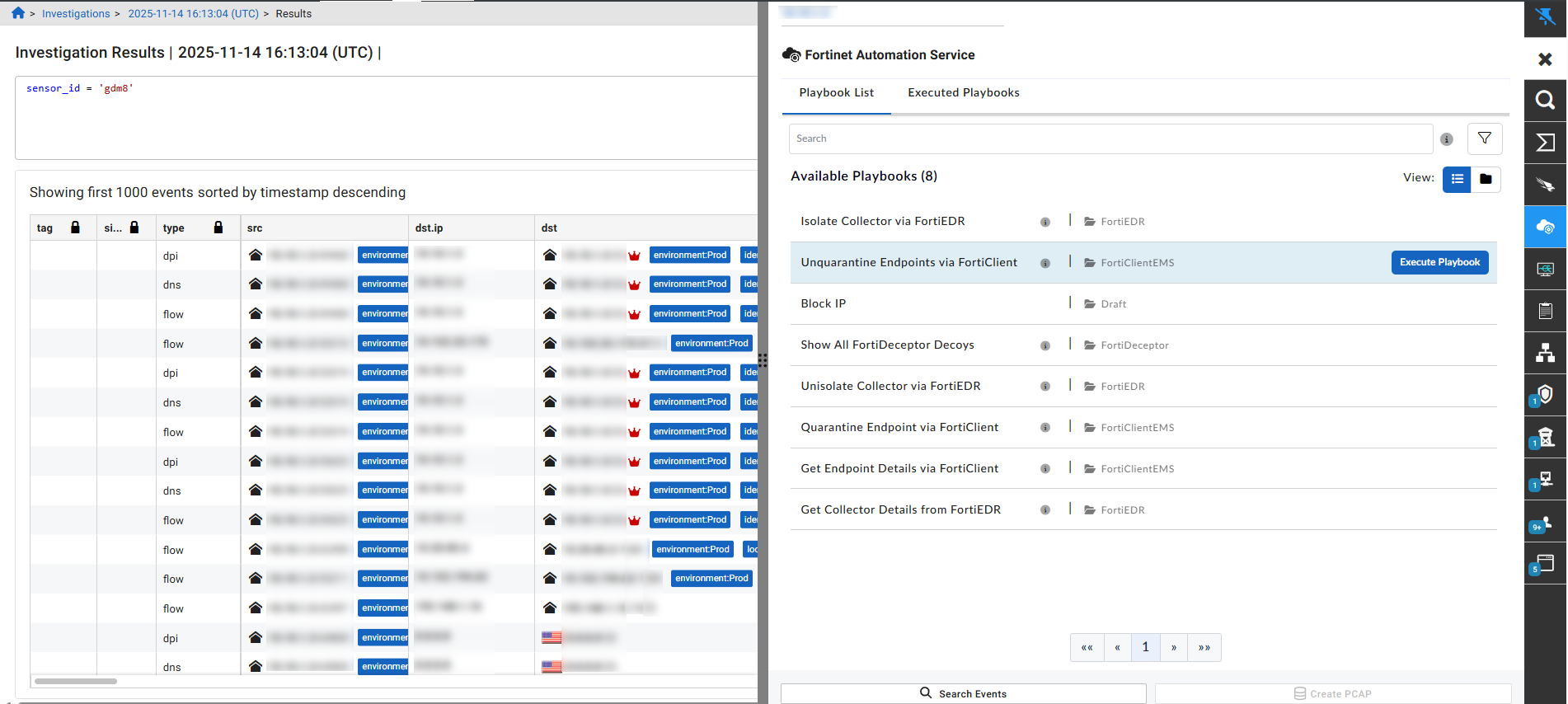
- For information about the playbook, hover over the information icon (
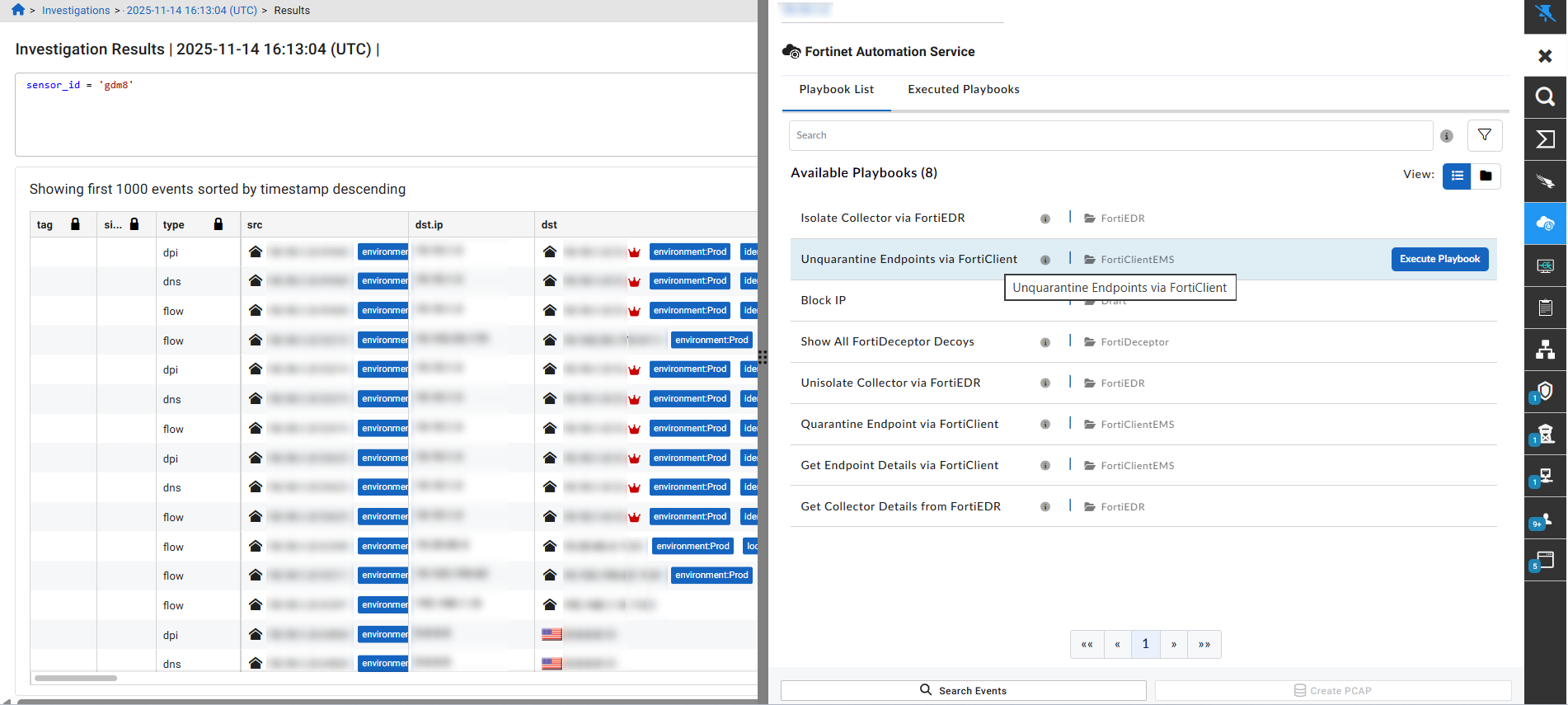
- Hover over the playbook and click Execute Playbook.
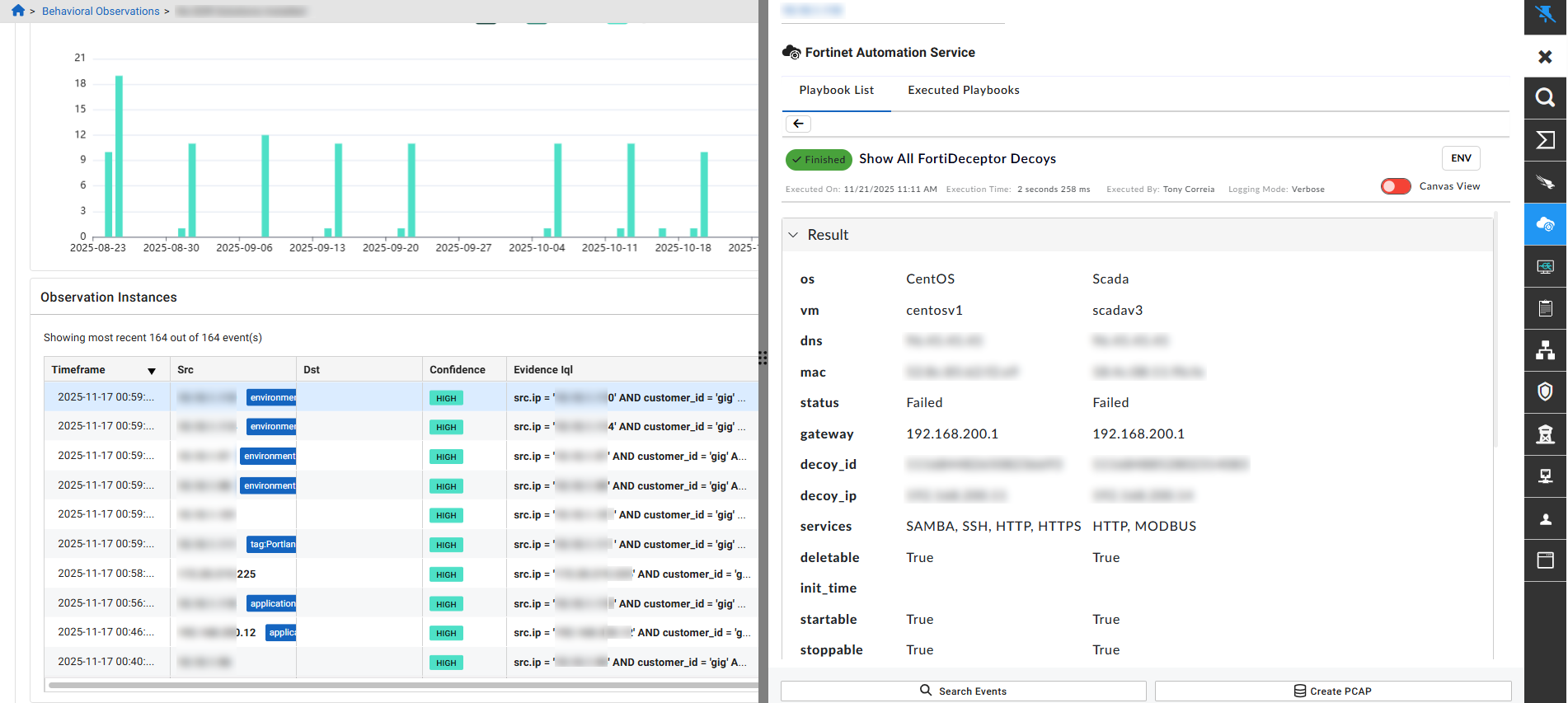
After the playbook is executed the results are displayed.
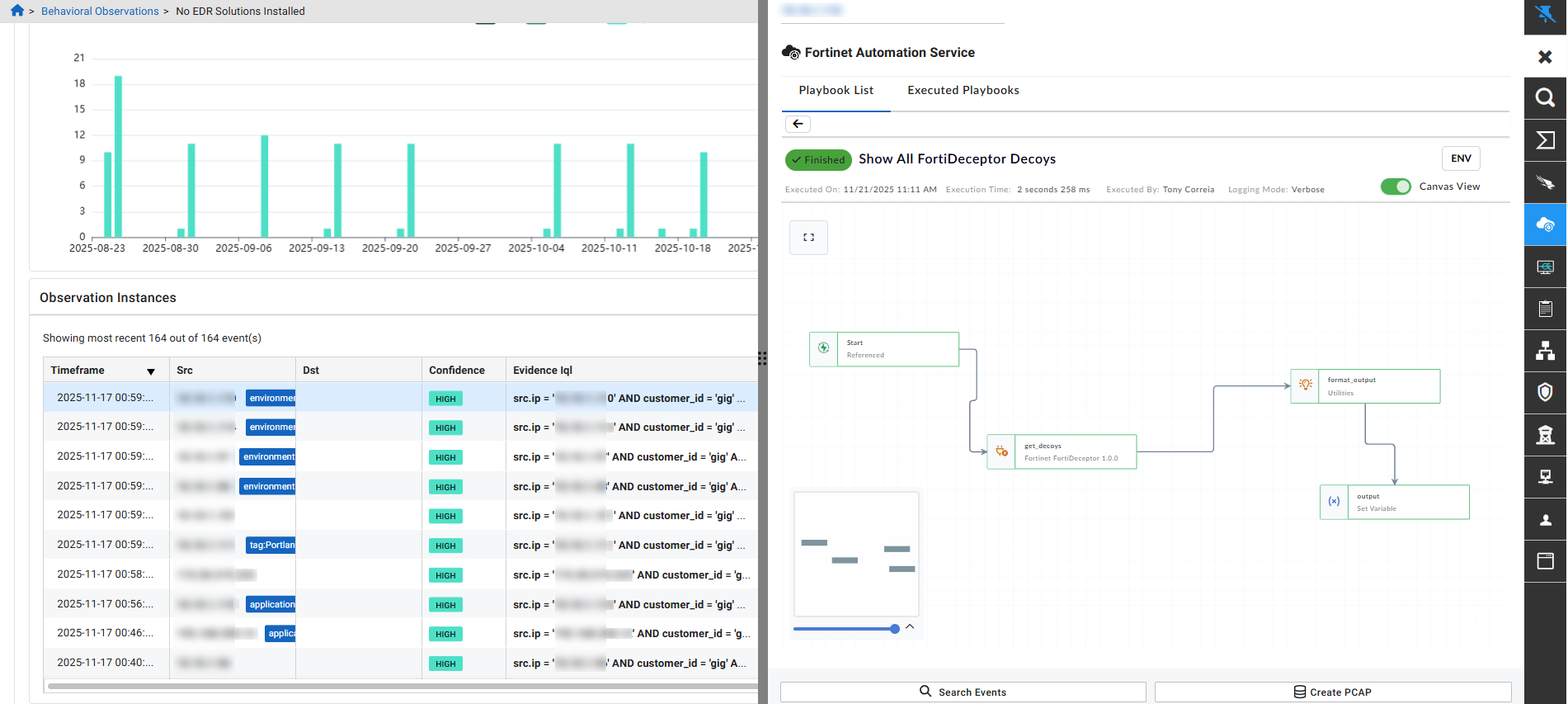
Enable Canvas View to visualize playbook actions as a topology.
Solution pack versions
| Solution Pack Version | Connectors and Playbooks |
|---|---|
| 1.0.0 | FortiClientEMS, FortiEDR, FortiDeceptor |
| 1.0.1 | FortiClientEMS, FortiEDR, FortiDeceptor, FortiGate, Sentinel One |
|
1.0.2 |
FortiClientEMS, FortiEDR, FortiDeceptor, FortiGate, FortiProxy, Sentinel One |