
Fortinet white logo
Fortinet white logo

User Guide

Response configuration

Response configuration

The Response Configuration feature allows you to automatically ban an IP address when a high-severity and high-confidence detection occurs.

Note

Automated integration response is available for FortiEDR, CrowdStrike Falcon EDR and FortiGate via FortiManager at this time. Only a single integration can be set to Auto-Remediate at a time. Other integrations may be configured, but must be set up to respond manually.

To enable automated response configuration:
  1. Go to Detections > Response Configuration. The Integration Response Configuration dialog opens.
  2. In the Action column, click Edit next to the integration.
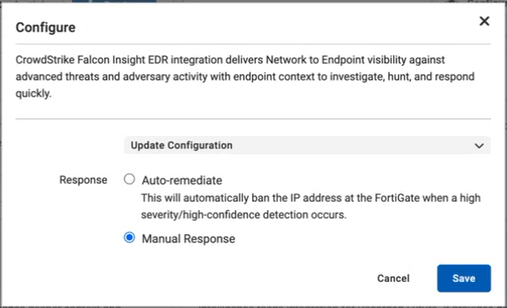
  3. In the Configure dialog, select Auto-remediate and click Save.
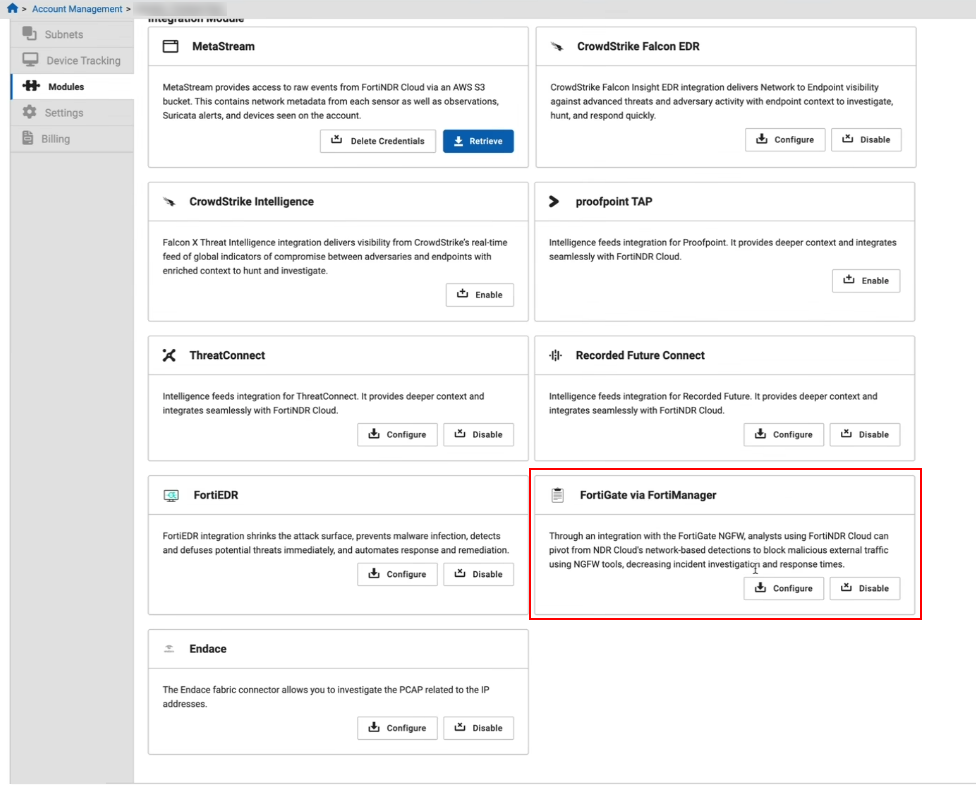
    You can also enable Response Configuration in the Account Management > Modules page by clicking Configure in the integration's tile.
Response configuration

Response configuration

The Response Configuration feature allows you to automatically ban an IP address when a high-severity and high-confidence detection occurs.

Note

Automated integration response is available for FortiEDR, CrowdStrike Falcon EDR and FortiGate via FortiManager at this time. Only a single integration can be set to Auto-Remediate at a time. Other integrations may be configured, but must be set up to respond manually.

To enable automated response configuration:
  1. Go to Detections > Response Configuration. The Integration Response Configuration dialog opens.
  2. In the Action column, click Edit next to the integration.
  3. In the Configure dialog, select Auto-remediate and click Save.

    You can also enable Response Configuration in the Account Management > Modules page by clicking Configure in the integration's tile.