

Guided queries
Use Guided Queries to start a new investigation, add queries to expand upon an existing one, or run event queries. The pre-defined queries on this page have been created by FortiGuard Labs with a focus on identifying potential security vulnerabilities or suspicious activities within a network.
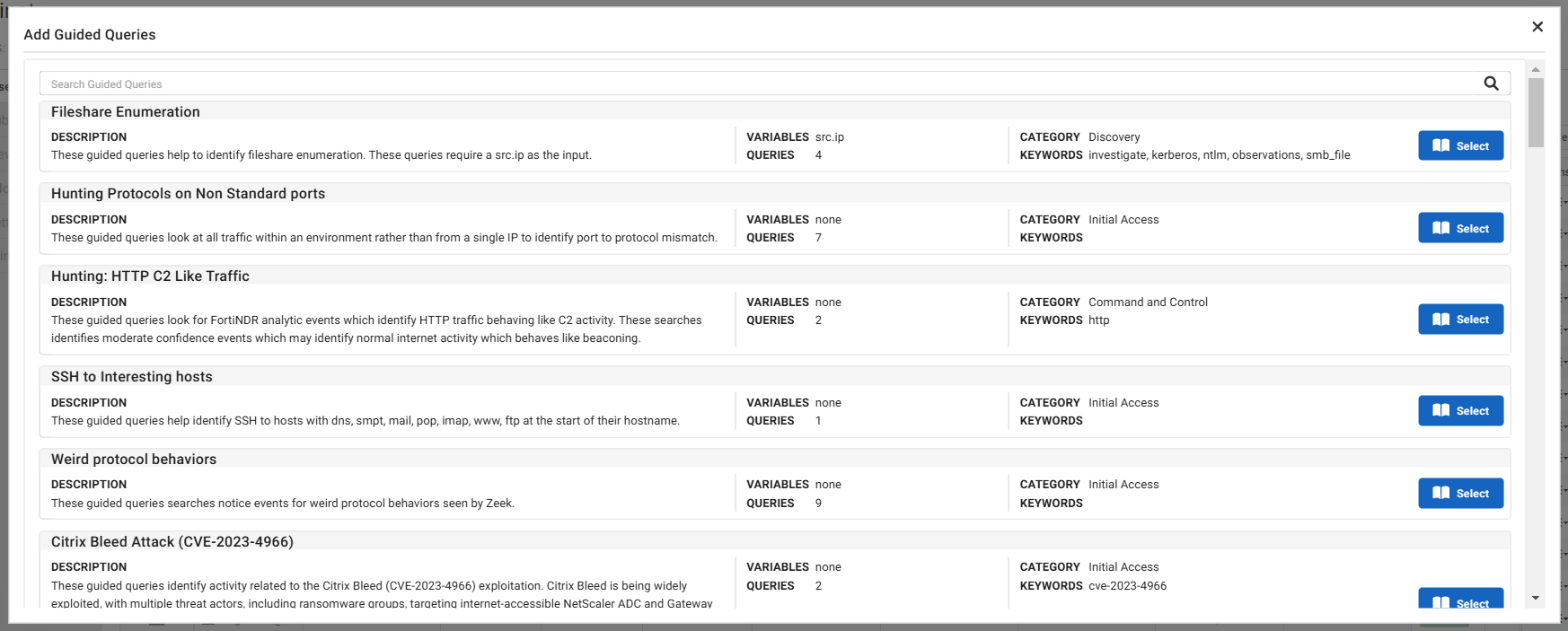
To run a guided query:
- Go to Investigations > Guided Queries.
- Scroll through the list of guided queries, or use the search field to find a query by keyword. Click Select. The query details page opens.

If this is your first query, we suggest running the query named Example Hunt to start.
- Configure the query settings:
Date range Use the date picker to configure the date range. Enable Facets Select to return the panel that allows narrowing the search. This may make the query longer to complete. For more information, see Facet Search. Variables Enter the required variable(s) for the queries. Multiple variables are supported.
Values can be entered either as:
Individual items, followed by the tab or enter key. The value appears as a pill that can then be deleted, if required.
Bulk indicator icon. This brings up an entry screen. Pasting the text is supported. After pressing the button, FortiNDR Cloud extracts the applicable indicators from the text and adds them as variables. You can also delete the unneeded variables.
Create a New Investigation Select this option to create a new investigation. Enter the Investigation Name and Description.
The default name for new investigations is the first and last name of the user creating the investigation as well as a date stamp of when the investigation was created.
Add to Existing Investigation
From the Choose Investigation dropdown, select and investigation.
Not all guided queries use variables.
- (Optional) In the Investigation Name field, enter a unique name for the query.
- Click Run Guided Queries. The query starts to run.
- After the query has run, go to Investigations and click the query name. The Investigation details page opens.
- Click View Results. The query results are displayed.