

Using FortiManager as a local FortiGuard server
FortiManager can provide a local FortiGuard server with port 443 access.
Anycast FortiGuard settings force the rating process to use port 443, even with an override server. Using a unique address in the same subnet as the FortiManager access IP address, the FortiManager can provide local FortiGuard updates and rating access with a dedicated IP address and port 443.
To use a FortiManager as a local FortiGuard server in the GUI:
-
Go to System > FortiGuard
-
In the Override FortiGuard Servers table, click Create New. The Create New Override FortiGuard Server pane opens.
-
Select the server address type: IPv4, IPv6, or FQDN.
-
Enter the FortiManager address in the Address field.
-
Select the type of server: AntiVirus & IPS Updates, Filtering, or Both.
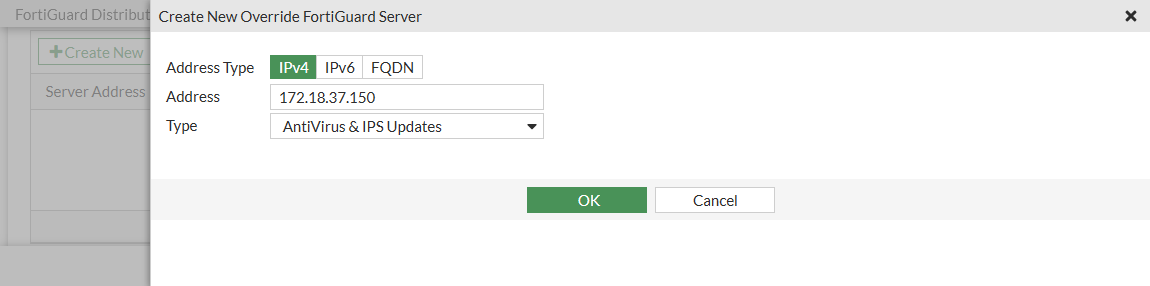
-
Click OK.
-
Click Create New again to add a second override FortiManager for filtering.
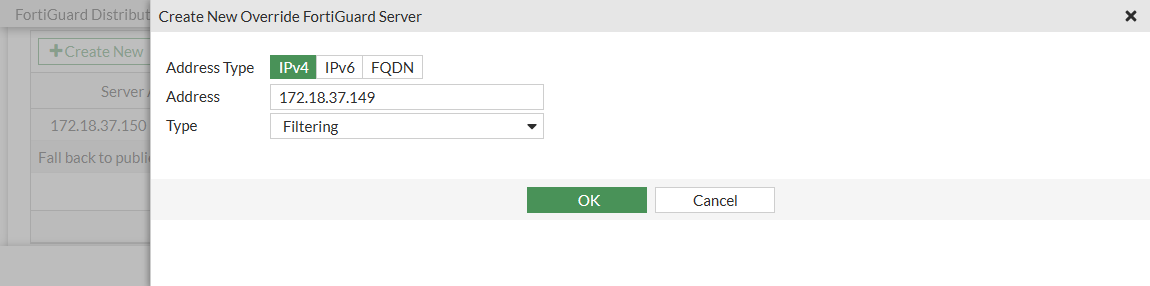
-
Click OK, then click Apply.
To use a FortiManager as a local FortiGuard server in the CLI:
config system central-management
    set type fortimanager
    set fmg "172.18.37.148"
    config server-list
        edit 1
            set server-type update
            set server-address 172.18.37.150
        next
        edit 2
            set server-type rating
            set server-address 172.18.37.149
        next
    end
    set fmg-update-port 443
    set include-default-servers enable
end
When fmg-update-port is set to 443, the update process will use port 443 to connect to the override update server, which is the local FortiGuard server in the FortiManager. If this is not set, the update process will use port 8890, and the server address setting has to be the FortiManager access IP address. Override FortiGuard services come from the server list that is the local FortiGuard server in the FortiManager, and use the traditional, non-OCSP TLS handshake. If override servers in the FortiManager are not available, the default FortiGuard servers are connected, and the anycast OCSP TLS handshake is used.