

Microsoft Teams
Microsoft Teams is a group collaboration tool that Microsoft recent released that is similar in nature to Slack and HipChat. Like other collaboration tools, it is most effective to have all of your alerts sent to Teams in order to stay up to date on infrastructure performance.
To set up the integration, you need to do the following:
-
At the minimum, a Microsoft Teams Essential package.
-
Add a Workflow to a Teams channel.
-
Set up the integration in FortiMonitor.
These procedures are detailed in their respective sections below.
Add a Workflow to a Teams channel
-
Login to your Microsoft Teams application.
-
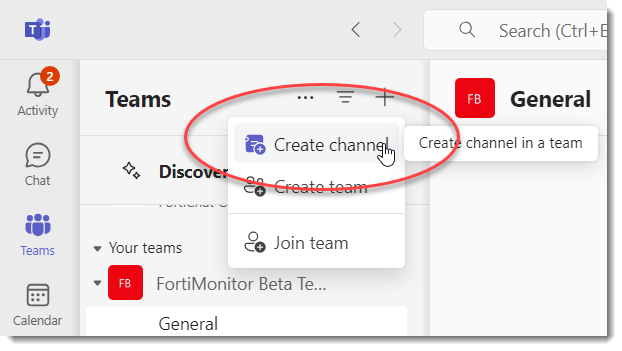
Create a new Channel where you want to receive notifications.
-
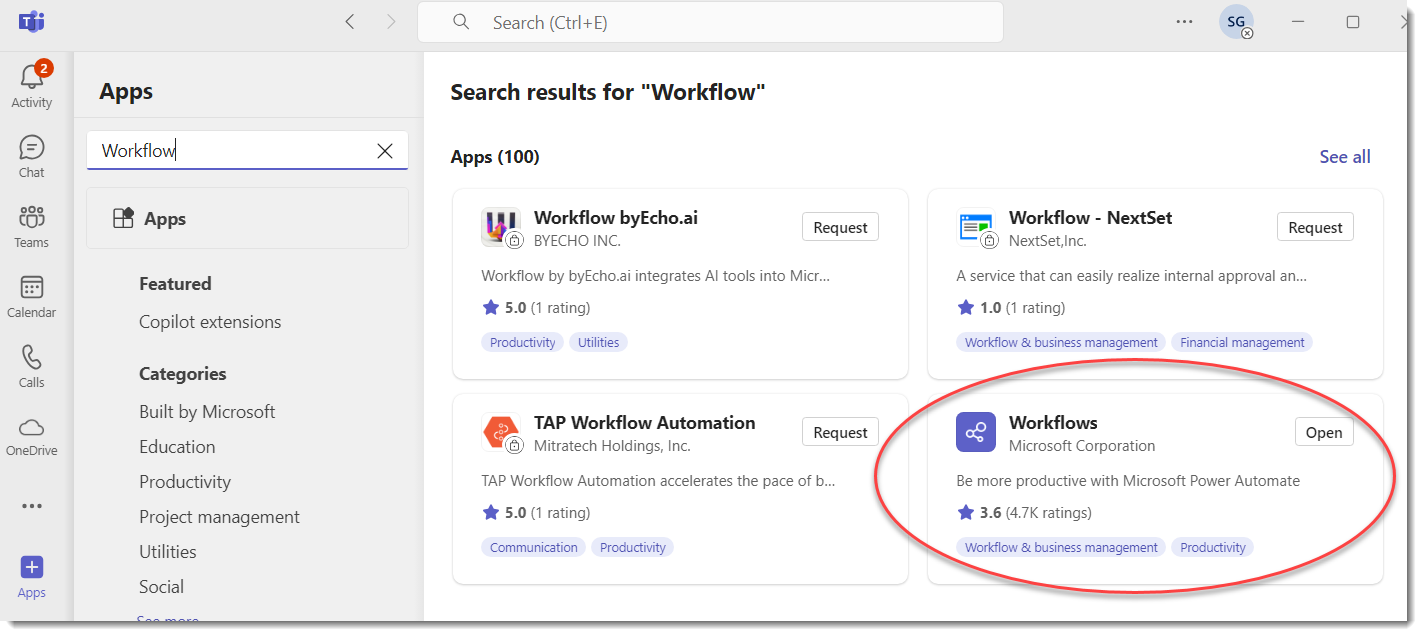
Go to Apps and search for Workflow.
-
Click the Workflows app card and select Add. If is already added, the button on the card will be Open.
-
Go back to the new channel then click on the 3-dot menu.
-
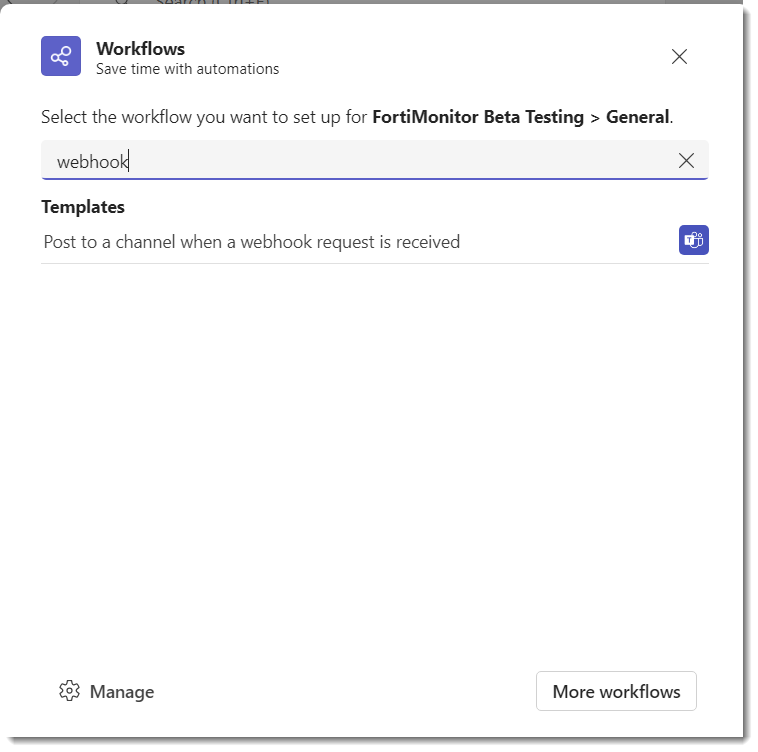
Search for webhook in the dialog that pops up.
-
Select Post to a channel when a webhook request is received.
-
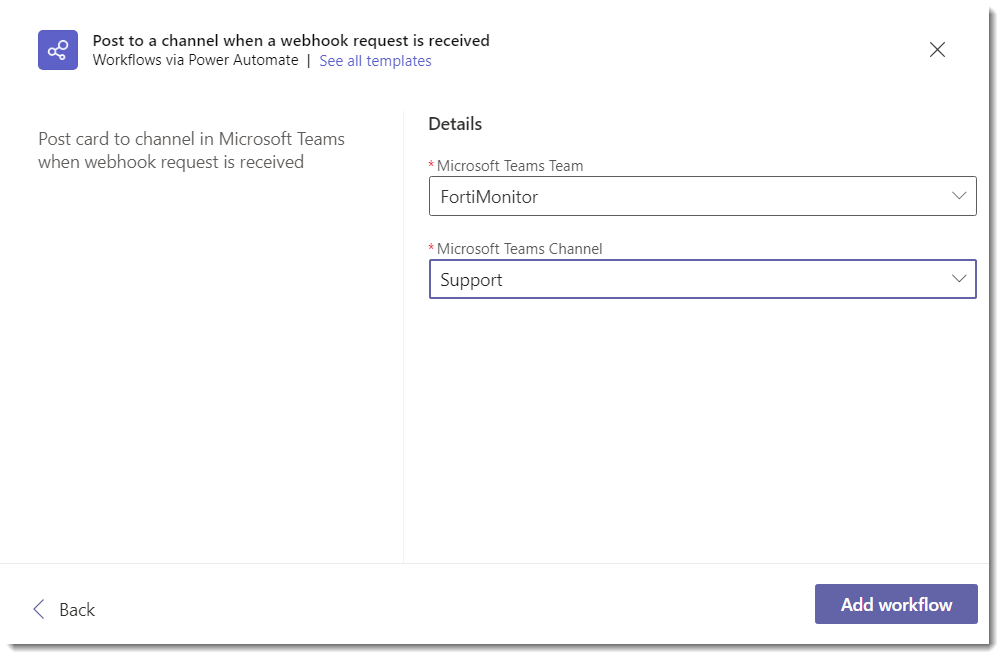
Click Next on the dialog. You now have the option to select where you want to receive notification.
-
Click the Add Workflow button.
-
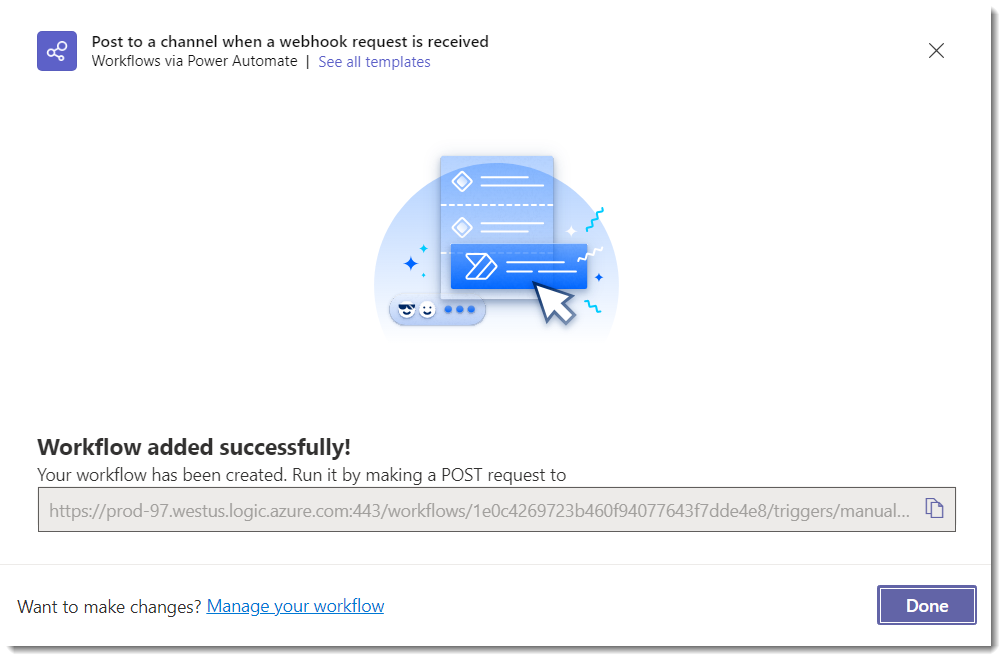
After adding the Workflow, a new URL is displayed. Save this URL for later.
Set up the integration in FortiMonitor
After configuring Teams, continue setting up the integration in FortiMonitor.
-
Log in to FortiMonitor.
-
From the navigation menu, select Teams & Activity> Integrations.
-
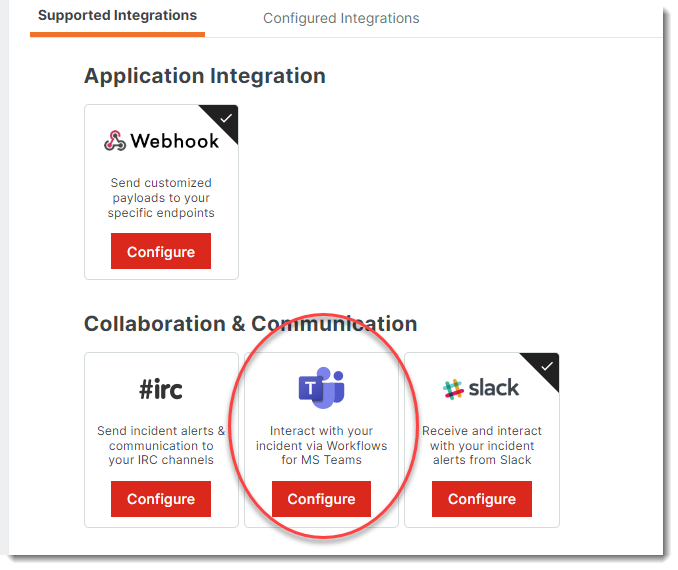
Locate the Teams card then click Configure.
-
Configure your Teams integration. The configuration options are detailed in the following table:
|
Field |
Description |
|---|---|
|
Title |
Enter a name for the MS Teams integration. |
|
Webhook URL |
URL generated from MS Teams that will allow you to send alerts to an MS Teams channel. Enter the copied URL from Teams in this field. |
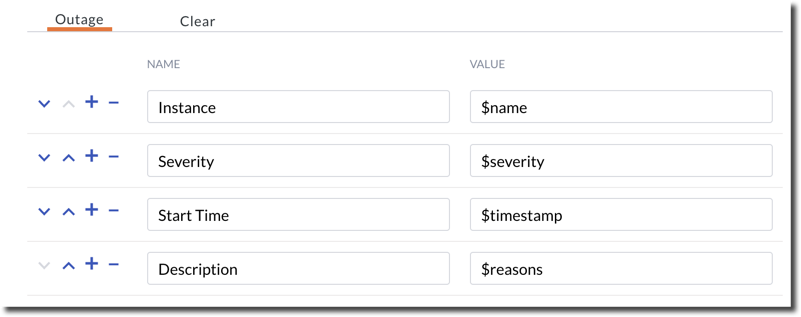
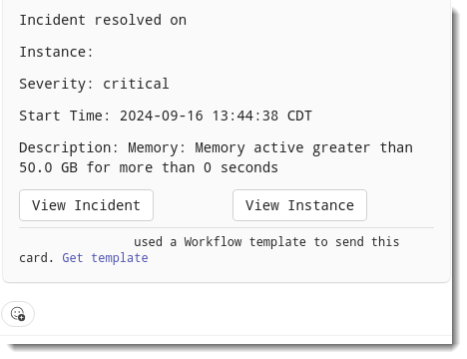
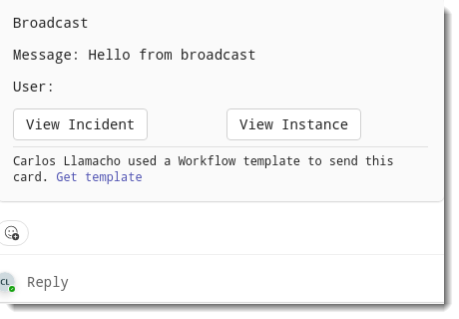
5. Customize the MS Teams Outage and Clear incident cards. These are the messages that will be posted to the channel when an incident is detected or is resolved. The parameters you can use are detailed in the following sections.
The following parameters are preconfigured by default:
6. Select Save.
7. Go to the Configured Integrations tab to verify your Teams integration.
8. To set up notifications, configure the integration's Alert Timeline and add MS Teams to the timeline.
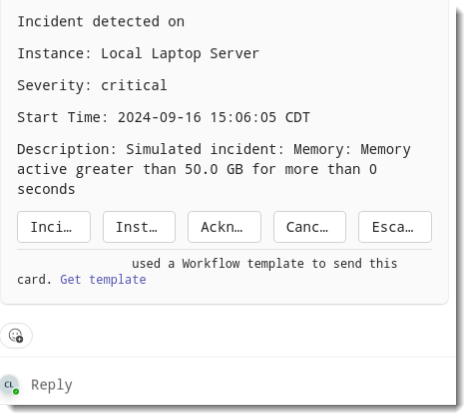
MS Teams incident card examples
Incident is detected
Incident is resolved
Broadcast
Parameters
|
Parameter |
Description |
|---|---|
|
$trigger |
The type of event that triggered this payload (outage, ack, broadcast, clear). |
|
$fqdn |
The Fully qualified domain name of the server experiencing the incident/clear. |
|
$name |
Name of the server experiencing the incident/clear. |
|
$timestamp |
UTC timestamp of when the incident/clear occurred. |
|
$event |
The type of event, either incident event or clear event. |
|
$outage_id |
The ID number of the associated incident. |
|
$services |
For service incident: services experiencing the incident/clear. |
|
$compound_service_id |
The ID number of the compound metric affected. |
|
$network_service_id |
The ID number of the network service affected. |
|
$resource |
For resource anomalies: resources experiencing the anomaly/clear. |
|
$server_resource_id |
The ID number corresponding to the resource affected. |
|
$items |
Services experiencing the incident/clear or resources experiencing the anomaly/clear. |
|
$reasons |
The reasons for network service incidents or the details for anomalies. |
|
$duration |
The duration of incidents/anomalies which will be filled in on-clear. |
|
$tags |
The tags for the server. |
|
$server_key |
The server key for the server. |
|
$server_id |
The ID number of the server experiencing the incident/clear. |
|
$partner_server_id |
The partner server id for the server. |
|
$item_type |
The service type textkeys of the services experiencing the incident/clear, or plugin_textkey/resource_textkey combinations of the resources the experiencing the anomaly/clear, or the OID name of SNMP resources experiencing the outage/clear. |
|
$custom_attribute |
You can pass custom server attributes that are set on your servers. Use the attribute type as the key. |
|
$alert_label |
Alert label of the incident/anomaly. |
|
$severity |
The severity of the outage/anomaly, either critical or warning. |
|
$metric_tags |
The tags for all of the metrics involved in the outage. |
|
$location |
A comma-separated list of the primary monitoring probe names for all network services affected. |