
Fortinet white logo
Fortinet white logo

User Guide

26.1.0

Rotating clustered OnSights

Rotating clustered OnSights

This process helps you upgrade an OnSight in a cluster without causing gaps in collected monitoring data. It works by moving all metrics from the OnSight you plan to take offline to another OnSight in the same cluster. While this rotation is happening, no heartbeat incidents will be triggered. Note that an incident will be opened while the OnSight is out of rotation and will be closed once it returns. This incident will not appear in the history or affect availability calculations.

You will get an email when the rotation is complete and another when the original OnSight is fully restored.

This feature only works for OnSights that are part of a cluster.

To rotate an OnSight out, perform the following steps:

  1. Navigate to the desired OnSight in the control panel and click the Rotate Out. Confirm the action by clicking I'm Sure.
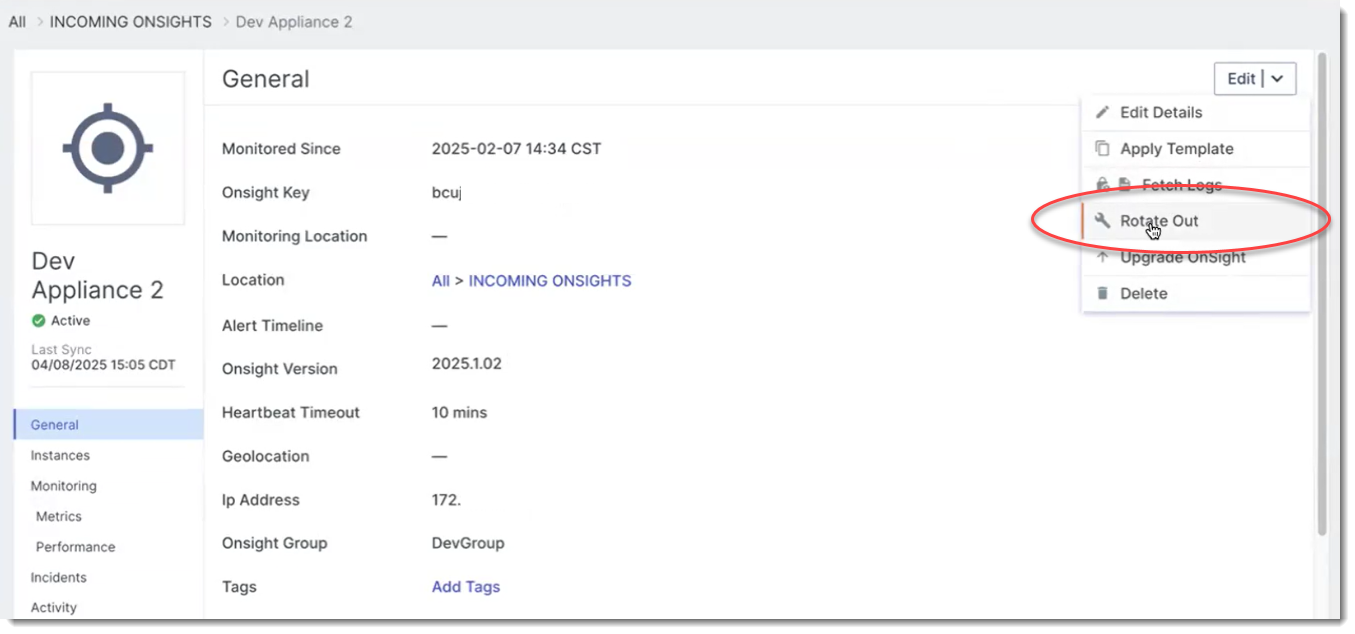
  2. The system will automatically reassign all metrics monitored by the selected OnSight to another available OnSight in the same cluster.

  3. Wait until you receive confirmation that the rotation process is complete. This confirmation will appear in the control panel and will also be sent via email.

    Note: Do not shut down the OnSight until you receive the rotation complete notification. Premature shutdown may result in monitoring data gaps.

  4. If needed, you can cancel the rotation process by going to Edit > Cancel Rotation. This will roll back all changes and return the metrics to their original OnSight.

  5. Once rotation is complete, you can safely take the OnSight offline to perform an upgrade or other maintenance without triggering a heartbeat incident.

  6. After maintenance, restart the OnSight using the following command:

    Copy
    onsight start-vcollector
  7. Once the OnSight is running again, the system will automatically move the metrics back to the original OnSight.

  8. You will see an OnSight Upgrade Complete banner in the control panel and receive an email notification once restoration is complete. There should be no gaps in collected metrics if the rotation is successful.

Rotating clustered OnSights

Rotating clustered OnSights

This process helps you upgrade an OnSight in a cluster without causing gaps in collected monitoring data. It works by moving all metrics from the OnSight you plan to take offline to another OnSight in the same cluster. While this rotation is happening, no heartbeat incidents will be triggered. Note that an incident will be opened while the OnSight is out of rotation and will be closed once it returns. This incident will not appear in the history or affect availability calculations.

You will get an email when the rotation is complete and another when the original OnSight is fully restored.

This feature only works for OnSights that are part of a cluster.

To rotate an OnSight out, perform the following steps:

  1. Navigate to the desired OnSight in the control panel and click the Rotate Out. Confirm the action by clicking I'm Sure.

  2. The system will automatically reassign all metrics monitored by the selected OnSight to another available OnSight in the same cluster.

  3. Wait until you receive confirmation that the rotation process is complete. This confirmation will appear in the control panel and will also be sent via email.

    Note: Do not shut down the OnSight until you receive the rotation complete notification. Premature shutdown may result in monitoring data gaps.

  4. If needed, you can cancel the rotation process by going to Edit > Cancel Rotation. This will roll back all changes and return the metrics to their original OnSight.

  5. Once rotation is complete, you can safely take the OnSight offline to perform an upgrade or other maintenance without triggering a heartbeat incident.

  6. After maintenance, restart the OnSight using the following command:

    Copy
    onsight start-vcollector
  7. Once the OnSight is running again, the system will automatically move the metrics back to the original OnSight.

  8. You will see an OnSight Upgrade Complete banner in the control panel and receive an email notification once restoration is complete. There should be no gaps in collected metrics if the rotation is successful.