Fortinet white logo
Fortinet white logo

User Guide

26.1.0

Add a MacOS Agent

MacOS Endpoint Agent

The MacOS Endpoint Agent is a local monitoring utility that is deployed directly on a MacOS instance. The Agent allows you to monitor your MacOS machine’s health, performance, and DEM (Digital Experience Monitoring) metrics to ensure that end-user experience is optimized.

Supported MacOS versions

  • Intel and Apple CPUs

  • MacOS 11-14

Add a MacOS Endpoint Agent

To install a MacOS Endpoint Agent, perform the following steps:

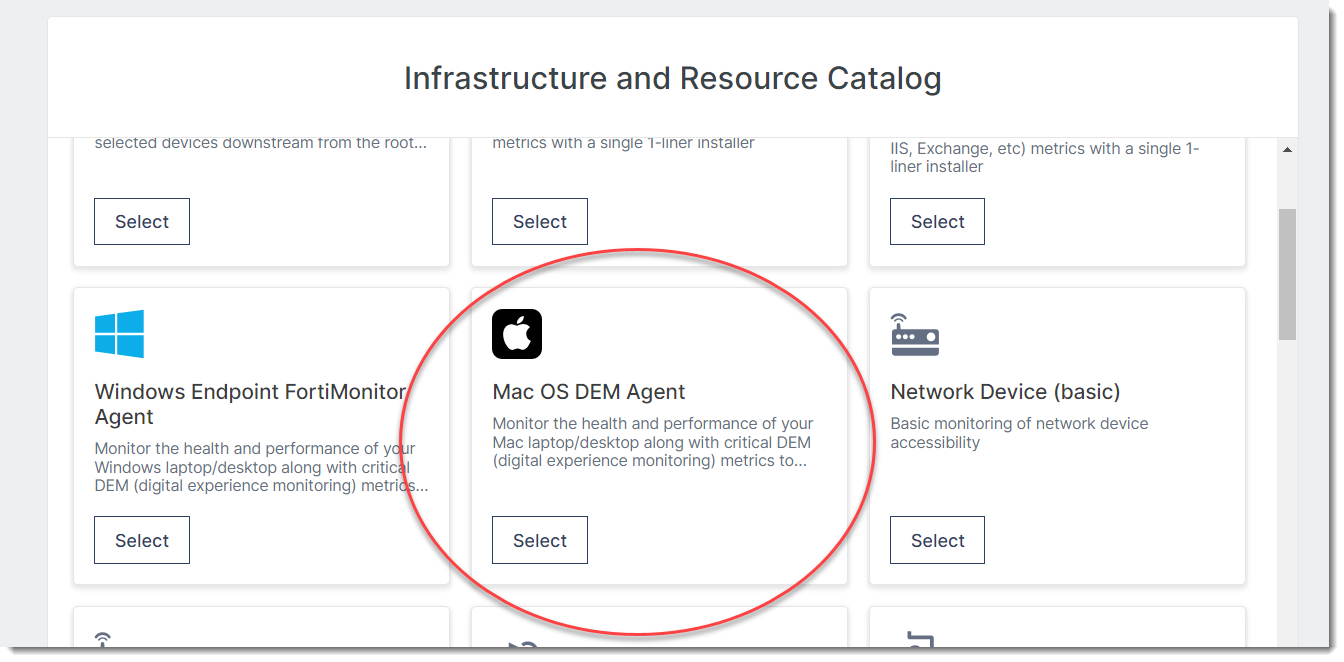
  1. From the navigation menu, click Add.

  2. Select MacOS DEM Agent.

  3. Copy the Quick Install Instructions command.
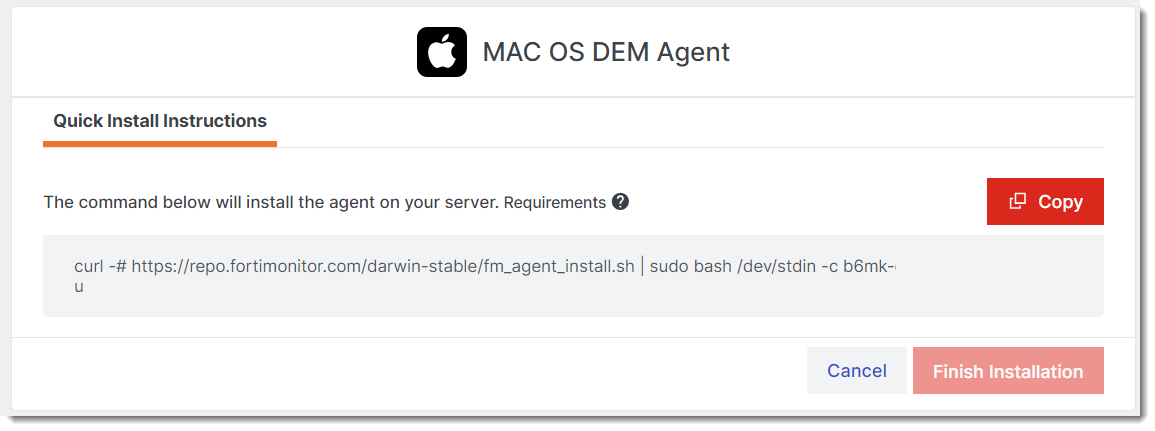
  4. Open a terminal window then run the following command. Make sure you have administrator privileges (sudo).
    curl -# https://repo.fortimonitor.com/darwin-stable/fm_agent_install.sh | sudo bash /dev/stdin -c <CUSTOMER_KEY> -e -d –u

    Where:

    <CUSTOMER_KEY> is your customer key.

    -e sets the digital experience section in the manifest file.

    -d sets the disable server match key in the manifest file

    -u sets the auto-update flag in the manifest file.

  5. Wait for the installation to complete.

  6. Go back to FortiMonitor then click Finish Installation.

CounterMeasures

CounterMeasures are automated responses to specific events that the macOS Agent detects on your infrastructure. Automated actions are provided but you can also create your own custom CounterMeasures. Supported CounterMeasures are largely the same with Linux CounterMeasures.

Created custom CounterMeasures files can be dropped in the following location:

/usr/local/FortiMonitor/agent/share/fm-agent/countermeasures

Uninstall the MacOS Endpoint Agent

To uninstall the agent, open a terminal window then run the following command:

sudo bash /usr/local/fortimonitor/uninstall.sh

Add a MacOS Agent

MacOS Endpoint Agent

The MacOS Endpoint Agent is a local monitoring utility that is deployed directly on a MacOS instance. The Agent allows you to monitor your MacOS machine’s health, performance, and DEM (Digital Experience Monitoring) metrics to ensure that end-user experience is optimized.

Supported MacOS versions

  • Intel and Apple CPUs

  • MacOS 11-14

Add a MacOS Endpoint Agent

To install a MacOS Endpoint Agent, perform the following steps:

  1. From the navigation menu, click Add.

  2. Select MacOS DEM Agent.

  3. Copy the Quick Install Instructions command.

  4. Open a terminal window then run the following command. Make sure you have administrator privileges (sudo).
    curl -# https://repo.fortimonitor.com/darwin-stable/fm_agent_install.sh | sudo bash /dev/stdin -c <CUSTOMER_KEY> -e -d –u

    Where:

    <CUSTOMER_KEY> is your customer key.

    -e sets the digital experience section in the manifest file.

    -d sets the disable server match key in the manifest file

    -u sets the auto-update flag in the manifest file.

  5. Wait for the installation to complete.

  6. Go back to FortiMonitor then click Finish Installation.

CounterMeasures

CounterMeasures are automated responses to specific events that the macOS Agent detects on your infrastructure. Automated actions are provided but you can also create your own custom CounterMeasures. Supported CounterMeasures are largely the same with Linux CounterMeasures.

Created custom CounterMeasures files can be dropped in the following location:

/usr/local/FortiMonitor/agent/share/fm-agent/countermeasures

Uninstall the MacOS Endpoint Agent

To uninstall the agent, open a terminal window then run the following command:

sudo bash /usr/local/fortimonitor/uninstall.sh