

Monitor Flapping Metric incidents
A Flapping Metric incident helps you track whether a particular metric is generating incidents frequently within a specified time window.
FortiMonitor periodically scans all configured metrics to identify those that meet the flapping criteria. If a metric has multiple thresholds, all thresholds are evaluated together.

|
If you have existing instance-level flapping metric configuration, refer to Migrating from instance-level to metric-level flapping configuration. |
When flapping is detected, FortiMonitor performs the following actions:
-
A new incident is generated for the specific metric.
-
Alerts are sent based on the configured alert timeline.
-
A Maintenance Period is created and activated for the affected metric thresholds only. This maintenance period:
-
Prevents additional incidents from being generated for the configured duration
-
Includes a description indicating it was created due to a flapping incident
-
During this maintenance period, no new incidents are created for the affected metric. The maintenance period is visible in the Control Panel and API. You can manually end the maintenance period at any time.
|
|
Flapping metric incidents being enabled does not suppress alerts for other metrics or alerting on the instance. |
Flapping metrics calculations are performed at 5-minute intervals to see if there are sufficient incidents to trigger the flapping incident. Also, note that flapping metric events are only calculated after a threshold is configured on a metric. After configuring the threshold, events that are in the scope of the specified time window are included in the calculation.
Flapping Metric incidents, when they occur, are displayed in the Instance Details page or the page of the incident that caused the flapping condition.
Metric-level flapping configuration
Flapping detection can be enabled on a per-metric basis. When flapping is enabled for a metric, you can configure the following:
-
The number of incidents that must occur within a specified time period to be considered flapping.
-
How long to disable incidents when flapping metric is triggered.
-
The severity and alert timeline used to notify you when a flapping incident is triggered.
Incident resolution
The flapping incident automatically closes when the maintenance period generated by the flapping threshold ends. When maintenance is ended, only the flapping incident is closed, while the underlying metric-level incidents that contributed to the flapping stay open. If the maintenance period is manually ended, the incident will resolve at that time.
Metric-level configuration
-
To configure a flapping metric incident, perform the following steps:
-
Go to the Instance Details page of the instance that you want to configure.
-
Select Details > Config.
-
Select a metric, then click its three-dot menu and choose Edit.
-
Go to the Flapping Metric Threshold tab.
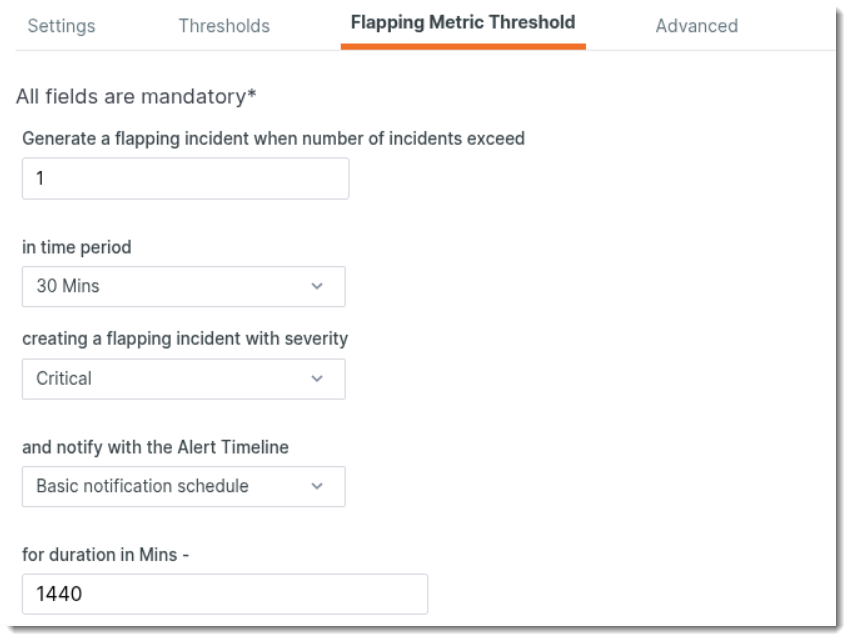
Each configurable option is described in the following table.
|
Field |
Description |
|---|---|
|
Generate a flapping incident when number of incidents exceed |
Specifies the minimum number of incidents for any metric within a server instance that must occur to trigger a Flapping Metric incident. |
|
in time period |
Defines the duration (from 30 minutes to 24 hours) during which incidents for any metric will be considered. |
|
creating a flapping incident with severity |
Indicates the severity level for the alert, either as a warning or critical. |
|
and notify with the Alert Timeline |
Determines the schedule for notifying users about the Flapping Metric incident. |
|
for duration in minutes |
The length of time future incidents are suppressed. This value controls the maintenance period duration and how long the flapping incident remains open before it automatically closes. |
5. Click Save.
Template-level configuration
For environments with a large number of instances or metrics, you can use templates to simplify configuration.
-
Select a template. You can choose an existing template already applied to the instance or create a new one.
-
Go to the Monitoring Config tab.
-
Select a metric, then click its three-dot menu and choose Edit.
-
Go to the Flapping Metric Threshold tab.
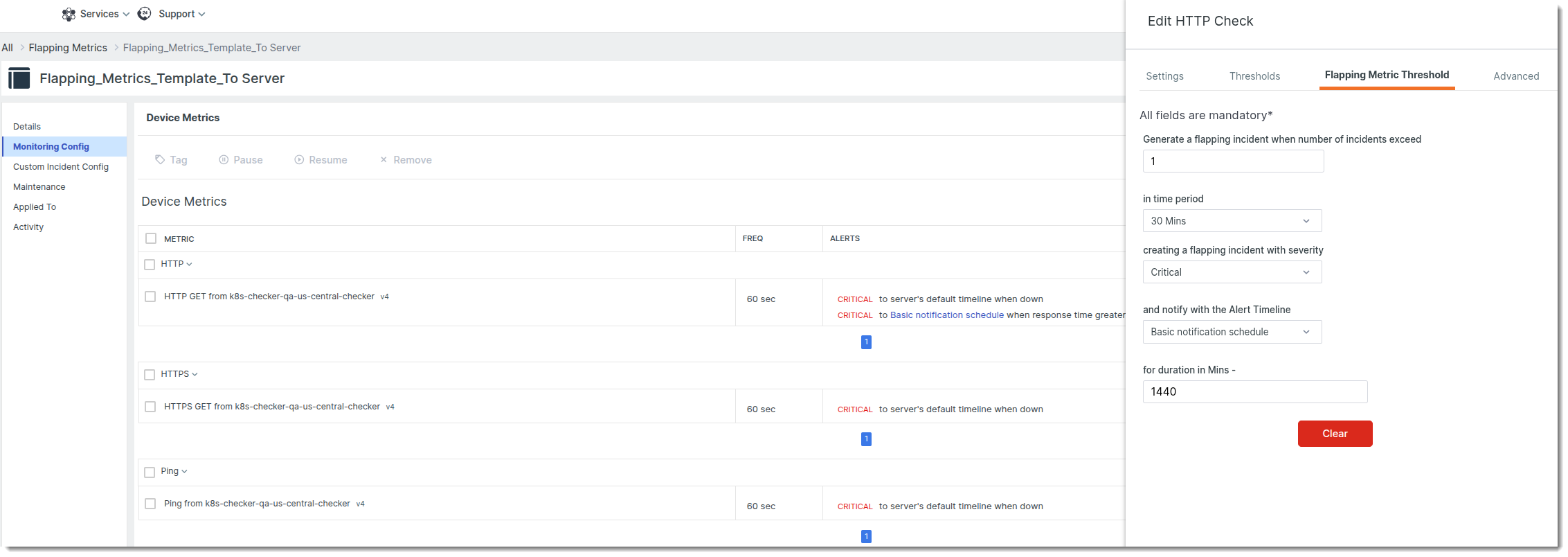
Each configurable option is described in the following table.
|
Field |
Description |
|---|---|
|
Generate a flapping incident when number of incidents exceed |
Specifies the minimum number of incidents for any metric within a server instance that must occur to trigger a Flapping Metric incident. |
|
in time period |
Defines the duration (from 30 minutes to 24 hours) during which incidents for any metric will be considered. |
|
creating a flapping incident with severity |
Indicates the severity level for the alert, either as a warning or critical. |
|
and notify with the Alert Timeline |
Determines the schedule for notifying users about the Flapping Metric incident. |
|
for duration in minutes |
The length of time future incidents are suppressed. This value controls the maintenance period duration and how long the flapping incident remains open before it automatically closes. |
5. Click Save.