

Configuring a DNS filter profile
A DNS filter profile contains settings that enable or disable various forms of DNS filtering, including:
-
FortiGuard filtering
-
Botnet C&C domain blocking
-
DNS safe search
-
External dynamic category domain filtering
-
Local domain filter
-
External IP block list
-
DNS translation
Once a DNS filter is configured, it can be applied to a firewall policy, or on a FortiGate DNS server if one is configured. In the following basic example, a DNS filter is created and applied to a firewall policy to scan DNS queries that pass through the FortiGate.
To configure a DNS filter profile in the GUI:
-
Go to Security Profiles > DNS Filter and click Create New, or edit an existing profile.
-
Configure the settings as needed.
Name
Enter a unique name for the profile.
Comments
Enter a comment (optional).
Redirect botnet C&C requests to Block Portal
Enable to block botnet website access at the DNS name resolution stage. See Botnet C&C domain blocking for more details.
Enforce 'Safe Search' on Google, Bing, YouTube
Enable to avoid explicit and inappropriate results in the Google, Bing, and YouTube search engines. See DNS safe search for more details.
Restrict YouTube Access
When Enforce 'Safe Search' on Google, Bing, YouTube is enabled, select either Strict or Moderate to restrict YouTube access by responding to DNS resolutions with CNAME restrict.youtube.com and restrictmoderate.youtube.com respectively.
FortiGuard Category Based Filter
Enable to use the FortiGuard domain rating database to inspect DNS traffic. A FortiGuard Web Filter license is required to use this option.
Expand the category groups in the table to view and edit the FortiGuard category settings to Allow, Monitor, or Redirect to Block Portal. See FortiGuard category-based DNS domain filtering for more details.
Static Domain Filter
This section includes options related to the static domain filter.
Domain Filter
Enable to define local static domain filters to allow or block specific domains. The local domain filter has a higher priority than the FortiGuard category-based domain filter.
Click Create New in the table to add a domain filter and configure the following settings.
- Domain: enter a domain.
- Type: select Simple, Reg. Expression, or Wildcard.
- Action: select Redirect to Block Portal, Allow, or Monitor.
- Status: select Enable or Disable.
See Local domain filter for more details.
External IP Block Lists
Enable to add one or more external IP block lists. See IP address threat feed for more details.
DNS Translation
Enable to translate a DNS resolved IP address to another IP address specified on a per-policy basis.
Click Create New in the table to add a DNS translation and configure the following settings.
- Type: select IPv4 or IPv6.
- Original Destination: enter the address of a host or subnet that you want translated. When a resolved address in a DNS response matches this destination, the FortiGate will replace the address with the address in Translated Destination.
- Translated Destination: enter the address of a host or subnet that you want the resolved address to be translated to.
- Network Mask: enter the netmask for the original and translated destination. If a single host is used for the original and translated destination, set the netmask to 255.255.255.255.
- Status: select Enable or Disable.
Enabling DNS translation will override matching DNS responses with translated IPs. See DNS translation for more details.
Options
This section includes other options related to the DNS filter.
Redirect Portal IP
Set the IP address of the SDNS redirect portal. Select Use FortiGuard Default, or Specify and enter the IP address.
When FortiGuard Category Based Filter categories are set to Redirect to Block Portal, the DNS response will use this IP address in its response to the client. If the client is accessing the domain on a web browser, they will be redirected to the block portal page on this address.
Allow DNS requests when a rating error occurs
Enable to allow all domains when FortiGuard DNS servers fail, or they are unreachable from the FortiGate. When this happens, a log message is recorded in the DNS logs by default.
Log all DNS queries and responses
Enable to log all domains visited (detailed DNS logging).
Strip Encrypted Client Hello service parameters
Enable removal of the ECH service parameter from supporting DNS RRs.
ECH information is stripped from DoH responses, forcing the browser to not use ECH for TLS connections.
-
Click OK.
To apply a DNS filter profile to a policy in the GUI:
-
Go to Policy & Objects > Firewall Policy and click Create New, or edit an existing policy.
-
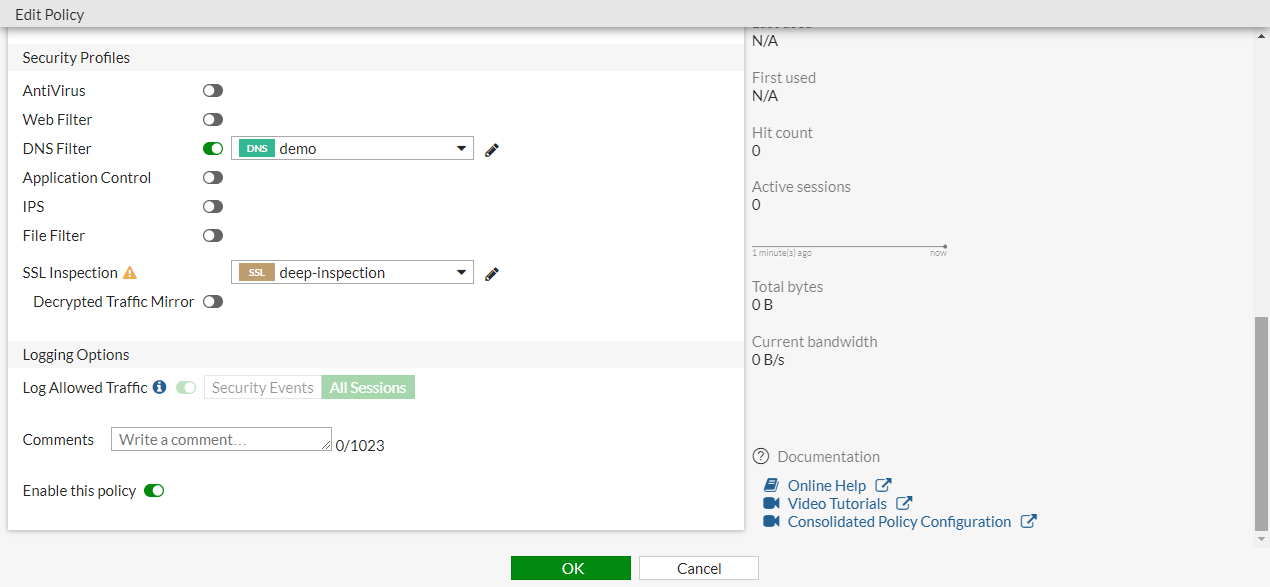
In the Security Profiles section, enable DNS Filter and select the DNS filter.
-
Configure the other settings as needed.
-
Click OK.
Redirecting to default Block Portal
By default, FortiGate redirects traffic to the FortiGuard SDNS block portal at 208.91.112.55, which is owned and hosted by Fortinet. When opening a blocked destination in the browser, two behaviors may occur:
-
When opening a HTTP page, the blocked page is hosted on HTTP/80 and displays without errors.
-
When opening a HTTPS page, the blocked page is hosted on HTTPS/443 and results in a warning.
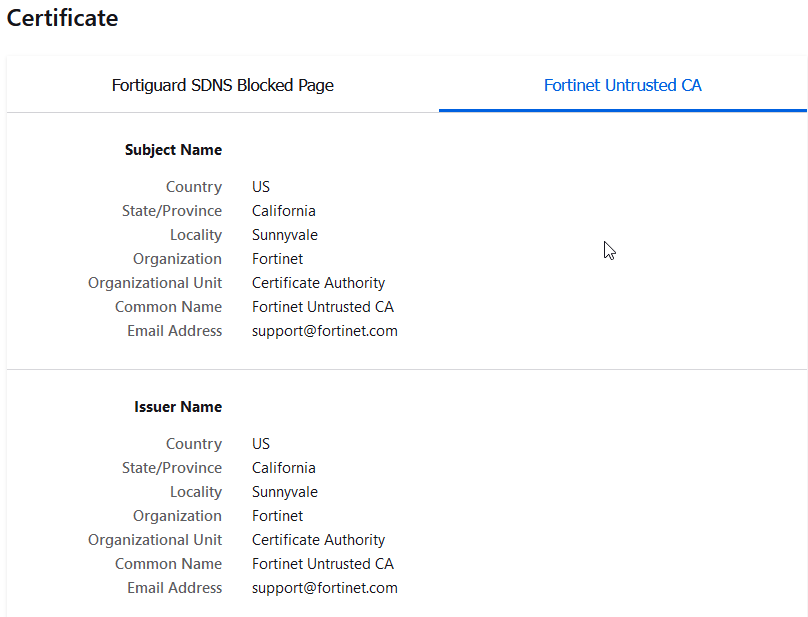
The warning is expected because the blocked page is redirected to the blocked portal on 208.91.112.55, but the page is served in HTTPS using the domain of the destination that the user is trying to reach. Therefore, a Fortinet CA must resign the SSL certificate in order to display the block page content. The Fortinet CA cannot be trusted natively because it is not a publicly trusted CA. As such, when you review the CA issuer, you find that the Common Name of the CA specifically indicates Fortinet Untrusted CA.
CLI-only settings
The following DNS filter profile settings can only be configured in the CLI:
config dnsfilter profile
    edit <name>
        set block-action {block | redirect | block-servfail}
        set sdns-ftgd-err-log {enable | disable}
    next
end
|
block-action {block | redirect | block-servfail} |
Set the action to take for blocked domains:
When a FortiGuard or local domain filter category is set to Redirect to Block Portal in the GUI, the action is set to |
|
sdns-ftgd-err-log {enable | disable} |
Enable/disable FortiGuard SDNS rating error logging (default = enable). |
To configure a DNS filter profile in the CLI:
config dnsfilter profile
    edit "demo"
        set comment ''
        config domain-filter
            unset domain-filter-table
        end
        config ftgd-dns
            set options error-allow
            config filters
                edit 2
                    set category 2
                    set action monitor
                next
                edit 7
                    set category 7
                    set action block
                next
                ...
                edit 22
                    set category 0
                    set action monitor
                next
            end
        end
        set log-all-domain enable
        set sdns-ftgd-err-log enable
        set sdns-domain-log enable
        set block-action redirect
        set block-botnet enable
        set safe-search enable
        set redirect-portal 93.184.216.34
        set youtube-restrict strict
        set strip-ech enable
    next
end
To apply a DNS filter profile to a policy in the CLI:
config firewall policy
    edit 1
        set name "Demo"
        set srcintf "port10"
        set dstintf "port9"
        set srcaddr "all"
        set dstaddr "all"
        set action accept
        set schedule "always"
        set service "ALL"
        set utm-status enable
        set inspection-mode proxy
        set logtraffic all
        set fsso disable
        set dnsfilter-profile "demo"
        set profile-protocol-options "default"
        set ssl-ssh-profile "deep-inspection"
        set nat enable
    next
end