
Fortinet white logo
Fortinet white logo

Administration Guide

Integrating FortiAnalyzer management using SAML SSO

Integrating FortiAnalyzer management using SAML SSO

When a FortiGate acting as a Security Fabric root is configured as a SAML SSO identity provider (IdP), the FortiAnalyzer of the Security Fabric can register itself as a service provider (SP). This simplifies the configuration by enabling the setting in FortiAnalyzer to facilitate Fabric SSO access to the FortiAnalyzer once authenticated to the root FortiGate. When signed in using SSO, the FortiAnalyzer includes a Security Fabric navigation dropdown, which allows easy navigation to FortiGates in the Fabric.

To enable FortiAnalyzer as a Fabric SP in the GUI:
  1. On the root FortiGate, go to Security Fabric > Physical Topology or Logical Topology.

  2. In the topology, click the FortiAnalyzer icon and select Login to FortiAnalyzer.
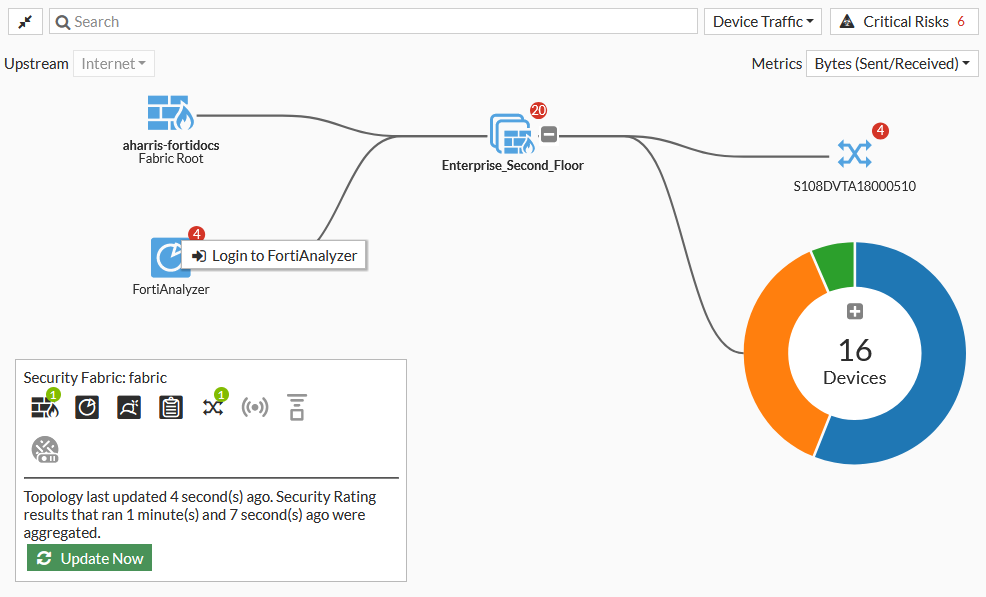
  3. Enter the credentials to log in. A Security Fabric must be configured with the Fabric devices listed under the Fabric name.

  4. See Enabling SAML authentication in a Security Fabric in the FortiAnalyzer Administration Guide for more details.

To enable FortiAnalyzer as a Fabric SP in the CLI:
  1. In FortiAnalyzer, enable the device as a Fabric SP:

    config system saml
        set status enable
        set role FAB-SP
        set server-address "192.168.1.99"
        set user-auto-create enable
    end

    FortiAnalyzer will register itself on the FortiGate as an appliance.

  2. Verify the configuration in FortiOS:

    show system saml
    config system saml
        set status enable
        set role identity-provider
        set cert "fortigate.domain.tld"
        set server-address "192.168.1.99"
        config service-providers
            edit "appliance_192.168.1.103"
                set prefix "csf_76sh0bm4e7hf1ty54w42yrrv88tk8uj"
                set sp-entity-id "http://192.168.1.103/metadata/"
                set sp-single-sign-on-url "https://192.168.1.103/saml/?acs"
                set sp-single-logout-url "https://192.168.1.103/saml/?sls"
                set sp-portal-url "https://192.168.1.103/saml/login/"
                config assertion-attributes
                    edit "username"
                    next
                    edit "profilename"
                        set type profile-name
                    next
                end
            next
        end
    end
To navigate between devices using SAML SSO in FortiOS:
  1. Log in to the root FortiGate.

  2. Go to Security Fabric > Physical Topology or Logical Topology.

  3. In the topology, click the FortiAnalyzer icon and select Login to FortiAnalyzer.

Integrating FortiAnalyzer management using SAML SSO

Integrating FortiAnalyzer management using SAML SSO

When a FortiGate acting as a Security Fabric root is configured as a SAML SSO identity provider (IdP), the FortiAnalyzer of the Security Fabric can register itself as a service provider (SP). This simplifies the configuration by enabling the setting in FortiAnalyzer to facilitate Fabric SSO access to the FortiAnalyzer once authenticated to the root FortiGate. When signed in using SSO, the FortiAnalyzer includes a Security Fabric navigation dropdown, which allows easy navigation to FortiGates in the Fabric.

To enable FortiAnalyzer as a Fabric SP in the GUI:
  1. On the root FortiGate, go to Security Fabric > Physical Topology or Logical Topology.

  2. In the topology, click the FortiAnalyzer icon and select Login to FortiAnalyzer.

  3. Enter the credentials to log in. A Security Fabric must be configured with the Fabric devices listed under the Fabric name.

  4. See Enabling SAML authentication in a Security Fabric in the FortiAnalyzer Administration Guide for more details.

To enable FortiAnalyzer as a Fabric SP in the CLI:
  1. In FortiAnalyzer, enable the device as a Fabric SP:

    config system saml
        set status enable
        set role FAB-SP
        set server-address "192.168.1.99"
        set user-auto-create enable
    end

    FortiAnalyzer will register itself on the FortiGate as an appliance.

  2. Verify the configuration in FortiOS:

    show system saml
    config system saml
        set status enable
        set role identity-provider
        set cert "fortigate.domain.tld"
        set server-address "192.168.1.99"
        config service-providers
            edit "appliance_192.168.1.103"
                set prefix "csf_76sh0bm4e7hf1ty54w42yrrv88tk8uj"
                set sp-entity-id "http://192.168.1.103/metadata/"
                set sp-single-sign-on-url "https://192.168.1.103/saml/?acs"
                set sp-single-logout-url "https://192.168.1.103/saml/?sls"
                set sp-portal-url "https://192.168.1.103/saml/login/"
                config assertion-attributes
                    edit "username"
                    next
                    edit "profilename"
                        set type profile-name
                    next
                end
            next
        end
    end
To navigate between devices using SAML SSO in FortiOS:
  1. Log in to the root FortiGate.

  2. Go to Security Fabric > Physical Topology or Logical Topology.

  3. In the topology, click the FortiAnalyzer icon and select Login to FortiAnalyzer.