Deploying FortiEDR Cloud
This topic explains how to deploy FortiEDR Cloud. This topic assumes that you already purchased the desired subscription licenses for your deployment from a Fortinet partner or reseller and received your license activation codes.

|
You can create only one FortiEDR Cloud instance per FortiCloud account. |
To deploy FortiEDR Cloud:
- Register the FortiEDR Cloud subscription contract to your FortiCloud account:
- On the Customer Service & Support site, go to Asset Management > Register Now.
- In the Registration Code field, enter your license activation code and select Next to continue registering the product.
- Enter your details in the other fields and complete the registration.
You may need to wait a few minutes for the cloud instance to initialize before you can proceed.
- Provision your FortiEDR Cloud environment:
- In FortiCloud, go to Services > Cloud Services and click FortiEDR.
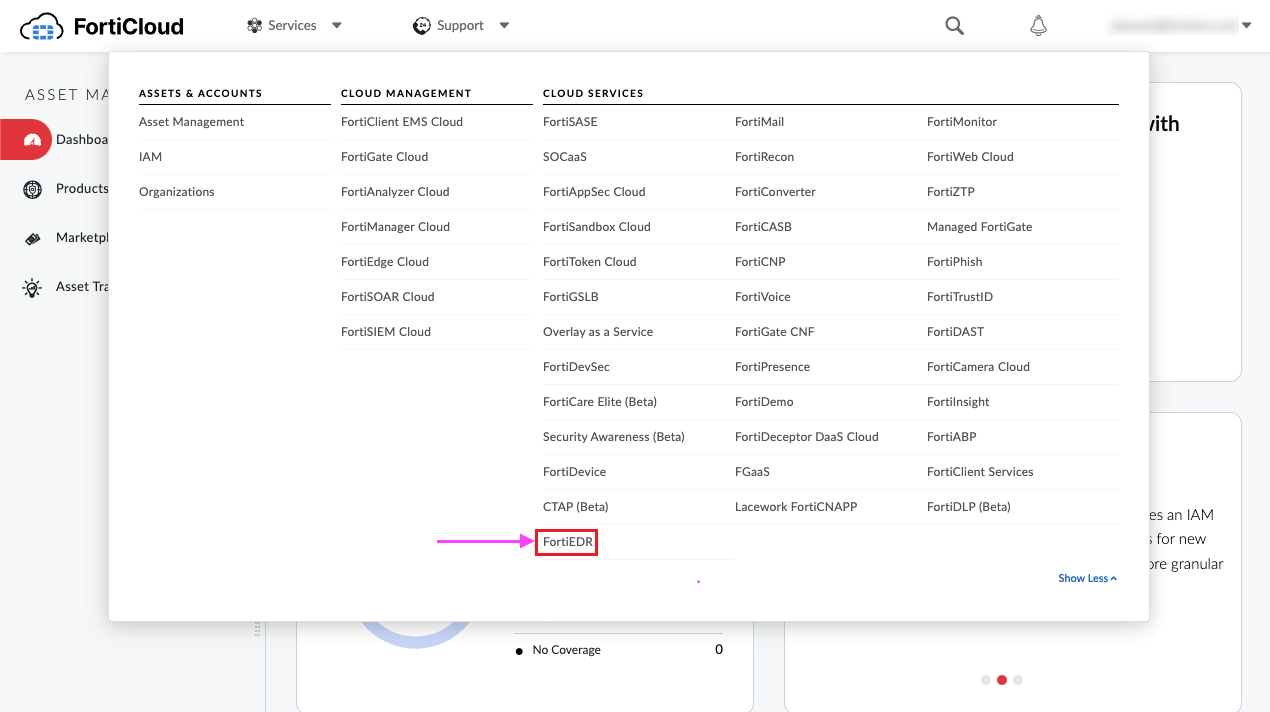
- Click PROVISION.

Select the time zone and cloud region to provision your FortiEDR Cloud instance.
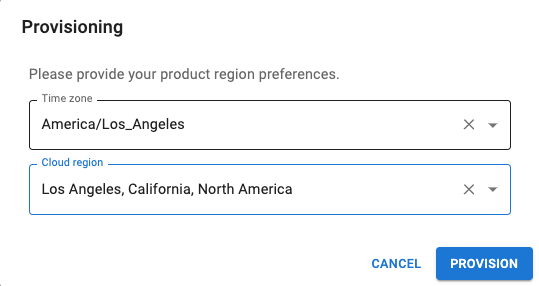
Click PROVISION to start the provisioning process, which takes about 5 minutes for a new organization in a shared environment and 40 minutes for a dedicated environment.
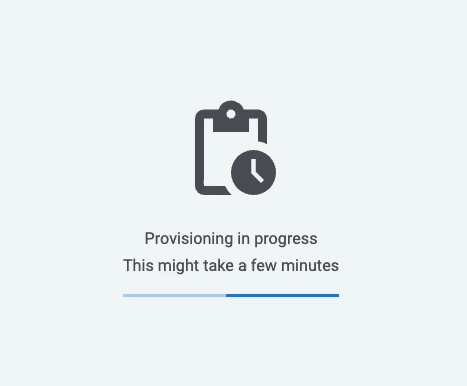
- In FortiCloud, go to Services > Cloud Services and click FortiEDR.
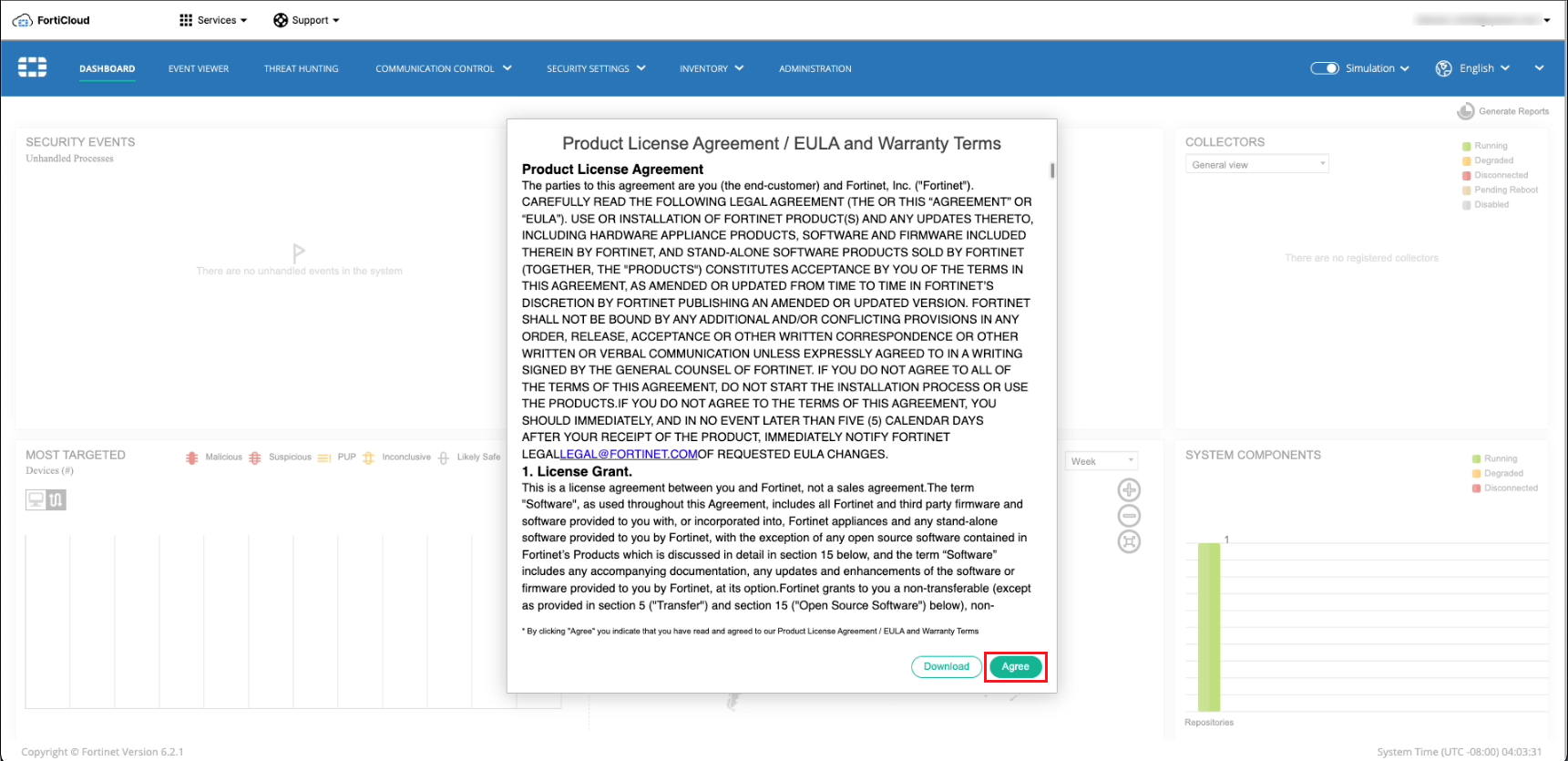
- After the provisioning process is complete and the environment is ready, click Agree to access the FortiEDR Central Manager console.