
Fortinet white logo
Fortinet white logo

Upgrade

Upgrade

System upgrades for FortiSASE-Sovereign are managed through a coordinated process between Organization Administrators and the DevOps team. This page is used to finalize and manage the schedule once an upgrade has been initiated on the backend.

The Upgrade Workflow

Unlike standard automated updates, the platform follows an "On-Demand" flow:

  1. Request: The Administrator contacts the DevOps/Support team to request a system upgrade.

  2. Trigger: DevOps triggers the upgrade notification from the backend.

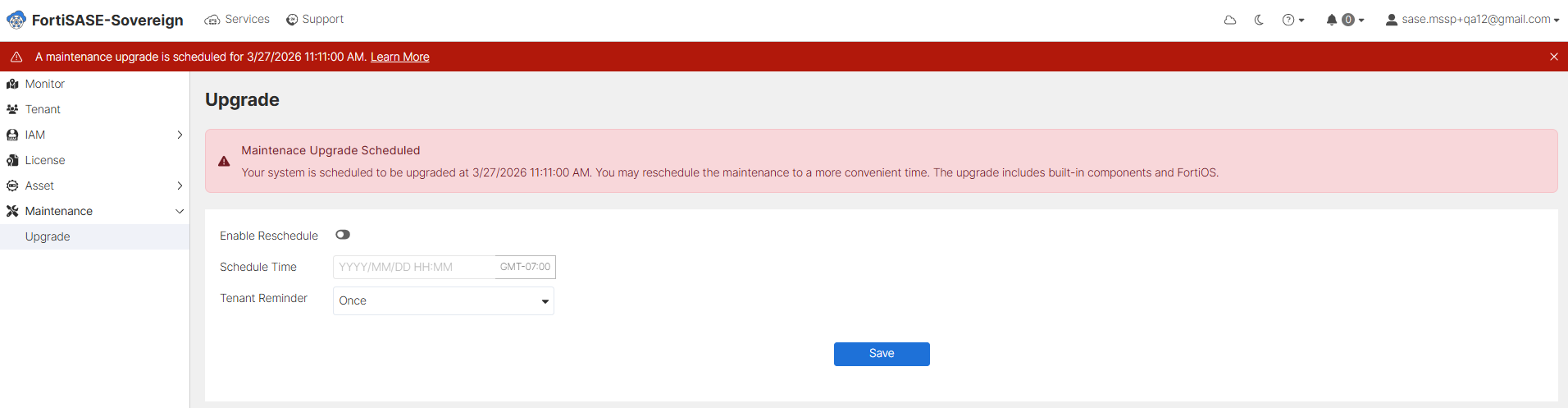
  3. Confirmation: A notification banner appears in the portal: "A maintenance upgrade is scheduled for [Date/Time]."

Finalizing the Schedule

Once the upgrade notification is active, you have the authority to adjust the maintenance window to fit your operational needs:

  • Review Proposed Time: Check the Maintenance Upgrade Scheduled card for the initial time proposed by the system/DevOps.

  • Rescheduling: If the proposed time conflicts with business hours:

    1. Toggle Enable Reschedule to On.

    2. Input a new Schedule Time (Format: YYYY/MM/DD HH:MM).

    3. Click Save.

  • Note: The upgrade will execute automatically at the confirmed time. Ensure all stakeholders are informed.
Tenant Communication

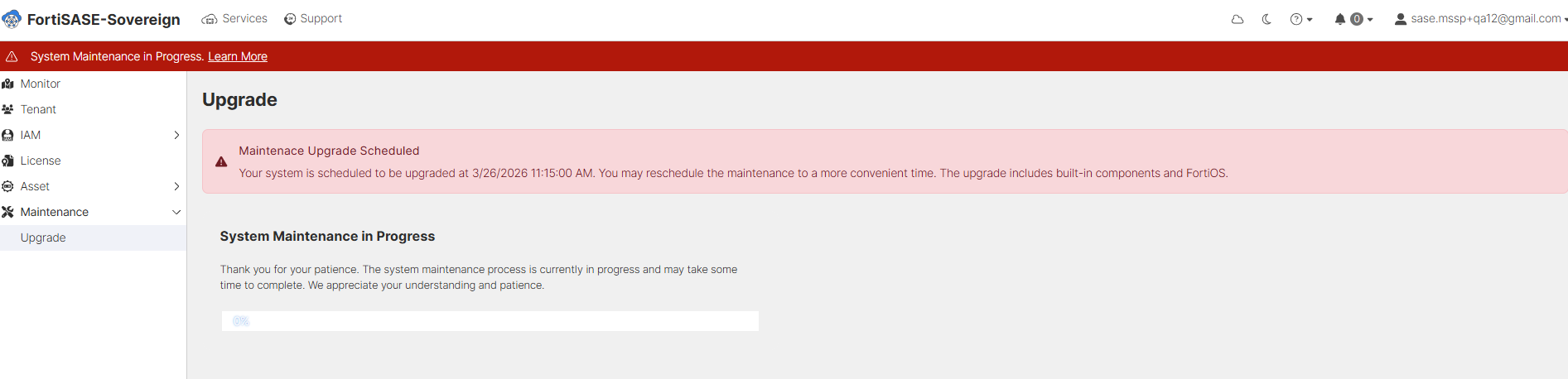
Since upgrades may involve brief service interruptions for built-in components and FortiOS, use the Tenant Reminder tool to automate alerts:

  • Setup: Select a reminder frequency (e.g., Daily or Weekly) from the dropdown menu.

  • Delivery: The system will notify all sub-tenants regarding the upcoming maintenance window you have scheduled.
Upgrade

Upgrade

System upgrades for FortiSASE-Sovereign are managed through a coordinated process between Organization Administrators and the DevOps team. This page is used to finalize and manage the schedule once an upgrade has been initiated on the backend.

The Upgrade Workflow

Unlike standard automated updates, the platform follows an "On-Demand" flow:

  1. Request: The Administrator contacts the DevOps/Support team to request a system upgrade.

  2. Trigger: DevOps triggers the upgrade notification from the backend.

  3. Confirmation: A notification banner appears in the portal: "A maintenance upgrade is scheduled for [Date/Time]."

Finalizing the Schedule

Once the upgrade notification is active, you have the authority to adjust the maintenance window to fit your operational needs:

  • Review Proposed Time: Check the Maintenance Upgrade Scheduled card for the initial time proposed by the system/DevOps.

  • Rescheduling: If the proposed time conflicts with business hours:

    1. Toggle Enable Reschedule to On.

    2. Input a new Schedule Time (Format: YYYY/MM/DD HH:MM).

    3. Click Save.

  • Note: The upgrade will execute automatically at the confirmed time. Ensure all stakeholders are informed.

Tenant Communication

Since upgrades may involve brief service interruptions for built-in components and FortiOS, use the Tenant Reminder tool to automate alerts:

  • Setup: Select a reminder frequency (e.g., Daily or Weekly) from the dropdown menu.

  • Delivery: The system will notify all sub-tenants regarding the upcoming maintenance window you have scheduled.