

Sandbox
To configure the Sandbox tab:
-
Create a new profile or edit an existing one:
-
Go to Endpoint management > Profile. By default, the Profiles tab is selected.
-
Click Create or edit an existing profile.
-
In the Name field, enter the desired name of the endpoint profile.
-
-
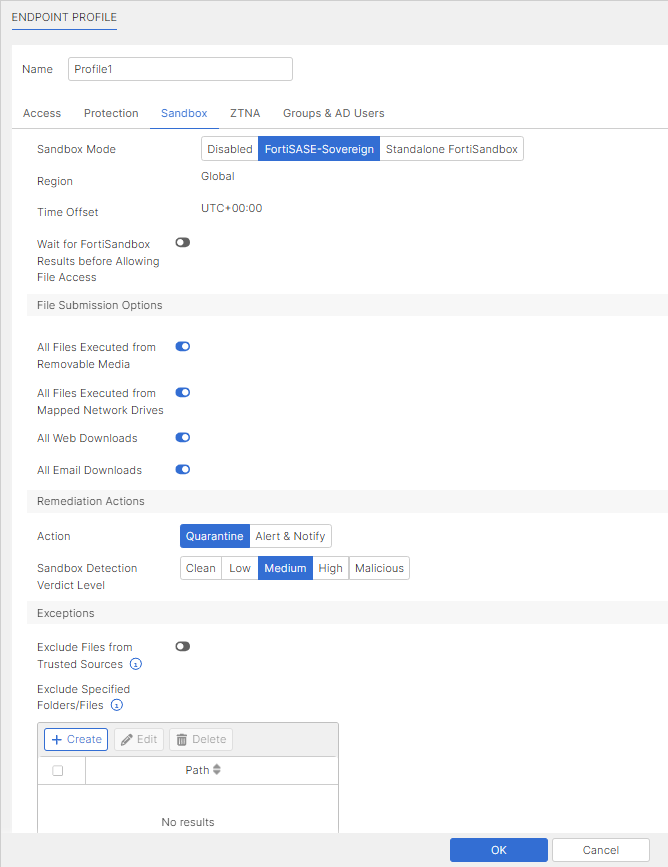
On the Sandbox tab, configure the following. This feature only works for endpoints where Sandbox Detection was enabled when installing FortiClient. Configure the following options:
Options
Description
Sandbox mode
Select FortiSASE to configure connection to FortiSASE Sandbox or Standalone FortiSandbox to configure connection to an on-premise standalone FortiSandbox.
IP address/Hostname
For a standalone FortiSandbox, enter the FortiSandbox IP address, FQDN, or hostname.
Authentication
Optional. Enable to configure credentials to communicate with a standalone FortiSandbox.
Username
Optional. Enter the FortiSandbox username. This option is only available for a standalone FortiSandbox.
Password
Optional. Enter the FortiSandbox password. This option is only available for a standalone FortiSandbox.
Region
FortiSASE-Sovereign Sandbox region.
Time Offset
FortiSASE-Sovereign Sandbox time offset.
Wait for FortiSandbox results before allowing file access
Have the endpoint user wait for FortiSandbox scanning results before being allowed access to files. Set the timeout in seconds.
File submission options
All files executed from removable media
Submit all files executed on removable media, such as USB drives, to FortiSandbox for analysis.
All files executed from mapped network drives
Submit all files executed from mapped network drives.
All web downloads
Submit all web downloads.
All email downloads
Submit all email downloads.
Notification type
Choose one of the following notification levels:
-
Lite: Displays notification balloon only when FortiSandbox detects malware in a submitted file.
-
Full: Displays a popup for every file submission sent to FortiSandbox regardless of the result.
Remediation Actions
Action
Choose Quarantine or Alert & Notify for infected files. Whether FortiClient quarantines the file depends on if FortiSandbox reports the file as malicious and the Sandbox Detection Verdict Level setting.
Sandbox Detection Verdict Level
Select the desired detection verdict level. For FortiClient to apply the action selected in the Action field to an infected file, FortiSandbox must detect the file as this level or higher. For example, if Action is configured as Quarantine and FortiSandbox Detection Verdict Level is configured as Medium, FortiClient quarantines all infected files that FortiSandbox detects as Medium or a higher level (High or Malicious). FortiClient does not quarantine files for which FortiSandbox returns a verdict below this level (Low Risk or Clean).
Exceptions
Exclude Files from Trusted Sources
Exclude files signed by trusted sources from FortiSandbox submission. Following is a list of sources that FortiSandbox trusts:
-
Microsoft
-
Fortinet
-
Mozilla
-
Windows
-
Google
-
Skype
-
Apple
-
Yahoo!
-
Intel
Exclude Specified Folders/Files
Click Create to exclude specified files/folders from FortiSandbox submission. You can use wildcards to specify file/folder exclusions.
-
Considerations
-
When enabling Sandbox in an endpoint profile, and when using a FortiSASE-Sovereign-managed endpoint running FortiClient (macOS) and Microsoft Defender, you must enable passive mode on Microsoft Defender.
-
FortiSASE-Sovereign Sandbox uses the FortiClient Cloud Sandbox service. See the FortiClient Cloud Sandbox (FortiSandbox SaaS) Service Description in the Fortinet Support portal.
-
For each endpoint, FortiClient can send a maximum of 300 files daily to FortiClient Cloud Sandbox (SaaS).
-
If multiple files are submitted around the same time, FortiClient sends one file to FortiClient Cloud Sandbox (SaaS), waits until it receives the verdict for that file, then sends the next file to FortiClient Cloud Sandbox (SaaS).
-
The file size limit is 100 MB.
-
When the daily limit is reached, FortiClient Cloud Sandbox (SaaS) sends a signal to the FortiClient endpoint to stop file submission to save resources on both sides.
-
-
For a FortiSASE-Sovereign instance expecting heavy SMB traffic patterns with its agent remote users, to ensure optimal performance, for endpoint profiles with Sandbox mode set to FortiSASE-Sovereign, in Profile Configuration > Sandbox ensure the File submission options > All files executed from mapped network drives option is disabled.
-
FortiSASE-Sovereign Sandbox only checks the following file types:
7z, arj, bz2, cpl, dll, doc, docm, docx, dot, dotm, dotx, exe, fla, flv, gz, jsfl, mht, mhtml, msi, ocx, odp, odt, pdf, pot, potm, potx, ppam, pps, ppsm, ppsx, ppt, pptm, pptx, ps1, rar, rtf, swc, swf, swz, tar, thmx, xfl, xl, xlam, xls, xlsb, xlsm, xlsx, xlt, xltm, xltx, xlw, xps, xz, z, zip