
Fortinet white logo
Fortinet white logo

Profile

Profile

FortiSASE-Sovereign supports multiple endpoint profiles to provide granular behavior for different user types that belong to an Active Directory (AD) group or a non-AD group, such as:

  • IT can disconnect from always-on tunnels.

  • Marketing can use removable media and authenticates using LDAP.

  • All other users cannot disconnect from always-on tunnels or use removable media, and authenticate using single sign on (SSO).

Endpoint Management > Profile presents a table of profiles, with the Default profile assigned to all other users if you have not defined custom profiles. You cannot delete the Default profile.

You can prioritize and assign endpoint profiles to on-net endpoints based on matching AD domain users and groups or you can assign endpoint profiles based on endpoints assigned to different non-AD groups.

Viewing users and groups from an AD server requires an AD connection in Endpoint Management > Domain.

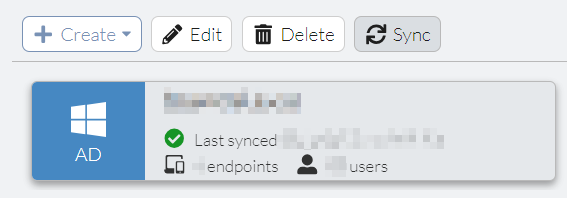
In Endpoint Management > Domain, click an AD domain card and click Sync to synchronize the AD connection with any updates from the AD server, if necessary:
When creating a new endpoint profile, you can use the Groups & AD Users tab to select which AD users/groups or non-AD groups you will apply the profile to. To assign endpoints to different non-AD groups, see Groups & AD Users.

To configure Profiles options:

  1. Go to Endpoint management > Profile.

  2. Do one of the following:

    • Click Create to create a new endpoint profile. In the Name field, enter the desired name of the endpoint profile.

    • To modify an existing endpoint profile, select the profile, then click Edit.

  3. Configure the options on each tab as the following topics describe:

    • Access

    • Protection

    • Sandbox

    • ZTNA

    • Groups & AD Users

  4. Click OK to save the endpoint profile.

  5. (Optional) Once you have configured an endpoint profile, you can clone it to quickly create additional endpoint profiles. This feature is useful when setting up multiple profiles with slight variations while maintaining a consistent baseline configuration. To clone an existing endpoint profile, do the following:

    1. Select an existing endpoint profile and click Edit > Clone.

    2. In the Name field, enter the desired name.

    3. Click OK.

Considerations

When the FortiSASE-Sovereign Endpoint Management Service uses AD servers with Groups & AD Users for endpoint profile assignments, these servers must use public IP addresses or publicly accessible FQDNs when configuring the Server address in the AD connection and may require some configuration or topology changes.

Profile

Profile

FortiSASE-Sovereign supports multiple endpoint profiles to provide granular behavior for different user types that belong to an Active Directory (AD) group or a non-AD group, such as:

  • IT can disconnect from always-on tunnels.

  • Marketing can use removable media and authenticates using LDAP.

  • All other users cannot disconnect from always-on tunnels or use removable media, and authenticate using single sign on (SSO).

Endpoint Management > Profile presents a table of profiles, with the Default profile assigned to all other users if you have not defined custom profiles. You cannot delete the Default profile.

You can prioritize and assign endpoint profiles to on-net endpoints based on matching AD domain users and groups or you can assign endpoint profiles based on endpoints assigned to different non-AD groups.

Viewing users and groups from an AD server requires an AD connection in Endpoint Management > Domain.

In Endpoint Management > Domain, click an AD domain card and click Sync to synchronize the AD connection with any updates from the AD server, if necessary:

When creating a new endpoint profile, you can use the Groups & AD Users tab to select which AD users/groups or non-AD groups you will apply the profile to. To assign endpoints to different non-AD groups, see Groups & AD Users.

To configure Profiles options:

  1. Go to Endpoint management > Profile.

  2. Do one of the following:

    • Click Create to create a new endpoint profile. In the Name field, enter the desired name of the endpoint profile.

    • To modify an existing endpoint profile, select the profile, then click Edit.

  3. Configure the options on each tab as the following topics describe:

    • Access

    • Protection

    • Sandbox

    • ZTNA

    • Groups & AD Users

  4. Click OK to save the endpoint profile.

  5. (Optional) Once you have configured an endpoint profile, you can clone it to quickly create additional endpoint profiles. This feature is useful when setting up multiple profiles with slight variations while maintaining a consistent baseline configuration. To clone an existing endpoint profile, do the following:

    1. Select an existing endpoint profile and click Edit > Clone.

    2. In the Name field, enter the desired name.

    3. Click OK.

Considerations

When the FortiSASE-Sovereign Endpoint Management Service uses AD servers with Groups & AD Users for endpoint profile assignments, these servers must use public IP addresses or publicly accessible FQDNs when configuring the Server address in the AD connection and may require some configuration or topology changes.