

Access
To configure the Access tab:
-
Create a new profile or edit an existing one:
-
Go to Endpoint management > Endpoint profiles. By default, the Profiles tab is selected.
-
Click Create or edit an existing profile.
-
If creating a new profile, in the Name field, enter the desired name of the endpoint profile.
-
-
On the Access tab:
-
Enable the toggle for Show tags on FortiClient to display ZTNA tags on FortiClient profile tab for managed endpoints, or disable the toggle to hide ZTNA tags on FortiClient.
-
Enable the toggle for Notify endpoint of VPN connectivity issues to allow FotiClient to pop notifications to endpoints when the status of FortiSASE-Sovereign Cloud Security tunnel changes, or disable the toggle to mute FortiClient notifications for tunnel events.
-
To enable autoconnect to the FortiSASE-Sovereign Cloud Security tunnel, enable Auto Connect to FortiSASE-Sovereign, or disable it to allow endpoints to connect to FortiSASE-Sovereign Cloud Security tunnel manually.
-
Enable the toggle for Force Always On VPN to prevent endpoints from being able to disconnect from the FortiSASE-Sovereign Cloud Security tunnel, or disable it to allow endpoints to disconnect using a Disconnect button on FortiClient.
-
Configure the remaining options as the following topics describe:
-
Pre-logon authentication
-
On/off-net Settings
-
Bypass FortiSASE-Sovereign
-
-
Click OK to save endpoint profile.
Pre-logon authentication
Under Advanced settings, you can enable Pre-logon authentication for a profile. See Global connection settings for details.
On/off-net Settings
On-net rule sets determine if FortiSASE-Sovereign considers endpoints trusted or on-net, meaning they are in a corporate network that has some level of on-premise security and do not need to automatically connect to FortiSASE-Sovereign tunnel for security inspection. This also helps to optimize FortiSASE-Sovereign bandwidth usage.
For example, by configuring an on-net rule set that uses your corporate network's public IP address, any endpoints behind this corporate network do not autoconnect to the FortiSASE-Sovereign Cloud Security tunnel. Instead, endpoints only autoconnect when their public IP addresses do not match the configured public IP address in the on-net rule, indicating they are untrusted or off-net and enforcing security inspection via FortiSASE-Sovereign SIA.
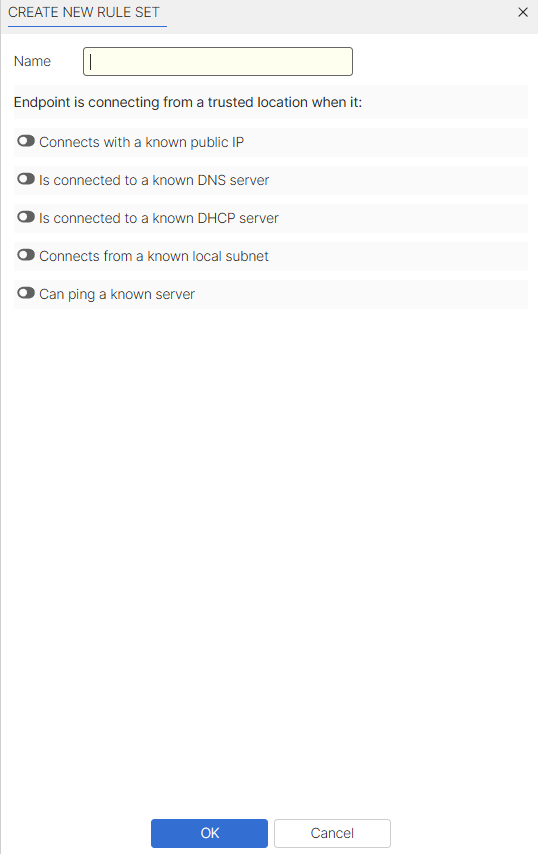
FortiSASE-Sovereign supports on-net rule sets with the following detection types to determine if an endpoint is connecting from a trusted location:
|
Detection type |
Description |
|---|---|
|
Connects with a known public IP |
In the Known public (WAN) IP addresses field, enter the desired IP address. You can configure multiple addresses using the + button. FortiSASE-Sovereign supports configuration of single IP addresses and IP subnets. FortiSASE-Sovereign considers the endpoint as satisfying the rule if its public (WAN) IP address matches the one specified. |
|
Is connected to a known DNS server |
In the Known server IP addresses field, configure at least one IP address for the desired DNS server. You can configure multiple IP addresses using the + button. FortiSASE-Sovereign considers the endpoint as satisfying the rule if it is connected to a DNS server that matches the specified configuration. |
|
Is connected to a known DHCP server |
If you enable Identify servers by IP/MAC addresses, configure the IP and/or MAC address for the desired DHCP server in the Known server IP addresses and Known MAC addresses fields, respectively. If configuring Identify servers by IP/MAC addresses, the MAC Address field is optional. If you enable Identify servers by DHCP option 224, configure the DHCP code for the desired DHCP server. If the DHCP server is a FortiGate, you can use the FortiGate serial number as the DHCP code, if desired. Otherwise, the DHCP code can be any string configured in the DHCP server as option 224. You can configure Identify servers by IP/MAC addresses, Identify servers by DHCP option 224, or both. You can configure multiple IP and MAC addresses and DHCP codes using the + button on each tab. |
|
Connects from a known local subnet |
In the Known subnets field, enter an IP address range. In the Known gateway MAC addresses field, optionally enter the default gateway MAC address. You can configure multiple addresses using +. FortiSASE-Sovereign considers the endpoint as satisfying the rule if its Ethernet or wireless IP address is within the range specified and if its default gateway MAC address matches the one specified, if it is configured. |
|
Can ping a known server |
In the Known server IP addresses field, enter the server IP address. You can configure multiple addresses using +. FortiSASE-Sovereign considers the endpoint as satisfying the rule if it can access the server at the specified IP address. |
Logic used for multiple rules within a rule set:
-
If you configure rules of multiple detection types for a rule set, the endpoint must satisfy all configured rules (AND logic condition) to satisfy the entire rule set.
Logic used for multiple conditions within a rule:
-
For most rules, if you configure multiple conditions, then the endpoint needs to satisfy only one of them (OR logic condition) to satisfy the rule. An exception to this is when Connects from a known local subnet is enabled where both Known subnets and Known gateway MAC addresses are specified. In this case, only one of the multiple known subnets specified (OR logic condition) and one of the known gateway MAC addresses (AND logic condition) is required is satisfy the rule.
To configure on/off-net settings:
-
In the desired profile, on the Access tab, under On/off-net Settings, set On/off-net detection to Enable.
To configure an on-net rule set to prevent autoconnect to the FortiSASE-Sovereign Cloud Security tunnel when endpoints are on-net, do the following:
On-net rule sets can also be created, edited, and deleted in Endpoint management > Profile from the On-net rule sets tab. From this tab, you can also view which profiles each rule set is used in.
-
Set On/off-net detection to Enable.
-
From the On-net rule set dropdown list, click + to create a new on-net rule set.
-
In the Create new rule set slide-in, select one or more detection types by toggling them.
-
Configure the required fields as described for each detection type.
-
Click OK to save the on-net rule set.
-
Click OK on the confirm prompt to select the newly created on-net rule set.
-
Enable Exempt endpoint from FortiSASE-Sovereign auto-connect when endpoint is on-net.
-
Considerations
Exempt endpoint from FortiSASE-Sovereign auto-connect when endpoint is on-net is designed to prevent FortiSASE-Sovereign from automatically establishing a secure connection (SIA) when the endpoint is already within the trusted and secured corporate network (i.e. on-net). This is useful for reducing unnecessary SIA bandwidth usage and ensuring traffic is routed directly through corporate firewall when the endpoint is already behind one. However, the exemption mechanism is event-driven and only takes effect after specific system-level or network events occur on the endpoint that include: system login/logout, system power on/off, system restart, network reset, or change in network status.
Thus, if an off-net endpoint that is already connected to FortiSASE-Sovereign via the FortiSASE-Sovereign Cloud Security tunnel transitions to an on-net status without triggering any of the aforementioned events, the autoconnect exemption is not immediately applied. In such cases, the endpoint continues to stay connected to FortiSASE-Sovereign even though it is on-net.
Bypass FortiSASE-Sovereign
You can configure split tunneling destinations to optimize FortiSASE-Sovereign bandwidth by excluding trusted traffic from flowing through the FortiSASE-Sovereign Cloud Security tunnel. Such traffic is redirected to the endpoint's physical interface, bypassing FortiSASE-Sovereign. For example, you can add high-bandwidth applications like Microsoft Teams or Zoom as split tunneling destinations.
To configure split tunneling destinations:
-
Go to Endpoint management > Profile.
-
In the desired profile, on the Access tab, under Bypass FortiSASE-Sovereign, click Create.
-
Configure the following fields:
Option
Description
Type
Select Infrastructure, FQDN, Local Application, or Subnet.
Match
-
If you selected Infrastructure, select the desired application from the dropdown list.
-
If you selected FQDN, enter or select the desired fully qualified domain name (FQDN). The FQDN resolved IP address is dynamically added to the route table when in use and removed after disconnection. For example, to exclude YouTube from the tunnel, enter youtube.com. When endpoint users use any popular browser such as Chrome, Edge, or Firefox to access youtube.com, this traffic does not go through the tunnel.
-
If you selected Local Application, specify an application using its process name, full path, or the directory where it is installed. When entering the directory, you must end the value with \. You can enter file and directory paths using environment variables, such as %LOCALAPPDATA%, %programfiles%, and %appdata%. Do not use spaces in the tail or head, or add double quotes to full paths with spaces. You can add multiple entries by separating them with a semicolon.
For example, to exclude Microsoft Teams and Firefox from the tunnel, enter any of the following combinations:
-
Application Name: teams.exe;firefox.exe
-
Full Path: C:\Users\<username>appData\Local\Microsoft\Teams\current\Teams.exe;C:\Program Files\Mozilla Firefox\firefox.exe
-
Directory: C:\Users\<username>appData\Local\Microsoft\Teams\current\;C:\Program Files\Mozilla Firefox\
To find a running application's full path, on the Details tab in Task Manager, add the Image path name column.
-
-
If you selected Subnet, enter the desired subnet. The subnet is dynamically added to the route table when in use and removed after disconnection.
You can select host groups when using the Subnet match type. You must create host groups in Security > Hosts before they become visible in the Create Destination dialog.
-
For FortiSASE instances with SSL remote agent connectivity:
-
You can select host groups when using the Subnet match type. You must create host groups in Security > Hosts before they become visible in the Create Destination dialog.
-
You can only configure a Subnet or IP range steering bypass destination for the Default endpoint profile. All custom endpoint profiles inherit and apply the subnet destinations defined in the Default profile.
-
-
For FortiSASE with IPsec remote agent connectivity:
-
You can only configure the subnet using the input field in the Create Destination dialog.
-
You can configure unique Subnet steering bypass destinations for custom profiles and the Default profile.
-
-
-
-
Click OK.
Considerations
-
Windows FortiClient endpoints support application-based split tunneling or full tunneling with FortiSASE. FortiClient endpoints on other platforms support full tunneling. See Supported FortiClient features.
-
FortiSASE-Sovereign does not support wildcard FQDNs when configuring an FQDN split tunneling destination.