
Fortinet white logo
Fortinet white logo

Administration Guide

Microsoft Azure OAuth Support (7.6.3)

Microsoft Azure OAuth Support (7.6.3)

FortiWeb now supports Microsoft Azure as an OAuth authorization server, allowing users to integrate Azure for authentication seamlessly. To simplify configuration, predefined Azure templates have been introduced for both the OAuth Server and OAuth Request modules.

Key Enhancements

  • Predefined Azure Templates:

    Module

    Predefined Template

    OAuth Server Azure Template
    OAuth Request

    Azure Authorization Template

    Azure Token Template

    Azure Refresh Template

    Azure Validate

    Azure JWK Set

    Azure Userinfo

  • Alternative Token Validation: Since Azure does not provide a dedicated token validation API, OIDC-based validation or the Microsoft Graph API (https://graph.microsoft.com/v1.0/me) can be used.

  • Optimized JWKS Query Handling: Increased buffer size to accommodate Azure’s key sets.

Prerequisites

Before configuring FortiWeb for Azure OAuth, ensure you have an Azure account and complete the following steps in the Azure portal (https://portal.azure.com/):

  1. Navigate to Microsoft Entra ID and create a new app registration.

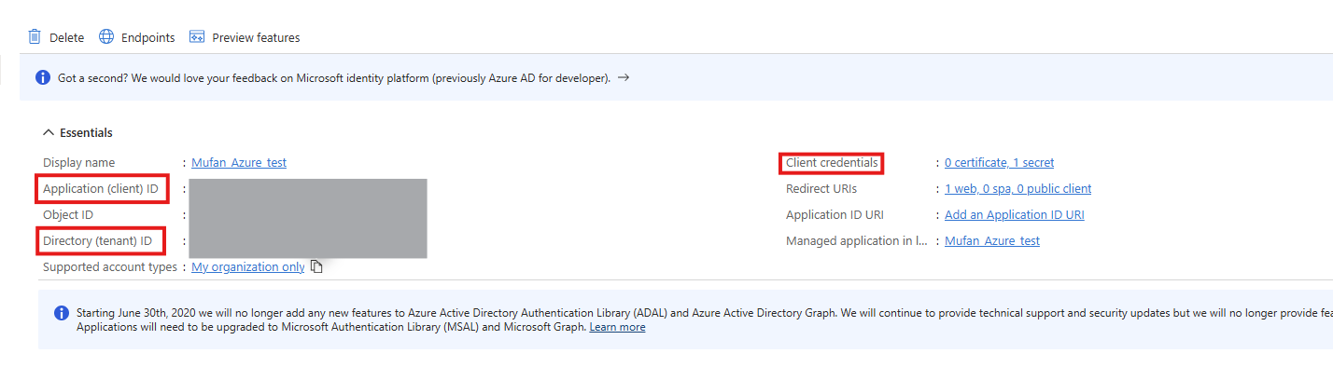
  2. Under Overview, copy the Client ID and Tenant ID for later use, then create a Client Secret.

  3. Go to API Permissions, select "User.Read", and grant admin consent.
Configuration Steps

  1. Navigate to User > OAuth Server, and click Create New.

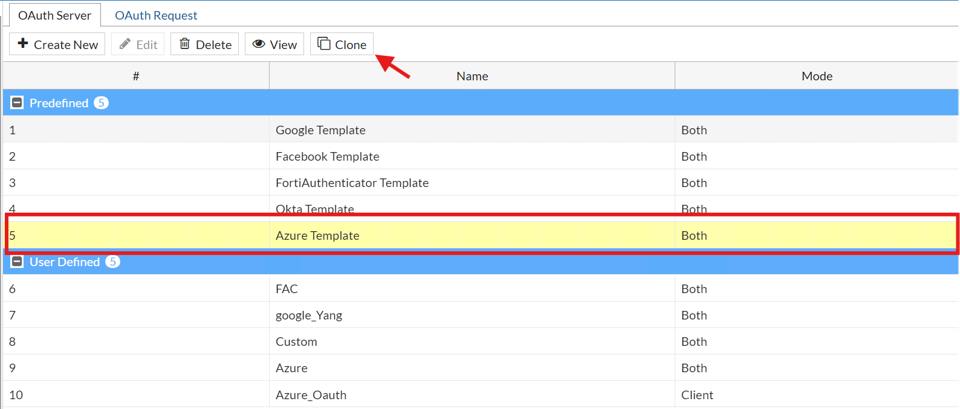
  2. Select the OAuth Server template ("Azure Template") and click Clone.
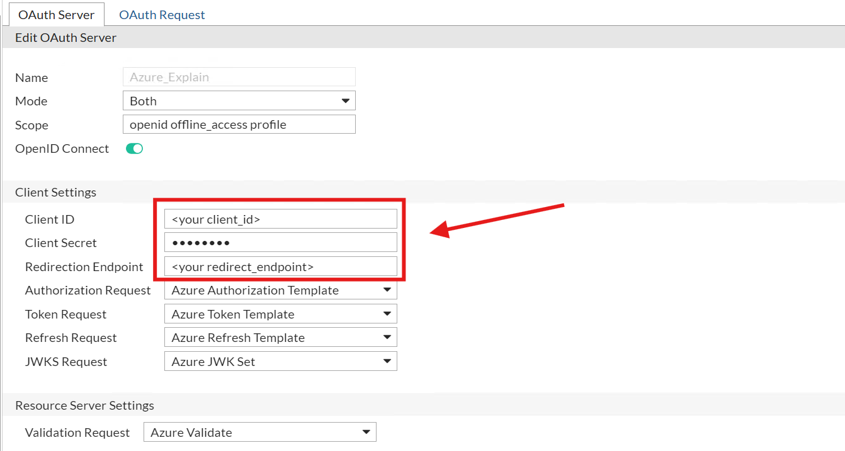
  3. Choose the Mode and enter the Client ID, Client Secret, and Redirection Endpoint.
  4. Clone all six predefined OAuth Request templates.
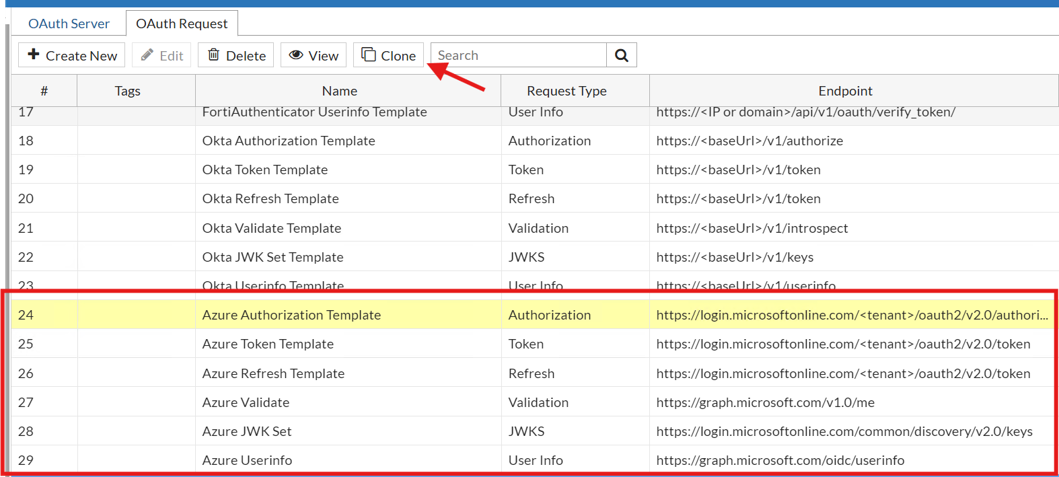

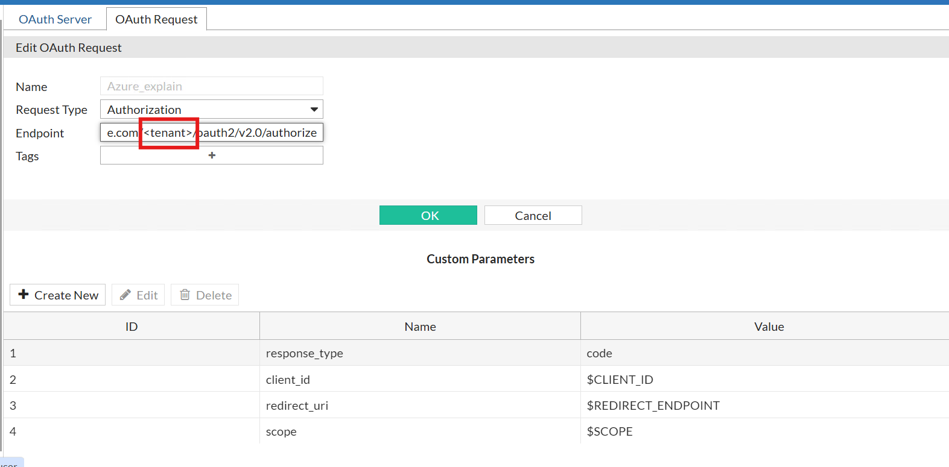
  5. Modify the request settings, such as replacing the tenant ID with your own.

  6. Apply the configured requests to the OAuth server.
Restrictions

  • OIDC is enabled by default, following Azure’s security best practices to ensure secure authentication.

  • As Azure does not offer a dedicated token validation API, token verification relies on an alternative method using the userinfo endpoint.

For more information, see OAuth authorization & OIDC authentication.

Microsoft Azure OAuth Support (7.6.3)

Microsoft Azure OAuth Support (7.6.3)

FortiWeb now supports Microsoft Azure as an OAuth authorization server, allowing users to integrate Azure for authentication seamlessly. To simplify configuration, predefined Azure templates have been introduced for both the OAuth Server and OAuth Request modules.

Key Enhancements

  • Predefined Azure Templates:

    Module

    Predefined Template

    OAuth Server Azure Template
    OAuth Request

    Azure Authorization Template

    Azure Token Template

    Azure Refresh Template

    Azure Validate

    Azure JWK Set

    Azure Userinfo

  • Alternative Token Validation: Since Azure does not provide a dedicated token validation API, OIDC-based validation or the Microsoft Graph API (https://graph.microsoft.com/v1.0/me) can be used.

  • Optimized JWKS Query Handling: Increased buffer size to accommodate Azure’s key sets.

Prerequisites

Before configuring FortiWeb for Azure OAuth, ensure you have an Azure account and complete the following steps in the Azure portal (https://portal.azure.com/):

  1. Navigate to Microsoft Entra ID and create a new app registration.

  2. Under Overview, copy the Client ID and Tenant ID for later use, then create a Client Secret.

  3. Go to API Permissions, select "User.Read", and grant admin consent.

Configuration Steps

  1. Navigate to User > OAuth Server, and click Create New.

  2. Select the OAuth Server template ("Azure Template") and click Clone.

  3. Choose the Mode and enter the Client ID, Client Secret, and Redirection Endpoint.

  4. Clone all six predefined OAuth Request templates.


  5. Modify the request settings, such as replacing the tenant ID with your own.


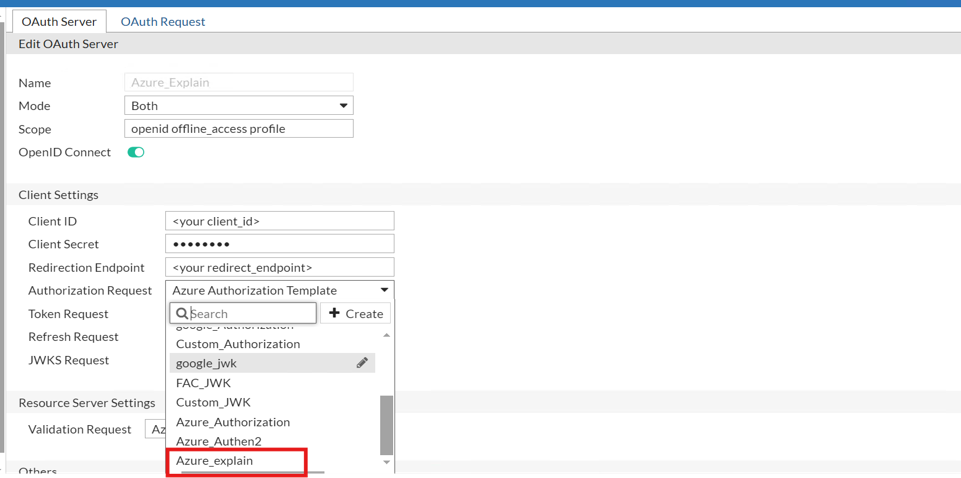
  6. Apply the configured requests to the OAuth server.

Restrictions

  • OIDC is enabled by default, following Azure’s security best practices to ensure secure authentication.

  • As Azure does not offer a dedicated token validation API, token verification relies on an alternative method using the userinfo endpoint.

For more information, see OAuth authorization & OIDC authentication.