

IP Address Connector
Creating an IP Address connector allows FortiWeb to dynamically import an external IP blocklist. The list can be retrieved as a plain text file over HTTP or HTTPS, or in STIX format from a TAXII server. Imported blocklists can be used to enforce security policies, such as blocking traffic from known malicious IP addresses. FortiWeb regularly synchronizes with the external source to ensure that updates to the list are applied automatically.
After you have imported your external block list through the IP Address connector, you can apply the IP External resource in IP Protection > IP List.

|
|
Requirements:
- The external block list must be accessible from an HTTP/HTTPS server.
- The import file must be in plain text and each line must contain an IP, IP Range, or Subnet in the below formats:
IP/ IP Range/ Subnet
Example
IPv4 192.168.2.100 IPv4 Subnet 172.200.1.4/16 IPv4 Range 172.16.8.1-172.16.8.100 IPv6 2001:0db8::eade:27ff:fe04:9a01 IPv6 Subnet 2001:0db8::eade:27ff:fe04:9a01/120 IPv6 Range 2001:0db8::eade:27ff:fe04:aa01-2001:0db8::eade:27ff:fe04:ab01
-
The maximum import file size is 10 MB, or 128 KB (128 × 1024 = 131072) entries, whichever limit is hit first.
To create and configure an IP Address connector:
- Go to Security Fabric > External Connectors.
- Click Create New.
- Under Threat Feeds, click IP Address to display the configuration editor.
- Configure the following IP Address settings:
Setting
Description
Name Specify the name of the IP Address connector. Valid characters are A-Z, a-z, 0-9, _, and -. No spaces. Protocol
Select the protocol used for the connections between FortiWeb and the IP External resource.
Options include:
HTTP — Downloads the blocklist over an unencrypted HTTP connection. Suitable for internal or non-sensitive sources.
HTTPS — Downloads the blocklist over a secure HTTPS connection. Recommended for most use cases to ensure data integrity.
TAXII — Uses the TAXII protocol to fetch STIX-formatted IP threat indicators from a TAXII server. This allows FortiWeb to integrate with structured threat intelligence platforms that publish IP-based indicators of compromise.
TLS Certificate
Select the TLS certificate used for the HTTPS connection between FortiWeb and the IP External resource. It should be uploaded in the Local tab in Sever Objects > Certificates > Local.
Available only if HTTPS or TAXII is selected for Protocol.
Verify Host Certificate
Enable this option to verify the IP External resource's URI is valid by checking the ownership of the CA certificate.
Available only if HTTPS or TAXII is selected for Protocol.
CA
Select the CA certificate of the IP External resource's URI. It should be uploaded in the CA tab in Sever Objects > Certificates > CA.
Available only if HTTPS or TAXII is selected for Protocol.
URI of External Resource Specify the URI of the HTTP/HTTPS server where the IP address list is stored. HTTP Basic Authentication Enable/disable HTTP Basic Authentication to require username and password to access the IP address list. Username The Username option is available if HTTP Basic Authentication is enable.
Specify the username to be used to access this IP address list.
Password The Password option is available if HTTP Basic Authentication is enable.
Specify the password to be used to access this IP address list.
Refresh Rate Specify the refresh rate in minutes. (Default: 5. Range: 1-43200 minutes).
FortiWeb will retrieve the data from the HTTP/HTTPS/TAXII server periodically according to the refresh rate.
Comments Optionally, enter comments about the IP Address connector. Last Update
Display the last time FortiWeb retrieved updates of the IP address list from the external IP address source.
FortiWeb fetches updates based on the specified Refresh Rate (5 minutes by default) and updates the Last Update time only if new or updated IP address list is retrieved. If the Last Update time is significantly behind the current time, it may indicate that the IP address list provided by the external source has not changed in some time or that there are connectivity or availability issues with the external IP source.
Status Enable/disable the IP Address connector. - Click Save.
The newly created IP Address connector appears on the External Connectors page under Threat Feeds. You can apply the IP External connector in an IP Group (Server Objects > IP Groups) and apply the IP group in IP Protection > IP List and IP Protection > IP Reputation.
To view the external block list IP entries and the resource update status:
- Go to Security Fabric > External Connectors.
- Under Thread Feeds, double-click the IP Address Connector to display the configuration editor.
- From the Last Update field, you can see the date of when the resource was last updated.
- Click View Entries to display the IP address list entries.
A dialog appears displaying the entries imported for the IP Address Connector.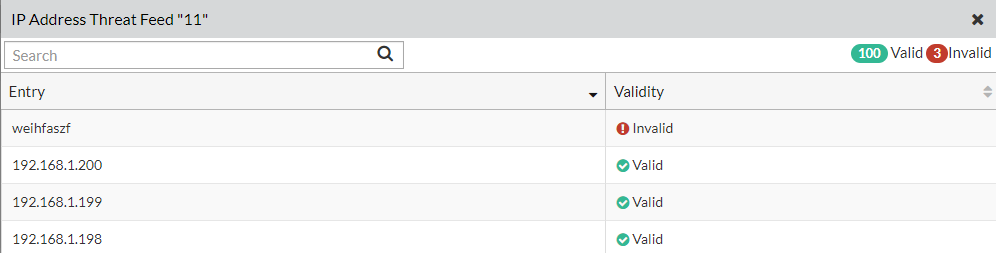
The imported file has been parsed line by line and marked as valid or invalid based on whether the entry meets format requirements for IP, IP Range, or Subnet.