Use case: Real-time incident alerts
Scenario
An application experiences a sudden spike in traffic during a promotional sale, causing high CPU usage of FortiWeb.
How FortiWeb responses to this issue
- Trigger Detection: FortiWeb detects that its CPU usage exceeds 85%.
- Diagnose: FortiWeb runs diagnose commands automatically to print detailed performance information.
- Notification: FortiWeb sends an alert to the designated Microsoft Teams channels, notifying the IT team of the high CPU usage and the debug information.
This automation stitch ensures that the IT team is immediately aware of performance issues and can quickly address them, minimizing downtime and maintaining a smooth user experience for customers.
Configurations on FortiWeb
Before performing the following steps, make sure you have already got the URL of the Teams channel you want to send notifications to. For how to get the URL, see Microsoft Teams Notification action.
Perform the following steps on FortiWeb:
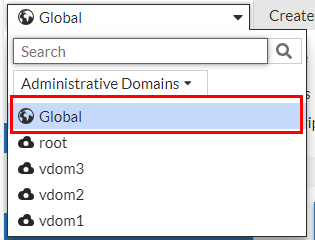
- Switch the Administrative Domain to Global.
- Go to Log&Report > Log Config > Other Log Settings.
- Set CPU Utilization to 85%. It will act as the threshold for the CPU Usage trigger.
- Click Apply.
- Go to Security Fabric > Automation.
- Select the Action Tab.
- Click Create New to create a CLI Script action.
- Select CLI Script.
- Enter a name and description.
- Enter the following command:
diagnose policy total-conn-psec list
diagnose policy total-session list
diagnose hardware cpu list
diagnose system top delay 10
- Click OK.
- Click Create New to create a notification action.
- Select Microsoft Teams Notification.
Configure the settings:
Name Enter a name.
Description Enter a description.
URL Paste the webhook URL you got from Teams. - Please leave the "https://" out when you paste the URL because the system will automatically append "https://" to the URL you enter.
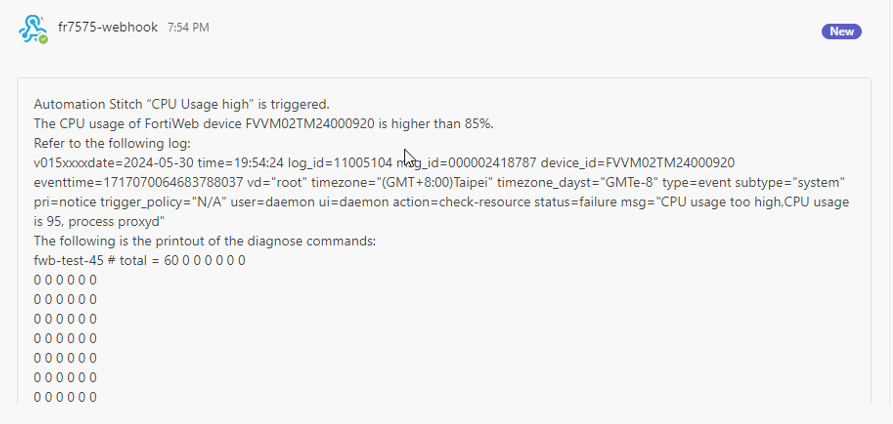
Message Type Text Message The CPU usage of FortiWeb XXXXXX is higher than 85%.
Refer to the following log:
%%log%%
The following is the printout of the diagnose commands:
%%results%%
- Click OK.
- Select the Stitch tab.
- Enter a name and brief description for this stitch. Enable the status.
- Click Add Trigger, select High_CPU, then click Apply.
- Click Add Action, select the CLI Script action you just created, then click Apply.
- Click Add Action, select the Microsoft Teams Notification action you just created, then click Apply.
- Click OK.
When this automation stitch is triggered, you will receive the following message in Microsoft Teams (below is only a snippet of the full message):