

FortiAnalyzer Cloud Support (7.6.3)
FortiWeb now supports FortiAnalyzer Cloud, enabling users to store and analyze FortiWeb logs in the cloud. This enhancement provides greater flexibility for organizations that are transitioning to hybrid environments, combining on-premises Fortinet appliances with Fortinet's cloud-based services.
Previously, FortiWeb only supported logging to a local, physical FortiAnalyzer. With this update, FortiWeb can now send logs to both on-premises FortiAnalyzer and FortiAnalyzer Cloud, ensuring seamless log collection and security event correlation across deployments.
Prerequisites
-
FortiAnalyzer Cloud Licenses: A valid FortiAnalyzer Cloud (FAZ Cloud) license entitlement and a FortiAnalyzer Cloud storage license are required for log transmission. Upon license expiration, FortiWeb ceases log forwarding, and FortiAnalyzer Cloud rejects incoming logs.
-
Authorized Device Registration: FortiWeb must be added as an authorized device in FortiAnalyzer Cloud before log transmission can begin. For details, see the FortiAnalyzer Cloud Administration Guide.
Checking the FortiAnalyzer Cloud License Status
Before configuring FortiAnalyzer Cloud on FortiWeb, verify that the FortiAnalyzer Cloud license is active to ensure proper connectivity and log forwarding. You can check the license status directly from the FortiWeb Dashboard to confirm whether the service is enabled and valid.
Note: The FortiAnalyzer Cloud storage license status must be verified separately in the FortiAnalyzer Cloud portal.
From the Dashboard > Status page, you can view the FortiAnalyzer Cloud (FAZ Cloud) license status in the Licenses widget.
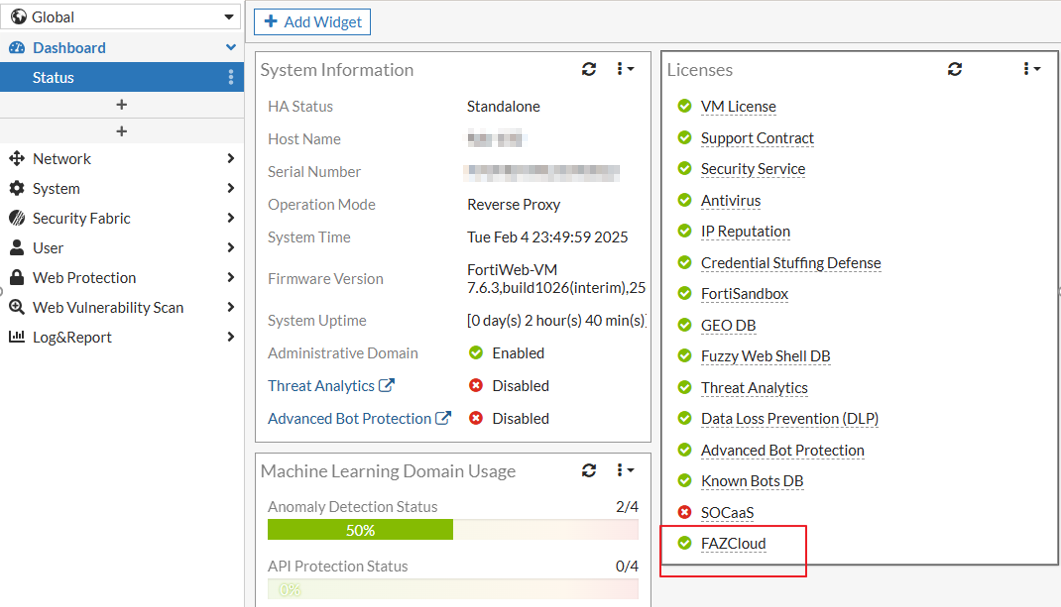
Hovering over the FAZ Cloud license entry will display the current status and expiration date. You can also click on the FAZ Cloud license entry to navigate to System > Config > FortiGuard, where detailed license information and subscription details are available.
The possible license states are:
-
Valid — The appliance has a valid, non-trial license.
-
Expired — The contract has expired and is no longer active.
Enabling FortiAnalyzer Cloud in a FortiAnalyzer Policy
After you have ensured that the FortiAnalyzer Cloud license is active and that FortiWeb is added as an authorized device in FortiAnalyzer Cloud, you can configure FortiWeb to establish a connection and enable log forwarding.
-
Navigate to Log&Report > Log Policy > FortiAnalyzer Policy.
-
Click Create New to display the configuration editor.
-
Enter a name for the new policy and click OK to save the policy.
-
Click Create New to add a new FortiAnalyzer server to the policy.
-
Enable the FAZCloud option and click OK.
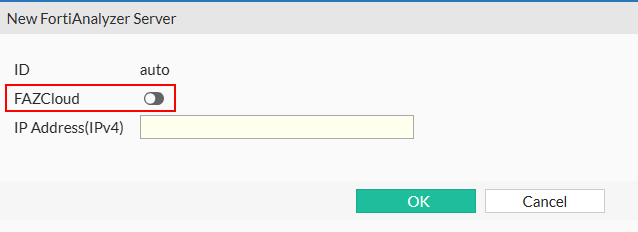
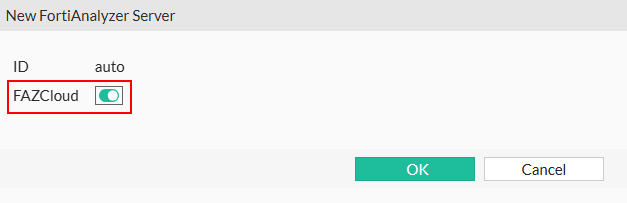
When FAZ Cloud is enabled in the FortiAnalyzer Policy, FortiWeb resolves the default FortiAnalyzer Cloud domain (fortianalyzer.forticloud.com) and initiates an OFTP connection for secure log transmission. Upon a successful connection, FortiWeb dynamically updates FortiAnalyzer Cloud domain name resolution by performing periodic DNS checks, ensuring consistent connectivity and reliability.

|
Each FortiAnalyzer Policy can have only one FortiAnalyzer server with FAZ Cloud enabled. Additional FortiAnalyzer servers can be included in the policy, but they must have FAZ Cloud disabled. |
You can now apply the FortiAnalyzer Policy with FAZ Cloud enabled in Global Log Settings or Trigger Policy to direct logs to FortiAnalyzer Cloud.
Troubleshooting FortiAnalyzer Cloud Connection
If FortiWeb fails to establish a connection with FortiAnalyzer Cloud, use the following debug commands to diagnose the issue:
-
On FortiWeb: Run
diagnose debug application oftpto monitor OFTP communication. -
On FortiAnalyzer Cloud: Run
diagnose debug application oftpdto check the OFTP daemon status.
These commands help identify connection failures, authentication issues, or other communication problems.
For more information, see Logging.