Configuring HA settings specifically for high volume active-active mode
In addition to the basic settings, you need to specify the HA members and set traffic distributions for the high volume active-active mode. You only need to set the following configurations on the primary node. They can be automatically synchronized to all the HA members. For how to find the primary node, see this topic.
The high-volume active-active HA has two modes, "single" and "all".
-
Configuring HA settings specifically for high volume active-active mode
-
Configuring HA settings specifically for high volume active-active mode
"Single" mode typology
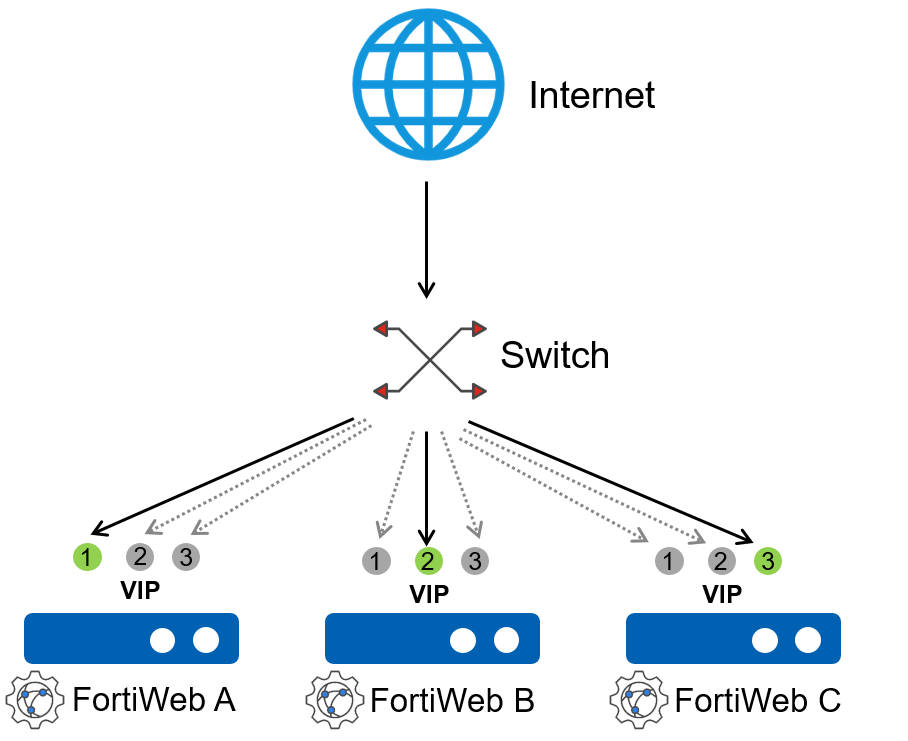
In the "single" mode, multiple virtual IPs (VIP) are assigned to each member with different priority levels. In this configuration, traffic for a specific virtual IP is only directed to the member that has set this virtual IP with the highest priority. If that member becomes unavailable, the traffic will automatically reroute to other members configured with that virtual IP, ensuring continuous service and load distribution among the remaining members. This is called the "Single" mode high volume active-active HA, which means that each member has only one primarily VIP.
In the example below, traffic to VIP 2 is primarily directed to FortiWeb B. If FortiWeb B becomes unavailable, traffic to VIP 2 will be automatically rerouted to FortiWeb A or C, ensuring continuity of service.
"All" mode typology
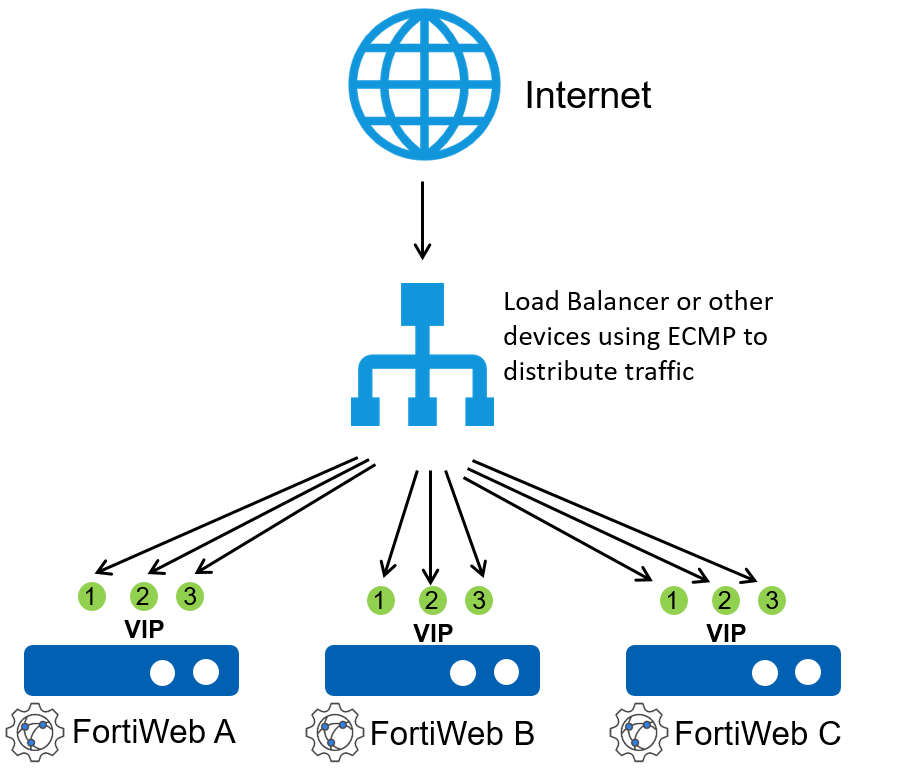
Starting from version 7.6.1, we have introduced the "all" mode for high-volume active-active HA. In this mode, the virtual IPs (VIPs) assigned to each member do not have differing priority levels. Instead, traffic to any VIP can be processed equally by all members in the HA group.
As shown in the following table, VIP 1, VIP 2, and VIP 3 are active on all members, allowing every FortiWeb instance to handle requests for each VIP. The traffic distribution across the members is managed by the load balancer deployed in front of the FortiWeb cluster, ensuring balanced traffic processing without reliance on priority levels.
You can run the following command to switch between "single" and "all" modes.
config system ha
set mode active-active-high-volume
set distribution {single | all}
end
This configuration is available only in the CLI and is not accessible through the GUI.

|
By default, "all" mode is used for FortiWeb-VM HA on public cloud platforms (e.g., AWS, Azure) and on KVM with the UDP tunnel network type, as it is common to deploy a load balancer in front of FortiWeb in these environments. For other platforms and hardware FortiWeb devices, the default high-volume active-active HA mode is set to "single" mode. |
"Single" mode configurations
Allocating nodes
After the basic settings are done, all the members with the same group ID should join in the HA group. In the Available Nodes list on the Node Allocation page, all the HA members are listed.
Perform the following steps to allocate nodes to the HA group.
- Go to System > High Availability > Settings.
To access this part of the web UI, your administrator's account access profile must have Read and Write permission to items in the System Configurationcategory. For details, see Permissions. - Select the Node Allocation tab.
- In the Available Nodes list, select one or more members which you want to add in the cluster, then click the right arrow
 to move them to the Cluster Members list.
 - Click Apply.
The selected nodes are allocated to the HA group.
Creating traffic distribution
The domain name of your application is paired with one or more IP addresses. These IP addresses are called Virtual IPs in FortiWeb. When your users visit your application, the destination of these requests are these virtual IP addresses. If you have deployed a FortiWeb HA cluster in your network, these requests will arrive first at FortiWeb cluster for threat detection, then be forwarded to the back-end servers. The traffic distribution controls which FortiWeb appliances in the cluster process the traffic destined to certain virtual IPs.
To configure the traffic distribution, you must have already created virtual IPs in Network > Virtual IP. See Configuring virtual IP.
Perform the following steps to map the virtual IPs to the FortiWeb appliances in a HA cluster:
- Go to System > High Availability > Settings.
To access this part of the web UI, your administrator's account access profile must have Read and Write permission to items in the System Configurationcategory. For details, see Permissions. - Select the Traffic Distribution tab.
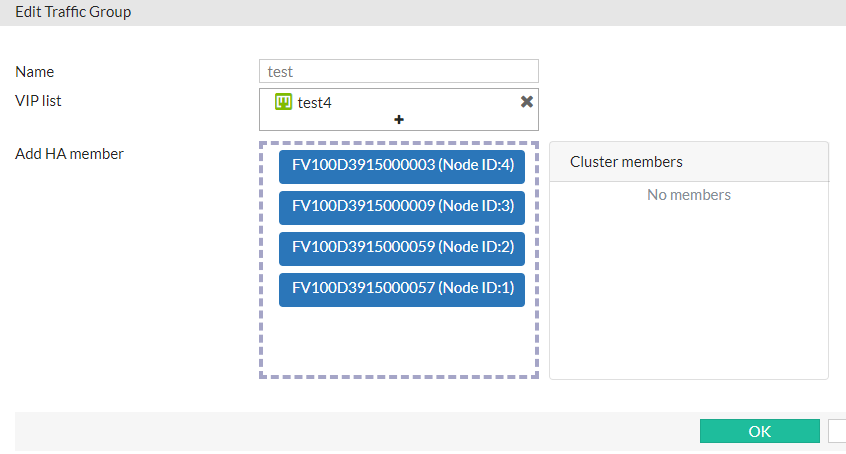
- Enter a name for the traffic distribution.
- Click the VIP list field. The Select Entries pane will appear at the right side of the window.
- Click one or more VIPs that you want to assign to a cluster member. The selected VIPs will appear in the VIP list field.
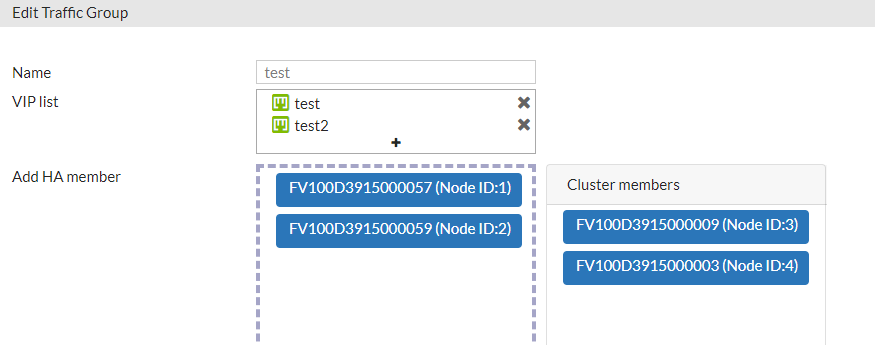
- In the Add HA member field, drag the cluster members from the right to the left. Only the appliance ranks the first will be the active node to receive traffic destined to the selected VIP(s). When the active node is down, the appliance lists the next will take over the traffic. You can select the appliance and drag it to change its rank.
The cluster mode is much more flexible than the active-active and active-passive mode. With different combinations of the VIP and the appliance, you can form more complicated HA topologies.
Example 1
If there are four VIPs and four appliances, you can set two appliances as active nodes, each of them receiving traffic destined to two VIPs, while the other appliances acting as backups.
The configures can be as follows.
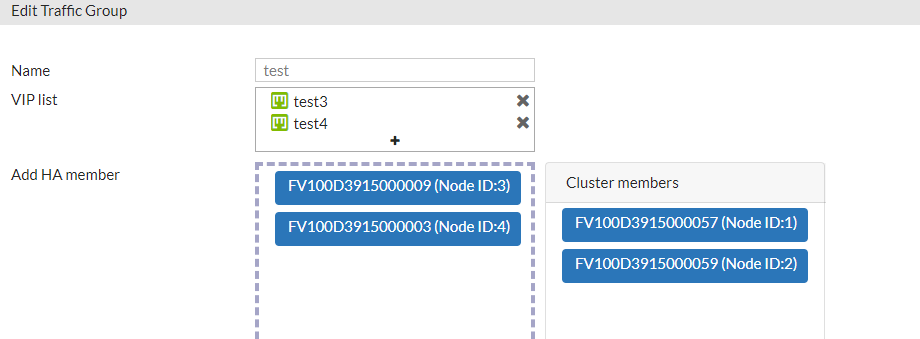
Traffic distribution 1:
Node ID 1 handles "test" and "test2" VIPs, and node ID2 is the backup for "test" and "test2" VIPs.
Traffic distribution 2:
Node ID 3 handles "test3" and "test4" VIPS, and node ID4 is the backup for "test3" and "test4" VIPs.
Example 2
If there are four VIPs and four appliances, you can set all the four nodes as active one, each receiving traffic destined to one VIP.
The configures can be as follows. In this example, each appliance acts as active node to process traffic to an unique VIP. If one node fails, other nodes will take over the traffic by order or the traffic distribution list.
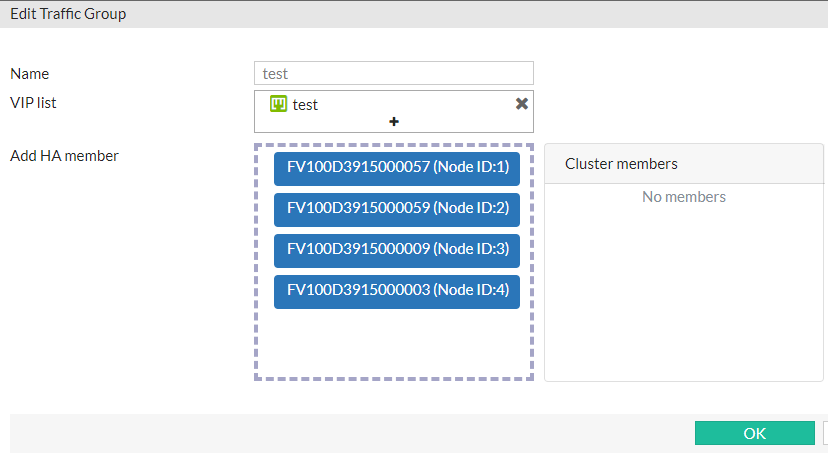
Traffic distribution 1:
Node ID 1 handles "test" VIP, and rest nodes are the backups for "test" VIP.
Traffic distribution 2:
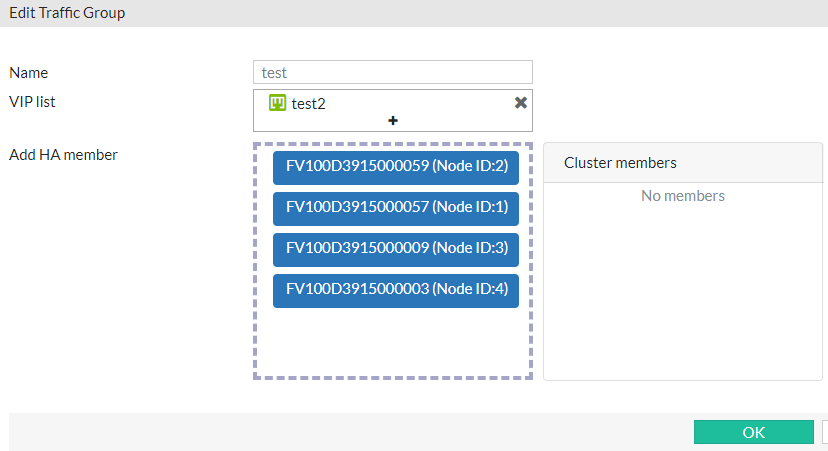
Node ID 2 handles "test2" VIP, and rest nodes are the backups for "test2" VIP.
Traffic distribution 3:
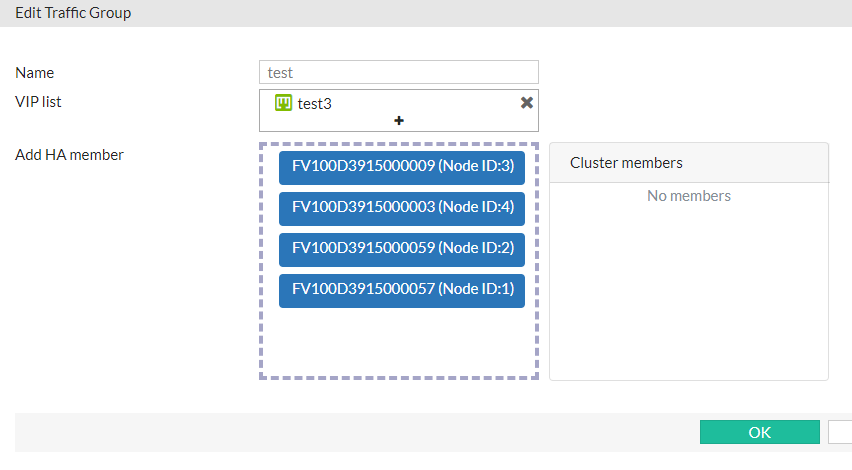
Node ID 3 handles "test3" VIP, and rest nodes are the backups for "test3" VIP.
Traffic distribution 4:
Node ID 4 handles "test4" VIP, and rest nodes are the backups for "test4" VIP.
"All" mode configurations
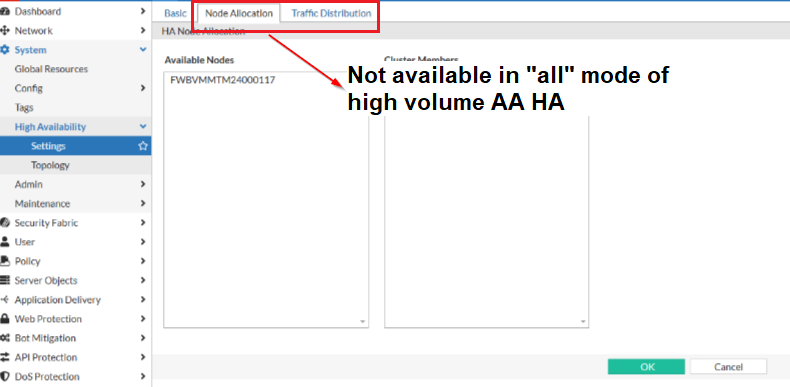
In "all" mode for high-volume active-active HA, traffic is managed by the load balancer. Therefore, the "Node Allocation" and "Traffic Distribution" tabs are not available when high-volume active-active HA is set to "all" mode, as traffic distribution is entirely handled by the load balancer.
Ensure that all virtual IPs intended to receive traffic in the HA cluster are configured in Network > Virtual IP. This setup guarantees that each VIP is recognized within the cluster and ready to handle incoming traffic as directed by the load balancer.