Client management
Tracking a client by either the recognized cookie or the source IP, FortiWeb's client management feature identifies suspected attacks based on the clients. When a client triggers a threat, FortiWeb accumulates the threat score based on the configured threat weight value. When the client's threat score reaches a certain threshold, a corresponding blocking action is performed. To identify a visiting client, FortiWeb generates a unique client ID according to the cookie value or source IP.
In inline mode, when a client accesses a web application for the first time, FortiWeb inserts a cookie into the client's browser. In the subsequent access by the client, if the client carries the cookie inserted, FortiWeb tracks the client by this cookie; otherwise, FortiWeb tracks the client by the client's source IP. While in offline mode, FortiWeb cannot insert cookies into the client. By default, three cookies ASPSESSIONID, PHPSESSID, and JSESSIONID are supported. If you want to track the client through other cookies, just configure it in Session Key of Offline Protection Profile.
See also
How client management works
The client management mechanism takes into account the following factors:
Threat weight of security violations
Each protection feature involved in the client management mechanism must be scored with a threat weight to indicate how serious a security violation is; this generally depends on the security concerns according to how networks and servers will be used. For example, SQL injection might be a higher risk security violation if database applications are provided on servers, though it may be a lower risk event if no database applications are provided. When a security violation is detected, the threat weight of the security violation is used to calculate the threat score of the client that launched the event.
Threat score of a client
FortiWeb reacts to security violations launched by a client according to the configured threat score of the client. The threat score is the sum of the threat weights of all the security violations launched by the client in certain time period. Each time a client violates the security, a corresponding threat weight is added to the total threat score based on set time period. The higher the accumulated threat score of the client, the higher of the risk level of the client. A client can be trusted, suspicious, or malicious based on the configured threat score.
Risk level of a client
Risk level is used to evaluate how dangerous a client is. A client is classified as trusted, unidentified, suspicious, or malicious according to the threat score set. To identify the risk level of a client, the threat score of the risk levels must be defined. For example, a client that has a threat score between 0-120 may be considered trusted (the calculation of the traffic shall be over 5 minutes), between 121-300 suspicious, and over 301 malicious. When the client management module is disabled, or it fails to meet the status of the three risk levels, the risk level of the client can be unidentified.
Blocking action based on risk level
When client management is enabled, based on the risk levels, FortiWeb blocks a suspicious or malicious client according to the configurations in Block Settings.
Configuring a global threat score profile
By default, FortiWeb uses a global threat score profile that applies to all the web protection profiles in a ADOM.
To configure a global threat score profile:
- Go to Policy > Client Management.
- Enter a value for Client session data expires after.
Set the amount of time that FortiWeb will store the tracked client information. Once the information has been stored for longer than the set amount of time, FortiWeb will remove that information. - Enter a value for Statistics period.
This is the amount of time in days that FortiWeb will store the threat score data for an active client.
For example, when the statistics period is 3 days, and the total threat score in this period is 150. Then 150 will be taken as the score to compare with those set for thrusted/suspicious/malicious clients. - Configure Risk Level Values.
Six different risk levels are available to indicate how serious a security violation is: Informational, Low, Moderate, Substantial, Severe, and Critical. -
Click Threat Weight, then select a specific security module. Adjust the slider bar to assign a risk level to each security violation. The Threat Weight tree provides a nested view of security modules, allowing you to apply risk level settings globally.
Some modules, such as Signatures and HTTP Protocol Constraints, require policy-level configuration under Web Protection > Known Attacks > Signatures and Web Protection > Protocol > HTTP > HTTP Protocol Constraints, respectively.
The following table outlines the Threat Weight tree structure and configuration options:
Level 1
Level 2
Level 3
Configuration Option
FortiGate Quarantined IPs FortiGate Quarantined IPs (Critical)
For details, see Receiving quarantined source IP addresses from FortiGate.Available from Client Management.
Known Attacks Signatures
For details, see Blocking known attacks .Require policy-level configuration.
Custom Signature
For details, see Defining custom data leak & attack signatures.Require policy-level configuration.
Server Objects Protected Hostnames (Moderate)
For details, see Defining your protected/allowed HTTP “Host:” header names.Available from Client Management.
Advanced Protection Custom Policy
For details, see Custom Policy.Require policy-level configuration.
Padding Oracle Protection (Severe)
For details, see Defeating cipher padding attacks on individually encrypted inputs.Available from Client Management.
CSRF Protection (Substantial)
For details, see Defeating cross-site request forgery (CSRF) attacks.Available from Client Management.
Man in Browser Protection (Substantial)
For details, see Protection against Man-in-the-Browser (MiTB) attacks.Available from Client Management.
URL Encryption (Substantial)
For details, see URL encryption.Available from Client Management.
SQL/XSS Syntax Based Detection
For details, see Syntax-based SQL/XSS injection detection.Require policy-level configuration.
Cookie Security
For details, see Cookie security.
IP Replay Violation (Substantial)
Available from Client Management.
Cookie Signature Check Failed (Substantial)
Available from Client Management.
Data Loss Prevention
DLP (Substantial)
For details, see Data Loss Prevention.
Available from Client Management.
Input Validation
Parameter Validation (Moderate)
For details, see Validating parameters (“input rules”).
Available from Client Management.
Hidden Fields (Substantial)
For details, see Preventing tampering with hidden inputs.
Available from Client Management.
Web Shell Detection (Severe)
For details, see Web Shell Detection.
Available from Client Management.
File Security
For details, see Configuring FTP security.
Illegal File Size (Moderate)
Available from Client Management.
Illegal File Type (Substantial)
Available from Client Management.
Virus Detected (Critical)
Available from Client Management.
Protocol
HTTP Protocol Constraints
For details, see HTTP/HTTPS protocol constraints.
Require policy-level configuration.
WebSocket
For details, see WebSocket protocol.
WebSocket Traffic not Allowed (Substantial)
Available from Client Management.
Format not Allowed in WebSocket (Moderate)
Available from Client Management.
Size Exceeds Limit (Moderate)
Available from Client Management.
Origin not Allowed (Low)
Available from Client Management.
WebSocket Extensions not Allowed (Substantial)
Available from Client Management.
gRPC
For details, see gRPC protocol.
Size Exceeds Limit (Moderate)
Available from Client Management.
Rate Exceeds Limit (Moderate)
Available from Client Management.
Format not Allowed in gRPC (Substantial)
Available from Client Management.
Access
URL Access (Substantial)
For details, see Restricting access based on specific URLs.
Available from Client Management.
Allow Method (Moderate)
For details, see Specifying allowed HTTP methods.
Available from Client Management.
CORS Protection (Moderate)
For details, see Cross-Origin Resource Sharing (CORS) protection.
Available from Client Management.
ML Based Anomaly Detection
ML Based Anomaly Detection (Substantial)
For details, see ML Based Anomaly Detection.
Available from Client Management.
ZTNA
ZTNA (Substantial)
For details, see Zero Trust Network Access (ZTNA).
Available from Client Management.
Bot Mitigation
Biometrics Based Detection (Substantial)
For details, see Configuring biometrics based detection.
Available from Client Management.
Threshold Based Detection (Substantial)
For details, see Configuring threshold based detection.
Available from Client Management.
Bot Deception (Substantial)
For details, see Configuring bot deception .
Available from Client Management.
Known Bots
For details, see Configuring known bots.
Require policy-level configuration.
ML Based Bot Detection (Moderate)
For details, see Configuring ML Based Bot Detection policy.
Available from Client Management.
API Protection
JSON Protection
For details, see Configuring JSON protection.
Fail to Validate JSON Schema (Moderate)
Available from Client Management.
JSON Element Length Exceeded (Moderate)
Available from Client Management.
XML Protection
For details, see Configuring XML protection.
Fail to Validate XML Schema (Moderate)
Available from Client Management.
XML Element Length Exceeded (Moderate)
Available from Client Management.
Forbid XML Entities (Substantial)
Available from Client Management.
WSDL Validation Failed (Substantial)
Available from Client Management.
WSI Check Failed (Moderate)
Available from Client Management.
OpenAPI Validation (Moderate)
For details, see OpenAPI Validation.
Available from Client Management.
GraphQL Validation (Moderate)
For details, see Configuring GraphQL protection.
Available from Client Management.
Mobile API Protection (Substantial)
For details, see Configuring mobile API protection.
Available from Client Management.
API Gateway (Moderate)
For details, see API gateway.
Available from Client Management.
ML Based API Protection (Substantial)
For details, see Configuring ML Based API Protection policy.
Available from Client Management.
Dos Protection
For details, see DoS prevention.
HTTP Access Limit (Moderate)
Available from Client Management.
Malicious IPs (Moderate)
Available from Client Management.
HTTP Flood Prevention (Moderate)
Available from Client Management.
TCP Flood Prevention (Moderate)
Available from Client Management.
IP Protection
IP List (Critical)
For details, see IP List - Blocklisting & whitelisting clients using a source IP or source IP range.
Available from Client Management.
GEO IP (Critical)
For details, see GEO IP - Blocklisting & whitelisting countries & regions.
Available from Client Management.
IP Reputation (Critical)
For details, see IP Reputation - Blocklisting source IPs with poor reputation.
Available from Client Management.
Tracking
For details, see Tracking.
User Tracking
Credential Stuffing Defense (Severe)
Available from Client Management.
Session Fixation Protection (Moderate)
Available from Client Management.
Concurrent Users Per Account Exceeds Limit (Moderate)
Available from Client Management.
Session Idle Timeout (Moderate)
Available from Client Management.
- Configure the actions settings for Suspicious and Malicious clients.
- Block Period: Block a malicious or suspicious client based on source IP.
Client ID Block Period: Block a malicious or suspicious client based on the FortiWeb generated client ID. This is useful when the source IP of a certain client keeps changing.
When selecting Block Period or Client ID Block Period, you need to enter the number of seconds that you want to block subsequent requests from the IP or client.
- Alert: Accept the connection and generate an alert email and/or log message.
Alert & Deny: Block the request (or reset the connection) and generate an alert and/or log message.
- The settings above apply to all the web protection profiles in an ADOM. However, if you want to differentiate the Threat Score settings in different web protection profiles, you can enable Threat Score Profile. After enabling it, a Threat Score Profile tab will appear, where you can create multiple Threat Score profiles and apply them to different web protection profiles.
- Click Apply.
Assign a threat weight of 1-500 to the risk levels. It is possible to initially use the default values and later adjust them according to specific security concerns.

Configuring a Threat Score Profile at the web protection profile level
After enabling Threat Score Profile in Global Configuration, the Threat Score Profile tab will appear. You can create multiple Threat Score profiles and apply them to different web protection profiles.
- Click Create New.
- Enter a name for the profile.
- Refer to "Configuring a global threat score profile" for the Statistics period, Threat Score and Action Settings. The Client session data expires after in Global Configuration also applies to Threat Score Profile.
- Enable Signature Only Threat Score to specifically calculate the threshold for signatures and take actions when the threshold is hit.
- The difference between Signature Only Threat Score and the Web Protection > Known Attacks > Signature page
When enabled, a single signature violation from the client will not trigger the system to take actions according to the settings on the Signature page. The system will calculate threat scores and take action only when the Signature Only Threat Score threshold is reached. An exception is for the Erase action, when means the system will take immediate action if the client violates a signature for which the action is Erase. - The difference between Signature Only Threat Score and the Threat Score
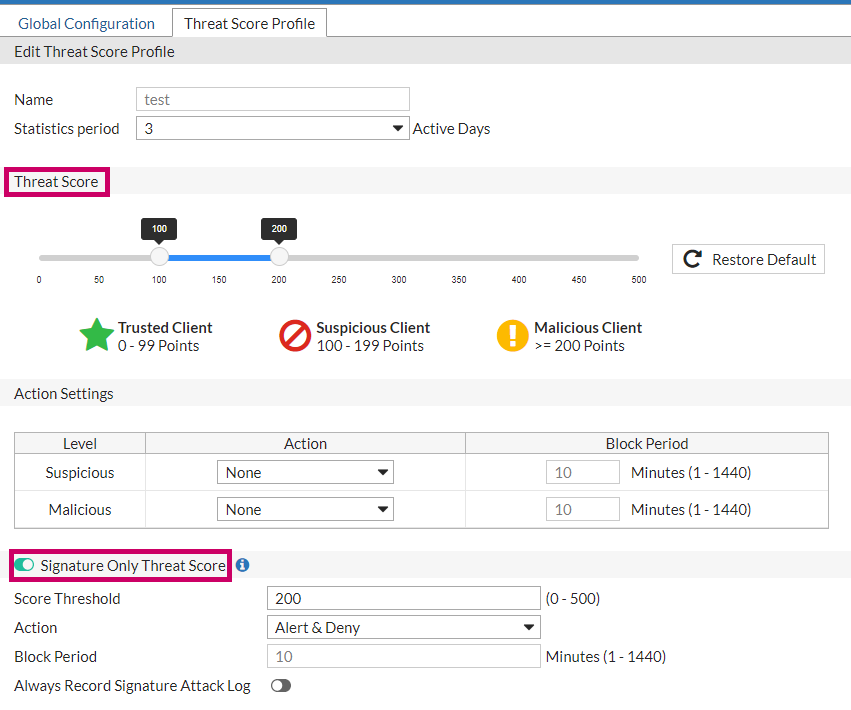
Threat Score is for the overall threat score calculation not only including signature but also other threats, while Signature Only Threat Score is only for signatures. Whichever score threshold is hit first, the system will take corresponding action.
- The difference between Signature Only Threat Score and the Web Protection > Known Attacks > Signature page
- Configure the following settings for Signature Only Threat Score.
Score Threshold Enter a threshold value for the signature violations. Action - Block Period: Block a client based on source IP.
- Client ID Block Period: Block a client based on the FortiWeb generated client ID. This is useful when the source IP of a certain client keeps changing.
- Alert: Accept the connection and generate an alert email and/or log message.
Alert & Deny: Block the request (or reset the connection) and generate an alert and/or log message.
Block Period When selecting Block Period or Client ID Block Period, you need to enter the number of seconds that you want to block subsequent requests from the IP or client.
Always Record Signature Attack Log When disabled, the Signature module itself will no longer record logs. Signature log will be generated only when the Signature Only Threat Score exceeds the threshold.
When enabled, every time a signature rule is triggered, the signature attack log will be generated.
Monitoring currently tracked clients
To view the information that has been tracked to the client, or delete or restore a client's threat score, see Blocked Client IDs.
To view the information of blocked IPs if you configure Block Settings and the threat score exceeds the threshold, see Blocked IPs.
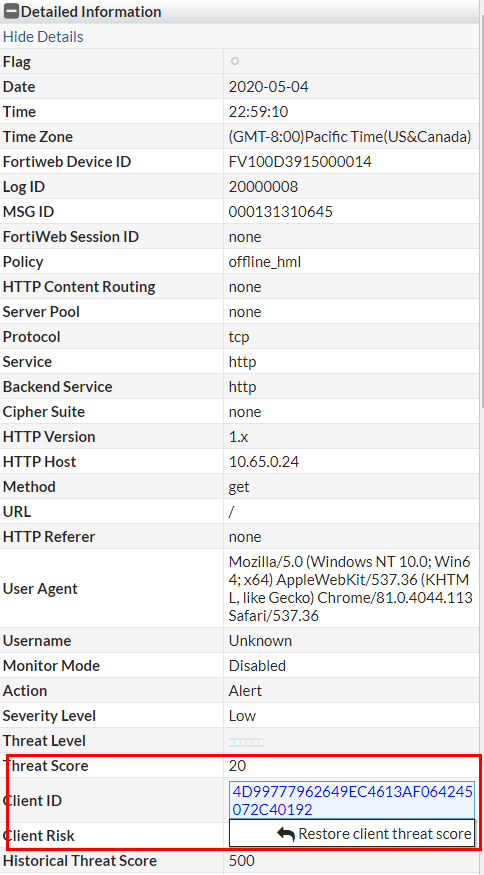
In Log&Report > Log Access > Attack, you can click an attack log to check the threat score, client ID, and client risk information, and click the client ID to restore the client threat score to 0.
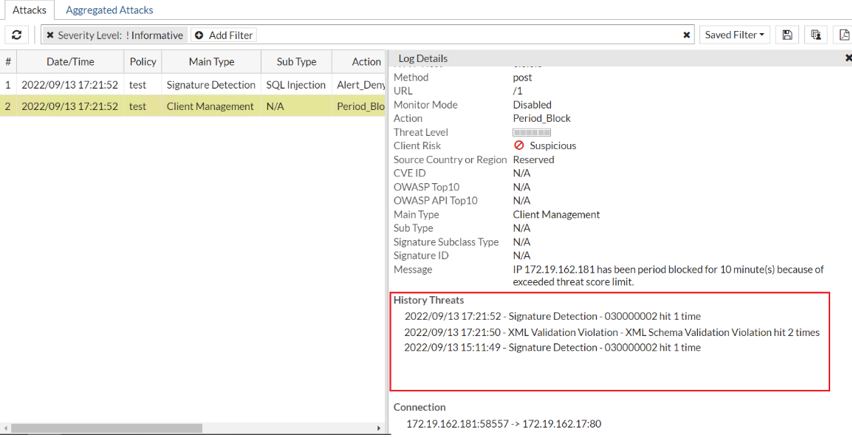
On Attack log page, you can also view the 10 history threats from a client. For Signature Only Threat Score attack log, only Signature related history threats will be record.
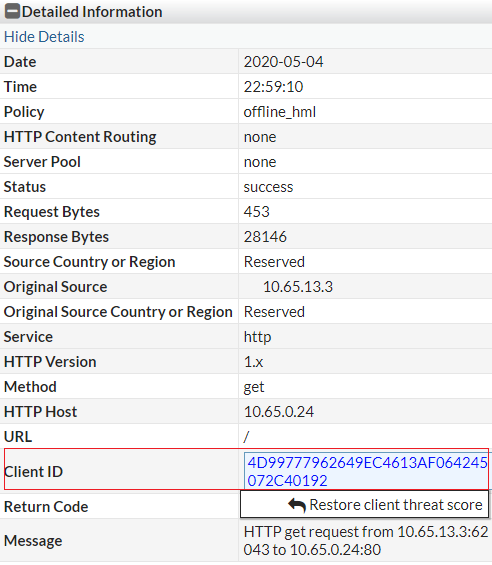
In Log&Report > Log Access > Event, you can click an event log to check the client ID information, and click the client ID to restore the client threat score to 0.