

Searching in FortiSOAR
Search in FortiSOARis powered by an embedded Elasticsearch database and is available at both the global and list levels.
Global Search
The Global Search box at the top of your FortiSOAR screen can be used to do free text searches. It searches the entire platform for any words, phrases, or UUIDs, regardless of whether they fall under a certain category or field. This kind of search is very useful if you require information but are unsure of where to find it in FortiSOAR.
Keyword Search
Global Search searches the titles, descriptions, tags, or UUIDs across all records in FortiSOAR. Global search allows you to search for playbooks, records, etc., using their UUIDs, making it easier for users to use playbook failure messages to search for failed playbooks and associated records. You can also search for the name of the file and any other details that are associated with the file attachment. The file names should be descriptive to ensure that the file can be found through keyword searches related to the file content.

|
You can perform an 'Exact Text Search' so that the search does not split up text with spaces, @, etc and the search results contain the complete text. |
The Search bar at the top of the FortiSOAR interface allows for fast access to the Global Search feature. Entering any keyword in the Search bar and hitting Enter begins the search for the keyword.
Using Global Search, you can search for playbooks, templates, etc., based on tags, name, and description. You can add special characters and spaces in tags; however, the following special characters are not supported in tags: ', , , ", #, ?, and /. For example, if you have added sample as a tag to the playbook and you type sample in Global Search, the search results will contain the playbook with the sample tag. Also, note that records that are in the recycle bin will not be visible in the Global Search results. For more information on the recycle bin, see the Recovering Deleted Module Records and Workflows topic Resilience & Recovery chapter of the "Best Practices Guide."

|
If you want to search for tags in custom modules based on Tags, then you must ensure that you assign a minimum of Read permission to the custom module in a role(s) that has permissions on the Appliances module. This is required since custom modules require to be given permission in the playbook appliance for the record to get indexed and be searchable. |
Term Matching
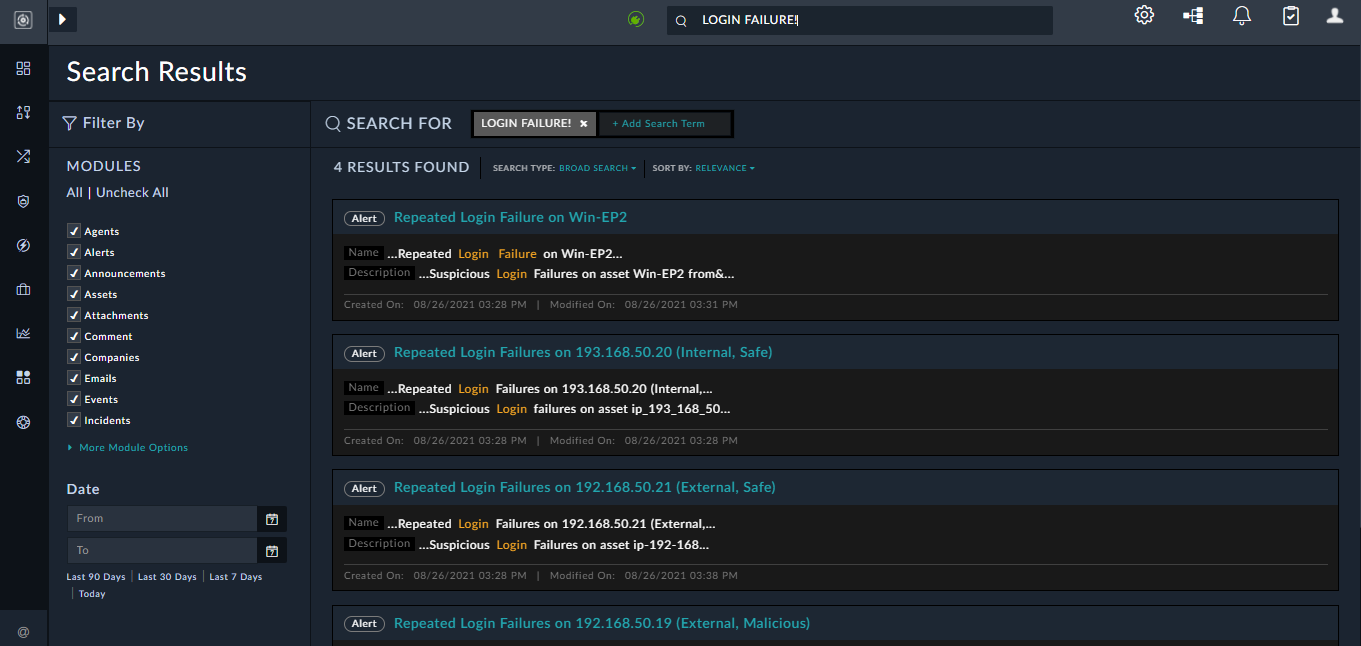
The Global Search function accessible from the Search bar uses the full-text match query function within Elasticsearch. This passes the search string through the standard analyzer, stripping any extra characters to the root term. For instance, the term login failure would be searched the same way as the term "Login Failure!", for text fields such as description or name as shown in the following image:
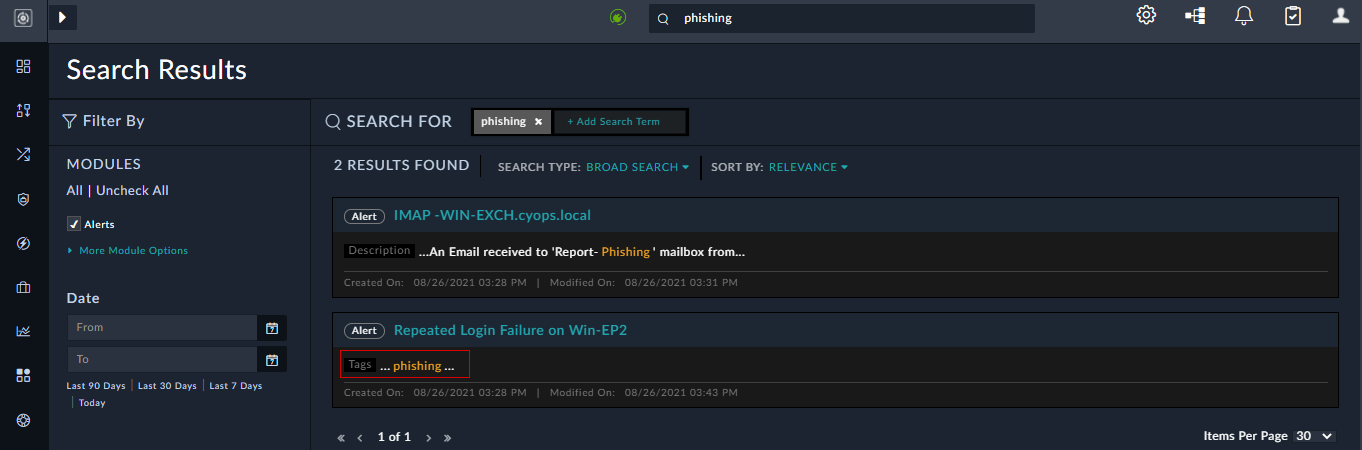
In the case of tags, search results will be displayed only in case of an exact match, without case sensitivity, for example, if you have added phishing as a tag and you search for phish, there will be no search results. However, if you search for Phishing, you will get a search result:
You can search for multiple terms using the search function by adding a term in the Add Search Term field. If multiple terms are entered, they are searched using the AND operation. FortiSOAR displays the results only when the results contain all the terms that you have entered.
Global Search also works for stop words such as dots, @, etc. For example, if you are searching for the text google.com, then the results are displayed for both com and google. If however, you want to search for the complete 'google.com' text, you can select the search type as Exact Text Search.
From release 7.4.1 onwards, a Query Based Search option, which is also the default search for global search, is provided that allows searching using wildcards or operators such as 'NOT', 'AND', 'OR', fuzzy queries, etc. For more information, see Elastic documentation. Some examples:
- Using the
ANDoperator
If you want to find only records that contain the text 'Outbound Connection' in their name and whose source is set as 'FortiSIEM', then you can typename:"Outbound Connection" AND source:FortiSIEMand in the Search Type, select Query Based Search. FortiSOAR returns only those records that fulfills both the conditions: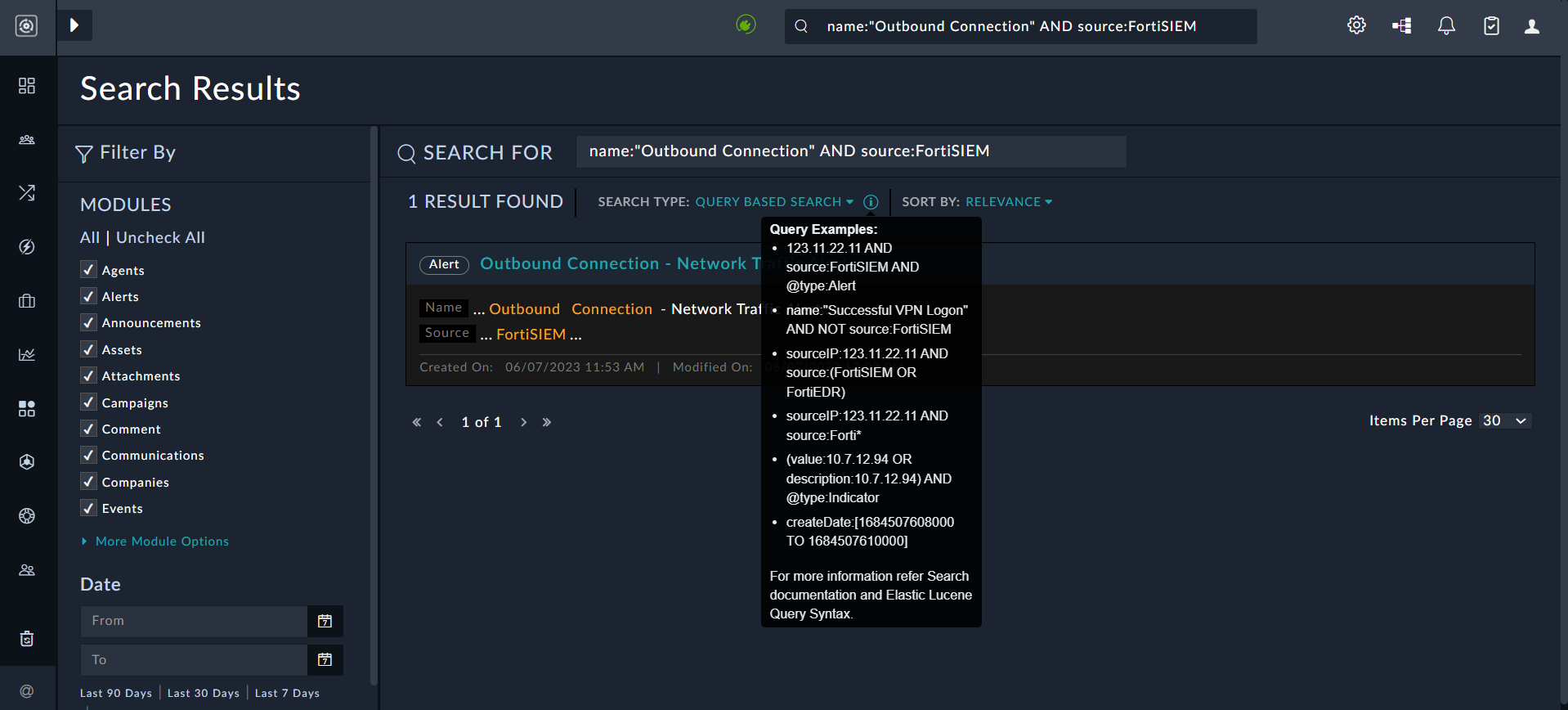
- Using the
NOToperator
If you want to find only records that contain the text 'Outbound Connection' in their name and whose source is not set as 'FortiSIEM', then you can typename: "Outbound Connection" NOT source:FortiSIEMand in the Search Type, select Query Based Search. FortiSOAR returns only those records that fulfills this condition: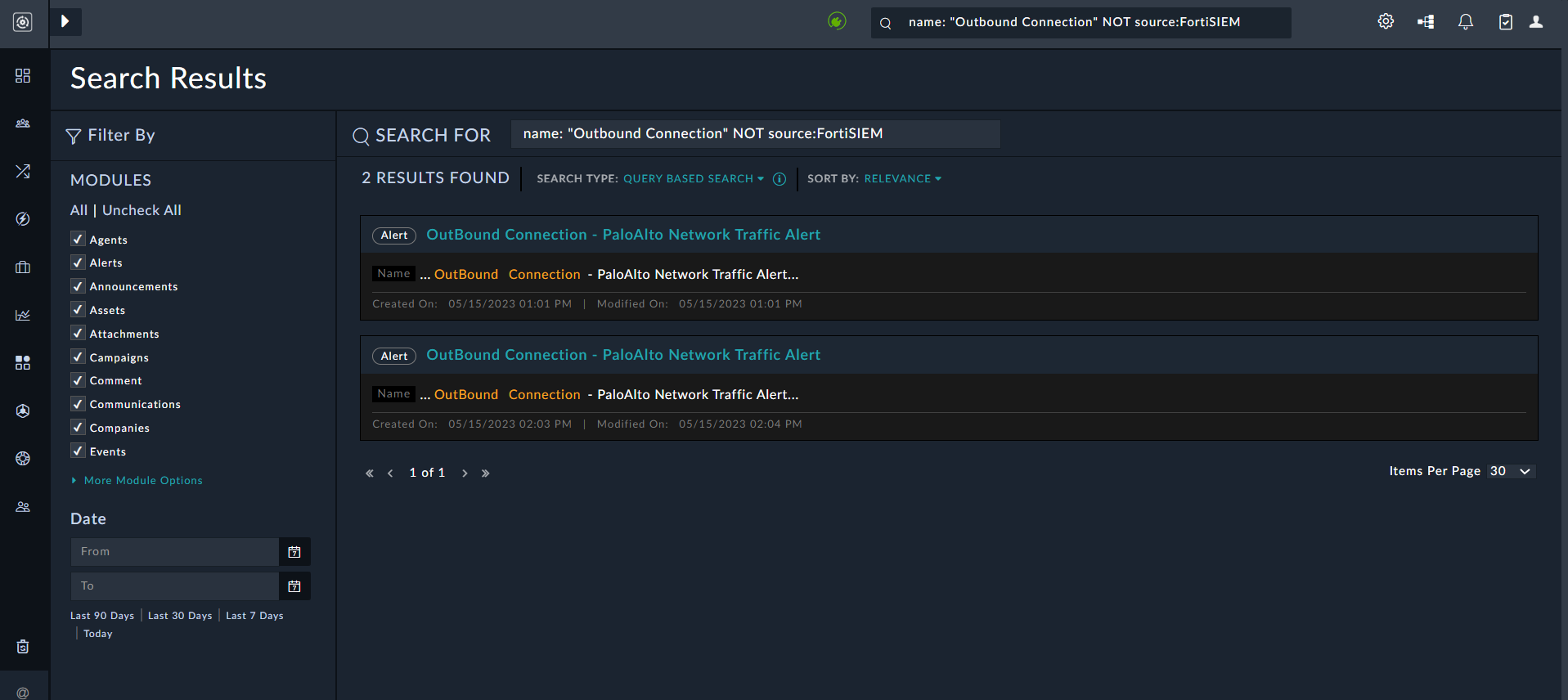
- Using the
ORoperator
If you want to find only records that contain the text 'John' or Smith, then you can typeJohn OR Smithand in the Search Type, select Query Based Search. FortiSOAR returns only those records that fulfills any of the conditions: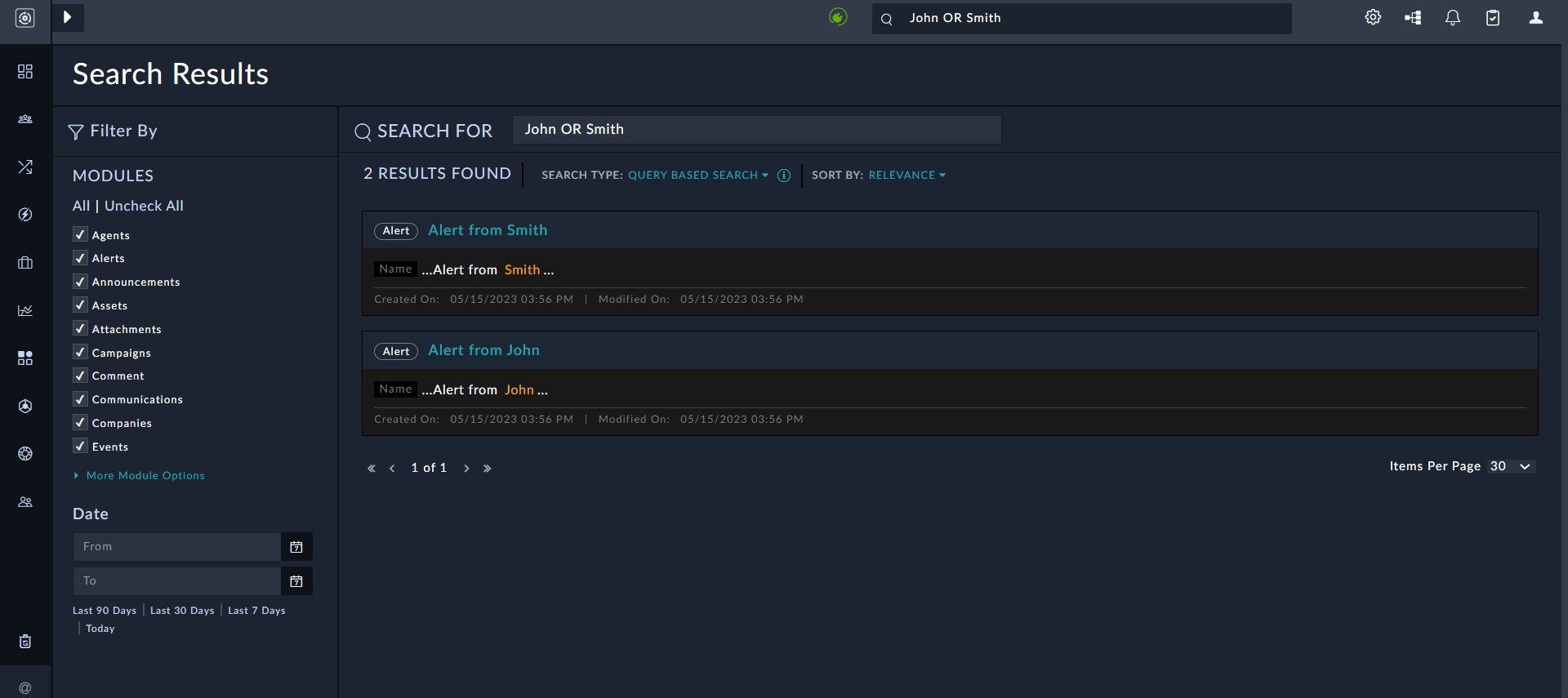
- Using Wildcards
If you want to records using wildcards (?,*,%...), then you can typewin*and in the Search Type, select Query Based Search. FortiSOAR returns all records that contain win: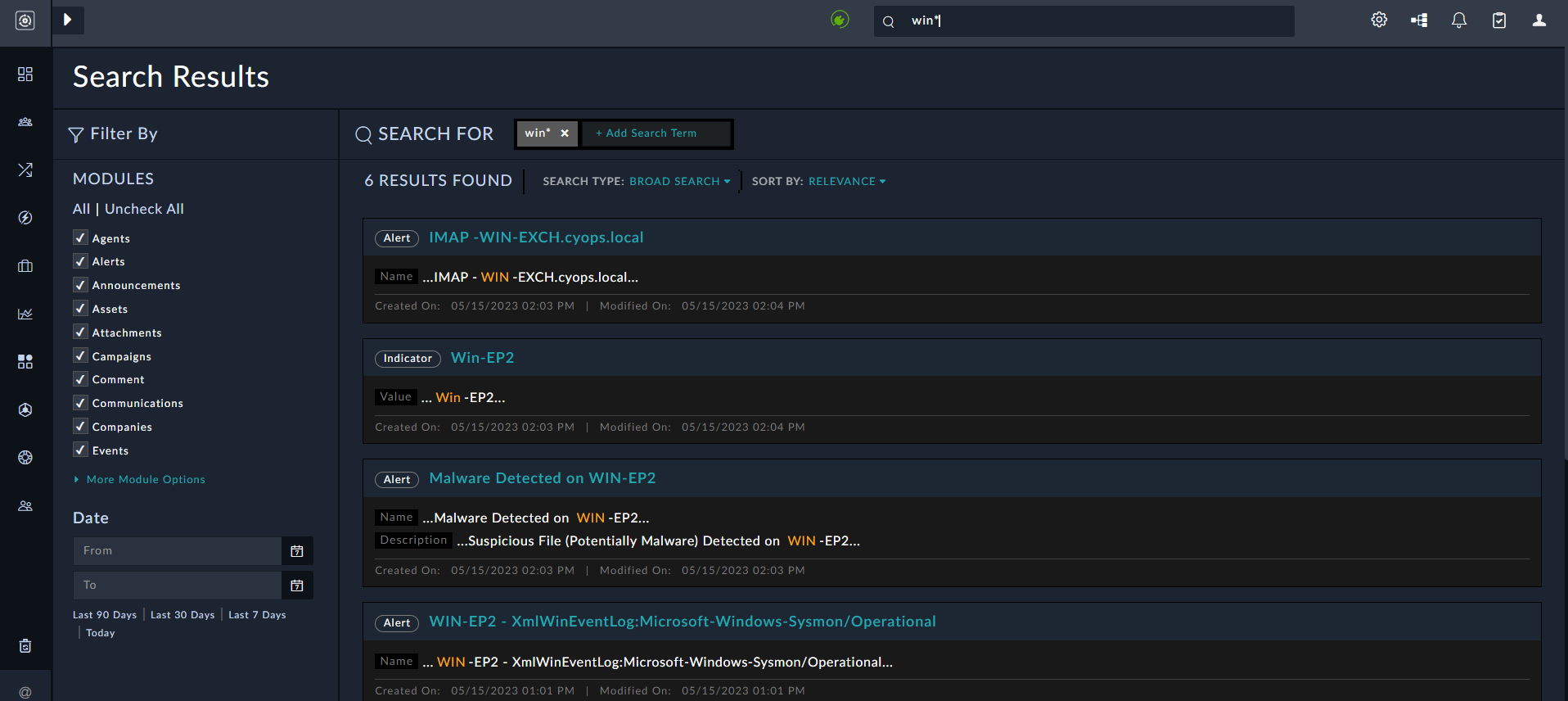
- Using Fuzzy queries
Fuzzy queries returns records similar to the search term. If you want to use fuzzy queries, then you must use~to search for similar terms and then define the edit distance. For more information, see Fuzzy Query. For example, typeFortiRecon~2, where 2 is the edit distance, and in the Search Type, select Query Based Search. FortiSOAR returns all records that contain FortiRecon, even those records that have the spelling of FortiRecon: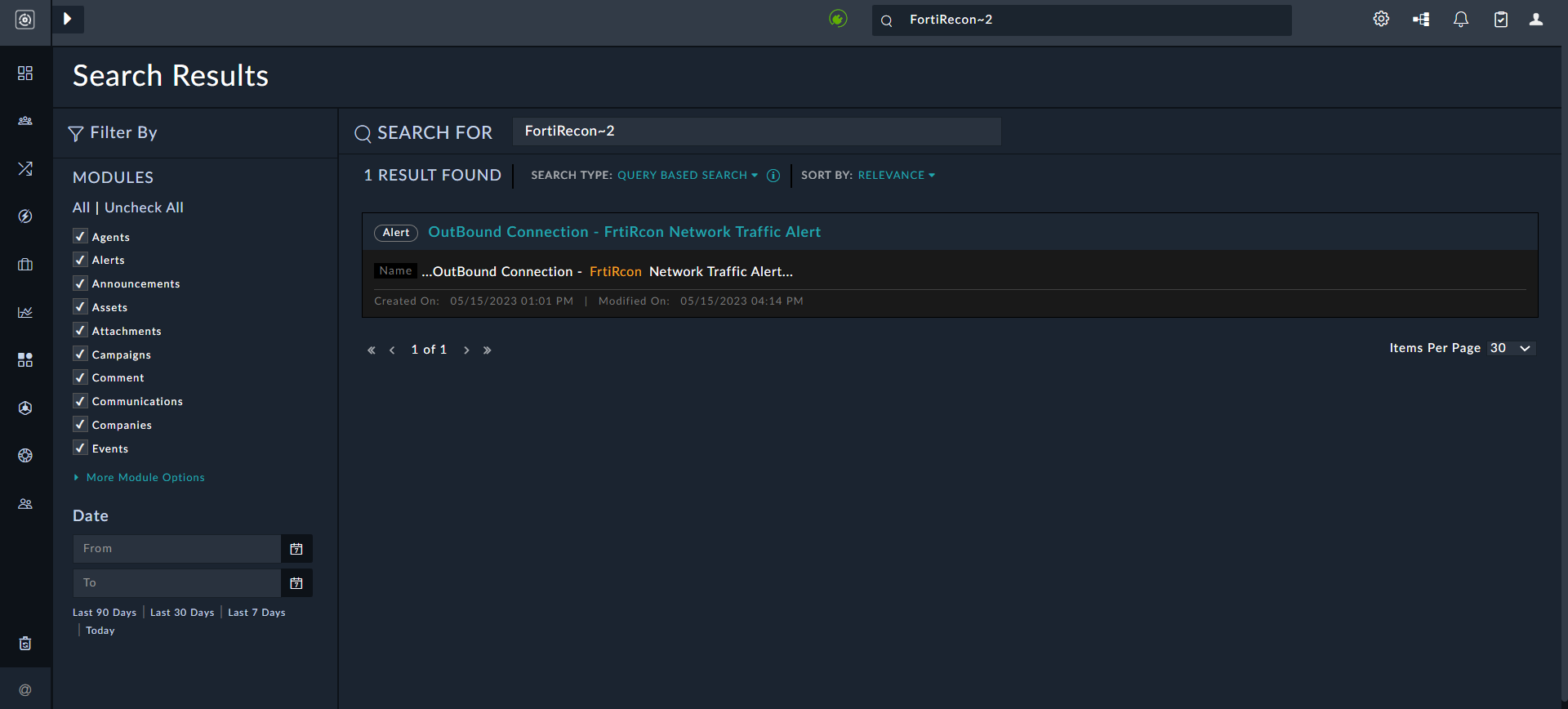
Search Types and Search Results
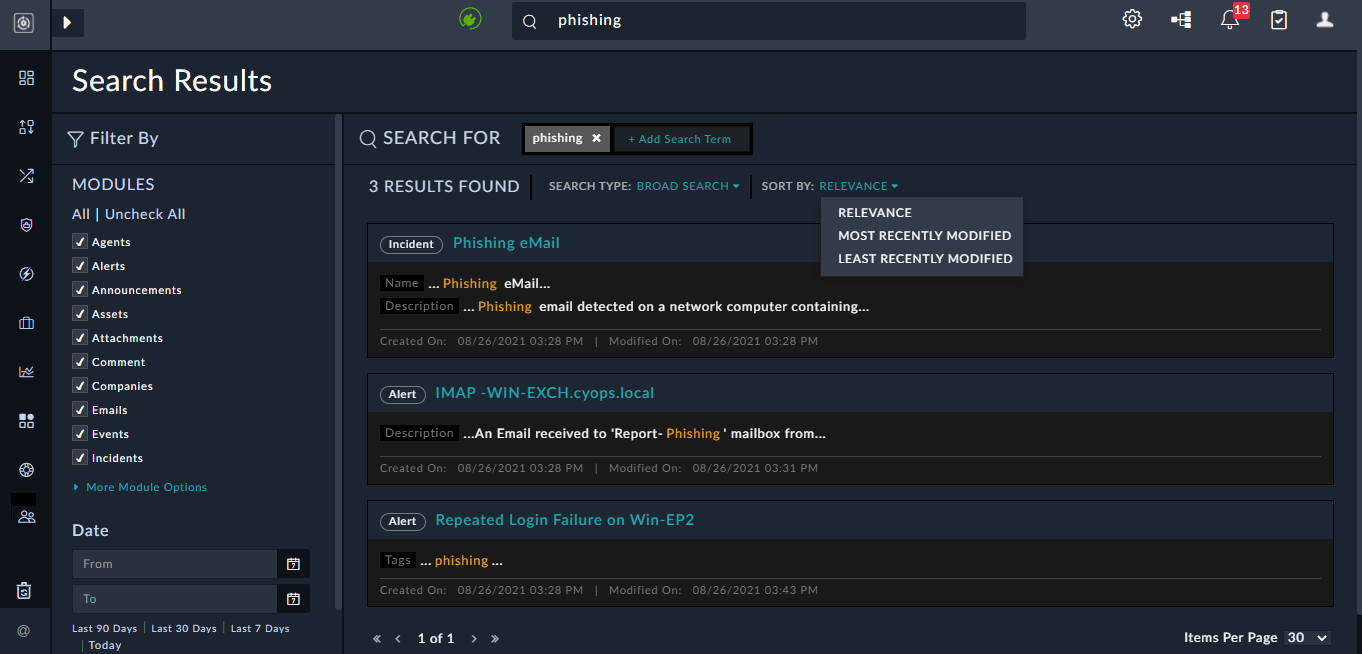
Search results are returned as a listing with a summary of the record metadata that provides information such as, the record name, the record type (the model of the record, such as an Incident), the created date and the last modified date of the record, and a contextual preview of the search term or terms position within the resulting record text.
You can set the Search Type as 'Broad Search', 'Exact Text Search' or 'Query Based Search' (default). An exact text search does not split up text with spaces, @, etc and the search results contain the complete text. For example, set the search type as Exact Text Search, if you want to search for records that contain 'user01@mydomain.local'. 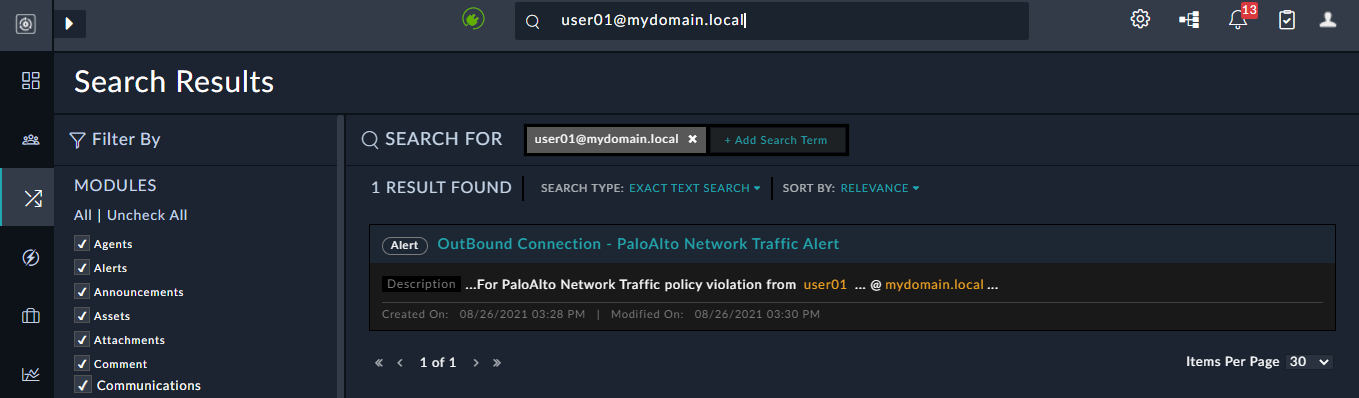
However, if you want to search records of that contain any mention of 'user01', then you can set the search type as Broad Search. If you want to search using wildcards, fuzzy queries, or operators such as 'NOT', 'AND', then you can set the search type as Query Based Search, examples of which are given in the Term Matching topic.
You can sort the search result by Relevance, which is based on the number of instances of the keyword within the record body. You can also sort the results by when the record was modified, the Most Recently Modified record or the Least Recently Modified record. Clicking on a search result displays the record details.
Filter By Pane
Use the Filter By pane to perform additional filtering of the results returned after a Global Search has been performed. When using the Filter bar, the term being searched on is applied directly to the already returned search results. This does not repeat the full-text match query from the Global Search function. This feature enables you to filter out a larger batch of returned results without repeating the search of the entire database.
For example, as shown in the previous image we had searched for the keyword phishing using Global Search, and the search result had returned 3 results. Now we can perform additional filtering on the search results by adding an additional keyword, email. The search records are filtered using the AND operator, and then the search result displays 2 search results as shown in the following image:
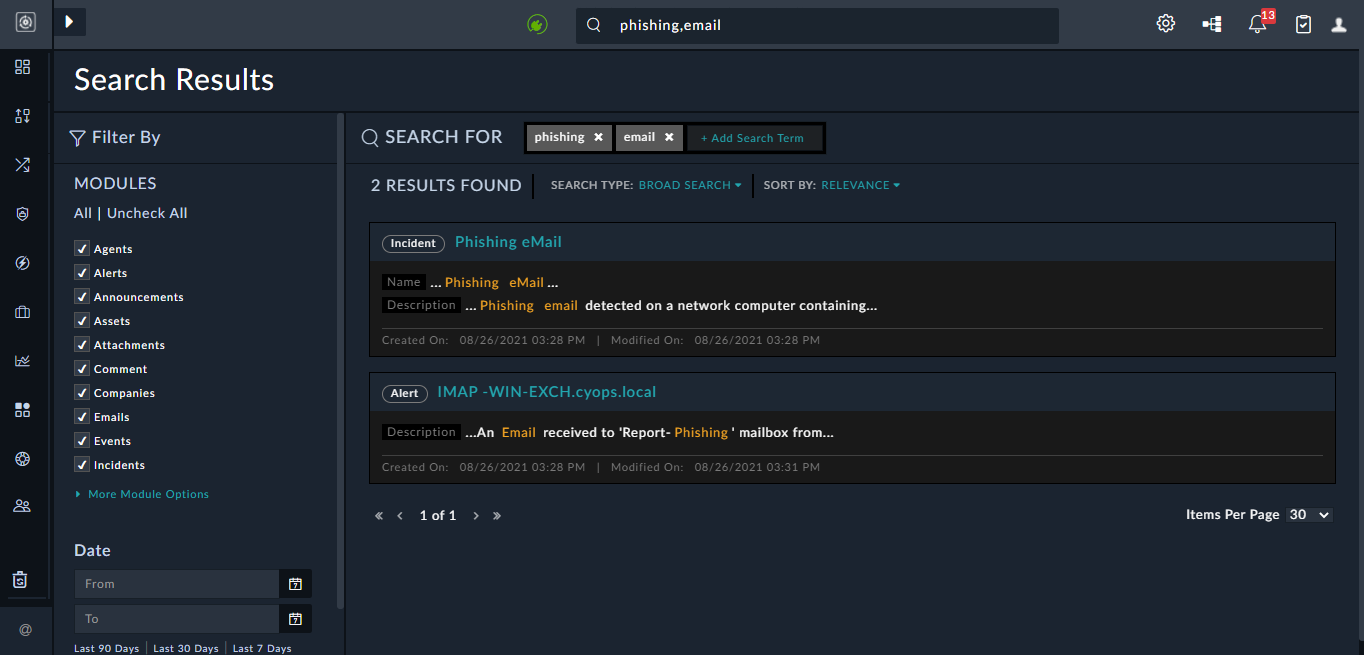
The contextual preview of the term context from the original Global Search function is not updated with applied filters. The preview remains the same, but the records returned in the table are filtered according to the AND combination of terms as displayed above in the table.
Filtering Results
You can perform additional filtering in the Filter By pane on the search results based on the Module and Date of the records. All modules are filterable. The date search uses the Created On date field to filter the records based on the period you have specified. You can either specify the From and To dates, or select relative dates, such as Last 90 Days, Last 7 days, Today, etc. These additional filters refine the returned search results to the applied scope.
Authorization
Global Search respects authorization permissions based on the context of the user who is performing the search. This means that records not owned by the user's teams, any child or sibling teams, or not within the user's role permissions scope, are not displayed within the results.
Searching Record Contents
All records, such as Incidents, Alerts, and Assets, are included in the Elasticsearch database in addition to Attachments. The record contents do not store field labels, Picklist values, or model information. This is so that the search results do not contain results based on the field label values or terms in the model information, which would lead to meaningless results. For instance, if you perform a Global Search for the keyword Source, the Global Search will not return any result even though in an Alert record, the term Source, represents a field label in the record. Similarly, Brute Force Attempt might be set as a picklist value of the Type field in an Alert record, but the Global Search will not return any matches for Brute Force Attempt even if records existed with that picklist value. However, you could search for the same using tags, if you have added tags to the record. For example, if you have added a tag BruteForceAttempt or BFA in the record, then you can search for that record using BFA.
FortiSOAR essentially searches the record content, i.e., text saved into the field values, such as the Name, or Description and also searches for tag values.
List Search
Keyword Search
List Search searches for data or keywords across a module in FortiSOAR. The search also includes file attachments if they are part of any record within that module.
For list search, use the Search bar at the top of the record list in a particular module in FortiSOAR. Type any keyword in the Search bar and hit Enter to begin the search for the keyword.
Term Matching, Authorization, etc., in 'List Search' works the same way as in 'Global Search.'
Filter Search
Searches for keywords in the search criteria row underneath the column header in the list (grid) view of a module. You can either specify the keyword or select an option from the picklist or lookup fields.
For example, to search for alerts that have 'repeated' in their name and whose status is set as 'Open', enter rep in the name search criteria row underneath the column header and select Open from the 'Status' picklist: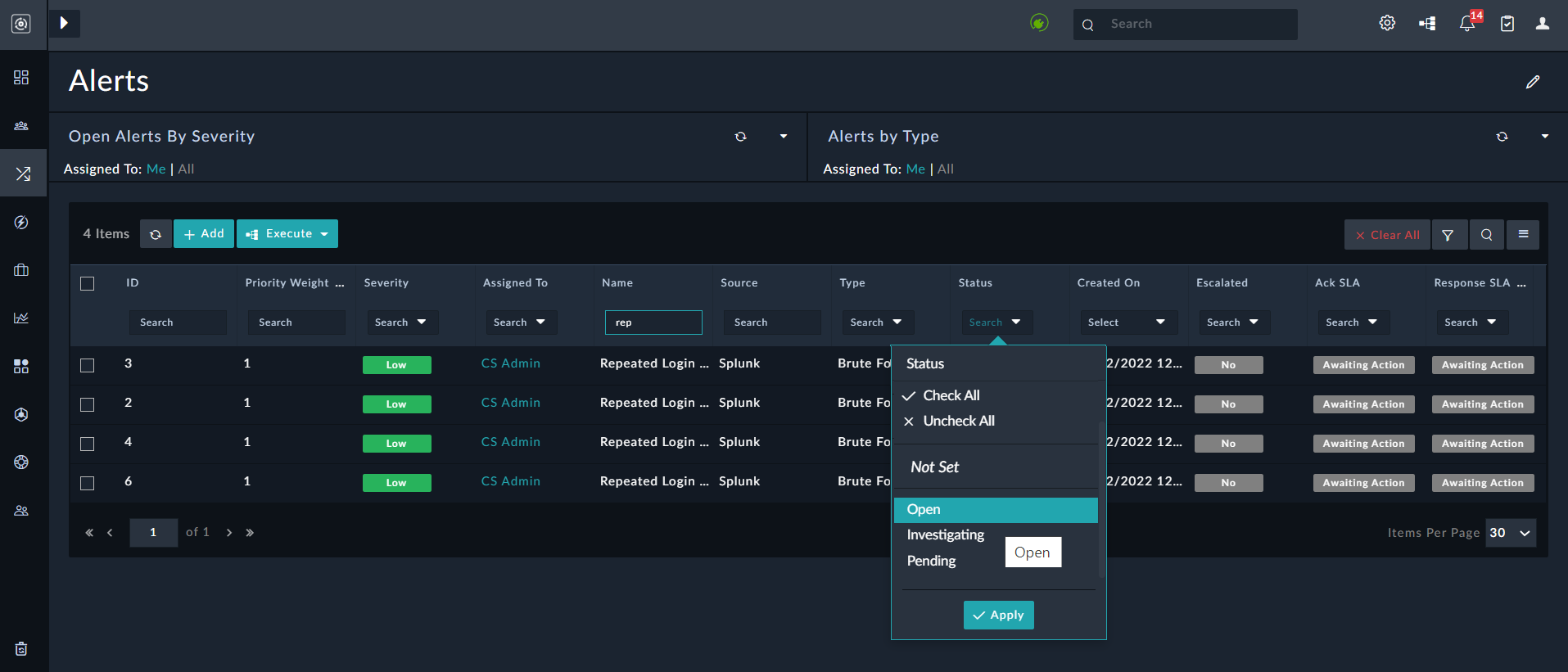
Use the Not Set option to filter data (picklist or lookup fields) that has empty (not set) values in a grid. For example, to search for alerts whose 'Status' or 'Type' is not set. You can also filter the grid for values of checkbox fields, i.e., select the Not Set option to filter records that contains the checkbox fields with value set to 'null', the True option to filter records that contains 'selected' checkbox fields, or the True option to filter records that contains 'cleared' checkbox fields.
Search Results
Search results are returned in a tabular format as shown in the following image:
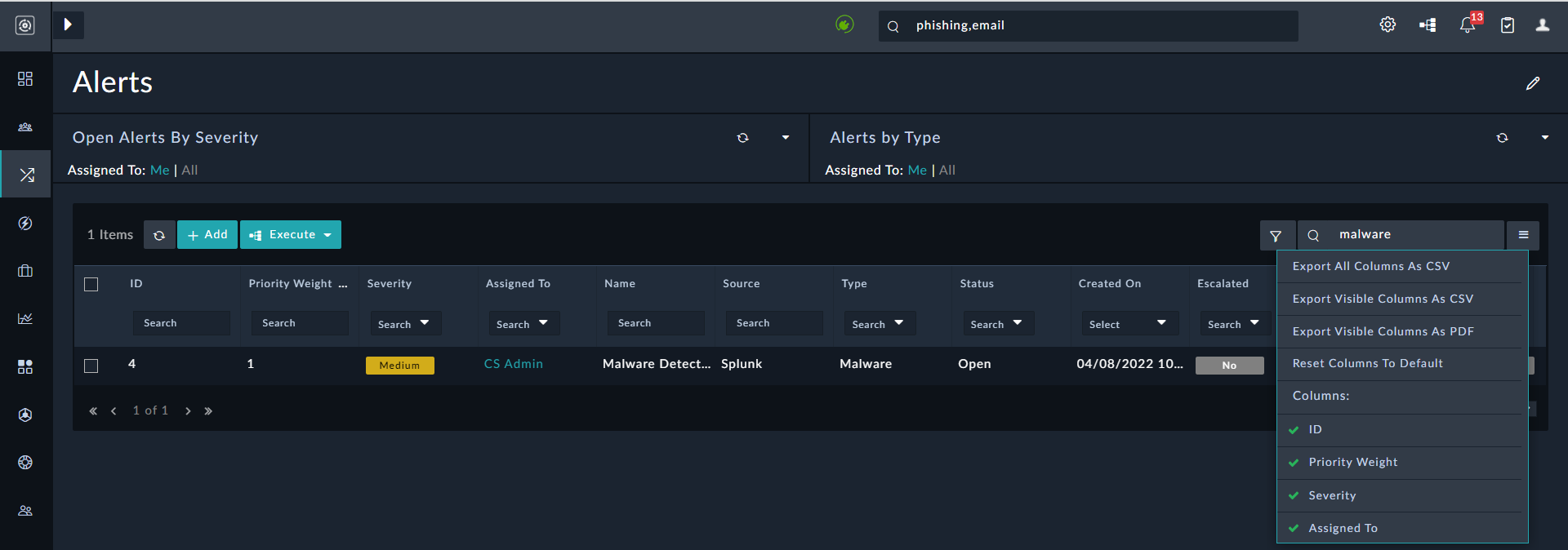
The above image displays the results of a search performed in the Alerts module, with the keywords malware. The search results are displayed in a tabular form, and you can use the Menu button to specify the visible columns in the table by selecting or deselecting the columns from the Columns list. You can also choose to export the table results to a .csv or a .pdf file. You can download the search result and store the results for future reference, potentially even as an attachment within FortiSOAR to a particular record.
FortiSOAR Search Errors
FortiSOAR might display an Internal Server Error or any of the following errors when you are performing a search operation in FortiSOAR:
Search indexing is in progress. Partial results are returned.Search indexing has stopped. You must manually rerun indexing (see product documentation for instructions) or raise support ticket for the same.We are sorry, but the server encountered an error while handling your search request. Please contact your administrator for assistance.
For troubleshooting any errors with FortiSOAR Search, please contact your administrator.