
Fortinet white logo
Fortinet white logo

User Guide

Leave Management

Leave Management

Leave management provides the ability to exclude users who are on leave or paid time off (PTO) from being assigned records while using the Queue and Shift Management feature.

Note

Leave Management works with the 'Round Robin' method of user assignment.

Permissions Required

  • To view leaves, you must have Read permission on the Leave Schedules module.
  • To add or edit leaves you must have Create, Read, and Update permission on the Leave Schedules module. For fresh installations of FortiSOAR 7.4.1 or later, Create, Read, and Update permissions on the Leave Schedules module are already assigned to the Full App Permissions Role. In cases where you have upgraded FortiSOAR to 7.4.1 or later from a release prior to 7.4.1, you require to assign Create, Read, and Update permission on the Leave Schedules module to users who would be handling leaves. To delete leaves, you must have Delete permission on the Leave Schedules module.

Adding Leaves

Users with appropriate permissions requires to add leaves for themselves or other users so that they get excluded, and record are not assigned to them for the duration of their leave. To add leaves do the following:

  1. Click Queues & Shift Management in the left navigation bar, then click the Leave Management tab.
  2. To add leaves, on the Leave Management page, click Add Leave Schedule.
  3. In the Add New Leave Schedule dialog add the following:
    1. From the Analyst drop-down list, select the user for whom you are applying for leave.
    2. From the From Date field, select the date and time from when the user will be on leave.
    3. From the To Date field, select the date and time till when the user will be on leave.
    4. In the Additional Information field, optionally enter the reason for the leave.
    5. In the Tags field, optionally enter the tag that you want to associate with this leave schedule, for example generalShift:
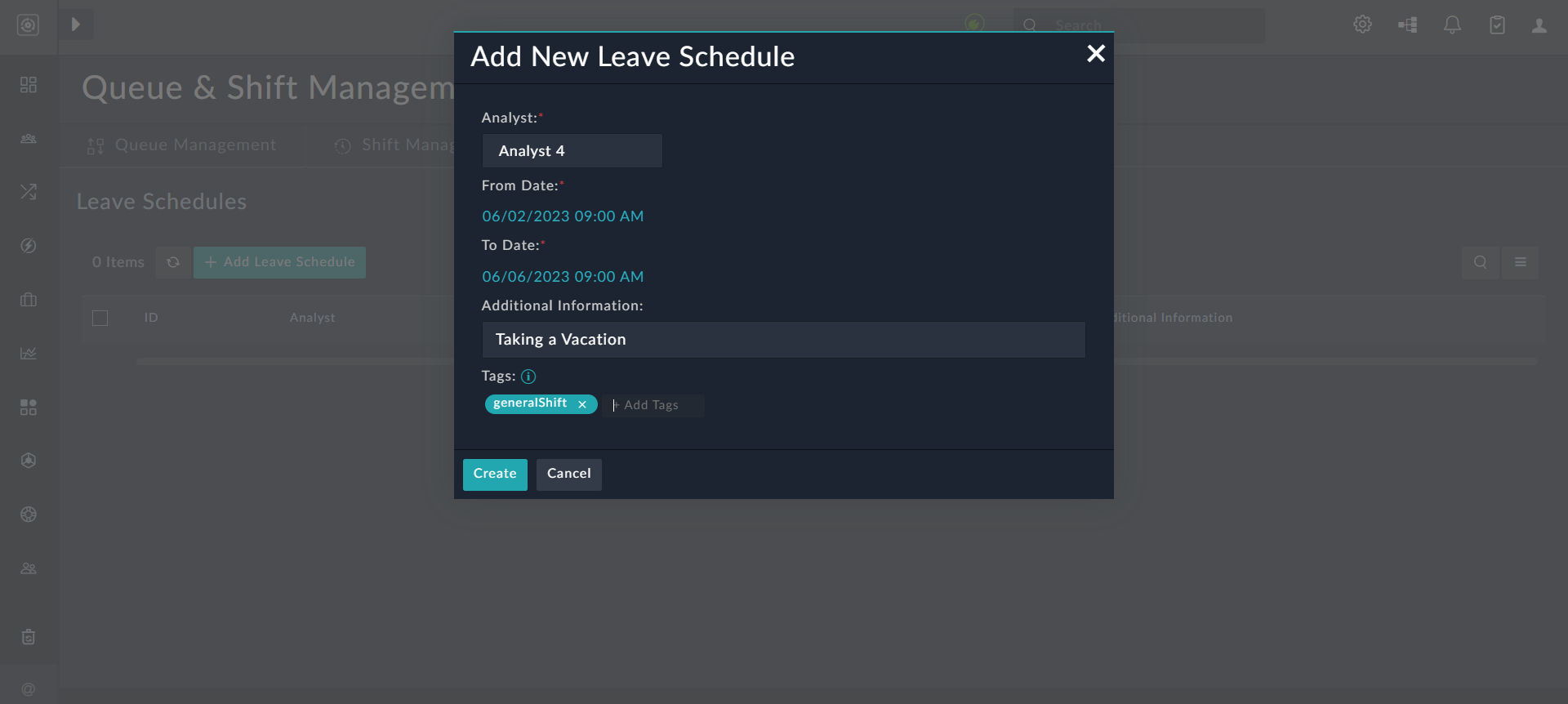
      Adding a new leave schedule
    6. Click Create to add the leave schedule record:
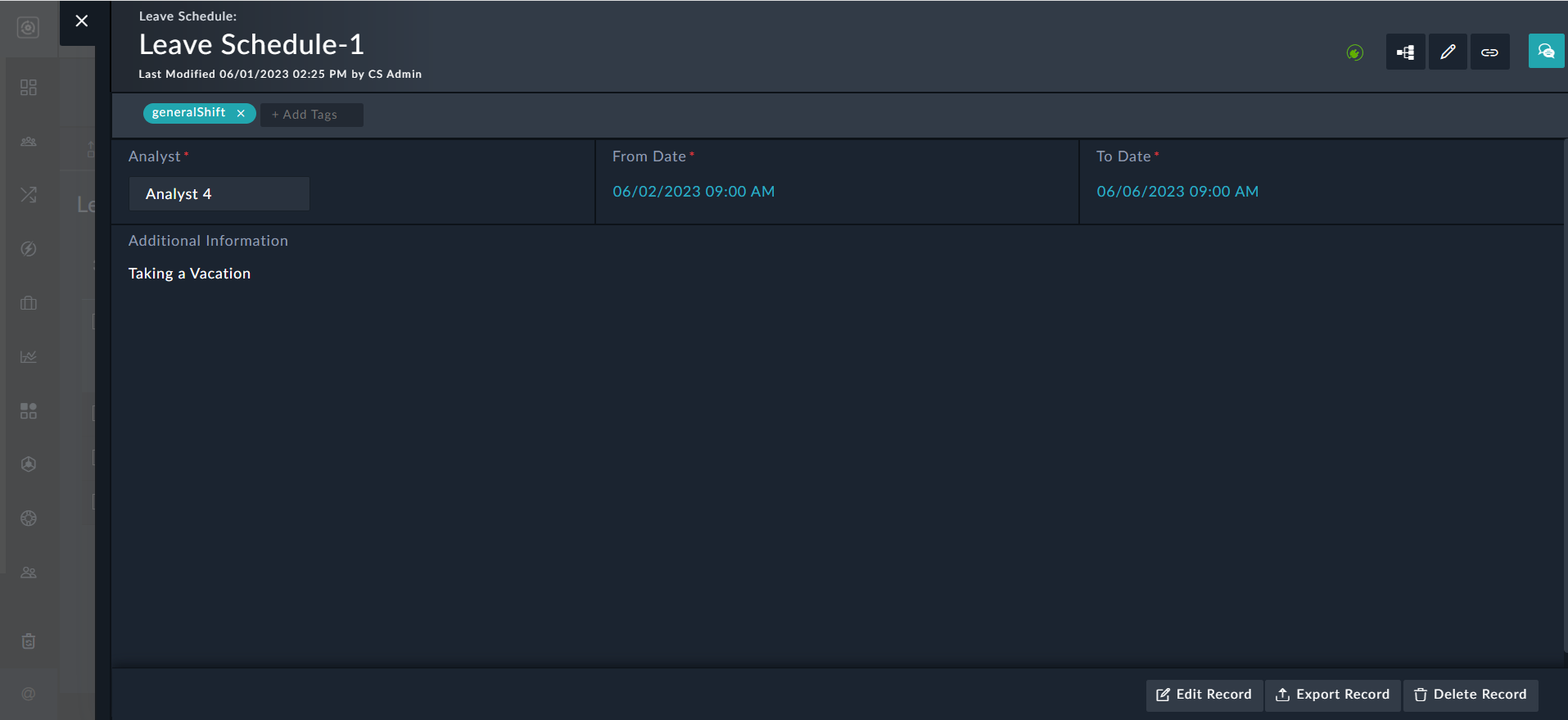
      Leave Schedule Record

In our example, we have added the leave schedule for user 'Analyst 4', so when we view the details of the Alerts Queue, you will see that no record is assigned to 'Analyst 4':
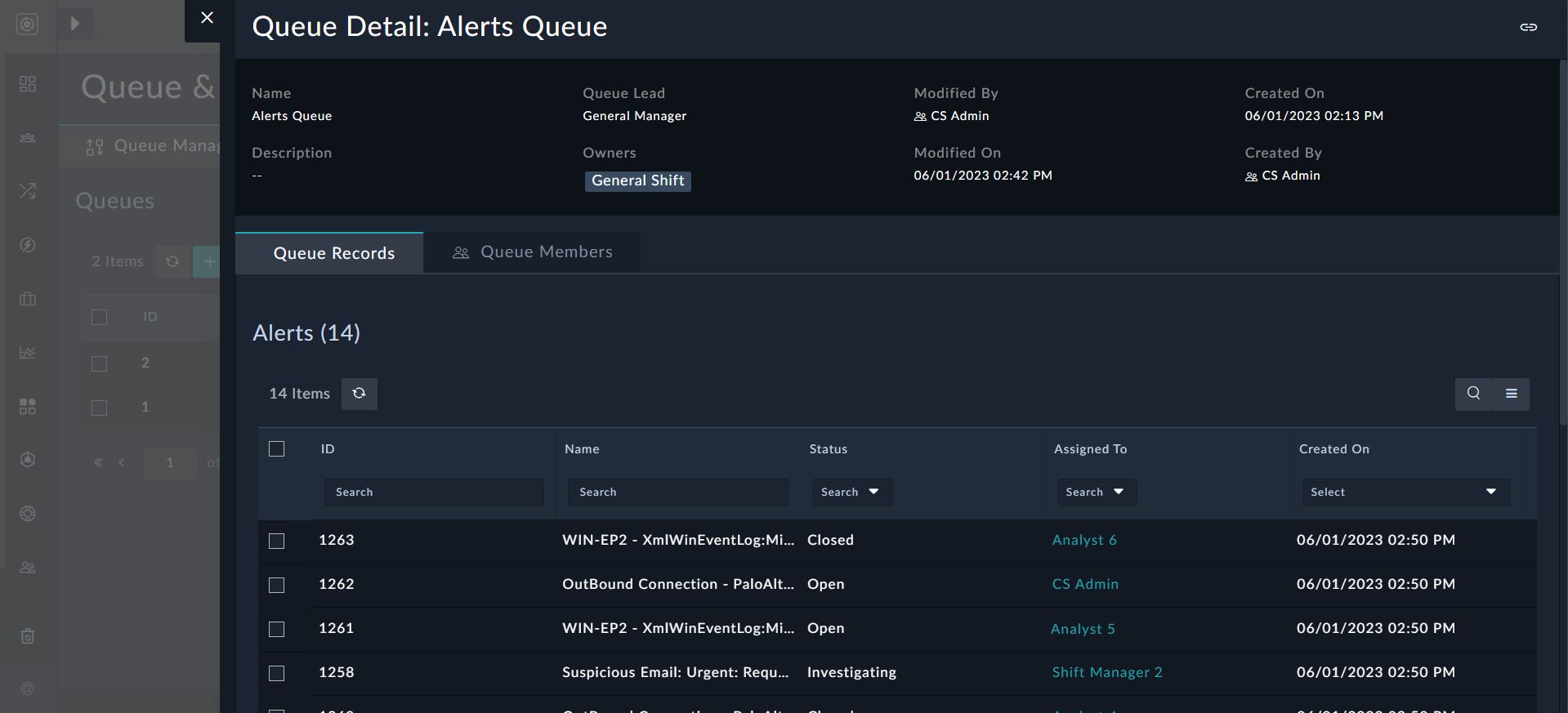
Queue Details - User Assignments

Editing, Exporting, Cloning, or Deleting Leaves

To edit or delete a particular leave, click Queues & Shift Management in the left navigation bar, then click the Leave Management tab to view the Leave Schedules page:
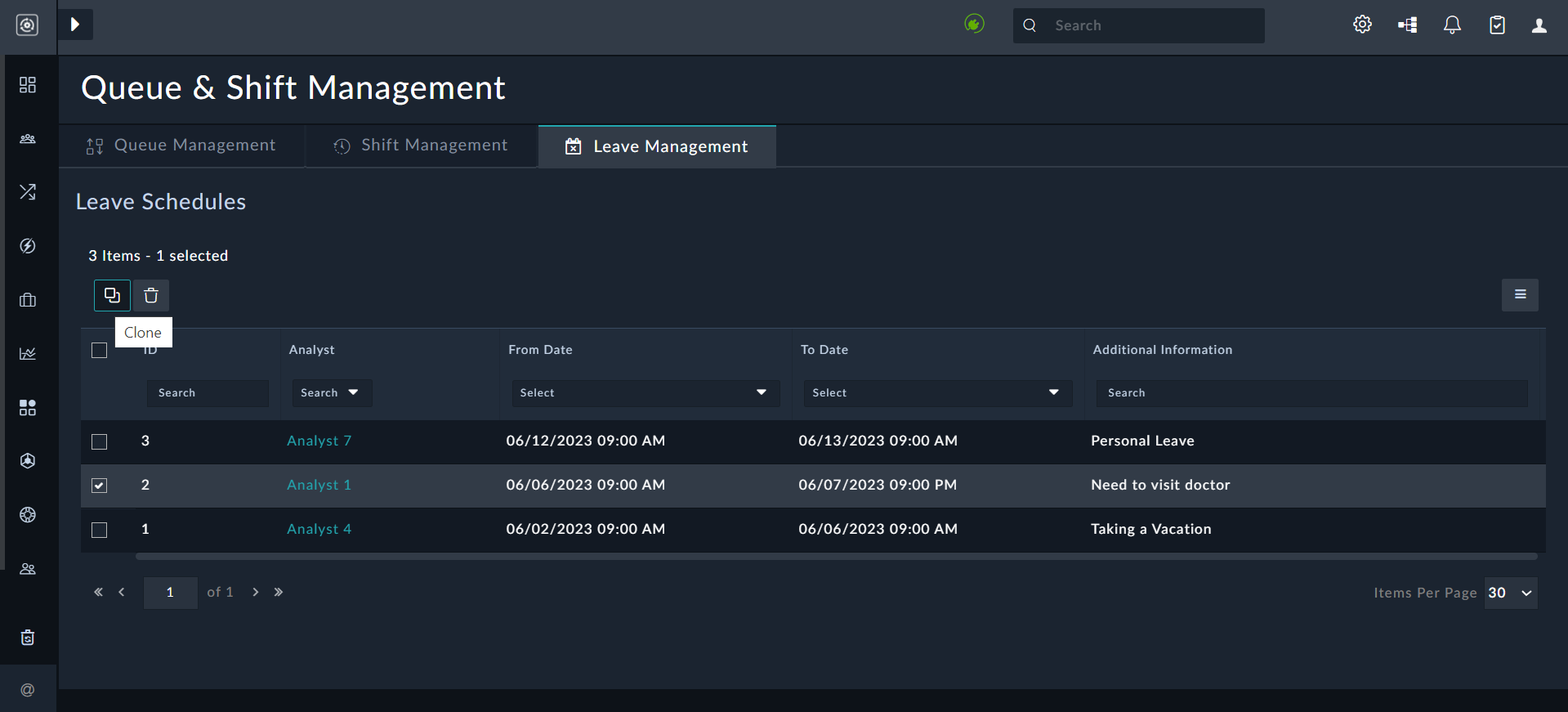
Leave Schedules
Click the Clone icon to clone a particular leave record, or click the Delete icon to delete a leave record.

To edit, export, or delete a leave record, on the Leave Schedules page, open the specific record:
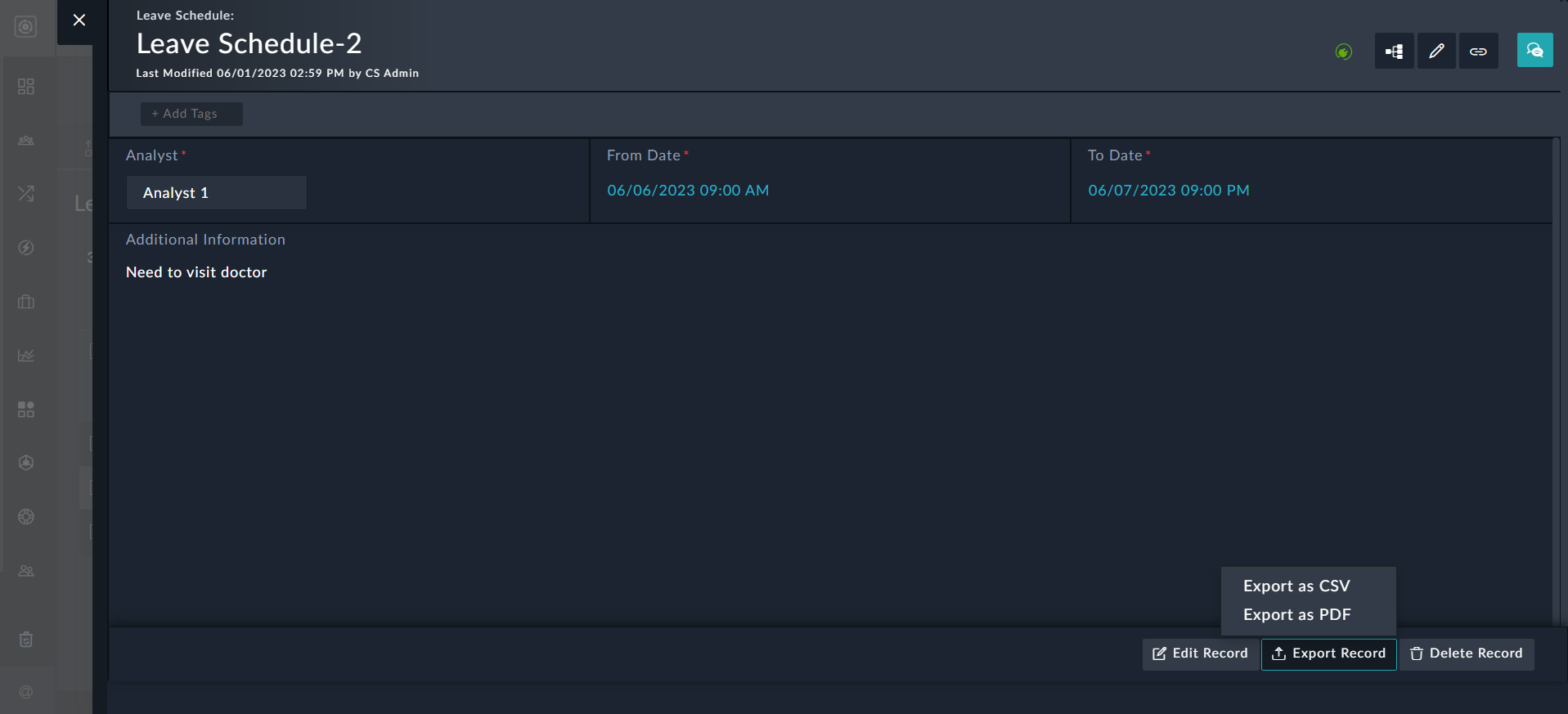
Leave Schedule Record
To export a leave record as a .csv or .pdf file, click Export Record and then select Export as CSV or Export as PDF.

Click Edit Record to display the Edit Leave Schedule dialog, where the required changes to the leave such as, changing the duration of the leave, etc., can be made and then click Save to update the leave record.
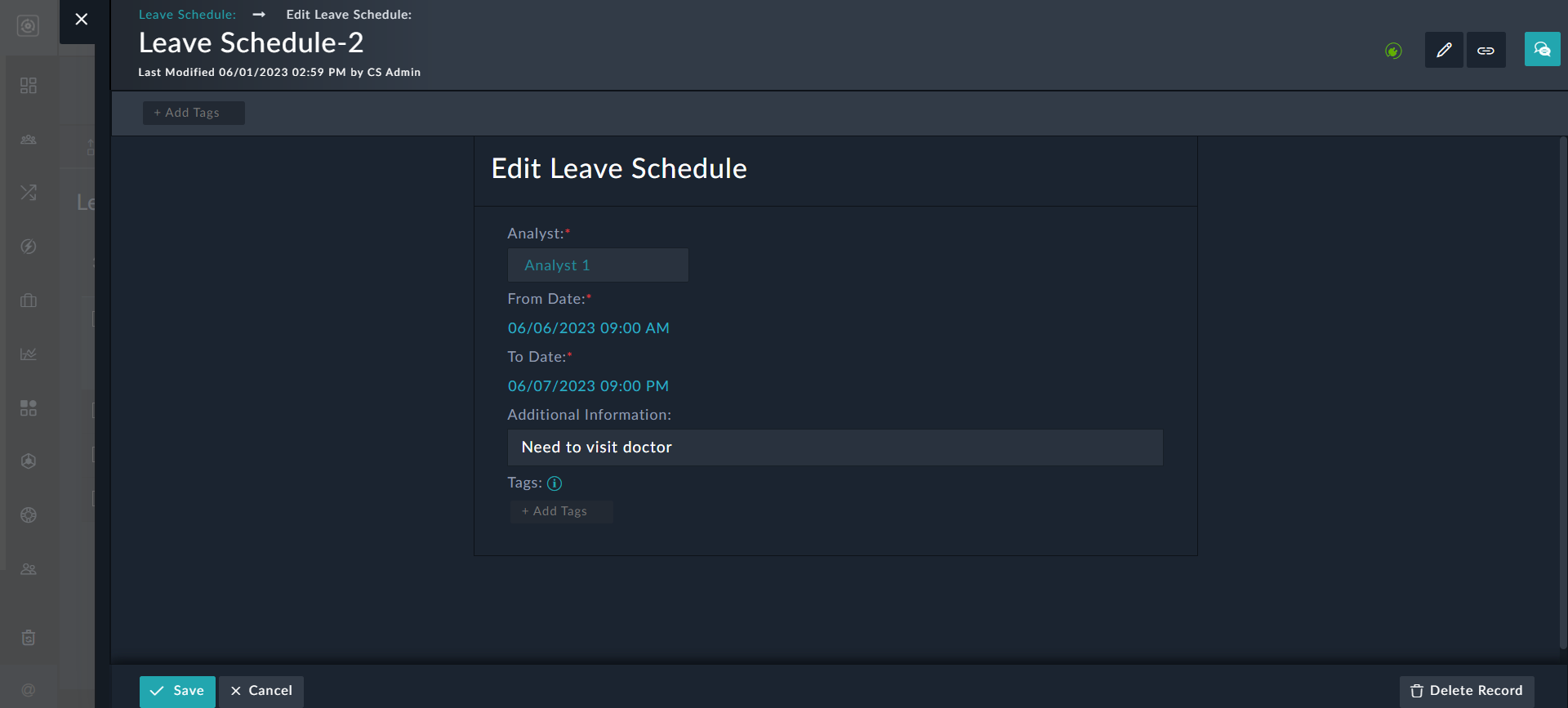
Editing a leave record

To delete a leave, you can click the Delete icon on the Leave Schedules page, or click Delete Record on the leave schedule record detail page or in the Edit Leave Schedule dialog. Clicking any of these options, displays a confirmation dialog, where you can click Confirm to delete the record.

Leave Management

Leave Management

Leave management provides the ability to exclude users who are on leave or paid time off (PTO) from being assigned records while using the Queue and Shift Management feature.

Note

Leave Management works with the 'Round Robin' method of user assignment.

Permissions Required

  • To view leaves, you must have Read permission on the Leave Schedules module.
  • To add or edit leaves you must have Create, Read, and Update permission on the Leave Schedules module. For fresh installations of FortiSOAR 7.4.1 or later, Create, Read, and Update permissions on the Leave Schedules module are already assigned to the Full App Permissions Role. In cases where you have upgraded FortiSOAR to 7.4.1 or later from a release prior to 7.4.1, you require to assign Create, Read, and Update permission on the Leave Schedules module to users who would be handling leaves. To delete leaves, you must have Delete permission on the Leave Schedules module.

Adding Leaves

Users with appropriate permissions requires to add leaves for themselves or other users so that they get excluded, and record are not assigned to them for the duration of their leave. To add leaves do the following:

  1. Click Queues & Shift Management in the left navigation bar, then click the Leave Management tab.
  2. To add leaves, on the Leave Management page, click Add Leave Schedule.
  3. In the Add New Leave Schedule dialog add the following:
    1. From the Analyst drop-down list, select the user for whom you are applying for leave.
    2. From the From Date field, select the date and time from when the user will be on leave.
    3. From the To Date field, select the date and time till when the user will be on leave.
    4. In the Additional Information field, optionally enter the reason for the leave.
    5. In the Tags field, optionally enter the tag that you want to associate with this leave schedule, for example generalShift:
      Adding a new leave schedule
    6. Click Create to add the leave schedule record:
      Leave Schedule Record

In our example, we have added the leave schedule for user 'Analyst 4', so when we view the details of the Alerts Queue, you will see that no record is assigned to 'Analyst 4':
Queue Details - User Assignments

Editing, Exporting, Cloning, or Deleting Leaves

To edit or delete a particular leave, click Queues & Shift Management in the left navigation bar, then click the Leave Management tab to view the Leave Schedules page:
Leave Schedules
Click the Clone icon to clone a particular leave record, or click the Delete icon to delete a leave record.

To edit, export, or delete a leave record, on the Leave Schedules page, open the specific record:
Leave Schedule Record
To export a leave record as a .csv or .pdf file, click Export Record and then select Export as CSV or Export as PDF.

Click Edit Record to display the Edit Leave Schedule dialog, where the required changes to the leave such as, changing the duration of the leave, etc., can be made and then click Save to update the leave record.
Editing a leave record

To delete a leave, you can click the Delete icon on the Leave Schedules page, or click Delete Record on the leave schedule record detail page or in the Edit Leave Schedule dialog. Clicking any of these options, displays a confirmation dialog, where you can click Confirm to delete the record.