
Fortinet white logo
Fortinet white logo

User Guide

Working with System View Templates

Working with System View Templates

In FortiSOAR, modules provide both a List View and a Detail View as described in the following sections. Use the System View Templates to design the Form View Template, which is the same for the Add Record form in the List view and the Edit Record form in the Detail view, and customize it to meet your specific use case requirements. For details, see the Designing Form View Templates: Best Practices and Field Loading Behavior topic.

Modules focused on automation, such as Playbooks and Schedules are covered in other chapters of this guide.

Adding or Editing System View Templates

System View Templates (SVTs) are predefined blueprints that customize the layout and presentation of user interface views. These templates define how data is structured within modules such as Incidents, Alerts, or custom user-created modules. Users can modify these templates to meet their specific needs and define multiple SVTs in the detailed view of module records.

In modules with many fields (e.g., 100-110 fields), multiple SVTs may be needed to keep the detail view manageable, as displaying all fields in a single view can be overwhelming. In such cases, users can create multiple SVTs with focused views that show only the most relevant fields for specific use cases. For example, a focused SVT might display fields related to the alert type and source, enabling users to access the information they need without shifting through all fields.

Starting from release 7.6.2, you can create and modify multiple view templates directly within the detailed view of module records, providing greater flexibility to customize views that display only the most relevant fields for specific use cases. Additionally, you must designate one of the created templates as the 'Default' template, which will be used as the default view for module records.

Moreover, note that in previous versions, Solution Pack upgrades would overwrite any custom modifications made in the detail view to existing view templates. To prevent this, view templates from Solution Packs are now non-editable. Users can create new System View Templates (SVTs) to implement custom changes, ensuring a seamless upgrade process.

On the detail view of any module record (e.g., a record from the Alerts module), you will see that the view template from the SOAR Framework Solution Pack (SFSP) is displayed as the 'Base Template'.
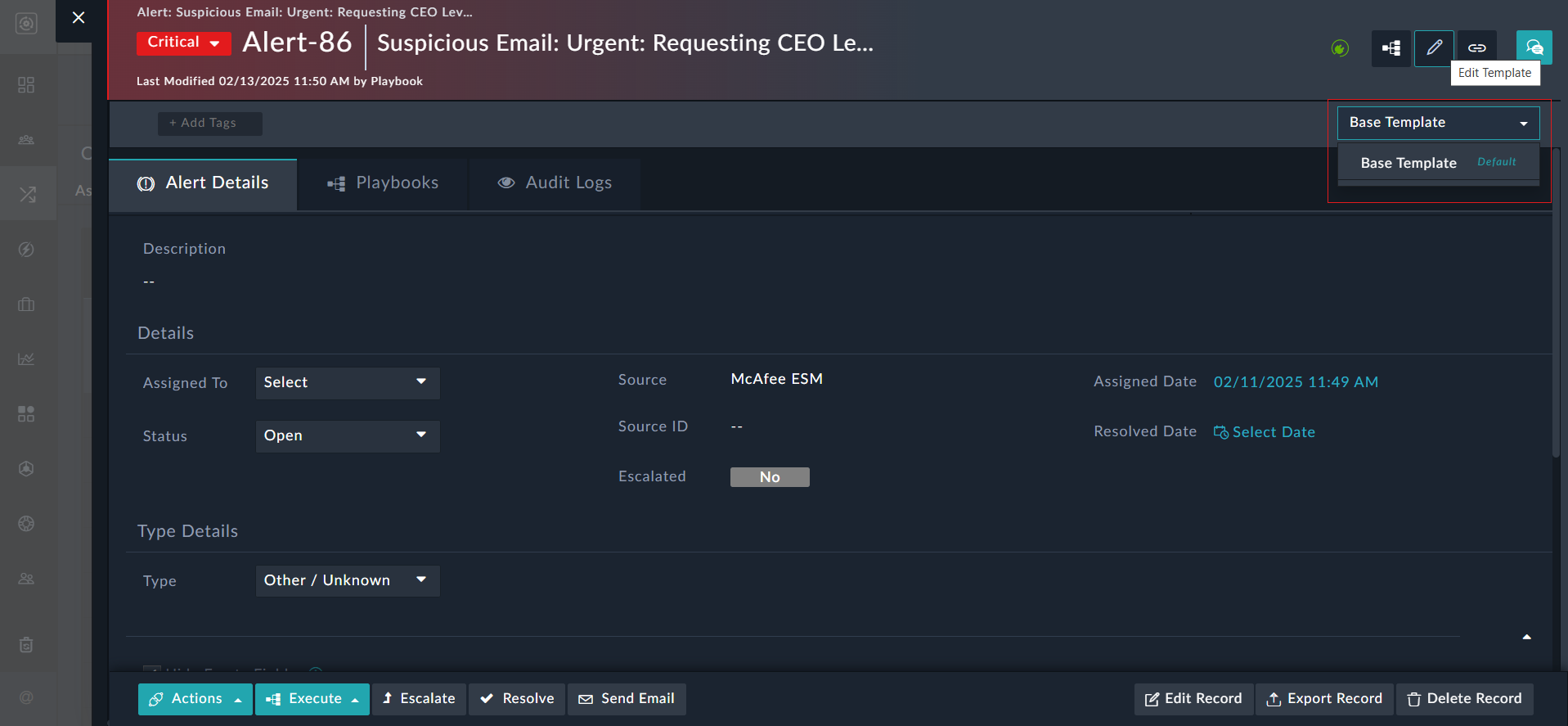
Detail View - Edit Template

To edit a template for any module, click the Edit Template button on the module's record detail view. For more information on Templates, and Widgets, see the Dashboards, Templates, and Widgets chapter.

In the case of a fresh installation of release 7.6.2 or later, when you click Edit Template, you will see that the 'Base Template' cannot be edited. This is because it originates from a solution pack and is the 'Default' template. The Save button for this template will be disabled:
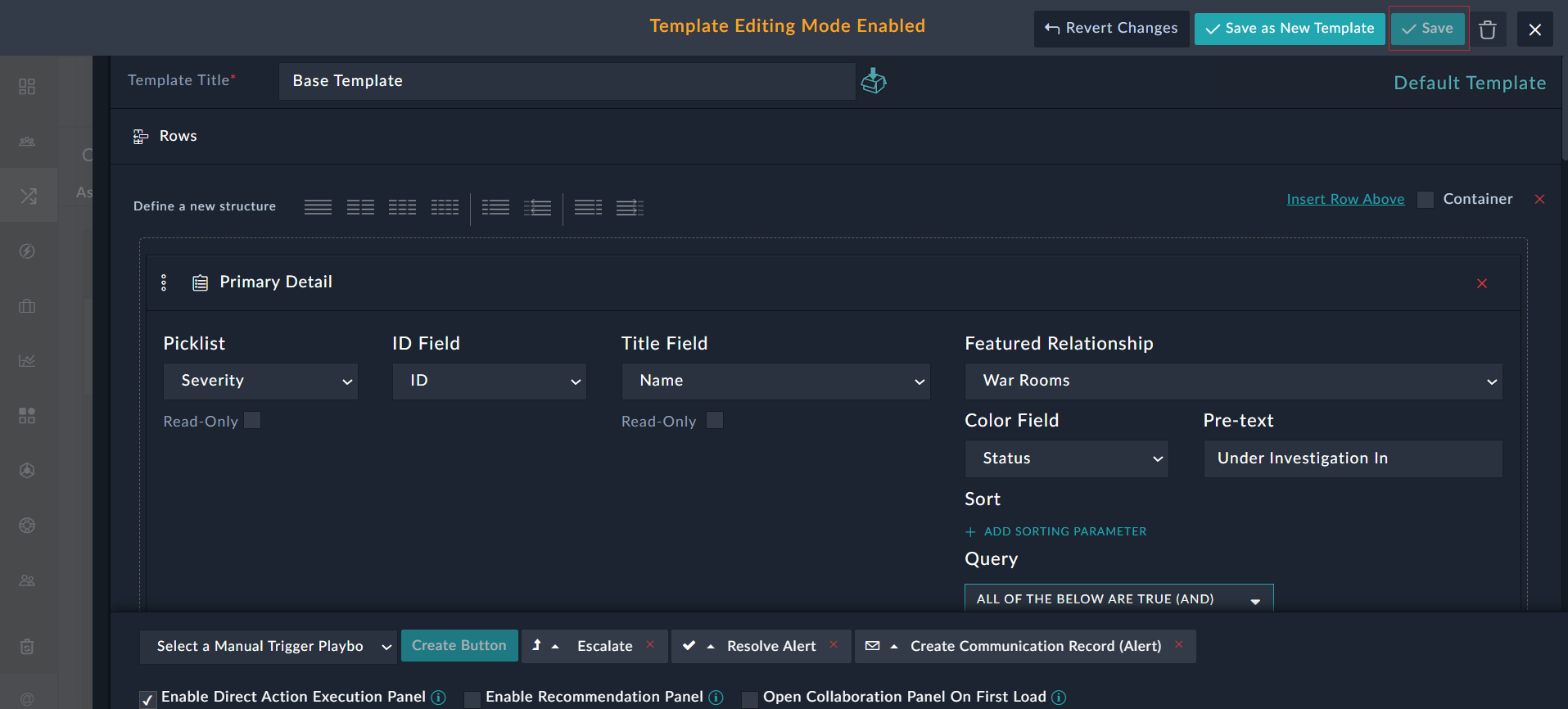
Save disabled while editing default base template

Note

If you upgrade to release 7.6.2 or later, the template from previous release (7.6.1 or releases prior to 7.6.1) will be named as 'Preserved Template', set as the 'Default' template, and will be editable.

To make custom changes to the 'Base Template', modify it and then click Save as New Template. This will open the Create New Template dialog, where you must enter the Name of the new template and optionally, select Make this as default template to designate this template as the default template:
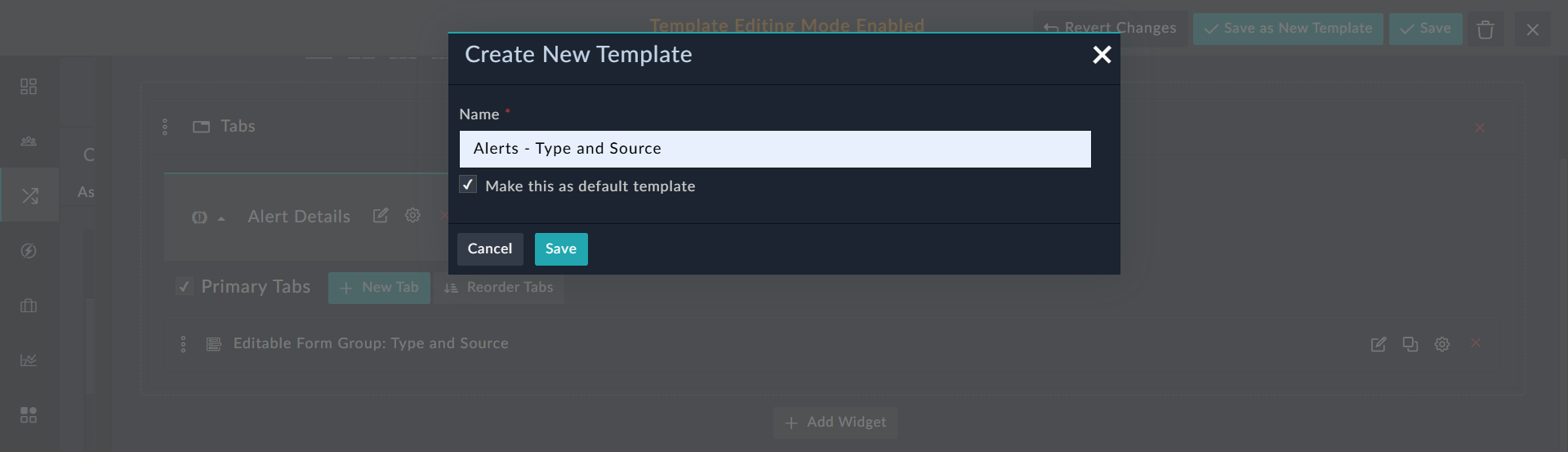
Create new template dialog

After saving, the newly created template, (e.g., Alerts - Type and Source) will become the 'Default' template, since the Make this as default template option was selected (If you do not select the Make this as default template checkbox, the template will be created as a non-default template):
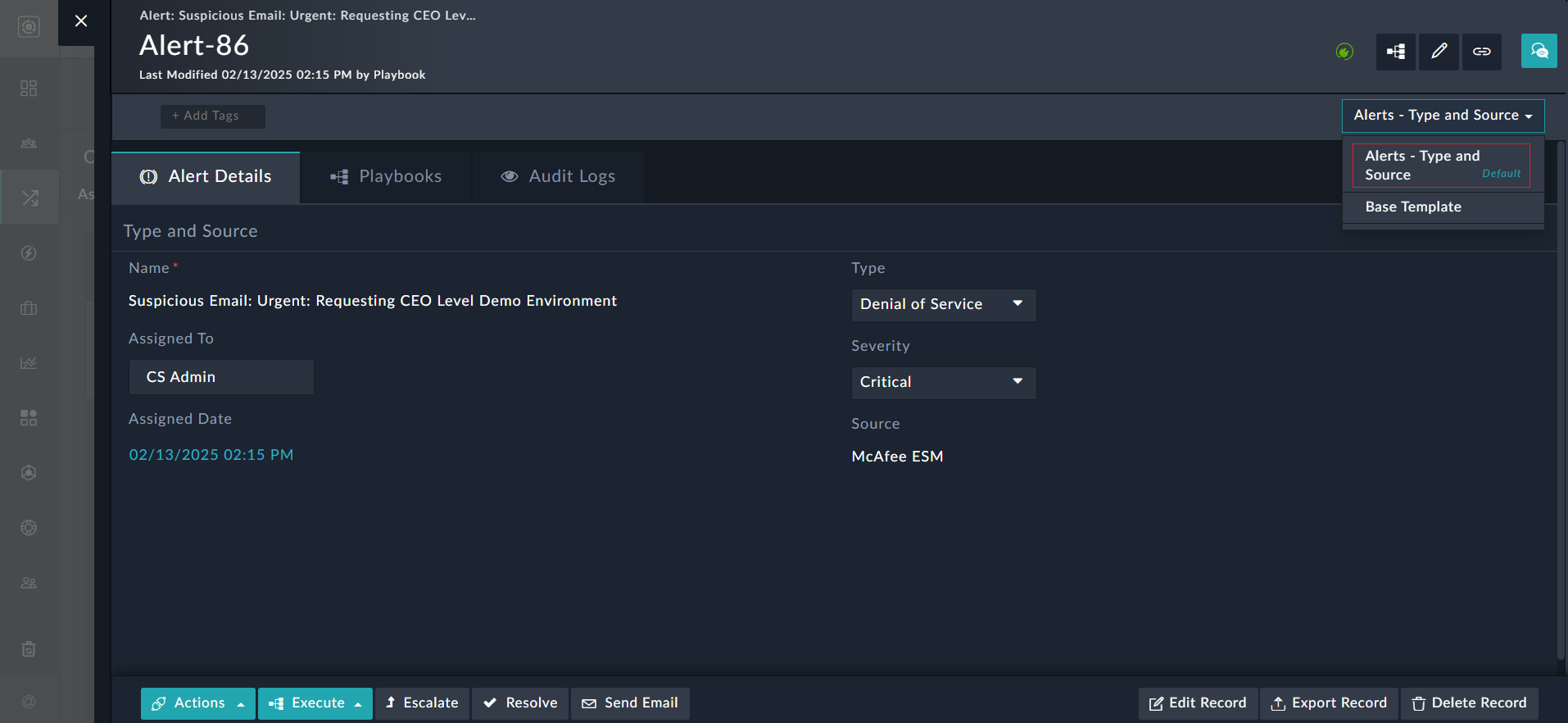
Detail view - New default template

To delete a template, click Edit Template, on the Template Editing Mode Enabled page, click the Delete button.

Important Notes:

  • You cannot delete a template marked as the 'Default' template:
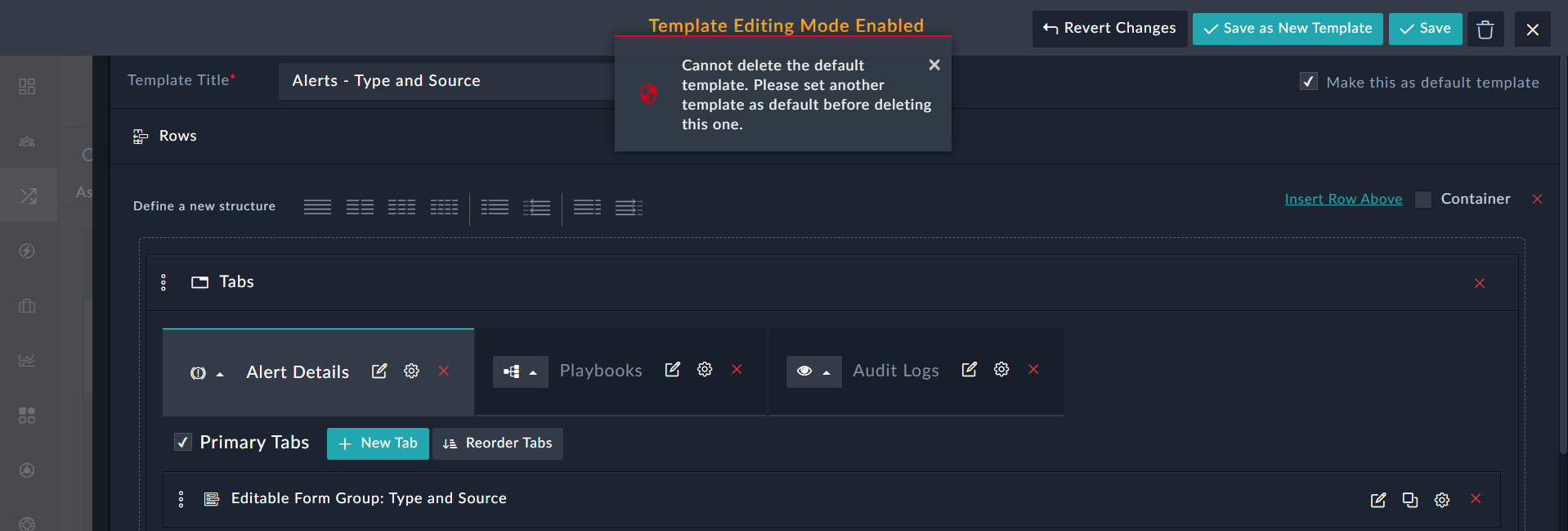
    Error displayed while deleting a default template
  • You cannot delete a template that originates from a Solution Pack; the Save button will be disabled for templates. However, you can mark this template as the 'Default' template, by clicking the Mark as Default button, and then saving the template:
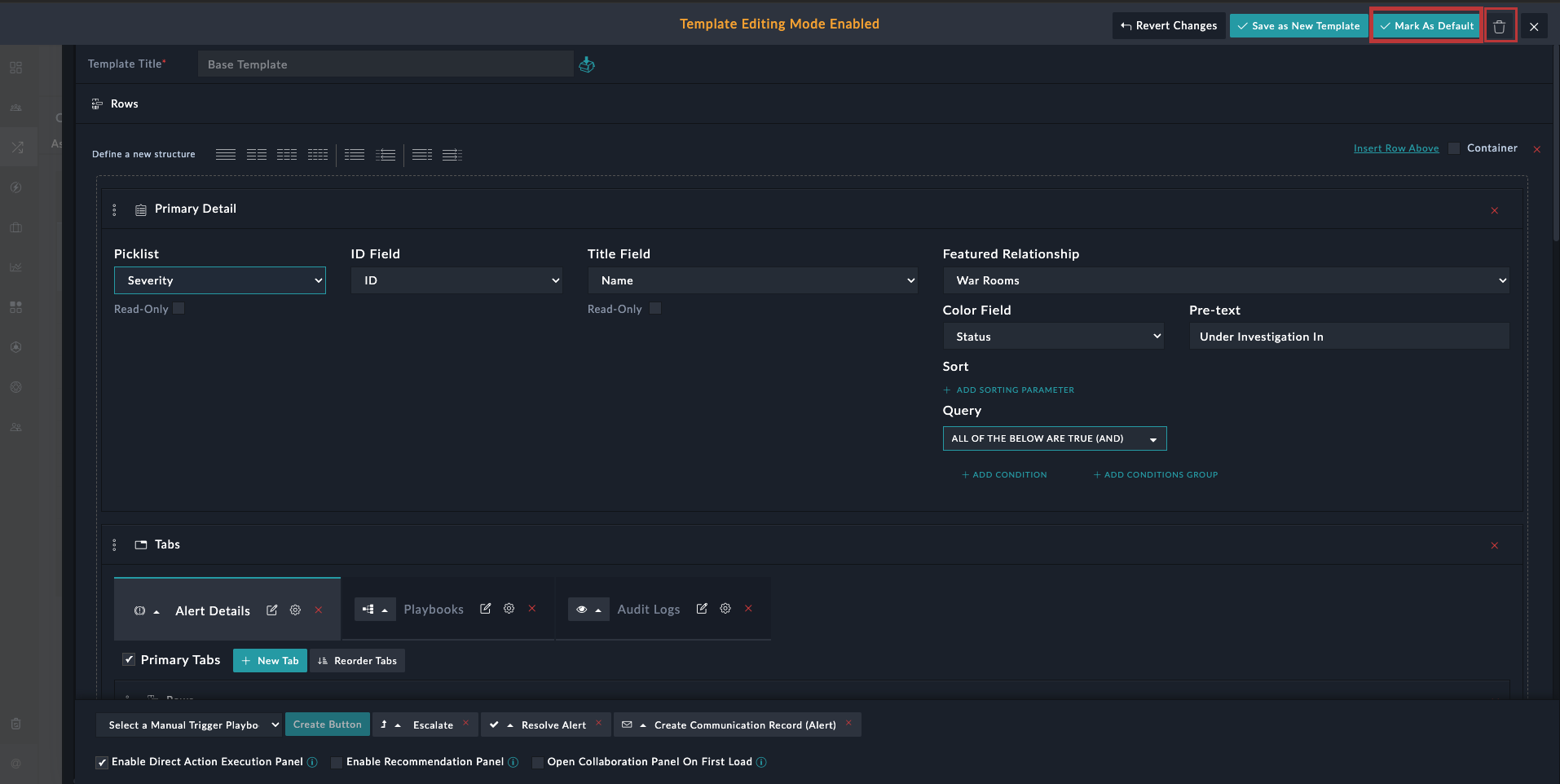
    Save button disabled in case of templates from SPs
  • You can mark a 'Custom' template as 'Default' by editing the template, selecting the Make this as default template checkbox, and then saving the template.

You can use the Export and Import wizards to export and import SVTs across your FortiSOAR instances. Important considerations for importing SVTs are outlined in the Export and Import Wizards topic of the Application Configuration and Customization chapter of the "Administration Guide."

Best Practices for Working with System View Templates (SVTs)

To optimize performance and enhance usability when working with System View Templates (SVTs), follow these best practices:

  • Design Form View Templates with Consideration: Ensure the Form View Template, which is the same for the Add Record form in the List view and the Edit Record form in the Detail view, is designed to meet the specific needs of your use case.
  • Avoid Redundant Widgets: Only include widgets that add unique value. For example, the Comments widget is already part of the Collaboration Panel, so there’s no need to add it explicitly in the SVT. For details on Collaboration Panel, see the Editing a record in the Alert Details tab topic.
  • Choose the Right Field Types: Use appropriate field types based on the data required. For example, use the Date/Time picker for time-related fields instead of a RichText editor. For details on fields in modules, see the Creating and Editing Modules topic.
  • Avoid using the Rich Text (Markdown) Field Type: The Markdown field is resource-intensive and should be used only when necessary. Multiple Markdown editors on a single page can slow down the UI. For general text rendering, use the Text Area field type rather than Rich Text (Markdown).
  • Apply Visibility Conditions Thoughtfully: Limit the use of Visibility conditions to only the fields where they are essential. Overusing visibility conditions can clutter the interface and reduce usability. For more information on Visibility conditions, see the Modifying Existing Modules topic.
  • Use the Right Widgets for Field Management: Avoid using the Uncategorized Fields Widget in the SVT as by default it includes all fields from the module, requiring you to explicitly exclude unnecessary ones. Instead, use the Editable Form or Editable Form Group Widgets to ensure only the necessary fields are included in the SVT.
  • Avoid Redundant Grids: Do not add a grid for the same module as the opened record. For example, avoid adding an Alert grid in the details of an alert record. For details on templates, see the Dashboards, Templates, and Widgets chapter.
  • Minimize Manual Action Widgets: Avoid adding multiple widgets for actions that users can perform manually. For example, refrain from adding multiple Playbooks Button widgets to create an automation task in a single SVT. See Playbook Buttons documentation for details.
  • Avoid Adding Excessive Manual Playbook Buttons: Avoid creating separate playbooks for every individual 'Edit' action (e.g., updating severity) and adding a corresponding button for each one in the SVT. For details on creating buttons, see the Using Template Widgets topic.
  • Do not Include the Executed Playbooks Widget: The Executed Playbooks widget does not need to be added as a tab in your SVT because the Executed Playbook Logs button is available globally across both the SVT template and the application. For details on the Executed Playbook Logs, see the Playbook Execution and Debuggingchapter in the "Playbooks Guide."

Working with System View Templates

Working with System View Templates

In FortiSOAR, modules provide both a List View and a Detail View as described in the following sections. Use the System View Templates to design the Form View Template, which is the same for the Add Record form in the List view and the Edit Record form in the Detail view, and customize it to meet your specific use case requirements. For details, see the Designing Form View Templates: Best Practices and Field Loading Behavior topic.

Modules focused on automation, such as Playbooks and Schedules are covered in other chapters of this guide.

Adding or Editing System View Templates

System View Templates (SVTs) are predefined blueprints that customize the layout and presentation of user interface views. These templates define how data is structured within modules such as Incidents, Alerts, or custom user-created modules. Users can modify these templates to meet their specific needs and define multiple SVTs in the detailed view of module records.

In modules with many fields (e.g., 100-110 fields), multiple SVTs may be needed to keep the detail view manageable, as displaying all fields in a single view can be overwhelming. In such cases, users can create multiple SVTs with focused views that show only the most relevant fields for specific use cases. For example, a focused SVT might display fields related to the alert type and source, enabling users to access the information they need without shifting through all fields.

Starting from release 7.6.2, you can create and modify multiple view templates directly within the detailed view of module records, providing greater flexibility to customize views that display only the most relevant fields for specific use cases. Additionally, you must designate one of the created templates as the 'Default' template, which will be used as the default view for module records.

Moreover, note that in previous versions, Solution Pack upgrades would overwrite any custom modifications made in the detail view to existing view templates. To prevent this, view templates from Solution Packs are now non-editable. Users can create new System View Templates (SVTs) to implement custom changes, ensuring a seamless upgrade process.

On the detail view of any module record (e.g., a record from the Alerts module), you will see that the view template from the SOAR Framework Solution Pack (SFSP) is displayed as the 'Base Template'.
Detail View - Edit Template

To edit a template for any module, click the Edit Template button on the module's record detail view. For more information on Templates, and Widgets, see the Dashboards, Templates, and Widgets chapter.

In the case of a fresh installation of release 7.6.2 or later, when you click Edit Template, you will see that the 'Base Template' cannot be edited. This is because it originates from a solution pack and is the 'Default' template. The Save button for this template will be disabled:
Save disabled while editing default base template

Note

If you upgrade to release 7.6.2 or later, the template from previous release (7.6.1 or releases prior to 7.6.1) will be named as 'Preserved Template', set as the 'Default' template, and will be editable.

To make custom changes to the 'Base Template', modify it and then click Save as New Template. This will open the Create New Template dialog, where you must enter the Name of the new template and optionally, select Make this as default template to designate this template as the default template:
Create new template dialog

After saving, the newly created template, (e.g., Alerts - Type and Source) will become the 'Default' template, since the Make this as default template option was selected (If you do not select the Make this as default template checkbox, the template will be created as a non-default template):
Detail view - New default template

To delete a template, click Edit Template, on the Template Editing Mode Enabled page, click the Delete button.

Important Notes:

  • You cannot delete a template marked as the 'Default' template:
    Error displayed while deleting a default template
  • You cannot delete a template that originates from a Solution Pack; the Save button will be disabled for templates. However, you can mark this template as the 'Default' template, by clicking the Mark as Default button, and then saving the template:
    Save button disabled in case of templates from SPs
  • You can mark a 'Custom' template as 'Default' by editing the template, selecting the Make this as default template checkbox, and then saving the template.

You can use the Export and Import wizards to export and import SVTs across your FortiSOAR instances. Important considerations for importing SVTs are outlined in the Export and Import Wizards topic of the Application Configuration and Customization chapter of the "Administration Guide."

Best Practices for Working with System View Templates (SVTs)

To optimize performance and enhance usability when working with System View Templates (SVTs), follow these best practices:

  • Design Form View Templates with Consideration: Ensure the Form View Template, which is the same for the Add Record form in the List view and the Edit Record form in the Detail view, is designed to meet the specific needs of your use case.
  • Avoid Redundant Widgets: Only include widgets that add unique value. For example, the Comments widget is already part of the Collaboration Panel, so there’s no need to add it explicitly in the SVT. For details on Collaboration Panel, see the Editing a record in the Alert Details tab topic.
  • Choose the Right Field Types: Use appropriate field types based on the data required. For example, use the Date/Time picker for time-related fields instead of a RichText editor. For details on fields in modules, see the Creating and Editing Modules topic.
  • Avoid using the Rich Text (Markdown) Field Type: The Markdown field is resource-intensive and should be used only when necessary. Multiple Markdown editors on a single page can slow down the UI. For general text rendering, use the Text Area field type rather than Rich Text (Markdown).
  • Apply Visibility Conditions Thoughtfully: Limit the use of Visibility conditions to only the fields where they are essential. Overusing visibility conditions can clutter the interface and reduce usability. For more information on Visibility conditions, see the Modifying Existing Modules topic.
  • Use the Right Widgets for Field Management: Avoid using the Uncategorized Fields Widget in the SVT as by default it includes all fields from the module, requiring you to explicitly exclude unnecessary ones. Instead, use the Editable Form or Editable Form Group Widgets to ensure only the necessary fields are included in the SVT.
  • Avoid Redundant Grids: Do not add a grid for the same module as the opened record. For example, avoid adding an Alert grid in the details of an alert record. For details on templates, see the Dashboards, Templates, and Widgets chapter.
  • Minimize Manual Action Widgets: Avoid adding multiple widgets for actions that users can perform manually. For example, refrain from adding multiple Playbooks Button widgets to create an automation task in a single SVT. See Playbook Buttons documentation for details.
  • Avoid Adding Excessive Manual Playbook Buttons: Avoid creating separate playbooks for every individual 'Edit' action (e.g., updating severity) and adding a corresponding button for each one in the SVT. For details on creating buttons, see the Using Template Widgets topic.
  • Do not Include the Executed Playbooks Widget: The Executed Playbooks widget does not need to be added as a tab in your SVT because the Executed Playbook Logs button is available globally across both the SVT template and the application. For details on the Executed Playbook Logs, see the Playbook Execution and Debuggingchapter in the "Playbooks Guide."