Fortinet white logo
Fortinet white logo

User Guide

User Profile

User Profile

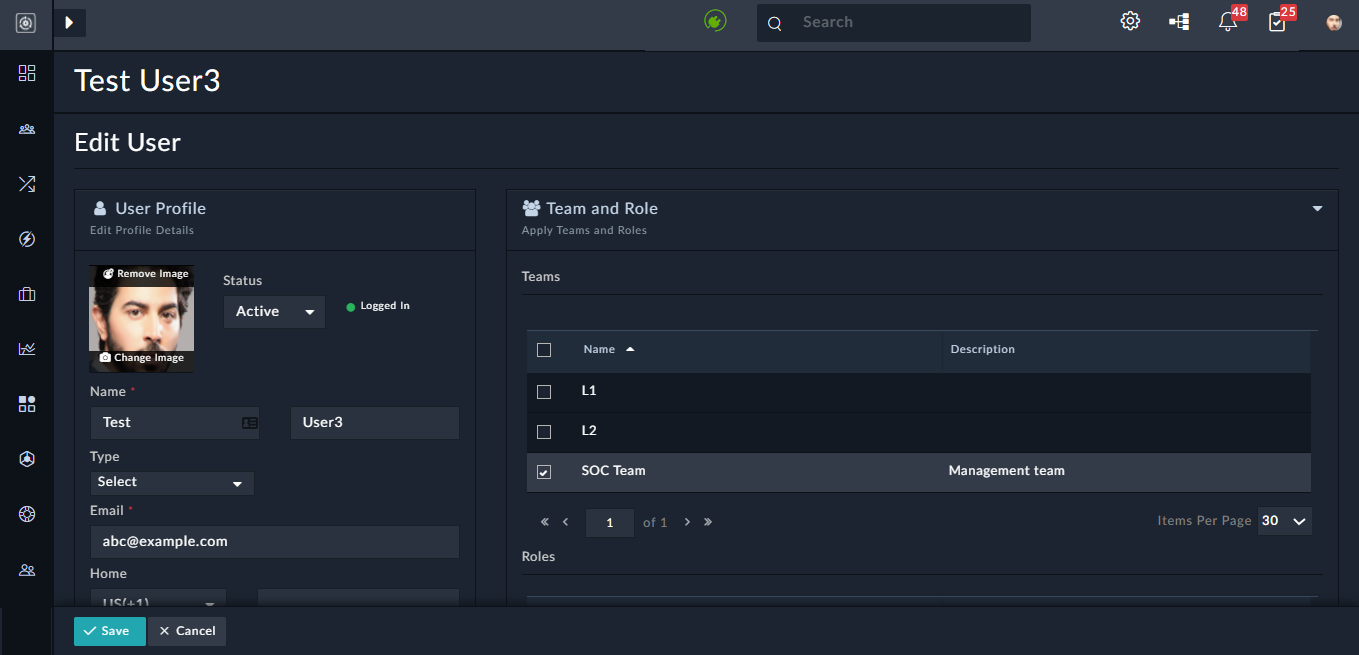
All users of the system have a profile. Once you log on to FortiSOAR, you can access your own profile and can update your information. To access your profile, click the User Profile icon (User Profile icon) on the top-right bar in FortiSOAR.

User's Own Profile Page

You can view your name, email, username, password, phone numbers, teams and roles to which you are assigned. You can also view your own audit logs, which display a chronological list of all the actions that you have performed across all the modules of FortiSOAR.

Note

The Username field is mandatory and case sensitive and it cannot be changed once it is set.

You can upload your profile picture by clicking Change Image, which opens the Upload a Profile Picture dialog, where you can drag-and-drop the profile image file, or click the Import icon and browse to the image file to import the profile image file to FortiSOAR, and then click Save Profile Image to add the profile image. Once the profile image is added, the same can be removed at anytime by clicking the Remove Image button that appears on the profile image.

You must change your password when you first log on to FortiSOAR. You can also change your password at any time by clicking the User Profile icon and selecting the Change Password option. Clicking the Change Password option opens the Change Password dialog in which you enter your old password in the Old Password field, new password in the New Password field and re-enter the new password in the Confirm Password Field. New passwords that are set must contain at least 8 characters, one lower-case alphabet, one upper-case alphabet, one digit, and any one of the following special characters ~ ! @ # $ % ^ & * | ? _
Click Submit to change your password.
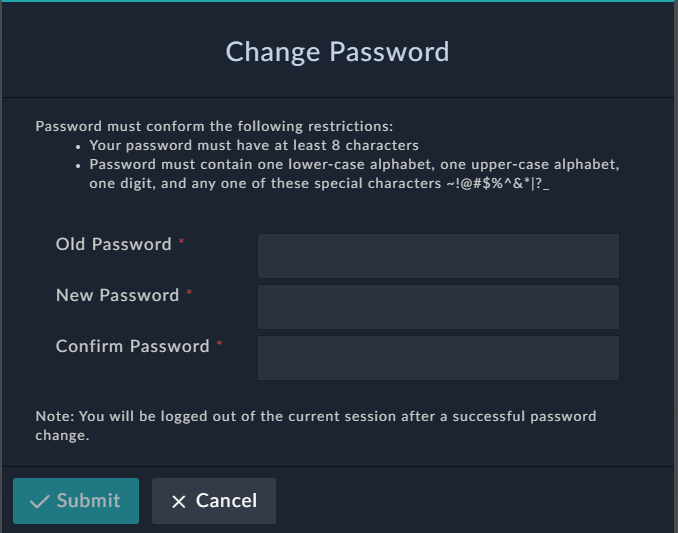
Change Password Dialog

Note

If you face issues with user preferences such as, applying filters on the grid or column formatting within a grid, click the More Options icon (More Options icon) and click on the Reset Columns To Default option.

Authentication

You can view your user type and username in the Authentication section. Do not change these options
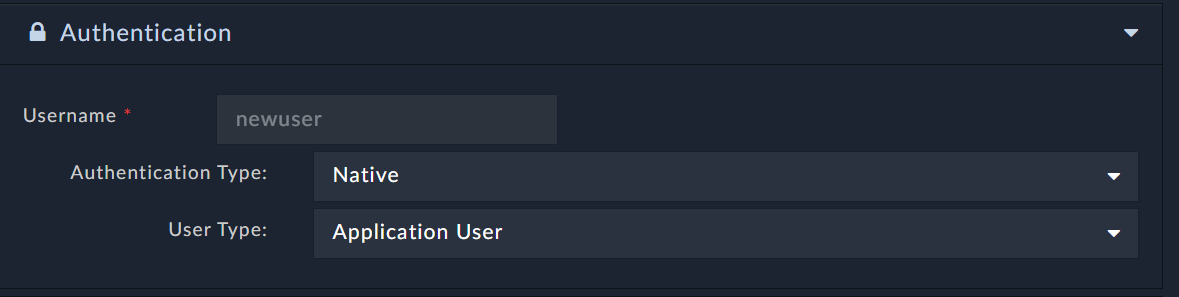
User Profile - Authentication

2-Factor

The 2-Factor authentication menu displays the current user preference for the 2-factor method. Currently, FortiSOAR supports only TeleSign for 2-Factor authentication. Do not change this option.

Notifications

Notification preferences determine how FortiSOAR notifications get consumed by users. Do not change this option.

Theme Settings

You can update your FortiSOAR theme using the Theme Settings menu on the Edit User page. There are currently three theme options, Dark, Light, and Space, with Space being the default. Click Preview Theme to see the Theme as it would look and save the profile to apply the theme.

Language Settings

You can customize the language for your FortiSOAR instance in your profile. Your preferred language will override the language set by your administrator (for details, see Setting a language other than English for your FortiSOAR system in the System Configuration and Management chapter of the "Administration Guide.") For example, if the administrator has set the FortiSOAR language to 'Korean', but you prefer 'Japanese', you can select Japanese in your profile, and the UI of your FortiSOAR instance will be displayed in Japanese. To set your language preference, go to the Language Settings section, and select the preferred language from the Select a Language drop-down list. Click Save to apply the change.

Note

To customize the language for your FortiSOAR instance, you must be assigned the 'Read' or 'Usage' permission on 'Widgets'. Without this permission, the UI of your FortiSOAR instance will remain in English, regardless of the language you set in your profile.

Audit Logs

Use the User Specific Audit Logs panel to view a chronological list of all the actions that you have performed across all the modules of FortiSOAR. The audit log also displays users' login success or failures and logout events. The login event includes all three supported login types, which are DB Login, LDAP Login, and SSO Login.

User Profile

User Profile

All users of the system have a profile. Once you log on to FortiSOAR, you can access your own profile and can update your information. To access your profile, click the User Profile icon (User Profile icon) on the top-right bar in FortiSOAR.

User's Own Profile Page

You can view your name, email, username, password, phone numbers, teams and roles to which you are assigned. You can also view your own audit logs, which display a chronological list of all the actions that you have performed across all the modules of FortiSOAR.

Note

The Username field is mandatory and case sensitive and it cannot be changed once it is set.

You can upload your profile picture by clicking Change Image, which opens the Upload a Profile Picture dialog, where you can drag-and-drop the profile image file, or click the Import icon and browse to the image file to import the profile image file to FortiSOAR, and then click Save Profile Image to add the profile image. Once the profile image is added, the same can be removed at anytime by clicking the Remove Image button that appears on the profile image.

You must change your password when you first log on to FortiSOAR. You can also change your password at any time by clicking the User Profile icon and selecting the Change Password option. Clicking the Change Password option opens the Change Password dialog in which you enter your old password in the Old Password field, new password in the New Password field and re-enter the new password in the Confirm Password Field. New passwords that are set must contain at least 8 characters, one lower-case alphabet, one upper-case alphabet, one digit, and any one of the following special characters ~ ! @ # $ % ^ & * | ? _
Click Submit to change your password.

Change Password Dialog

Note

If you face issues with user preferences such as, applying filters on the grid or column formatting within a grid, click the More Options icon (More Options icon) and click on the Reset Columns To Default option.

Authentication

You can view your user type and username in the Authentication section. Do not change these options

User Profile - Authentication

2-Factor

The 2-Factor authentication menu displays the current user preference for the 2-factor method. Currently, FortiSOAR supports only TeleSign for 2-Factor authentication. Do not change this option.

Notifications

Notification preferences determine how FortiSOAR notifications get consumed by users. Do not change this option.

Theme Settings

You can update your FortiSOAR theme using the Theme Settings menu on the Edit User page. There are currently three theme options, Dark, Light, and Space, with Space being the default. Click Preview Theme to see the Theme as it would look and save the profile to apply the theme.

Language Settings

You can customize the language for your FortiSOAR instance in your profile. Your preferred language will override the language set by your administrator (for details, see Setting a language other than English for your FortiSOAR system in the System Configuration and Management chapter of the "Administration Guide.") For example, if the administrator has set the FortiSOAR language to 'Korean', but you prefer 'Japanese', you can select Japanese in your profile, and the UI of your FortiSOAR instance will be displayed in Japanese. To set your language preference, go to the Language Settings section, and select the preferred language from the Select a Language drop-down list. Click Save to apply the change.

Note

To customize the language for your FortiSOAR instance, you must be assigned the 'Read' or 'Usage' permission on 'Widgets'. Without this permission, the UI of your FortiSOAR instance will remain in English, regardless of the language you set in your profile.

Audit Logs

Use the User Specific Audit Logs panel to view a chronological list of all the actions that you have performed across all the modules of FortiSOAR. The audit log also displays users' login success or failures and logout events. The login event includes all three supported login types, which are DB Login, LDAP Login, and SSO Login.