

Logging in to FortiOS GUI
You can log in to the FortiOS GUI after completing FortiGate management access setup. See Setting up FortiGate for management access for details.
To log in to FortiOS GUI:
-
In a web browser, go to https://192.168.1.99.
By default, the management interface or the internal interface is configured to allow HTTPS access with the IP address 192.168.1.99.
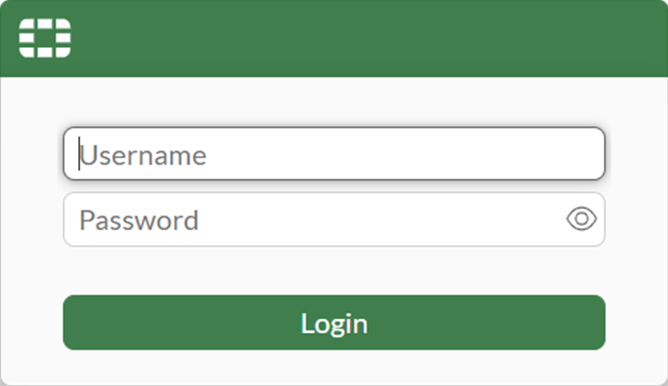
The login page is displayed in your browser.
-
Log in:
-
In the Username field, enter
admin. -
leave the Password field blank.
-
Click Login.
-
It is recommended to change the password. See Password policy.
After you log in, FortiOS checks for an internet connection, and next steps depend on your FortiGate model:
-
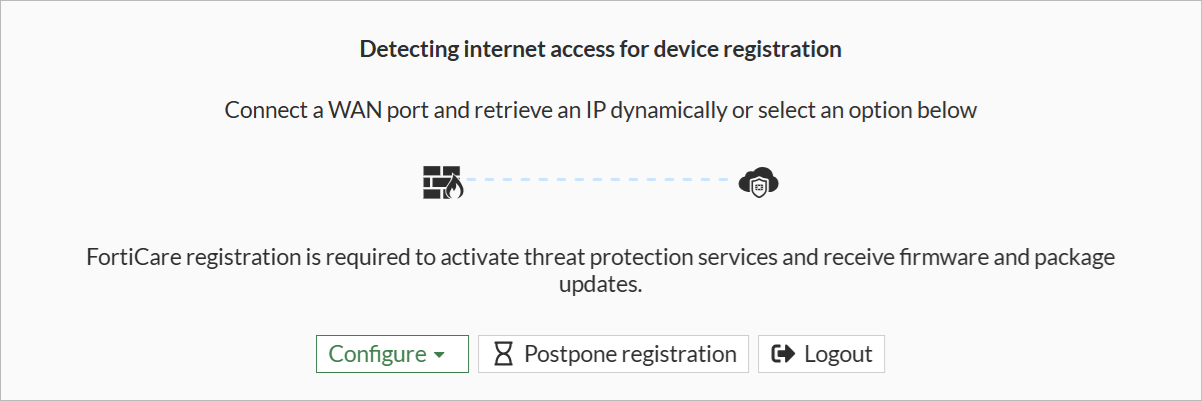
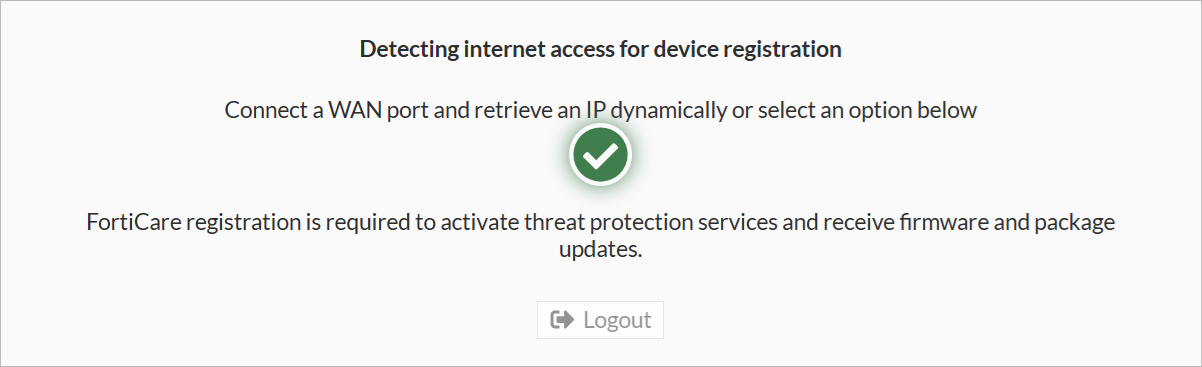
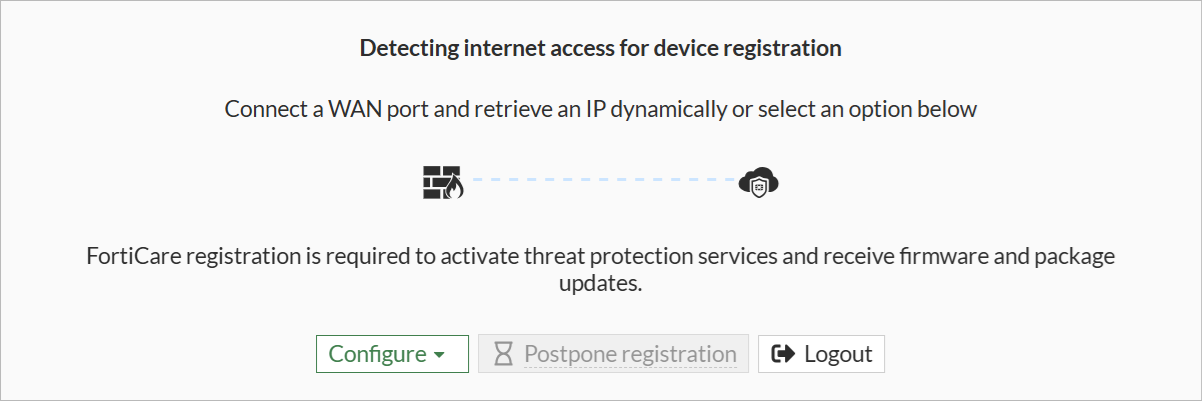
For recent FortiGate models, the Detecting internet access for device registration dialog box is displayed.
When FortiOS detects internet access, the wizard moves automatically from the confirmation to the next step of device registration. See Registering recent FortiGate models.
When FortiOS does not detect internet access, it remains on the Detecting internet access for device registration dialog box, and you can use it to:
-
Configure a WAN interface for internet access. See Configuring internet access for recent FortiGate models.
-
Upload an off-network license file to FortiGate in an air-gapped environment. See Registering recent FortiGate models in an air-gapped environment.
-
Postpone device registration to access the seven-day setup period to configure the FortiGate before device registration. See Postponing registration to access the setup period.
-
-
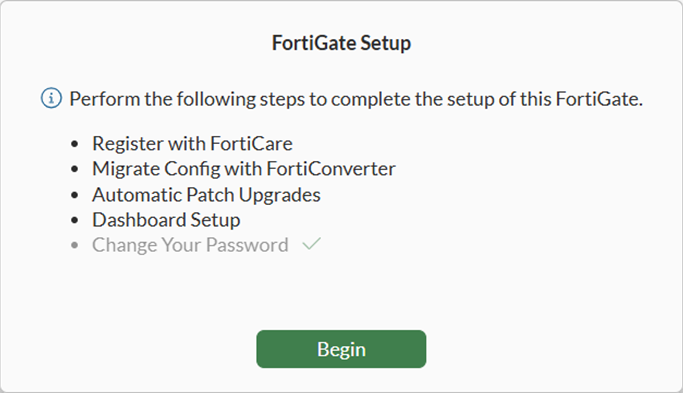
For older FortiGate models, the FortiGate Setup wizard is displayed:
-
When internet access is detected, the FortiGate Setup wizard starts on the Register with FortiCare step. See Registering FortiGate models for next steps.
-
When no internet access is detected, the FortiGate Setup wizard starts on the Migrate Config with FortiConverter step. See Completing the FortiGate Setup wizard for next steps.
-
Configuring internet access for recent FortiGate models
This section applies to FortiGate models with the latest BIOS version. For older FortiGate models, skip this step and go to Registering FortiGate.
The Detecting internet access for device registration dialog box helps you configure internet access for the FortiGate to prepare for device registration to FortiCare.
To configure internet access:
-
After logging in to FortiOS for the first time and the while the Detecting internet access for device registration dialog box is displayed, use an Ethernet cable to connect the WAN port on the FortiGate to an upstream router, switch, or modem with access to the internet.
If you have already connected an Ethernet cable, unplug the cable, and plug it in again.
Internet access is available when the FortiGate model has addressing mode set to DHCP by default on the WAN interface, and the WAN interface is connected to a network with a DHCP server assigning the correct IP and gateway for internet access.
-
If FortiGate does not connect to the internet, configure the WAN interface using the GUI or CLI:
-
For the GUI:
-
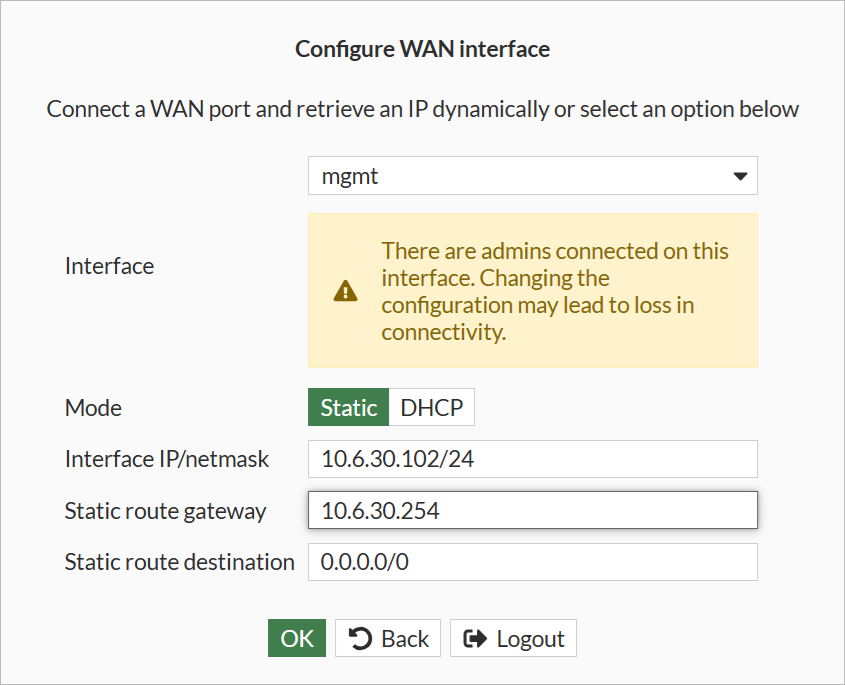
Select Configure WAN interface. The Configure WAN interface dialog box is displayed.
-
Configure the options, and click OK.
-
-
For the CLI, select CLI setup to configure the interface IP address and gateway:
config system interface
    edit <interface>
        set mode static
        set ip <address> <netmask>
    next
end
config router static
    edit 0
        set gateway <gateway IP>
        set device <interface>
    next
end
When FortiGate connects to the internet, the GUI displays the following page:
Your next step is to register the FortiGate to FortiCare. Go to Registering recent FortiGate models.
On the Register with FortiCare dialog box, you have the option of postponing registration to access the seven-day setup period. See Postponing registration to access the setup period.
Postponing registration to access the setup period
This section applies to FortiGate models with the latest BIOS version running FortiOS 7.4.10 or later.
Newer FortiGate models are allowed seven days to configure the FortiGate before device registration to FortiCare is enforced. When the seven-day setup period expires, you must register the FortiGate to FortiCare to continue accessing the GUI and CLI.
The seven-day setup period starts when the FortiGate is first powered up and counts down while the device is powered up. Log out of FortiOS and power down FortiGate to pause the countdown. The setup period reflects the cumulative device uptime and ends after seven days or when the FortiGate is registered to FortiCare, whichever occurs first.
The setup period allows, for example, distributors to configure FortiGates before sending the devices to end users for low-touch or zero-touch provisioning. End users can receive FortiGates after the seven-day setup period has expired. In this case, registration to FortiCare will be required at first login.
Click the Postpone registration button on the following dialog boxes to access the seven-day setup period:
-
The Detecting internet access for device registration dialog box when FortiOS detects no internet access for FortiGate
-
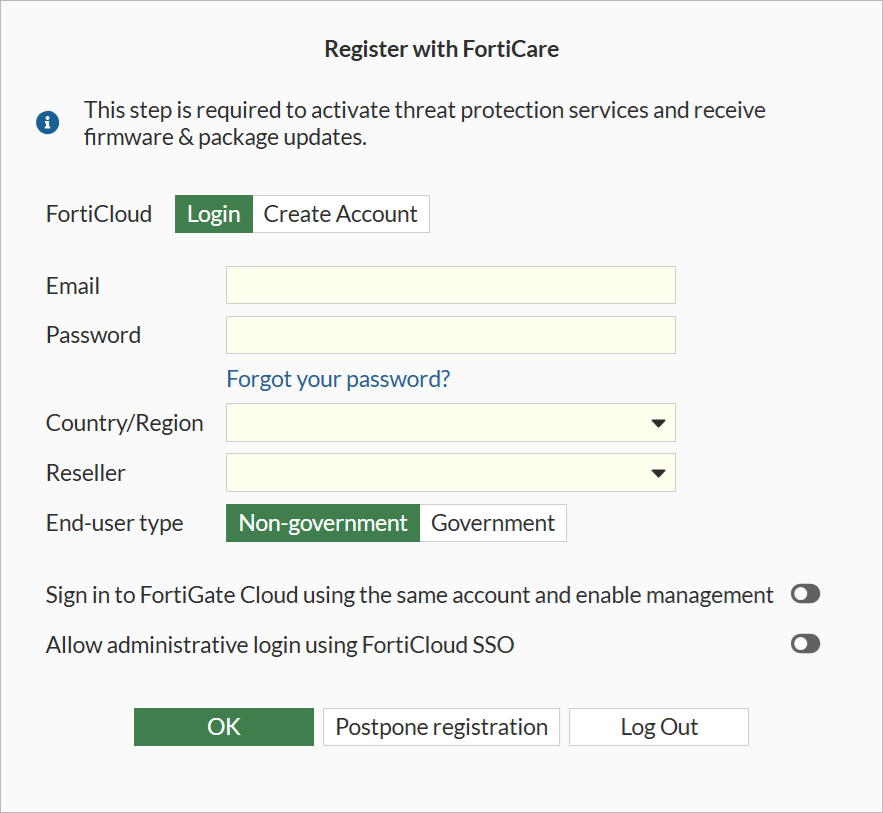
The Register with FortiCare dialog box when FortiOS detects internet access for FortiGate and automatically proceeds to this screen
To postpone registration and access the setup period:
-
After logging in to FortiOS for the first time and the Detecting internet access for device registration dialog box is displayed, click Postpone registration.
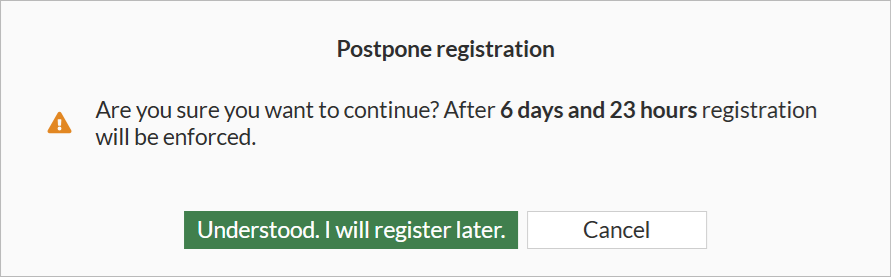
The Postpone registration dialog box is displayed. It shows 6 days and 23 hours of FortiGate uptime remain until registration is required.
-
Click Understood, I will register later.
The FortiGate Setup wizard is displayed.
-
Click Later to proceed to the GUI and configure the device.
-
When done configuring the FortiGate, send the device to the end user to configure internet access and register the FortiGate with FortiCare.
End users must use their account to register the FortiGate to FortiCare.
-
When the device is not registered or configured for internet after seven days of uptime, the seven-day setup period expires, and the Postpone registration button is grayed out.
To postpone registration from the Register with FortiCare dialog box:
-
After logging in to FortiOS for the first time and FortiOS detects an internet connection, a confirmation dialog box is displayed. :
Then the Register with FortiCare dialog box is displayed.
-
Postpone registration:
-
Click Postpone registration.
The Postpone registration dialog box is displayed with the remaining setup time.
-
Click Understood, I will register later.
The FortiGate Setup wizard is displayed.
-
Click Later to proceed to the GUI and configure the device.
-
-
After the seven-day setup period ends, the Postpone registration button is no longer available, and you must register with FortiCare or log out.

You can reset the seven-day setup period by performing a factory reset on the FortiGate or restoring the firmware. The seven-day setup period starts again when the FortiGate is powered up.
-