

Threat feed connectors per VDOM
When multi-VDOM mode is enabled, a threat feed external connector can be defined in global or within a VDOM. Global threat feeds can be used in any VDOM, but cannot be edited within the VDOM. FortiGuard category and domain name-based external feeds have an added category number field to identify the threat feed. The threat feed name in global must start with g-. Threat feed names in VDOMs cannot start with g-.
FortiGuard category and domain name-based external feed entries must have a number assigned to them that ranges from 192 to 221. This number can be assigned to both external feed types. However, when a category number is used under a global entry, such as 192 with the name g-cat-192, this category number cannot be used in any other global or VDOM entries. If a category is used under a VDOM entry, such as 192 under VDOM1 with the name cat-192, the category 192 can be used in another VDOM or root with the name cat-192.
A threat feed connector can only be used in profiles in the VDOM that it was created in. Global connectors can be used in all VDOMs.
Each VDOM can have a maximum of 256 threat feed entries. But in total, a FortiGate can only have 511 threat feed entries.
To improve the security of the connection, it is recommended to enable server certificate validation (server-identity-check) either in basic or full mode.
To configure a FortiGuard category threat feed connector under global in the GUI:
- Go to Security Fabric > External Connectors and click Create New.
- In the Threat Feeds section, click FortiGuard Category.
- Enter a name that begins with
g-. - Configure the other settings as needed.
- Click OK.
To configure a FortiGuard category threat feed connector under global in the CLI:
config global
    config system external-resource
        edit "g-category"
            set status enable
            set type category
            set category 192
            set comments ''
            set resource "http://172.16.200.55/external-resource-test/513-FDGCategory.txt"
            set server-identity-check {none | basic | full}
            set refresh-rate 5
        next
    end
end
To configure a domain name threat feed connector under a VDOM in the GUI:
- Go to Security Fabric > External Connectors and click Create New.
- In the Threat Feeds section, click Domain Name.
- Enter a name that does not begin with
g-. - Configure the other settings as needed.
- Click OK. The threat feed connector created under global also appears, but it is not editable.

To configure a domain name threat feed connector under a VDOM in the CLI:
config vdom
    edit vd1
        config system external-resource
            edit "vd1-domain"
                set status enable
                set type domain
                set category 193
                set comments ''
                set resource "http://172.16.200.55/external-resource-test/513-Domain.txt"
                set server-identity-check {none | basic | full}
                set refresh-rate 5
            next
        end
    next
end
To use an IP address threat feed in a policy in the GUI:
- Configure an IP address connector in global:
- Go to Security Fabric > External Connectors and click Create New.
- In the Threat Feeds section, click IP Address.
- Enter a name that begins with
g-. - Configure the other settings as needed.
- Click OK.
- Configure an IP address connector in the VDOM (vd1):
- Go to Security Fabric > External Connectors and click Create New.
- In the Threat Feeds section, click IP Address.
- Enter a name that does not begin with
g-. - Configure the other settings as needed.
- Click OK. The threat feed connectors created under global also appear, but they are not editable.
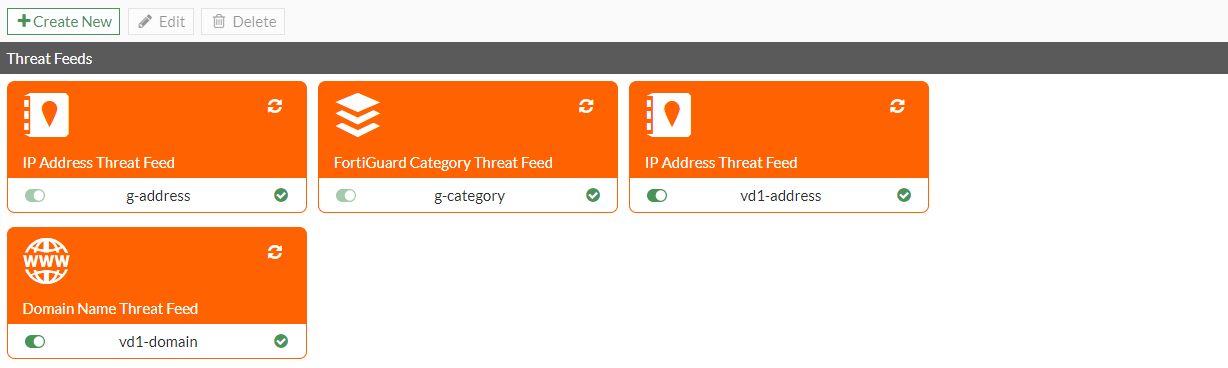
- Configure the firewall policy in the VDOM (vd1):
- Go to Policy & Objects > Firewall Policy and click Create New.
- For Destination, select vd1-address. Since this policy is configured under vd1, g-address can also be set as the destination.
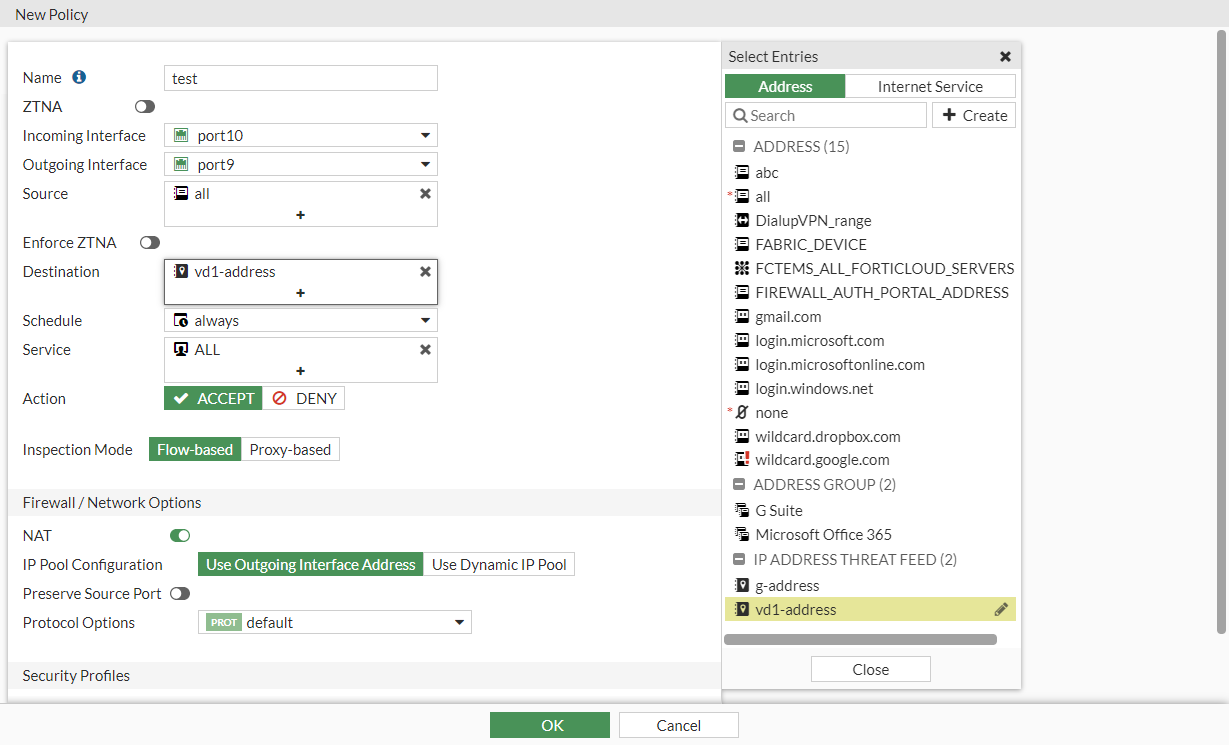
- Configure the other settings as needed.
- Click OK.
To use an IP address threat feed in a policy in the CLI:
- Configure the IP address connectors:
config global
    config system external-resource
        edit "g-address"
            set status enable
            set type address
            set username ''
            set comments ''
            set resource "http://172.16.200.55/external-resource-test/513-IP.txt"
            set server-identity-check {none | basic | full}
            set refresh-rate 5
        next
    end
end
config vdom edit vd1 config system external-resource edit "vd1-address" set status enable set type address set comments '' set resource "http://172.16.200.55/external-resource-test/513-IP.txt" set user-agent "curl/7.58.0" set server-identity-check {none | basic | full} set refresh-rate 5 next end next end - In the VDOM, configure a firewall policy with the external address as the destination address:
config vdom
    edit vd1
        config firewall policy
            edit 1
                set name "test"
                set srcintf "port10"
                set dstintf "port9"
                set srcaddr "all"
                set dstaddr "vd1-address"
                set action accept
                set schedule "always"
                set service "ALL"
                set profile-protocol-options "protocol"
                set nat enable
            next
        end
    next
end
Since this firewall policy is configured under
vd1,g-addresscan also be set as thedstaddr.