

FortiAP device list
On the Devices and Provisioning > Device List > FortiAP page, you can see FortiAP devices managed by FortiGates.
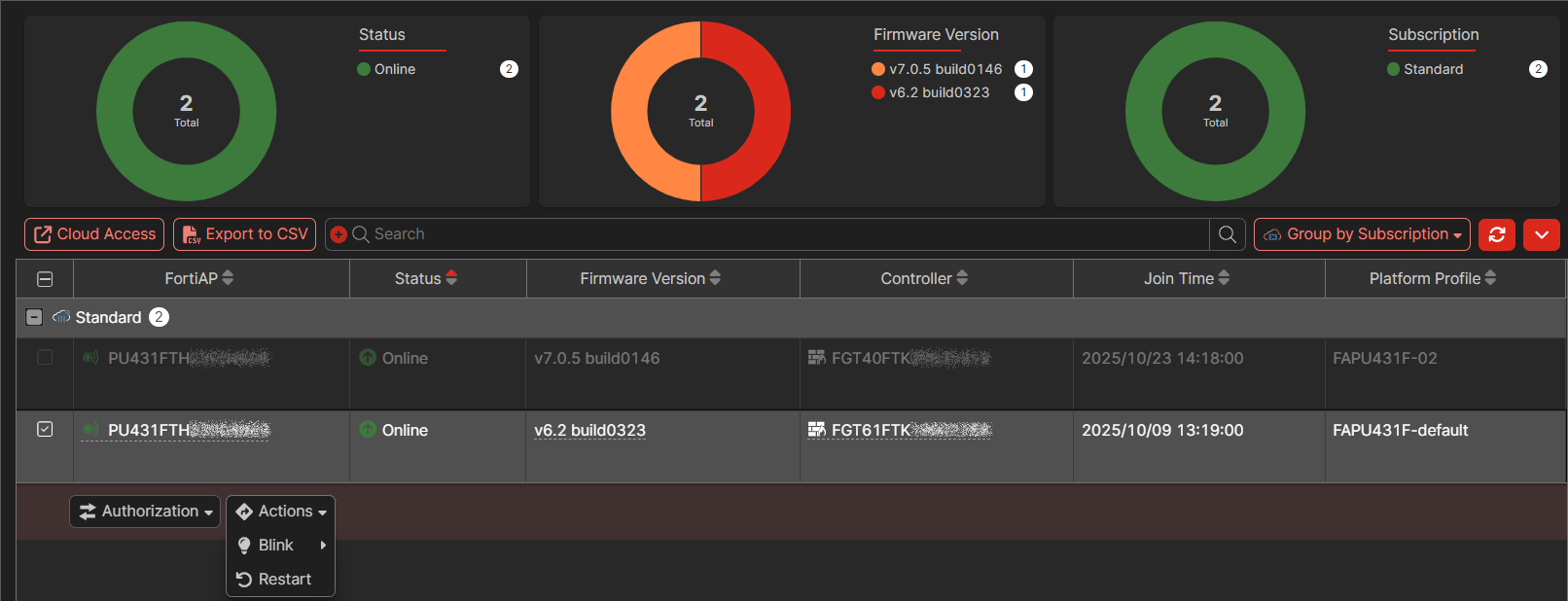
Charts at the top of the page display:
|
Chart |
Description |
|---|---|
|
Status |
Displays the total number of FortiAPs and how many devices have a status of Online. Click the chart to filter the page. Click the Filter icon beside Status to remove the filter. |
|
Firmware Version |
Displays the total number of FortiAPs and how many devices are running each firmware version. Click the chart to filter the page. Click the Filter icon beside Firmware Version to remove the filter. |
|
Subscription |
Displays the FortiGate Cloud subscription status of the FortiGate managing the FortiAP. Click the chart to filter the page. Click the Filter icon beside Subscription to remove the filter. |
Below the charts, you can access the following buttons:
|
Button |
Description |
|---|---|
|
Cloud Access |
Select a FortiAP, and click Cloud Access to access the FortiGate that is managing the FortiAP. |
|
Export to CSV |
Click the Export to CSV to export the Devices and Provisioning > Device List > FortiAP page to a CSV file. |
|
Group by |
Select how to group the list of displayed devices:
|
The table displays the following information about each FortiAP:
|
Column |
Description |
|---|---|
|
FortiAP |
Displays the name and serial number. Hover the mouse over a column heading to display:
|
|
Status |
Displays whether the FortiAP is online. |
|
Firmware Version |
Displays the firmware version and build number running on the FortiAP. |
|
Controller |
Indicates that the FortiAP belongs to a Fortinet Security Fabric by displaying a FortiGate serial number. |
|
Platform Profile |
Displays the name of the configuration profile assigned to the FortiAP. |
Select a FortiAP to display and access the following options:
|
Option |
Description |
|---|---|
|
Authorize |
Select a FortiAP to display and access the following buttons to authorize, reject, or deauthorize the selected FortiAP. See Authorizing managed devices. |
|
Actions |
Access the following options:
|