

General Settings
You can add and manage users from Settings > General Settings. The General Settings page includes different user types, including Identity & Access Management (IAM) and FortiGate Cloud account users. General Settings displays a key icon beside the primary account.
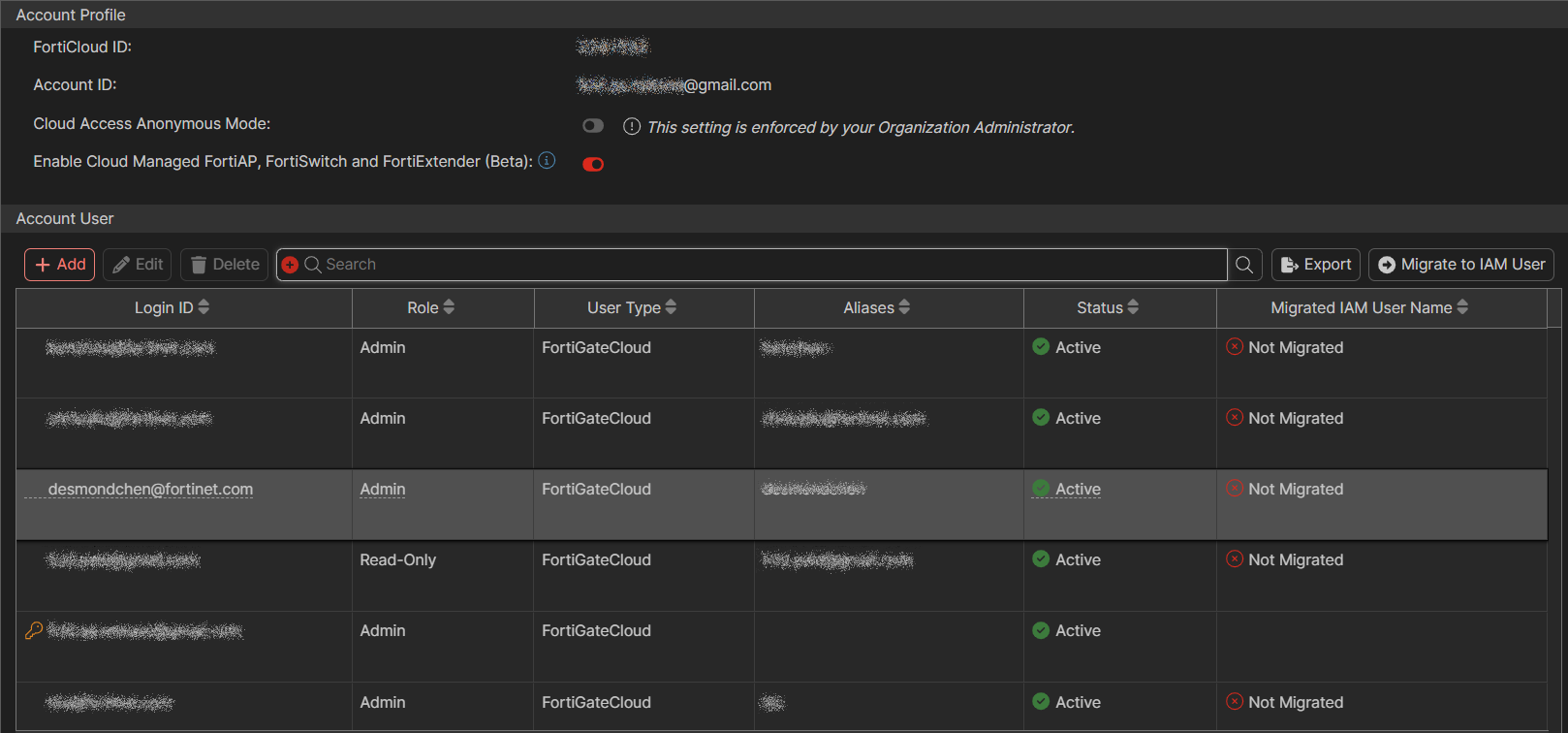
The User settings page contains the following columns:
|
Column |
Description |
|---|---|
|
Login ID |
Email address that the user uses to log in to the FortiGate Cloud. This column also displays the region that each user can access and their role. |
|
Role |
Displays the user role. |
|
User Type |
Displays the type of user. User types include the following:
|
|
Aliases |
Name of the user associated with the user account. You may want to edit a username to make it easier to identify who is using that account. You can edit the username by clicking the Edit icon in the Action column. |
|
Status |
Status of the user account. The status can be one of the following:
|
IAM and IdP users can only view their own account and edit their language settings on this page.
You can enable or disable cloud access anonymous mode for a user. Alternately Cloud access anonymous mode can be configured at the organization level. See OU General settings.
When you run a function in FortiGate Cloud that applies to FortiGates, such as running a script, FortiGate Cloud may not pass the actual username of the user who performed the action to FortiOS:
When remotely accessing a FortiGate from FortiGate Cloud, one of the following occurs:
- If Cloud Access Anonymous Mode is enabled, FortiGate Cloud passes the username of the FortiGate Cloud user who performed the action as a randomized @fortigatecloud.com email address, such as 4aa567e55bc8@fortigatecloud.com, to FortiOS.
- If Cloud Access Anonymous Mode is disabled, FortiGate Cloud passes the actual username of the FortiGate Cloud user who performed the action to FortiOS.
For other management features that a user can perform from FortiGate Cloud, such as running a script, FortiGate Cloud passes the username of the FortiGate Cloud user who performed the action as FortiGateCloud to FortiOS.
Therefore, when viewing logs on the affected FortiGate, you may see 4aa567e55bc8@fortigatecloud.com or FortiGateCloud as a username. For managed security service provider customers, this provides enhanced security by preventing subusers from seeing the primary account email address in the FortiGate logs.
To enable or disable cloud access anonymous mode:
-
Go to Settings > General Settings.
-
Enable or disable Cloud Access Anonymous Mode.
You may be unable to change this setting when the organization administrator has enabled/disabled the setting at the organization level.