
Fortinet white logo
Fortinet white logo

Administration Guide

FortiGate device list

FortiGate device list

On the Devices and Provisioning > Device List > FortiGate page, you can view all FortiGates. In addition to the charts, buttons, and tables on the page, you can right-click each FortiGate to access additional options.
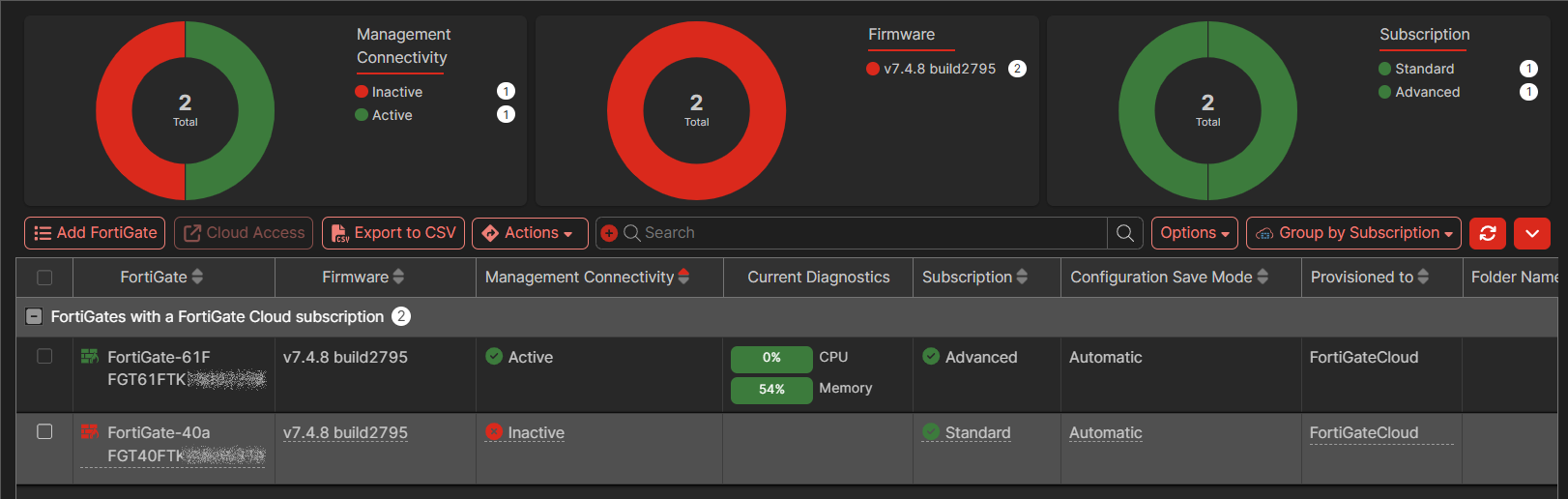
Charts at the top of the page display:

Chart

Description

Management Connectivity

Displays the total number of FortiGates being managed and how many devices are actively connected. It also displays the number of inactive FortiGates.

Click the chart to filter the page. Click the Filter icon beside Management Connectivity to remove the filter.

Firmware

Displays the total number of FortiGates and how many devices are running each version of FortiOS firmware.

Click the chart to filter the page. Click the Filter icon beside Firmware to remove the filter.

Subscription

Displays the total number of FortiGates with subscriptions and how many devices have a FortiGate Cloud Standard description and a FortiGate Cloud Advanced description.

Click the chart to filter the page. Click the Filter icon beside Subscription to remove the filter.

Below the charts, you can access the following buttons:

Button

Description

Add FortiGate

Click to import or provision a new FortiGate or delete an existing FortiGate. See Cloud provisioning.

Cloud Access

Select a FortiGate, and click Cloud Access to access the FortiGate. See Accessing a FortiGate.

Export to CSV

Click the Export to CSV to export the Devices and Provisioning > Device List > FortiGate page to a CSV file named Asset_List_<year>_<month>_<day>.csv.

Actions

Select a FortiGate, and click Actions to access the following options:

  • Change hostname

  • Deprovision

  • Manage Configuration

  • Show Matching Generated Reports

  • Show Matching Scheduled Reports

  • Set Configuration Save Mode

  • View Diagnostics

  • Upgrade Subscriptions using FortiPoints

  • Set Auto Backup

  • Set Display Timezone

  • Asset Transfer

Some of these options are also available when you right-click a FortiGate.

Options

Access the following options:

  • FortiManager Provisioned: Toggle on to display FortiGates provisioned by FortiManager.

  • RMA'd and Deprovisioned: Toggle on to display deprovisioned FortiGates.

Group by

Select how to group the list of displayed devices:

  • Group by Subscription: Groups FortiGates by type of subscription. FortiGates with a FortiGate Cloud Standard subscription are grouped together, and FortiGates with a FortiGate Cloud Advanced subscription are grouped together.

  • Group by HA Cluster

  • Group by Tunnel Status

  • No Grouping

The table displays the following information about each FortiGate:

Column

Description

FortiGate

Displays the name and serial number.

Hover the mouse over each FortiGate to display a tooltip of information.

Hover the mouse over a column heading to display:

  • Configure Table icon: Click to choose which columns to display in the table.

  • Filter icon: Click to access filter options for the column. May not be available for all columns.

Firmware

Displays the FortiOS version and build number running on the FortiGate.

Management Connectivity

Displays the status of the FortiGate:

  • Active: The device is connected through a management tunnel.

  • Inactive: The device is not connected through a management tunnel.

Current Diagnostics

Displays device CPU and memory usage.

Subscription

Displays the subscription status of the FortiGate:

  • Standard: The device has a FortiGate Cloud Standard subscription

  • Advanced: The device has a FortiGate Cloud Advanced subscription.

Configuration Save Mode

Displays the configured save mode for each FortiGate:

  • Automatic: Configuration changes are automatically saved to the device.

  • Manual: Administrators save changes to the device.

See Using configuration save mode.

Provisioned to

Displays where the FortiGate is provisioned, for example, FortiGate Cloud.

Device Type

Displays the type of device, such as FortiGate.

Folder Name

Displays the name of the asset folder to which the device belongs. FortiGate Cloud pulls the folder structure from FortiCloud.

Last Backup

Displays the date and time of the last configuration backup.

Last Log Upload

Displays the date and time of the last log upload.

Outbound IP

Displays the outbound IP address for the device

SD-WAN

Displays whether SD-WAN is enabled or disabled on the device.

To use the right-click menu for a FortiGate:
  1. Go to Devices and Provisioning > Device List > FortiGate.
  2. Right-click the FortiGate, to display and access the following menu items:

Menu

Description

Cloud Access

Select to access the FortiGate GUI. See Accessing a FortiGate.

Change hostname

Select to display the Change Hostname pane, type a new name, and click OK.

Manage configuration

Select to display the Configuration > Revisions page.

Show matching generated reports

Select to display matching reports on the Reports > Generated Reports page.

Show matching scheduled reports

Select to display scheduled reports on the Reports > Scheduled Reports page.

Set configuration save mode

Select to display the Set Configuration Save Mode pane, select a mode, and click OK. See Using configuration save mode.

View diagnostics

Select to display the Diagnostics pane. Scroll down to view historical data organized on the following tabs: Outages, Outages Chart, and CPU/Memory/Disk.

FortiGate device list

FortiGate device list

On the Devices and Provisioning > Device List > FortiGate page, you can view all FortiGates. In addition to the charts, buttons, and tables on the page, you can right-click each FortiGate to access additional options.

Charts at the top of the page display:

Chart

Description

Management Connectivity

Displays the total number of FortiGates being managed and how many devices are actively connected. It also displays the number of inactive FortiGates.

Click the chart to filter the page. Click the Filter icon beside Management Connectivity to remove the filter.

Firmware

Displays the total number of FortiGates and how many devices are running each version of FortiOS firmware.

Click the chart to filter the page. Click the Filter icon beside Firmware to remove the filter.

Subscription

Displays the total number of FortiGates with subscriptions and how many devices have a FortiGate Cloud Standard description and a FortiGate Cloud Advanced description.

Click the chart to filter the page. Click the Filter icon beside Subscription to remove the filter.

Below the charts, you can access the following buttons:

Button

Description

Add FortiGate

Click to import or provision a new FortiGate or delete an existing FortiGate. See Cloud provisioning.

Cloud Access

Select a FortiGate, and click Cloud Access to access the FortiGate. See Accessing a FortiGate.

Export to CSV

Click the Export to CSV to export the Devices and Provisioning > Device List > FortiGate page to a CSV file named Asset_List_<year>_<month>_<day>.csv.

Actions

Select a FortiGate, and click Actions to access the following options:

  • Change hostname

  • Deprovision

  • Manage Configuration

  • Show Matching Generated Reports

  • Show Matching Scheduled Reports

  • Set Configuration Save Mode

  • View Diagnostics

  • Upgrade Subscriptions using FortiPoints

  • Set Auto Backup

  • Set Display Timezone

  • Asset Transfer

Some of these options are also available when you right-click a FortiGate.

Options

Access the following options:

  • FortiManager Provisioned: Toggle on to display FortiGates provisioned by FortiManager.

  • RMA'd and Deprovisioned: Toggle on to display deprovisioned FortiGates.

Group by

Select how to group the list of displayed devices:

  • Group by Subscription: Groups FortiGates by type of subscription. FortiGates with a FortiGate Cloud Standard subscription are grouped together, and FortiGates with a FortiGate Cloud Advanced subscription are grouped together.

  • Group by HA Cluster

  • Group by Tunnel Status

  • No Grouping

The table displays the following information about each FortiGate:

Column

Description

FortiGate

Displays the name and serial number.

Hover the mouse over each FortiGate to display a tooltip of information.

Hover the mouse over a column heading to display:

  • Configure Table icon: Click to choose which columns to display in the table.

  • Filter icon: Click to access filter options for the column. May not be available for all columns.

Firmware

Displays the FortiOS version and build number running on the FortiGate.

Management Connectivity

Displays the status of the FortiGate:

  • Active: The device is connected through a management tunnel.

  • Inactive: The device is not connected through a management tunnel.

Current Diagnostics

Displays device CPU and memory usage.

Subscription

Displays the subscription status of the FortiGate:

  • Standard: The device has a FortiGate Cloud Standard subscription

  • Advanced: The device has a FortiGate Cloud Advanced subscription.

Configuration Save Mode

Displays the configured save mode for each FortiGate:

  • Automatic: Configuration changes are automatically saved to the device.

  • Manual: Administrators save changes to the device.

See Using configuration save mode.

Provisioned to

Displays where the FortiGate is provisioned, for example, FortiGate Cloud.

Device Type

Displays the type of device, such as FortiGate.

Folder Name

Displays the name of the asset folder to which the device belongs. FortiGate Cloud pulls the folder structure from FortiCloud.

Last Backup

Displays the date and time of the last configuration backup.

Last Log Upload

Displays the date and time of the last log upload.

Outbound IP

Displays the outbound IP address for the device

SD-WAN

Displays whether SD-WAN is enabled or disabled on the device.

To use the right-click menu for a FortiGate:
  1. Go to Devices and Provisioning > Device List > FortiGate.
  2. Right-click the FortiGate, to display and access the following menu items:

Menu

Description

Cloud Access

Select to access the FortiGate GUI. See Accessing a FortiGate.

Change hostname

Select to display the Change Hostname pane, type a new name, and click OK.

Manage configuration

Select to display the Configuration > Revisions page.

Show matching generated reports

Select to display matching reports on the Reports > Generated Reports page.

Show matching scheduled reports

Select to display scheduled reports on the Reports > Scheduled Reports page.

Set configuration save mode

Select to display the Set Configuration Save Mode pane, select a mode, and click OK. See Using configuration save mode.

View diagnostics

Select to display the Diagnostics pane. Scroll down to view historical data organized on the following tabs: Outages, Outages Chart, and CPU/Memory/Disk.