

Using WAF Signature Staging
When FortiGuard releases new or updated attack signatures, enabling them immediately in production can sometimes result in false positives or unexpected blocking behavior.
The WAF Signature Staging feature provides a controlled workflow that allows administrators to safely evaluate these new signatures before they take effect.
With signature staging, FortiADC automatically places all new or modified signatures from the latest FortiGuard WAF signature database into a staging list. These signatures operate in alert-only mode, allowing administrators to observe their behavior against live traffic, determine their relevance, and then decide whether to apply or disable them as needed.
This capability is supported with WAF Signature Database version 1.00063 and later.
Enabling WAF Signature Staging
Before you can start using signature staging to review new FortiGuard updates, the feature must first be enabled.
By default, WAF Signature Staging is disabled, so new or updated FortiGuard signatures are applied automatically without entering a staging phase.
Enabling the feature ensures that each new or modified signature is first added to the staging list for observation and manual review before activation.
-
Go to System > FortiGuard > WAF Signature Staging.
-
Enable the Status of WAF Signature Staging.
-
Click Apply.
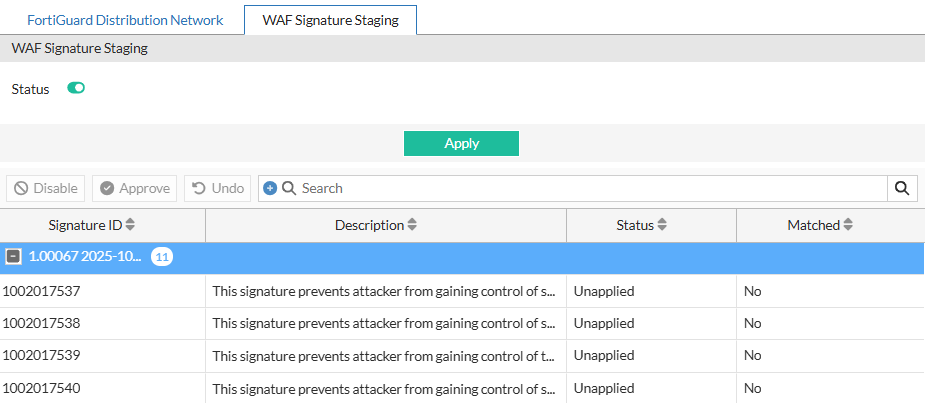
After you apply the change, FortiADC populates the WAF Signature Staging list with all signatures from the currently installed WAF signature database.
Each signature initially appears with the status Unapplied, meaning it is neither applied nor disabled.
In this state, signatures operate in observation-only mode—FortiADC logs matching events as alerts but does not enforce blocking until the signatures are applied.
You can now view and manage these entries from System > FortiGuard > WAF Signature Staging.
Managing staged signatures
Once the feature is enabled and the staging list is populated, use System > FortiGuard > WAF Signature Staging to review, apply, or disable signatures.
This page provides detailed information about each signature’s state and detection activity, helping administrators decide which entries to activate, disable, or continue monitoring.
Reviewing the staging list
Each row in the staging list represents a signature awaiting administrator review.
The list includes all signatures that were newly added or modified in the most recent FortiGuard WAF signature database update.
|
Column |
Description |
|---|---|
| Signature ID | The unique identifier assigned to the FortiGuard WAF signature. |
| Description | A brief summary of the detection rule or attack pattern. |
| Status | Indicates whether the signature is Applied, Unapplied, or Disabled. |
| Matched | Displays Yes if the signature has been triggered by observed traffic. |
The Status and Matched columns are the primary indicators for determining review priority.
Signatures that show Matched = Yes have detected traffic in the environment and should be reviewed to verify whether enforcement is appropriate.
Managing signature states
After reviewing the staging list, determine how each signature should be handled.
The available actions provide fine-grained control over which signatures are activated, disabled, or kept under observation.
-
Approve: Enables the selected signature for active enforcement. Once applied, the signature remains listed for reference but becomes part of the active WAF signature set.
-
Disable: Excludes the signature from enforcement if it generates false positives or is not relevant to the protected applications. Disabled signatures retain this state across future database updates.
-
Undo: Reverts the most recent change and restores the previous state.
-
Bulk Approve/Bulk Disable: Performs the same action on multiple signatures at once to streamline large-scale reviews.
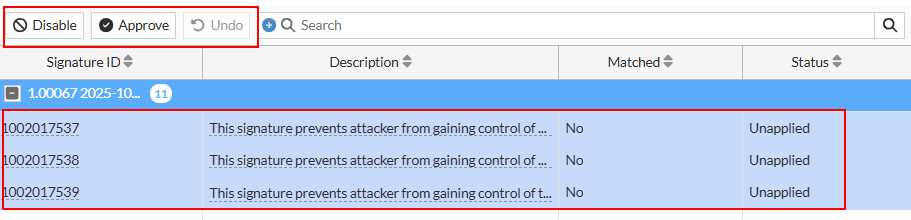
Signatures in the Unapplied state are neither applied nor disabled—they remain under observation until an administrator takes action.
While Unapplied, signatures continue to evaluate traffic in alert-only mode.
If a match occurs, FortiADC generates an Alert log entry and updates the Matched column to Yes, helping administrators identify which new signatures are detecting relevant events and should be prioritized for review.
Organizing and filtering signatures
The staging table provides tools to help administrators locate and analyze specific signatures efficiently.
Use these controls to narrow large datasets and focus on entries that require action:
-
Resize to Contents: Adjusts column width automatically to display full data.
-
Group By This Column: Groups entries by the selected field, such as Status or Matched, to simplify review by category.
-
Filter types: Contains or Exact to match specific keywords or IDs.
-
NOT (Negation toggle): Excludes results that match the filter criteria.
-
Multiple values: Enter comma-separated values to filter by multiple terms at once.
Grouping and filtering make it easier to manage large signature updates. For example, grouping by Status isolates all Unapplied signatures for evaluation, while filtering for Matched = Yes highlights signatures that have already triggered on live traffic and may need to be applied.
Applying WAF Signature Staging in practice
Once staged signatures have been reviewed and organized, the next step is to evaluate their behavior and determine which ones to enforce.
This section provides a practical example of how to use WAF Signature Staging after a FortiGuard signature database update.
Follow the workflow below to review, validate, and apply staged signatures safely and effectively.
General workflow
-
Observe staged signatures:
After a new signature database is installed, FortiADC lists new and modified entries on the WAF Signature Staging page with the status Unapplied.
During this phase, FortiADC monitors live traffic in alert-only mode and updates the Matched field to Yes when a signature detects activity.
-
Review detections:
Go to the WAF Security Log to review alert logs for Matched signatures.
Determine whether the detections represent genuine attacks or normal application traffic.
-
Decide actions:
-
Apply signatures verified as legitimate detections to activate enforcement.
-
Disable signatures that generate false positives.
-
Leave others Unapplied for continued monitoring.
Unapplied signatures remain in alert-only mode, logging matches but not blocking traffic.
-
Signature lifecycle
Signatures that remain Unapplied continue operating in observation mode until the next FortiGuard WAF signature database update.
Unapplied signatures that are not manually disabled are automatically applied in the next version of the WAF signature database.
This behavior assumes that, in the absence of administrator-specific intervention, newly introduced signatures are considered safe for deployment in the customer environment.
This ensures that new protections are eventually enforced while still allowing administrators the opportunity to review them first.
Example scenario
After installing WAF signature database version 1.00064, the WAF Signature Staging list shows several new and modified signatures.
During normal traffic over the next few days, some entries update their Matched field to Yes.
Reviewing the alert logs reveals two confirmed attack detections and one false positive caused by valid API traffic.
The administrator applies the two verified attack signatures, disables the false-positive entry, and leaves the remaining Unapplied signatures for continued observation.
When the next database version is released, any unapplied entries that were not disabled are automatically applied following FortiGuard verification.
Applying the workflow
To integrate this process into regular maintenance:
-
Review the staging list after each FortiGuard update.
-
Prioritize signatures with Matched = Yes to validate detections against live traffic.
-
Apply verified signatures, disable confirmed false positives, and leave others for observation.
-
Repeat the review process after each update to ensure protection coverage remains current.
This workflow provides a consistent and low-risk method for adopting new WAF signatures—introducing verified protections gradually while maintaining stable application performance.