Use case: Expired SSL certificate management
Scenario
The SSL certificate for the online store is about to expire in 7 days. If it's not updated by that time, it will lead to security warnings for customers.
How FortiWeb responses to this issue
- Trigger Detection: FortiWeb continuously monitors SSL certificate expiry dates and detects an impending expiration.
- Notification: An alert is sent to the IT team via Teams, and a Jira ticket is created to manage the certificate renewal process.
- Follow-up action: IT teams update the certificate in FortiWeb.
This automation stitch prevents potential security issues and customer trust concerns by ensuring SSL certificates are always up to date.
Configurations on FortiWeb
Before performing the following steps, make sure:
-
You have already got the URL of the Teams channel you want to send notifications to. For how to get the URL. See Microsoft Teams Notification action.
-
You have already created a Jira service project and an API token in the Jira account for authentication purpose. See Jira Notification action.
To configure the stitch on FortiWeb:
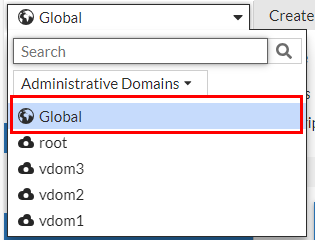
- Switch the Administrative Domain to Global.
- Run the following command. FortiWeb will send a notification a specified number of days in advance of the certificate's expiration. In this use case we set the number to 7 days.
config system global
set cert-expire-check-time 7
end
- Go to Security Fabric > Automation.
- Select the Action Tab.
- Click Create New to create a Teams notification action.
- Select Microsoft Teams Notification. Configure the settings:
Name Enter a name.
Description Enter a description.
URL Paste the webhook URL you got from Teams. - Please leave the "https://" out when you paste the URL because the system will automatically append "https://" to the URL you enter.
Message Type Text Message Your SSL certificate is about to expire in 7 days. Refer to the following log for more information:
%%log%%
Go to one of the following pages to update the certificate in time, otherwise your users will see a certificate invalid warning when they visit your application.
The CA tab on Server Objects > Certificates> CA.
The Local tab on Server Objects > Certificates> Local.
The Admin Cert Local tab on System > Admin > Certificates.
- Click Create New to create a Jira notification action.
- Select Jira Notification. Configure the settings:
Name Enter a name.
Description Enter a description.
Account Enter the Jira account name. This account must have User Management Access privilege. Token
Enter the API token.
URL Enter the URL of your Jira account. Please leave the "https://" out when you paste the URL because the system will automatically append "https://" to the URL you enter.
Message Your SSL certificate is about to expire in 7 days. Refer to the following log for more information:
%%log%%
Go to one of the following pages to update the certificate in time, otherwise your users will see a certificate invalid warning when they visit your application.
The CA tab on Server Objects > Certificates> CA.
The Local tab on Server Objects > Certificates> Local.
The Admin Cert Local tab on System > Admin > Certificates.
- Click OK.
- Select the Stitch tab.
- Enter a name and brief description for this stitch. Enable the status.
- Click Add Trigger, select LOCAL_CERT_EXPIRY, then click Apply.
- Click Add Action, select the Microsoft Teams Notification action you just created, then click Apply.
- Click Add Action, select the Jira Notification action you just created, then click Apply.
- Click OK.
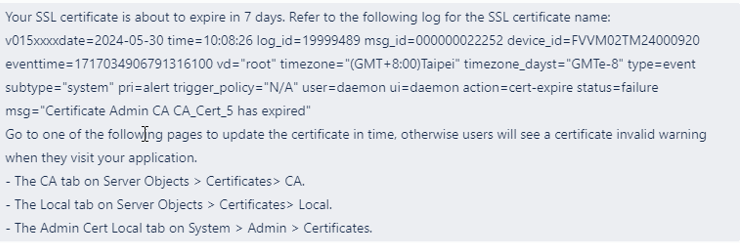
- When this automation stitch is triggered, you will receive the following message in Microsoft Teams and Jira. Please note that the following is just an example and may not correspond exactly to the messages configured above.
- Log in to FortiWeb, find the certificate on one of the pages mentioned in the message and update it.