
Fortinet white logo
Fortinet white logo

Administration Guide

Configuring a File List Policy

Configuring a File List Policy

The File List module enables FortiWeb to classify uploaded files based on cryptographic hash values and enforce trust or block actions accordingly. This module is particularly useful for organizations that rely on external threat intelligence, incident response tools, or malware analysis platforms that provide file hashes (MD5 or SHA256) rather than signatures or patterns.

When a file is uploaded, FortiWeb computes both its MD5 and SHA256 digests and compares them to entries in the configured File List policy. Matching logic behaves as follows:

  • If a Block File match is found, FortiWeb sets the internal file_list_flag to BLOCK, and enforcement is delegated to the File Security module. The action defined in the File List policy is applied, such as deny, block-period, or client-ID block. An attack log entry is generated with the type Block File Using Hash.

  • If a Trust File match is found, FortiWeb sets the file_list_flag to TRUST, and the file bypasses checks from:

    • File Security

    • Web Shell Detection

    • Data Loss Prevention (DLP)

The File List module does not perform enforcement directly. To apply block actions, the File Security module must be enabled in the active Web Protection Profile. Trust File matches are honored across all three modules without additional configuration.

This module replaces the legacy File Exception feature, which only supported trusted MD5 hashes. File List introduces:

  • Support for SHA256

  • Support for Block File entries

  • A shared matching backend to reduce redundant processing across modules

Configuration is available through both GUI and CLI. Existing File Exception entries are automatically migrated to Trust File entries in the File List module.

To configure a File List policy:
  1. Navigate to Web Protection > Input Validation > File List.

  2. Click Create New to display the configuration editor.

  3. Configure the following File List settings:

    Setting

    Description

    Name Enter a unique name that can be referenced in other parts of the configuration. The maximum length is 63 characters.
    Action

    Determines how FortiWeb responds to a Block File match:

    • Alert — Accept the connection and generate an alert email and/or log message.

    • Alert & Deny — Block the request (or reset the connection) and generate an alert and/or log message.

      You can customize the web page that FortiWeb returns to the client with the HTTP status code. For details, see Customizing error and authentication pages (replacement messages).

    • Deny (no log) — Block the request (or reset the connection).

    • Block Period — Block subsequent requests from the client for a number of seconds.

      You can customize the web page that FortiWeb returns to the client with the HTTP status code. For details, see Customizing error and authentication pages (replacement messages).

    • Client ID Block Period – Blocks the client’s session or device fingerprint (if Client Identification is enabled).

    Block Period

    Required when Action is Block Period or Client ID Block Period.

    Specify the number of seconds that you want to block subsequent requests from the client after the FortiWeb appliance detects that the client has violated the rule.

    The default value is 600 seconds. The valid range is from 1 to 3,600 seconds (1 hour).

    Severity

    When rule violations are recorded in the attack log, each log message contains a Severity Level (severity_level) field. Select which severity level the FortiWeb appliance will use when it logs a violation of the rule:

    • High
    • Medium
    • Low
    • Informative

    The default value is Low.

    Trigger Policy Select which trigger, if any, that the FortiWeb appliance will use when it logs and/or sends an alert email about a violation of the rule. For details, see Viewing log messages.
  4. Click OK to save the policy.
    After the File List configuration is saved, you can add policy members by creating a new configuration or by import. Up to 1,024 hash entries are supported per File List policy.

  5. Add a File List Policy Member.

    1. Configure a File List Policy Member:

      1. Click Create New to display the configuration editor.

      2. Configure the following settings:

        Setting

        Description

        Type

        Select the matching behavior:

        • Trust File – Files with matching hashes bypass inspection by File Security, Web Shell Detection, and DLP modules.

        • Block File – Files with matching hashes trigger the configured Action and are treated as threats.

        Hash Type

        Select the hash algorithm used for matching:

        • MD5 – 128-bit hash, entered as a 32-character hex string.

        • SHA256 – 256-bit hash, entered as a 64-character hex string.

        Choose based on the format used by your threat intelligence or file analysis tools.

        Hash Value Enter the full MD5 or SHA256 hash string. This field is required and must match the selected Hash Type.
        File Name (Optional) Optional file name for administrative reference only. This value is not used for enforcement.
        Comment (Optional) Optional notes for internal use, such as source of the hash (e.g., "TI feed May 2025" or "manually reviewed").
      3. Click OK to add the entry.

    2. Import a File List:

      1. In the File List field, click Upload and select the file to add.
        This file should be plain text file with one hash per line (no headers or metadata).

      2. In the Type field, select Trust File or Block File—applies to all entries in the file.

      3. In the Hast Type field, select MD5 or SHA256—must match the hash format in the file.

      4. Click OK to import the entries.

  6. Click OK to save the File List policy.

Configuring through the Attack Log

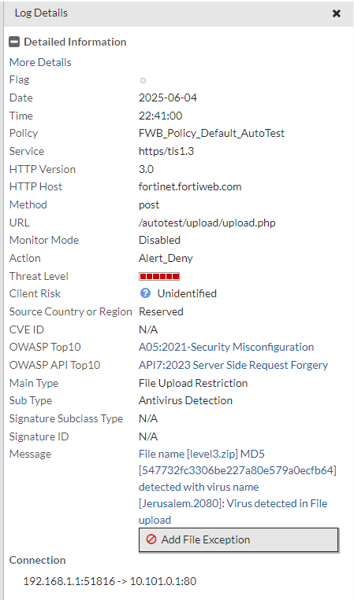
File hash entries can also be added to the File List directly from the attack logs, streamlining the response workflow. This method uses the existing Add File Exception button, which now supports both trusted and blocked file classifications.
Debug

To troubleshoot or verify file hash matching behavior, enable the following diagnostic modules:

diagnose debug flow filter module-detail file-list 7
diagnose debug flow filter module-detail file-security 7

These debug commands provide detailed information such as:

  • File size and upload method

  • Computed MD5 and SHA256 hash values

  • Matching results and lookup results in the trust or block list

  • Enforcement decisions (e.g., CACCEPT, DENY)

  • Whether matching occurred in File Security or File List stages

Sample debug log entries:
[File List][Mod_Dbg]: Module name:file_list, Execution:4, Process error:0, Action:CACCEPT
[File Security][Info]: (./waf_module/file_upload.c:4133): AV size limit [5120000], buffer length [90646]
[File Security][Info]: (./waf_module/file_upload.c:4139): cache is ready to AV scan
[File Security][Mod_Dbg]: Module name:file_security, Execution:3, Process error:0, Action:CACCEPT
[FILE Parse][Debug]: (./waf_module/file_parse.c:542): email_parse_process_followup is begin
[FILE Parse][Debug]: (./waf_module/file_parse.c:370): cache data length: 90646
[FILE Parse][Debug]: (./waf_module/file_parse.c:373): max cache data length: 5120000
[FILE Parse][Mod_Dbg]: Module name:file_parse, Execution:4, Process error:0, Action:FOLLOWUP_ACCEPT
[File List][Info]: (./waf_module/file_list.c:655): file list process followup
[File Security][Info]: (./waf_module/file_upload.c:4478): Fileupload method is multipart.
[File List][Info]: (./waf_module/file_list.c:733): FU_METHOD is 5
[File Security][Info]: (./waf_module/file_upload.c:4170): cache data length: 90646
[File Security][Info]: (./waf_module/file_upload.c:4173): max cache data length: 5120000
[File List][Info]: (./waf_module/file_list.c:384): http_get_av_cnt: av_file_num = 1
[File List][Info]: (./waf_module/file_list.c:194): File md5: 9a81a39da30788998cc046dd85839b39
[File List][Info]: (./waf_module/file_list.c:241): File sha256: dbe7c6efd138b10ccbec38547eea33e8fefd21f9210378107c268d02f844ef5e
[File List][Info]: (./waf_module/file_list.c:262): Try match for type: block-file and hash_type: sha256 and value: dbe7c6efd138b10ccbec38547eea33e8fefd21f9210378107c268d02f844ef5e
[File List][Info]: (./waf_module/file_list.c:270): Matched
[File List][Info]: (./waf_module/file_list.c:399): file matched list, name = ASP.Ace.5839b39
[File List][Info]: (./waf_module/file_list.c:816): File Hash match block list of <ASP.Ace.5839b39>, do action.
[File List][Mod_Dbg]: Module name:file_list, Execution:4, Process error:6, Action:DENY

These logs help validate that FortiWeb correctly computes and matches hash values against the configured File List entries, enabling accurate diagnostics for file blocking and trust exemptions.

Configuring a File List Policy

Configuring a File List Policy

The File List module enables FortiWeb to classify uploaded files based on cryptographic hash values and enforce trust or block actions accordingly. This module is particularly useful for organizations that rely on external threat intelligence, incident response tools, or malware analysis platforms that provide file hashes (MD5 or SHA256) rather than signatures or patterns.

When a file is uploaded, FortiWeb computes both its MD5 and SHA256 digests and compares them to entries in the configured File List policy. Matching logic behaves as follows:

  • If a Block File match is found, FortiWeb sets the internal file_list_flag to BLOCK, and enforcement is delegated to the File Security module. The action defined in the File List policy is applied, such as deny, block-period, or client-ID block. An attack log entry is generated with the type Block File Using Hash.

  • If a Trust File match is found, FortiWeb sets the file_list_flag to TRUST, and the file bypasses checks from:

    • File Security

    • Web Shell Detection

    • Data Loss Prevention (DLP)

The File List module does not perform enforcement directly. To apply block actions, the File Security module must be enabled in the active Web Protection Profile. Trust File matches are honored across all three modules without additional configuration.

This module replaces the legacy File Exception feature, which only supported trusted MD5 hashes. File List introduces:

  • Support for SHA256

  • Support for Block File entries

  • A shared matching backend to reduce redundant processing across modules

Configuration is available through both GUI and CLI. Existing File Exception entries are automatically migrated to Trust File entries in the File List module.

To configure a File List policy:
  1. Navigate to Web Protection > Input Validation > File List.

  2. Click Create New to display the configuration editor.

  3. Configure the following File List settings:

    Setting

    Description

    Name Enter a unique name that can be referenced in other parts of the configuration. The maximum length is 63 characters.
    Action

    Determines how FortiWeb responds to a Block File match:

    • Alert — Accept the connection and generate an alert email and/or log message.

    • Alert & Deny — Block the request (or reset the connection) and generate an alert and/or log message.

      You can customize the web page that FortiWeb returns to the client with the HTTP status code. For details, see Customizing error and authentication pages (replacement messages).

    • Deny (no log) — Block the request (or reset the connection).

    • Block Period — Block subsequent requests from the client for a number of seconds.

      You can customize the web page that FortiWeb returns to the client with the HTTP status code. For details, see Customizing error and authentication pages (replacement messages).

    • Client ID Block Period – Blocks the client’s session or device fingerprint (if Client Identification is enabled).

    Block Period

    Required when Action is Block Period or Client ID Block Period.

    Specify the number of seconds that you want to block subsequent requests from the client after the FortiWeb appliance detects that the client has violated the rule.

    The default value is 600 seconds. The valid range is from 1 to 3,600 seconds (1 hour).

    Severity

    When rule violations are recorded in the attack log, each log message contains a Severity Level (severity_level) field. Select which severity level the FortiWeb appliance will use when it logs a violation of the rule:

    • High
    • Medium
    • Low
    • Informative

    The default value is Low.

    Trigger Policy Select which trigger, if any, that the FortiWeb appliance will use when it logs and/or sends an alert email about a violation of the rule. For details, see Viewing log messages.
  4. Click OK to save the policy.
    After the File List configuration is saved, you can add policy members by creating a new configuration or by import. Up to 1,024 hash entries are supported per File List policy.

  5. Add a File List Policy Member.

    1. Configure a File List Policy Member:

      1. Click Create New to display the configuration editor.

      2. Configure the following settings:

        Setting

        Description

        Type

        Select the matching behavior:

        • Trust File – Files with matching hashes bypass inspection by File Security, Web Shell Detection, and DLP modules.

        • Block File – Files with matching hashes trigger the configured Action and are treated as threats.

        Hash Type

        Select the hash algorithm used for matching:

        • MD5 – 128-bit hash, entered as a 32-character hex string.

        • SHA256 – 256-bit hash, entered as a 64-character hex string.

        Choose based on the format used by your threat intelligence or file analysis tools.

        Hash Value Enter the full MD5 or SHA256 hash string. This field is required and must match the selected Hash Type.
        File Name (Optional) Optional file name for administrative reference only. This value is not used for enforcement.
        Comment (Optional) Optional notes for internal use, such as source of the hash (e.g., "TI feed May 2025" or "manually reviewed").
      3. Click OK to add the entry.

    2. Import a File List:

      1. In the File List field, click Upload and select the file to add.
        This file should be plain text file with one hash per line (no headers or metadata).

      2. In the Type field, select Trust File or Block File—applies to all entries in the file.

      3. In the Hast Type field, select MD5 or SHA256—must match the hash format in the file.

      4. Click OK to import the entries.

  6. Click OK to save the File List policy.

Configuring through the Attack Log

File hash entries can also be added to the File List directly from the attack logs, streamlining the response workflow. This method uses the existing Add File Exception button, which now supports both trusted and blocked file classifications.

Debug

To troubleshoot or verify file hash matching behavior, enable the following diagnostic modules:

diagnose debug flow filter module-detail file-list 7
diagnose debug flow filter module-detail file-security 7

These debug commands provide detailed information such as:

  • File size and upload method

  • Computed MD5 and SHA256 hash values

  • Matching results and lookup results in the trust or block list

  • Enforcement decisions (e.g., CACCEPT, DENY)

  • Whether matching occurred in File Security or File List stages

Sample debug log entries:
[File List][Mod_Dbg]: Module name:file_list, Execution:4, Process error:0, Action:CACCEPT
[File Security][Info]: (./waf_module/file_upload.c:4133): AV size limit [5120000], buffer length [90646]
[File Security][Info]: (./waf_module/file_upload.c:4139): cache is ready to AV scan
[File Security][Mod_Dbg]: Module name:file_security, Execution:3, Process error:0, Action:CACCEPT
[FILE Parse][Debug]: (./waf_module/file_parse.c:542): email_parse_process_followup is begin
[FILE Parse][Debug]: (./waf_module/file_parse.c:370): cache data length: 90646
[FILE Parse][Debug]: (./waf_module/file_parse.c:373): max cache data length: 5120000
[FILE Parse][Mod_Dbg]: Module name:file_parse, Execution:4, Process error:0, Action:FOLLOWUP_ACCEPT
[File List][Info]: (./waf_module/file_list.c:655): file list process followup
[File Security][Info]: (./waf_module/file_upload.c:4478): Fileupload method is multipart.
[File List][Info]: (./waf_module/file_list.c:733): FU_METHOD is 5
[File Security][Info]: (./waf_module/file_upload.c:4170): cache data length: 90646
[File Security][Info]: (./waf_module/file_upload.c:4173): max cache data length: 5120000
[File List][Info]: (./waf_module/file_list.c:384): http_get_av_cnt: av_file_num = 1
[File List][Info]: (./waf_module/file_list.c:194): File md5: 9a81a39da30788998cc046dd85839b39
[File List][Info]: (./waf_module/file_list.c:241): File sha256: dbe7c6efd138b10ccbec38547eea33e8fefd21f9210378107c268d02f844ef5e
[File List][Info]: (./waf_module/file_list.c:262): Try match for type: block-file and hash_type: sha256 and value: dbe7c6efd138b10ccbec38547eea33e8fefd21f9210378107c268d02f844ef5e
[File List][Info]: (./waf_module/file_list.c:270): Matched
[File List][Info]: (./waf_module/file_list.c:399): file matched list, name = ASP.Ace.5839b39
[File List][Info]: (./waf_module/file_list.c:816): File Hash match block list of <ASP.Ace.5839b39>, do action.
[File List][Mod_Dbg]: Module name:file_list, Execution:4, Process error:6, Action:DENY

These logs help validate that FortiWeb correctly computes and matches hash values against the configured File List entries, enabling accurate diagnostics for file blocking and trust exemptions.