
Fortinet white logo
Fortinet white logo

Administration Guide

Use case: Automated response to FortiGuard Database (FDS DB) updates

Use case: Automated response to FortiGuard Database (FDS DB) updates

Scenario

The FortiGuard Database, which provides up-to-date threat intelligence, has been updated with new threat signatures.

How FortiWeb responses to this issue
  1. Trigger Detection: FortiWeb detects an update to the FortiGuard Database.
  2. Notification: An alert is sent to the IT team via Teams, informing them of the update.
  3. Verification: A Jira ticket is created for the IT team to verify that the new signatures and policies are correctly applied and tests to ensure they are functioning as expected.
  4. Follow-up action: After verified, approve the signature updates so that traffic matches the signatures can be blocked.

This automation stitch ensures the latest threat intelligence is applied in time. It helps protect your application from emerging threats and vulnerabilities.

Configurations on FortiWeb

Before performing the following steps, make sure:

To configure the stitch on FortiWeb:

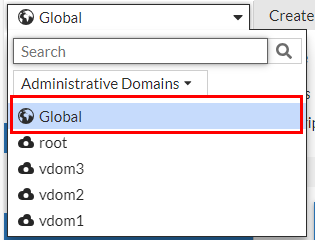
  1. Switch the Administrative Domain to Global.
  2. Go to Security Fabric > Automation.
  3. Select the Action Tab.
  4. Click Create New to create a Teams notification action.
  5. Select Microsoft Teams Notification. Configure the settings:
    Name

    Enter a name.

    Description

    Enter a description.

    URLPaste the webhook URL you got from Teams.
  6. Please leave the "https://" out when you paste the URL because the system will automatically append "https://" to the URL you enter.
  7. Message TypeText
    Message

    FortiGuard Database has been updated. Please log in to FortiWeb and go to System > Config > FortiGuard to review the updated signatures and approve them.

    %%log%%

  8. Click OK.
  9. Click Create New to create a Jira notification action.
  10. Select Jira Notification. Configure the settings:
    Name

    Enter a name.

    Description

    Enter a description.

    AccountEnter the Jira account name. This account must have User Management Access privilege.

    Token

    Enter the API token.

    URL

    Enter the URL of your Jira account. Please leave the "https://" out when you paste the URL because the system will automatically append "https://" to the URL you enter.

    Message

    FortiGuard Database has been updated. Please log in to FortiWeb and go to System > Config > FortiGuard to review the updated signatures and approve them.

    %%log%%

  11. Click OK.
  12. Select the Stitch tab.
  13. Enter a name and brief description for this stitch. Enable the status.
  14. Click Add Trigger, select FDS_UPDATE, then click Apply.
  15. Click Add Action, select the Microsoft Teams Notification action you just created, then click Apply.
  16. Click Add Action, select the Jira Notification action you just created, then click Apply.
  17. Click OK.
  18. When this automation stitch is triggered, you will receive the following message in Microsoft Teams and Jira:

  19. Log in to FortiWeb, go to the Signature Update Management tab on System > Config > FortiGuard.
  20. Verify the signatures first to ensure they don't trigger false positives or block legitimate traffic.
  21. Select the verified signatures and click Approve.
Related Videos

sidebar video

FortiWeb: Automation Stitches Automated Response to FortiGuard Database Updates

  • 81 views
  • 1 years ago

Use case: Automated response to FortiGuard Database (FDS DB) updates

Use case: Automated response to FortiGuard Database (FDS DB) updates

Scenario

The FortiGuard Database, which provides up-to-date threat intelligence, has been updated with new threat signatures.

How FortiWeb responses to this issue
  1. Trigger Detection: FortiWeb detects an update to the FortiGuard Database.
  2. Notification: An alert is sent to the IT team via Teams, informing them of the update.
  3. Verification: A Jira ticket is created for the IT team to verify that the new signatures and policies are correctly applied and tests to ensure they are functioning as expected.
  4. Follow-up action: After verified, approve the signature updates so that traffic matches the signatures can be blocked.

This automation stitch ensures the latest threat intelligence is applied in time. It helps protect your application from emerging threats and vulnerabilities.

Configurations on FortiWeb

Before performing the following steps, make sure:

To configure the stitch on FortiWeb:

  1. Switch the Administrative Domain to Global.
  2. Go to Security Fabric > Automation.
  3. Select the Action Tab.
  4. Click Create New to create a Teams notification action.
  5. Select Microsoft Teams Notification. Configure the settings:
    Name

    Enter a name.

    Description

    Enter a description.

    URLPaste the webhook URL you got from Teams.
  6. Please leave the "https://" out when you paste the URL because the system will automatically append "https://" to the URL you enter.
  7. Message TypeText
    Message

    FortiGuard Database has been updated. Please log in to FortiWeb and go to System > Config > FortiGuard to review the updated signatures and approve them.

    %%log%%

  8. Click OK.
  9. Click Create New to create a Jira notification action.
  10. Select Jira Notification. Configure the settings:
    Name

    Enter a name.

    Description

    Enter a description.

    AccountEnter the Jira account name. This account must have User Management Access privilege.

    Token

    Enter the API token.

    URL

    Enter the URL of your Jira account. Please leave the "https://" out when you paste the URL because the system will automatically append "https://" to the URL you enter.

    Message

    FortiGuard Database has been updated. Please log in to FortiWeb and go to System > Config > FortiGuard to review the updated signatures and approve them.

    %%log%%

  11. Click OK.
  12. Select the Stitch tab.
  13. Enter a name and brief description for this stitch. Enable the status.
  14. Click Add Trigger, select FDS_UPDATE, then click Apply.
  15. Click Add Action, select the Microsoft Teams Notification action you just created, then click Apply.
  16. Click Add Action, select the Jira Notification action you just created, then click Apply.
  17. Click OK.
  18. When this automation stitch is triggered, you will receive the following message in Microsoft Teams and Jira:
  19. Log in to FortiWeb, go to the Signature Update Management tab on System > Config > FortiGuard.
  20. Verify the signatures first to ensure they don't trigger false positives or block legitimate traffic.
  21. Select the verified signatures and click Approve.