Fortinet white logo
Fortinet white logo

Administration Guide

Client-Side Protection (8.0.0)

Client-Side Protection (8.0.0)

FortiWeb 8.0.0 introduces Client-Side Protection, a new security feature designed to detect and mitigate threats that originate and operate within the browser environment. As modern web applications increasingly rely on third-party scripts, dynamic content, and client-side logic, traditional server-side controls alone are no longer sufficient. Client-Side Protection extends FortiWeb’s visibility beyond the server response, enabling real-time monitoring of user-side behaviors and enforcement of security controls directly within the browser.

This feature is part of the newly introduced Client Side Security module and plays a central role in FortiWeb’s layered defense strategy. It enables security teams to observe and act on activities such as unauthorized script execution, DOM manipulation, credential harvesting attempts, and anomalous access to local storage or cookies—all from within the user's browser.

Client-Side Protection supports three inspection methods—Content-Security-Policy headers report, JavaScript-based runtime monitoring and passive HTML analysis—and can be deployed in Monitor or Block mode, depending on the enforcement goals and compliance requirements.

note icon

A valid license for the Client-Side Protection service is required. Without a license, the module cannot be configured through either the GUI or CLI.

This page includes a technical overview of how the feature works, followed by configuration steps and guidance on monitoring protected sites. If you are already familiar with the concept, you can jump ahead to:

How It Works

FortiWeb enforces client-side security by injecting a lightweight JavaScript collector into eligible HTTP responses. Running directly in the browser, this collector captures telemetry on real-time activity, including:

  • Execution of unauthorized or injected JavaScript

  • Document Object Model (DOM) modifications and dynamic element insertion

  • Credential field access or manipulation

  • Third-party resource loading and origin mismatches

This enables FortiWeb to observe threats that emerge after page load—threats that bypass traditional perimeter and server-side defenses.

For environments with strict compliance or script injection restrictions, administrators can enable Passive Assessment. Instead of injecting scripts, FortiWeb inspects returned HTML for high-risk elements such as <script>, <iframe>, and <form> to detect unauthorized or manipulated third-party content.

Telemetry collected from either method is analyzed by FortiWeb in real time. Administrators can configure one of two protection modes:

  • Monitor: Logs policy violations and browser-reported events without enforcing any blocks. FortiWeb injects a Content-Security-Policy-Report-Only header.

  • Block: Enforces client-side security through a strict Content-Security-Policy header and Subresource Integrity (SRI) checks, actively preventing untrusted behavior in the browser.

Layered Defense Strategy Integration

Client-Side Protection plays a nuanced role in FortiWeb’s three-stage layered defense strategy:
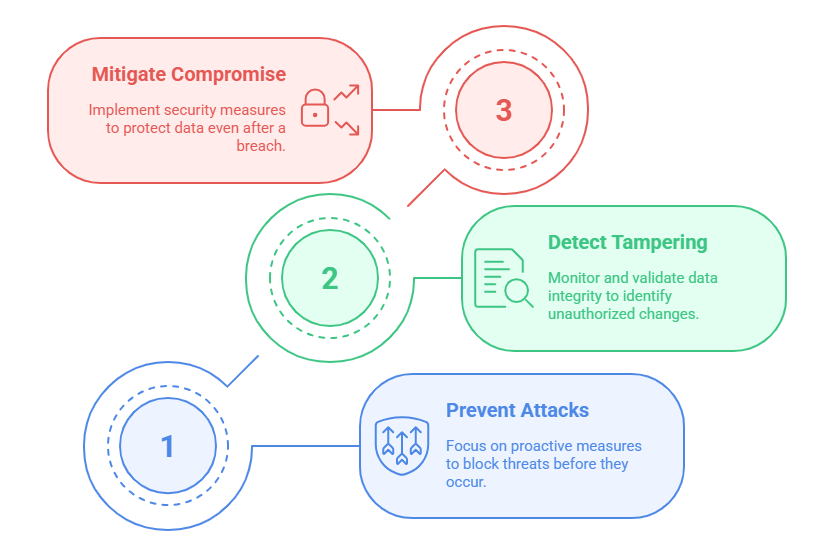
  • Server-Side Protections: Prevents known threats at the WAF level using request and response inspection.

  • In-Transit Controls: Secures data exchanges using headers such as Content-Security-Policy and Subresource Integrity (SRI).

  • Browser-Side Defense (Client-Side Protection): Provides runtime monitoring and enforcement against threats that materialize post-delivery.

In Block mode, Client-Side Protection injects Content-Security-Policy headers, contributing directly to stage 2 controls. Simultaneously, it uses browser instrumentation to enforce runtime policy violations, which aligns with the goals of stage 3—giving it a hybrid role that strengthens the entire layered strategy.

Configuring a Client-Side Protection Policy

Client-Side Protection is policy-based and can be scoped to specific hosts, URLs, or client IP ranges. Each policy defines how FortiWeb should monitor or block script activity and which mechanisms it should use to collect data.

To configure a Client-Side Protection Policy:
  1. Go to Web Protection > Client Side Security > Client Side Protection.

  2. Click Create New to display the configuration editor.
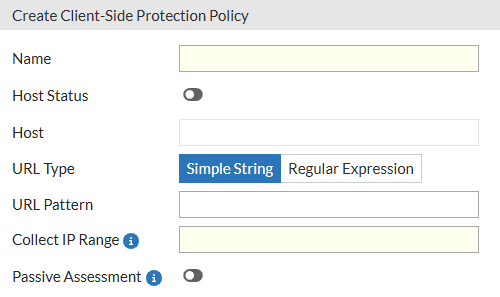
  3. Configure the following settings:

    Setting

    Description

    Name Enter a name for the policy.
    Host Status Enable to apply the policy only to requests for a specific host. Useful in multi-tenant or multi-site deployments. This is disabled by default.
    Host Define the hostname to match when Host Status is enabled.
    URL Type

    Specify the URL matching method:

    • Simple String – Exact match with a static path.

    • Regular Expression – Pattern match with regex syntax.

    Simple String is the default option.

    URL Pattern Enter the URL or pattern to target for monitoring.
    Collect IP Range Define a set of client IP addresses from which JavaScript activity will be collected. In Monitor mode, only clients in this range will trigger data collection and enforcement logic.
    Passive Assessment

    Enable passive HTML analysis of script and resource elements (e.g., <script>, <iframe>, <form>) to identify unauthorized or modified third-party content without relying on JavaScript injection.

    This is disabled by default.

  4. Click OK to save the policy.

After creating the Client-Side Protection policy, assign it to an inline Web Protection Profile and apply that profile to the appropriate Server Policy. For the protection to take effect, the Web Protection Profile must also include both an HTTP Header Security policy and a Subresource Integrity policy. Once traffic is processed through the Server Policy, FortiWeb begins collecting response data in real time, enabling administrators to monitor and manage client-side activity from the Client Side Protection page.

Viewing and Managing Protection Status for Hosts

Once deployed, Client-Side Protection generates real-time visibility into browser-side behavior for each protected host. The dashboard view enables administrators to analyze third-party service usage, manage policy actions, and fine-tune content security enforcement.

To view response analysis and manage third-party services for a specific policy:
  1. Go to Web Protection > Client Side Security > Client Side Protection.

  2. Locate the policy you want to inspect.

  3. Access the dashboard using either of the following methods:

    1. Click View in the Dashboard column.

    2. Select the policy to expand its row, then click View Dashboard from the available actions.

Dashboard Overview

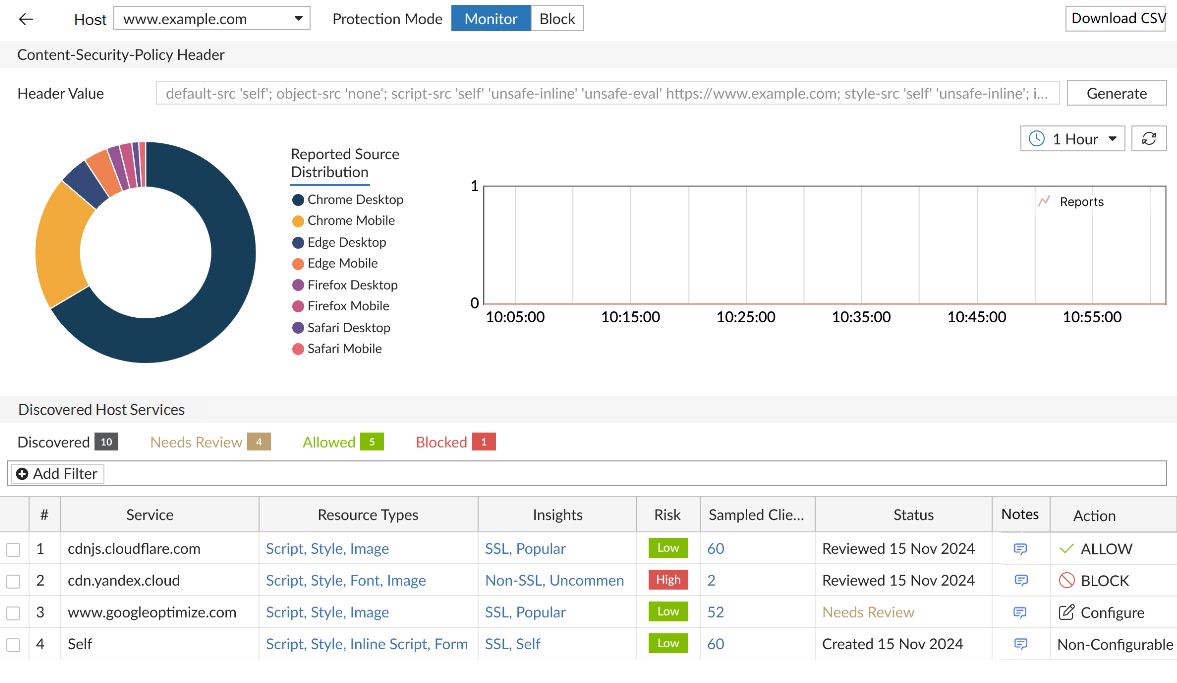
The Client-Side Protection dashboard provides real-time visibility and enforcement control over third-party scripts, external services, and frontend behaviors observed across protected hosts. It presents collected telemetry and policy-driven actions in an interactive, multi-layered interface. The dashboard supports monitoring, analysis, and control at both the service and resource level, enabling fine-grained decisions about content trust and browser-side enforcement.

Data is populated based on live traffic that passes through Server Policies using a Web Protection Profile that includes the Client-Side Protection policy.

The dashboard contains three functional panels:

Each panel supports interactive inspection, contextual enforcement, and—in some cases—automated header generation.

Host Selection and Protection Mode

At the top of the dashboard, FortiWeb displays a list of hosts (domains) associated with the selected Client-Side Protection policy. These are derived from Server Policies that reference a Web Protection Profile containing this policy.

Elements Displayed:
  • Host dropdown: Lists hostnames currently protected by the policy.

  • Protection Mode toggle:

    • Monitor mode:

      • The Content-Security-Policy-Report-Only header is inserted.

      • Runtime actions such as script blocking and integrity enforcement apply only to clients in the defined Collect IP Range.

    • Block mode:

      • The Content-Security-Policy header is enforced for all clients.

      • All defined blocking and Subresource Integrity (SRI) actions apply globally.

When switching to Block mode, header injection and enforcement behavior defined in the Client-Side Protection policy override any overlapping rules in the HTTP Header Security and Subresource Integrity Policy modules.

Content-Security-Policy Header

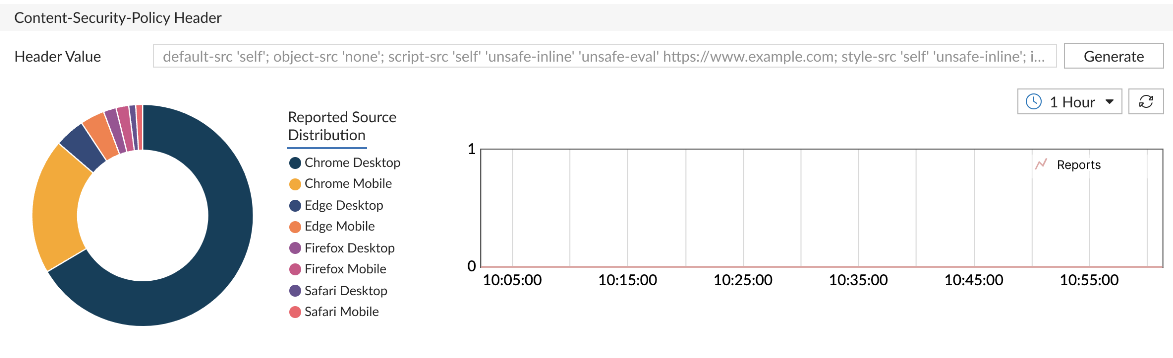
This panel displays and manages the Content-Security-Policy or Content-Security-Policy-Report-Only header applied to responses for the selected host. This header instructs browsers which sources are allowed for scripts, styles, media, and other content types, enabling enforcement of strong client-side security controls.
Displayed Components:
  • Header Value: Shows the current Content-Security-Policy string injected by FortiWeb. This value is calculated based on allowed services, resource inventory, and administrator-defined overrides.

  • Browser Distribution Pie Chart: Summarizes which browser types have submitted violation reports (e.g., Chrome, Firefox, Safari), helping validate policy propagation.

  • Report Trend Graph: Plots the volume of Content-Security-Policy violation reports over time to help identify configuration gaps or unauthorized resource behavior.

Available Actions:
  • Generate: Opens a dialog that allows administrators to:
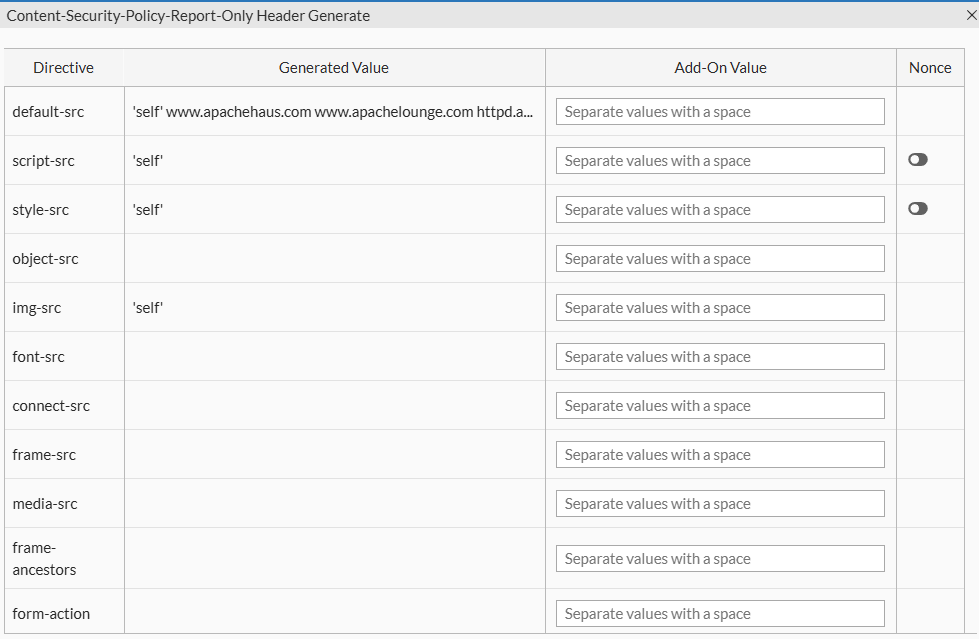
    • Generated Value: Read-only field displaying the system-generated Content-Security-Policy header based on current allow/block actions and discovered services.

    • Add-On Value: Optional field where administrators can manually append custom source directives. This supports both host-based and keyword-based sources.

      Value Reference:

      Source Type

      Examples / Description

      Host Source Use patterns such as *.example.com, www.example.com/x.js, https://www.example.com:8443, or IP addresses like 192.168.1.100 to explicitly allow trusted sources.
      'self' Allows content from the current origin.
      'none' Disallows all sources for the directive.
      'unsafe-inline' Permits inline scripts or styles; not recommended due to XSS risk.
      'unsafe-eval' Allows use of eval(), new Function(), and string-based timers; introduces exploitability.
      'report-sample' Enables the browser to include a truncated portion (up to 40 characters) of the violating payload in reports.
      'strict-dynamic' Allows dynamically added scripts to be trusted if the original script was loaded using a nonce or hash.
    • Nonce Toggle: Inserts a nonce directive into the Content-Security-Policy header. FortiWeb automatically generates a unique nonce per response to enable safe inline script execution.

    • Validation and Save: FortiWeb validates the complete Content-Security-Policy string for syntax correctness before saving. Errors and warnings are surfaced in the interface with severity indicators.

  • Download CSV: Exports a list of current service states, header directives, and client report metadata.

Discovered Host Services

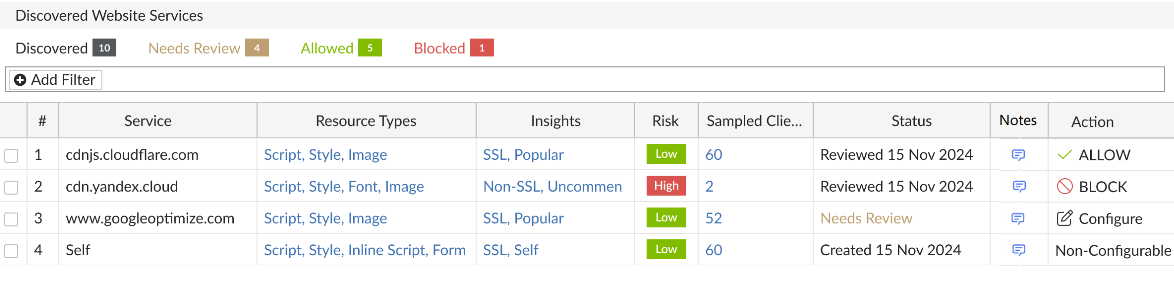
The Discovered Host Services panel lists all third-party services detected in browser responses for the selected host. Each row represents a unique external origin that has served one or more frontend resources (e.g., scripts, styles, images) either dynamically or through static HTML.

This panel is the entry point for service-level policy decisions. Users can allow, block, or review each domain based on security assessment, business context, or observed behavior.
Service Discovery Methods

FortiWeb identifies and monitors client-side activity using three complementary discovery methods:

  • Browser Report: Leverages browser-native reporting through the Content-Security-Policy-Report-Only header to collect violation feedback directly from the client.

  • JS Monitor: Injects a lightweight JavaScript collector (js-collector) into eligible HTTP responses to observe runtime behaviors such as unauthorized script execution, credential field access, and DOM manipulation.

  • Passive Detector: Analyzes returned HTML content without script injection. This method scans for <script>, <iframe>, <form>, and other potentially risky elements and external resource references—ideal for deployments with strict compliance requirements.

These mechanisms can operate individually or together depending on the protection mode and policy configuration, allowing administrators to balance visibility, enforcement, and compliance.

Displayed Fields:

Column

Description

Service Fully qualified domain name of the third-party origin. This includes CDN endpoints, analytics vendors, embedded services, and cross-origin API calls.
Resource Types Categories of resources retrieved from this origin (e.g., Script, Style, Image, Iframe, Data). Click to view a detailed list of all discovered resources, with per-resource control.
Insights

Displays contextual metadata such as service type (e.g., Analytics, CDN, Ad Network), observed behavior, and traffic volume classification. Click to open a pop-up with full insight data.

Risk

Security risk score derived from behavioral analysis and threat intelligence. Reflects exposure potential or history of malicious use.

Sampled Client Count

Number of unique clients that accessed or reported this service. Click to open a detailed client session report with browser type, last report timestamp, and data source (Content-Security-Policy vs. JS).

Notes Admin-defined comments. Use to document rationale for allow/block actions or provide audit context. Editable in place.

Status

Displays the current review status:

  • Needs Review: New service detected, no action taken.

  • Allowed: Domain is trusted and included in Content-Security-Policy allowlist.

  • Blocked: Domain is explicitly denied and will be filtered using Content-Security-Policy, SRI, or HTML rewriting mechanisms.

Action

Shows the applied enforcement action. Click to configure. Options:

  • Allow

  • Block

  • Undo (if previously set)

Batch actions available through multi-select.

Interacting with Discovered Services

The Discovered Host Services table allows users to drill down into service-level data, manage enforcement actions, and document decisions. Several fields support interactive inspection, offering direct access to deeper behavioral context or resource-level control.

Inspecting Service Details
  • Resource Types

    Click to open the Resource Inventory and Actions dialog. This view lists all resources loaded from the selected service—such as JavaScript files, stylesheets, and images—and allows users to apply Subresource Integrity (SRI) or Block actions on a per-resource basis.

  • Insights and Risk

    Click either field to open a detailed information panel about the service.
    This includes:

    • Service classification (e.g., Tracking, CDN, Embedded UI)

    • Risk indicators, such as known abuse history, suspicious behavior, or overbroad access patterns

    • Usage metrics, including frequency, client reach, and geographic distribution

  • Sample Clients

    Click to view session-level reporting data for the selected service. Use this data to differentiate between services accessed consistently by many clients and those triggered only in isolated sessions—an important indicator when identifying anomalous or potentially malicious resources.
    The report includes:

    • IP addresses or Client IDs

    • Browser types and versions

    • Number of reports received, categorized by JavaScript collector and Content-Security-Policy violation

    • Timestamp of the most recent interaction

Notes and Status Tracking
  • Notes

    This column supports editable text for administrative documentation. Use notes to capture review rationale, exception handling, or cross-team communication about a service's policy status.

  • Status

    The status field updates automatically when an action is applied. A new service appears as Needs Review, and changes to Allowed or Blocked once a decision is made. Although status does not affect enforcement directly, it provides useful tracking for environments with frequent third-party changes or collaborative review workflows.

Managing Services in Bulk

Multiple services can be selected using checkboxes in the table. With one or more entries selected, use the Configure menu to apply actions in bulk:

  • Set selected services to Allow or Block

  • Reset selected rows to Needs Review

  • Export selected entries to CSV for offline audit or reporting

Bulk operations are particularly useful when onboarding new tag managers, integrating with A/B testing frameworks, or enforcing a default-deny posture for unknown domains.

Enforcement Behavior

Decisions made in the Discovered Host Services table directly influence how FortiWeb enforces client-side protections:

  • If HTTP Header Security is enabled, allowed services are added to the Content-Security-Policy header; blocked services are excluded.

  • If the JavaScript collector is active, blocked services are enforced at runtime through injected instrumentation.

  • If a Subresource Integrity Policy is enabled, services with an SRI action will have the corresponding integrity attribute injected into their HTML tags to ensure browser-side validation.

  • If only Passive Detector and Subresource Integrity Policy are enabled, FortiWeb removes blocked services from the response HTML before it reaches the browser.

When the same service or resource is defined in both the Client-Side Protection dashboard and a separate Subresource Integrity or HTTP Header Security policy, the Client-Side Protection settings take precedence.

For more information, see Client-Side Protection.

Client-Side Protection (8.0.0)

Client-Side Protection (8.0.0)

FortiWeb 8.0.0 introduces Client-Side Protection, a new security feature designed to detect and mitigate threats that originate and operate within the browser environment. As modern web applications increasingly rely on third-party scripts, dynamic content, and client-side logic, traditional server-side controls alone are no longer sufficient. Client-Side Protection extends FortiWeb’s visibility beyond the server response, enabling real-time monitoring of user-side behaviors and enforcement of security controls directly within the browser.

This feature is part of the newly introduced Client Side Security module and plays a central role in FortiWeb’s layered defense strategy. It enables security teams to observe and act on activities such as unauthorized script execution, DOM manipulation, credential harvesting attempts, and anomalous access to local storage or cookies—all from within the user's browser.

Client-Side Protection supports three inspection methods—Content-Security-Policy headers report, JavaScript-based runtime monitoring and passive HTML analysis—and can be deployed in Monitor or Block mode, depending on the enforcement goals and compliance requirements.

note icon

A valid license for the Client-Side Protection service is required. Without a license, the module cannot be configured through either the GUI or CLI.

This page includes a technical overview of how the feature works, followed by configuration steps and guidance on monitoring protected sites. If you are already familiar with the concept, you can jump ahead to:

How It Works

FortiWeb enforces client-side security by injecting a lightweight JavaScript collector into eligible HTTP responses. Running directly in the browser, this collector captures telemetry on real-time activity, including:

  • Execution of unauthorized or injected JavaScript

  • Document Object Model (DOM) modifications and dynamic element insertion

  • Credential field access or manipulation

  • Third-party resource loading and origin mismatches

This enables FortiWeb to observe threats that emerge after page load—threats that bypass traditional perimeter and server-side defenses.

For environments with strict compliance or script injection restrictions, administrators can enable Passive Assessment. Instead of injecting scripts, FortiWeb inspects returned HTML for high-risk elements such as <script>, <iframe>, and <form> to detect unauthorized or manipulated third-party content.

Telemetry collected from either method is analyzed by FortiWeb in real time. Administrators can configure one of two protection modes:

  • Monitor: Logs policy violations and browser-reported events without enforcing any blocks. FortiWeb injects a Content-Security-Policy-Report-Only header.

  • Block: Enforces client-side security through a strict Content-Security-Policy header and Subresource Integrity (SRI) checks, actively preventing untrusted behavior in the browser.

Layered Defense Strategy Integration

Client-Side Protection plays a nuanced role in FortiWeb’s three-stage layered defense strategy:

  • Server-Side Protections: Prevents known threats at the WAF level using request and response inspection.

  • In-Transit Controls: Secures data exchanges using headers such as Content-Security-Policy and Subresource Integrity (SRI).

  • Browser-Side Defense (Client-Side Protection): Provides runtime monitoring and enforcement against threats that materialize post-delivery.

In Block mode, Client-Side Protection injects Content-Security-Policy headers, contributing directly to stage 2 controls. Simultaneously, it uses browser instrumentation to enforce runtime policy violations, which aligns with the goals of stage 3—giving it a hybrid role that strengthens the entire layered strategy.

Configuring a Client-Side Protection Policy

Client-Side Protection is policy-based and can be scoped to specific hosts, URLs, or client IP ranges. Each policy defines how FortiWeb should monitor or block script activity and which mechanisms it should use to collect data.

To configure a Client-Side Protection Policy:
  1. Go to Web Protection > Client Side Security > Client Side Protection.

  2. Click Create New to display the configuration editor.

  3. Configure the following settings:

    Setting

    Description

    Name Enter a name for the policy.
    Host Status Enable to apply the policy only to requests for a specific host. Useful in multi-tenant or multi-site deployments. This is disabled by default.
    Host Define the hostname to match when Host Status is enabled.
    URL Type

    Specify the URL matching method:

    • Simple String – Exact match with a static path.

    • Regular Expression – Pattern match with regex syntax.

    Simple String is the default option.

    URL Pattern Enter the URL or pattern to target for monitoring.
    Collect IP Range Define a set of client IP addresses from which JavaScript activity will be collected. In Monitor mode, only clients in this range will trigger data collection and enforcement logic.
    Passive Assessment

    Enable passive HTML analysis of script and resource elements (e.g., <script>, <iframe>, <form>) to identify unauthorized or modified third-party content without relying on JavaScript injection.

    This is disabled by default.

  4. Click OK to save the policy.

After creating the Client-Side Protection policy, assign it to an inline Web Protection Profile and apply that profile to the appropriate Server Policy. For the protection to take effect, the Web Protection Profile must also include both an HTTP Header Security policy and a Subresource Integrity policy. Once traffic is processed through the Server Policy, FortiWeb begins collecting response data in real time, enabling administrators to monitor and manage client-side activity from the Client Side Protection page.

Viewing and Managing Protection Status for Hosts

Once deployed, Client-Side Protection generates real-time visibility into browser-side behavior for each protected host. The dashboard view enables administrators to analyze third-party service usage, manage policy actions, and fine-tune content security enforcement.

To view response analysis and manage third-party services for a specific policy:
  1. Go to Web Protection > Client Side Security > Client Side Protection.

  2. Locate the policy you want to inspect.

  3. Access the dashboard using either of the following methods:

    1. Click View in the Dashboard column.

    2. Select the policy to expand its row, then click View Dashboard from the available actions.

Dashboard Overview

The Client-Side Protection dashboard provides real-time visibility and enforcement control over third-party scripts, external services, and frontend behaviors observed across protected hosts. It presents collected telemetry and policy-driven actions in an interactive, multi-layered interface. The dashboard supports monitoring, analysis, and control at both the service and resource level, enabling fine-grained decisions about content trust and browser-side enforcement.

Data is populated based on live traffic that passes through Server Policies using a Web Protection Profile that includes the Client-Side Protection policy.

The dashboard contains three functional panels:

Each panel supports interactive inspection, contextual enforcement, and—in some cases—automated header generation.

Host Selection and Protection Mode

At the top of the dashboard, FortiWeb displays a list of hosts (domains) associated with the selected Client-Side Protection policy. These are derived from Server Policies that reference a Web Protection Profile containing this policy.

Elements Displayed:
  • Host dropdown: Lists hostnames currently protected by the policy.

  • Protection Mode toggle:

    • Monitor mode:

      • The Content-Security-Policy-Report-Only header is inserted.

      • Runtime actions such as script blocking and integrity enforcement apply only to clients in the defined Collect IP Range.

    • Block mode:

      • The Content-Security-Policy header is enforced for all clients.

      • All defined blocking and Subresource Integrity (SRI) actions apply globally.

When switching to Block mode, header injection and enforcement behavior defined in the Client-Side Protection policy override any overlapping rules in the HTTP Header Security and Subresource Integrity Policy modules.

Content-Security-Policy Header

This panel displays and manages the Content-Security-Policy or Content-Security-Policy-Report-Only header applied to responses for the selected host. This header instructs browsers which sources are allowed for scripts, styles, media, and other content types, enabling enforcement of strong client-side security controls.

Displayed Components:
  • Header Value: Shows the current Content-Security-Policy string injected by FortiWeb. This value is calculated based on allowed services, resource inventory, and administrator-defined overrides.

  • Browser Distribution Pie Chart: Summarizes which browser types have submitted violation reports (e.g., Chrome, Firefox, Safari), helping validate policy propagation.

  • Report Trend Graph: Plots the volume of Content-Security-Policy violation reports over time to help identify configuration gaps or unauthorized resource behavior.

Available Actions:
  • Generate: Opens a dialog that allows administrators to:

    • Generated Value: Read-only field displaying the system-generated Content-Security-Policy header based on current allow/block actions and discovered services.

    • Add-On Value: Optional field where administrators can manually append custom source directives. This supports both host-based and keyword-based sources.

      Value Reference:

      Source Type

      Examples / Description

      Host Source Use patterns such as *.example.com, www.example.com/x.js, https://www.example.com:8443, or IP addresses like 192.168.1.100 to explicitly allow trusted sources.
      'self' Allows content from the current origin.
      'none' Disallows all sources for the directive.
      'unsafe-inline' Permits inline scripts or styles; not recommended due to XSS risk.
      'unsafe-eval' Allows use of eval(), new Function(), and string-based timers; introduces exploitability.
      'report-sample' Enables the browser to include a truncated portion (up to 40 characters) of the violating payload in reports.
      'strict-dynamic' Allows dynamically added scripts to be trusted if the original script was loaded using a nonce or hash.
    • Nonce Toggle: Inserts a nonce directive into the Content-Security-Policy header. FortiWeb automatically generates a unique nonce per response to enable safe inline script execution.

    • Validation and Save: FortiWeb validates the complete Content-Security-Policy string for syntax correctness before saving. Errors and warnings are surfaced in the interface with severity indicators.

  • Download CSV: Exports a list of current service states, header directives, and client report metadata.

Discovered Host Services

The Discovered Host Services panel lists all third-party services detected in browser responses for the selected host. Each row represents a unique external origin that has served one or more frontend resources (e.g., scripts, styles, images) either dynamically or through static HTML.

This panel is the entry point for service-level policy decisions. Users can allow, block, or review each domain based on security assessment, business context, or observed behavior.

Service Discovery Methods

FortiWeb identifies and monitors client-side activity using three complementary discovery methods:

  • Browser Report: Leverages browser-native reporting through the Content-Security-Policy-Report-Only header to collect violation feedback directly from the client.

  • JS Monitor: Injects a lightweight JavaScript collector (js-collector) into eligible HTTP responses to observe runtime behaviors such as unauthorized script execution, credential field access, and DOM manipulation.

  • Passive Detector: Analyzes returned HTML content without script injection. This method scans for <script>, <iframe>, <form>, and other potentially risky elements and external resource references—ideal for deployments with strict compliance requirements.

These mechanisms can operate individually or together depending on the protection mode and policy configuration, allowing administrators to balance visibility, enforcement, and compliance.

Displayed Fields:

Column

Description

Service Fully qualified domain name of the third-party origin. This includes CDN endpoints, analytics vendors, embedded services, and cross-origin API calls.
Resource Types Categories of resources retrieved from this origin (e.g., Script, Style, Image, Iframe, Data). Click to view a detailed list of all discovered resources, with per-resource control.
Insights

Displays contextual metadata such as service type (e.g., Analytics, CDN, Ad Network), observed behavior, and traffic volume classification. Click to open a pop-up with full insight data.

Risk

Security risk score derived from behavioral analysis and threat intelligence. Reflects exposure potential or history of malicious use.

Sampled Client Count

Number of unique clients that accessed or reported this service. Click to open a detailed client session report with browser type, last report timestamp, and data source (Content-Security-Policy vs. JS).

Notes Admin-defined comments. Use to document rationale for allow/block actions or provide audit context. Editable in place.

Status

Displays the current review status:

  • Needs Review: New service detected, no action taken.

  • Allowed: Domain is trusted and included in Content-Security-Policy allowlist.

  • Blocked: Domain is explicitly denied and will be filtered using Content-Security-Policy, SRI, or HTML rewriting mechanisms.

Action

Shows the applied enforcement action. Click to configure. Options:

  • Allow

  • Block

  • Undo (if previously set)

Batch actions available through multi-select.

Interacting with Discovered Services

The Discovered Host Services table allows users to drill down into service-level data, manage enforcement actions, and document decisions. Several fields support interactive inspection, offering direct access to deeper behavioral context or resource-level control.

Inspecting Service Details
  • Resource Types

    Click to open the Resource Inventory and Actions dialog. This view lists all resources loaded from the selected service—such as JavaScript files, stylesheets, and images—and allows users to apply Subresource Integrity (SRI) or Block actions on a per-resource basis.

  • Insights and Risk

    Click either field to open a detailed information panel about the service.
    This includes:

    • Service classification (e.g., Tracking, CDN, Embedded UI)

    • Risk indicators, such as known abuse history, suspicious behavior, or overbroad access patterns

    • Usage metrics, including frequency, client reach, and geographic distribution

  • Sample Clients

    Click to view session-level reporting data for the selected service. Use this data to differentiate between services accessed consistently by many clients and those triggered only in isolated sessions—an important indicator when identifying anomalous or potentially malicious resources.
    The report includes:

    • IP addresses or Client IDs

    • Browser types and versions

    • Number of reports received, categorized by JavaScript collector and Content-Security-Policy violation

    • Timestamp of the most recent interaction

Notes and Status Tracking
  • Notes

    This column supports editable text for administrative documentation. Use notes to capture review rationale, exception handling, or cross-team communication about a service's policy status.

  • Status

    The status field updates automatically when an action is applied. A new service appears as Needs Review, and changes to Allowed or Blocked once a decision is made. Although status does not affect enforcement directly, it provides useful tracking for environments with frequent third-party changes or collaborative review workflows.

Managing Services in Bulk

Multiple services can be selected using checkboxes in the table. With one or more entries selected, use the Configure menu to apply actions in bulk:

  • Set selected services to Allow or Block

  • Reset selected rows to Needs Review

  • Export selected entries to CSV for offline audit or reporting

Bulk operations are particularly useful when onboarding new tag managers, integrating with A/B testing frameworks, or enforcing a default-deny posture for unknown domains.

Enforcement Behavior

Decisions made in the Discovered Host Services table directly influence how FortiWeb enforces client-side protections:

  • If HTTP Header Security is enabled, allowed services are added to the Content-Security-Policy header; blocked services are excluded.

  • If the JavaScript collector is active, blocked services are enforced at runtime through injected instrumentation.

  • If a Subresource Integrity Policy is enabled, services with an SRI action will have the corresponding integrity attribute injected into their HTML tags to ensure browser-side validation.

  • If only Passive Detector and Subresource Integrity Policy are enabled, FortiWeb removes blocked services from the response HTML before it reaches the browser.

When the same service or resource is defined in both the Client-Side Protection dashboard and a separate Subresource Integrity or HTTP Header Security policy, the Client-Side Protection settings take precedence.

For more information, see Client-Side Protection.