

Offloading HTTP authentication and authorization
If a website does not support RFC 2617 (http://tools.ietf.org/html/rfc2617) HTTP authentication on its own, nor does it provide HTML form-based authentication, you can use a FortiWeb appliance to authenticate HTTP/HTTPS clients before they are permitted to access a web page.

|
User authentication is not supported in all operation modes. For details, see Supported features in each operation mode. |
Authentication can be based on remote user accounts validated by one of the following server types:
- LDAP
- RADIUS
- NTLM
- KDC
- SAML
- TACACS+
FortiWeb supports binding and querying these authentication servers directly from the HTTP request workflow. Validated user credentials can be forwarded to backend web servers as HTTP headers, enabling seamless integration with web applications that rely on header-based authentication or single sign-on (SSO) mechanisms.
FortiWeb authentication offloading is typically used to enforce user-based access control when the backend application lacks native authentication, or to consolidate identity enforcement for multi-application environments.

|
Schemes such as PCI DSS may require individual credentials per user and strict access control. Ensure your authentication implementation complies with applicable regulatory or organizational requirements. |
Configuration Workflow
Authentication offloading is fully handled through Site Publishing. Remote authentication servers are configured directly in the Authentication Server Pool, which is referenced in Site Publish rules. Each server pool member can be configured to use LDAP, RADIUS, or other supported protocols, and multiple servers can be prioritized within a pool.
To configure HTTP authentication offloading:
-
Configure remote authentication servers:
-
Configuring an LDAP server — Define Base DN, bind method (simple, regular), and attribute mapping.
-
Configuring a RADIUS server — Specify secret, server IP/port, authentication scheme (e.g., PAP, CHAP).
-
Configuring an NTLM server — Provide domain controller information.
-
Configuring a Kerberos Key Distribution Center (KDC) server — Specify delegated realm and server list.
-
Configuring a Terminal Access Controller Access Control System (TACACS)+ server — Configure authentication type and shared secret.
-
-
Add the servers to an Authentication Server Pool:
-
Each entry specifies protocol type and associated query object.
-
FortiWeb attempts authentication in the configured server order.
For details, see Adding servers to an authentication server pool.
-
-
Create a Site Publish Rule:
-
Reference the authentication server pool.
-
Define protected URLs, authentication flow (e.g., login and token pages), and optional two-factor authentication.
For details, see Offloaded authentication and optional SSO configuration.
-
-
Apply the Site Publish Rule in a server policy:
-
Policies determine traffic flows that trigger authentication and can associate authentication outcomes with access controls or logging.
-
To configure and activate end-user accounts
You can also require the end-user to present a personal certificate in order to securely authenticate. For details, see How to apply PKI client authentication (personal certificates).
- Define user accounts in either or both of the following ways:
- If end-user account credentials are already defined on a remote authentication server, configure a query to that server. For details, see Configuring an LDAP server, Configuring a Terminal Access Controller Access Control System (TACACS)+ server, or Configuring an NTLM server.
When you have configured HTTP authentication
- If the client’s initial request does not already include an
Authorization:field in its HTTP header, the FortiWeb appliance replies with an HTTP401 Authorization Requiredresponse. The response includes aWWW-Authenticate:field in the HTTP header that indicates which style of authentication to use (basic, digest, or NTLM) and the name of the realm (usually the name, such as “Restricted Area”, of a set of URLs that can be accessed using the same set of credentials). - The browser then prompts its user to enter a user name and password. (The prompt may include the name of the realm, in order to indicate to the user which login is valid.) The browser includes the user-entered info in the
Authorization:field of the HTTP header when repeating its request.
Valid user name formats vary by the authentication server. For example:
- For LDAP authentication, enter a user name in the format required by the directory’s schema, which varies but could be a user name in the format
usernameor an email address such asusername@example.com. - For NTLM authentication, enter a user name in the format
DOMAIN/username.
- a set of user objects in a Lightweight Directory Access Protocol (LDAP) directory
- a set of user objects on a Remote Authentication and Dial-in User Service (RADIUS) server
- a set of user accounts on an NT LAN Manager (NTLM) server
If the client does not authenticate successfully, the FortiWeb appliance repeats its HTTP 401 Authorization Required response to the client, asking again for valid credentials.
If the client’s browser is configured to do so, it can cache the realm along with the supplied credentials, automatically re-supplying the user name and password for each request with a matching realm. This provides convenience to the user; otherwise, the user would have to re-enter a user name and password for every request.

|
Advise users to clear their cache and close their browser after an authenticated session. HTTP itself is stateless, and there is no way to actively log out. HTTP authentication causes cached credentials, which persist until the cache is cleared either manually, by the user, or automatically, when closing the browser window or tab. Failure to clear the cache could allow unauthorized persons with access to the user’s computer to access the website using their credentials. Clear text HTTP authentication is not secure. All user names and data (and, depending on the authentication style, passwords) are sent in clear text. If you require encryption and other security features in addition to authorization, use HTTP authentication with SSL/TLS (i.e. HTTPS) and disable HTTP. For details see HTTP Service and HTTPS Service. |
See also
Configuring queries for remote end-user accounts
FortiWeb supports multiple query types that you can use to authenticate users with accounts stored on remote servers, rather than with accounts on the FortiWeb itself.
Configuring an LDAP server
FortiWeb can use LDAP queries to authenticate and authorize end-users’ HTTP requests to protected websites. For details, see Offloading HTTP authentication and authorization. FortiWeb can also use LDAP queries to authenticate administrators’ access to the web UI or CLI. For details, see Grouping remote authentication queries and certificates for administrators.
|
|
If you use an LDAP query for administrators, separate it from the queries for regular users. Do not combine administrator and user queries into a single entry. Failure to separate queries will allow end-users to have administrative access the FortiWeb web UI and CLI. If administrators are in the same directory but belong to a different group than end-users, you can use Offloading HTTP authentication and authorization to exclude end-users from the administrator LDAP query. |
Supported servers may implement the underlying technology and group membership in different ways, such as with OpenLDAP, Microsoft Active Directory, IBM Lotus Domino, and Novell eDirectory. Match the distinguished names (DN) and group membership attributes (Offloading HTTP authentication and authorization) with your LDAP directory’s schema.
If this query will be used to authenticate administrators, and your LDAP server is slow to answer, you may need to adjust the authentication timeout setting to prevent the query from failing. See the FortiWeb CLI Reference:
https://docs.fortinet.com/product/fortiweb/
For end-user queries, configure Offloading HTTP authentication and authorization instead.
To configure an LDAP server
- Go to User > Remote Server and select the LDAP Server tab.
To access this part of the web UI, your administrator's account access profile must have Read and Write permission to items in the Auth Users category. For details, see Permissions. - Click Create New.
A dialog appears. - Configure these settings:
-
389 for non-secure connections or STARTTLS-secured connections.
-
636 for SSL-secured (LDAPS) connections.
-
cnoruidin OpenLDAP. -
sAMAccountNamein Active Directory. -
Example:
Suppose your Base DN is set as:
-
ou=People,dc=example,dc=com
-
- Query Example:
When a user attempts to log in, FortiWeb constructs a query to locate the user within the specified path. For instance:
-
User's Input: Username:
jdoe -
Query Constructed by FortiWeb:
(&(objectClass=person)(uid=jdoe)) -
Query Path:
FortiWeb will search within the
ou=People,dc=example,dc=comsubtree to locate the uid=jdoe.
-
-
Directory Example:
In the LDAP directory, the user might be represented as:
uid=jdoe,ou=People,dc=example,dc=comIf the query matches this user entry, the LDAP server responds with the user’s attributes or an authentication success/failure message, depending on the use case.
- Simple
Binds using the user's credentials directly.
The DN is assembled from the Common Name Identifier, Distinguished Name, and the supplied username.
For example, as explained in above, FortiWeb constructs the query:uid=jdoe,ou=People,dc=example,dc=com.
This is suitable for simple environments where all users belong to the same organizational unit (OU) and no duplicate users with the same Common Name Identifier exist. - Regular
Regular Bind in FortiWeb's LDAP configuration works as follows:FortiWeb uses the pre-configured User DN and Password to authenticate itself to the LDAP server.
This authentication grants FortiWeb elevated privileges to perform detailed searches within the LDAP directory.
The search scope is limited to the level specified by the User DN.
When using Regular Bind, you can define a filter to refine query results. This is useful when:
The Common Name Identifier (e.g., uid, cn, sAMAccountName) alone cannot uniquely identify a user.
You need to ensure FortiWeb retrieves only specific user accounts for authentication.
Filters help improve the speed and efficiency of queries by narrowing down the results based on specified attributes.
- Anonymous—Performs queries without authentication. Only available if the LDAP server supports anonymous queries.
-
Example for OpenLDAP:
cn=admin,dc=example,dc=com -
Example for Active Directory:
user@domain.com(User Principal Name). -
OpenLDAP: Uses
gidNumber. -
Windows-AD: Uses
memberOf. -
eDirectory: Uses
groupMembership. -
ou=Groups,dc=example,dc=com -
Group ID (GID):
100 - LDAPS: It uses SSL for encryption. LDAPS connection starts directly with TLS (secure from the start).
- STARTTLS: It is a command that upgrades an existing, unencrypted connection to a secure, encrypted connection using Transport Layer Security (TLS).
STARTTLS connection starts unencrypted, then upgrades to TLS. It has potential exposure before encryption starts, but it has the flexibility to work with servers that support both encrypted and unencrypted communication. -
With CA Certificate Selected:
-
FortiWeb performs certificate verification.
-
The LDAP server's address (IP or FQDN) must be in the Subject Alternative Name (SAN) field of the server certificate.
-
Ensures the LDAP server's identity is verified.
-
-
Without CA Certificate (leave this option empty):
-
FortiWeb accepts any certificate from the LDAP server.
-
This effectively disables certificate verification.
-
The TLS connection is encrypted but not authenticated.
-
- Click OK.
- If you want FortiWeb to retrieve user attributes and forward them to the back-end server, click Create New to add attributes.
These attributes can be later on referenced in the Custom Headers table in a Site Publish rule. For an example of adding user attributes, see Retrieving LDAP users attributes.
cc
Name FortiWeb supports retrieving up to 16 attributes from the LDAP server. Choose from the predefined names.
This name will serve as a reference in the Site Publish rule.
Attribute Name Specify the name of the attribute you want FortiWeb to retrieve, for example, "Email". - Click OK.
- If you enabled Offloading HTTP authentication and authorization, upload the certificate of the CA that signed the directory server’s certificate. For details, see "Uploading trusted CA certificates" on page 1.
- Return to User > Remote Server, select the LDAP User tab, double-click the row of the query, then click the Test LDAP button to verify that FortiWeb can connect to the server, that the query is correctly configured, and that (if binding is enabled) the query bind is successful.
In username, type only the value of the CNID attribute, such ashlee, not the entire DN of the administrator’s account. In password, type the password for the account. - If the query is for administrator accounts that you want to allow to access the FortiWeb web UI, select the query in a remote authentication query group. For details, see Grouping remote authentication queries and certificates for administrators.
If the query is for user accounts that you want to allow to authenticate with web servers, to activate the user account, you must indirectly include it in a server policy. Continue with Offloading HTTP authentication and authorization. For details, see To configure and activate end-user accounts.
If the query is for a site publishing rule that offloads authentication for a web application to FortiWeb, you first add it to an authorization server pool. For details, see Adding servers to an authentication server pool.
| Name |
Enter a unique name that can be referenced in other parts of the configuration. The maximum length is 63 characters. |
| Server IP/Domain Name | Specify the IP address or domain name of the LDAP server FortiWeb will connect to. |
| Server Port |
Enter the port number on which the LDAP server listens for connections. Default Ports: Ensure the port matches the encryption setting in Secure Connection. |
| Common Name Identifier |
Specify the attribute in the LDAP schema that represents the user's common name (CN). Common identifiers: Example: For the user object |
| Distinguished Name |
Define the starting point in the LDAP directory for queries. This should be the path to user account objects. FortiWeb sends queries to the specified Distinguished Name (Base DN) as the starting point for searching user account objects in the LDAP directory. The Base DN defines the hierarchical path in the directory structure from which the query begins. Defining the Base DN ensures that FortiWeb queries a specific portion of the LDAP directory, enhancing efficiency and accuracy by narrowing the scope of the search. |
| Bind Type |
Select the method FortiWeb will use to bind to the LDAP server: |
| User DN |
Enter the bind DN of an LDAP user account with permission to query the directory. The maximum length is 255 characters. This field can be optional if your LDAP server does not require the FortiWeb appliance to authenticate when performing queries. This field is not displayed if Offloading HTTP authentication and authorization is Anonymous or Simple. |
| Password |
Enter the password of the Offloading HTTP authentication and authorization. Optional if the LDAP server allows unauthenticated queries or uses the Anonymous or Simple bind type. |
| Filter |
Specify an LDAP query filter to narrow down the search results based on specific attributes. Example: (&(|(objectClass=user)(objectClass=group))) This improves query efficiency. Leave blank to retrieve all results. For syntax, see an LDAP query filter reference. The maximum length is 255 characters. This option appears when Offloading HTTP authentication and authorizationis Regular. |
| Group Authentication |
Enable this to restrict authentication to users belonging to a specific LDAP group. Additional fields will appear for configuring the group parameters. This option appears only when Offloading HTTP authentication and authorizationis Regular. |
| Group Type |
Specify the LDAP schema used to manage group membership: Group membership attributes may have different names depending on an LDAP directory schemas. The FortiWeb appliance will use the group membership attribute that matches your directory’s schema when querying the group DN. This option appears only when Offloading HTTP authentication and authorizationis Regular and Group Authentication is enabled. |
| Group DN |
Define the group membership attribute that users must match to authenticate. Examples: This option appears only when Offloading HTTP authentication and authorizationis Regular and Offloading HTTP authentication and authorization is enabled. The maximum length is 255 characters. |
| Secure Connection | Enable this to encrypt the connection to the LDAP server, ensuring secure communication. |
| Protocol |
Select which secure LDAP protocol to use, either The option appears only when Secure Connection is enabled. |
|
Certificate |
To initiate the secure connection, the LDAP server sends its certificate to FortiWeb during the TLS handshake. FortiWeb checks if the certificate is signed by a trusted CA using the CA certificate you've selected here (This certificate is uploaded in Server Objects > Certificates > CA). Verification Options Only available when Secure Connection is enabled. |
See also
- Configuring a RADIUS server
- Configuring an NTLM server
- Configuring a Terminal Access Controller Access Control System (TACACS)+ server
Example for a configuration for AD
The following sample values are part of an LDAP query for a Microsoft Active Directory (AD) domain server.
| Setting | Value | Notes |
|---|---|---|
| Common Name Identifier | sAMAccountName
|
In most cases, you use the Common Name Identifier sAMAccountName as the container. In some cases, userPrincipalName is used, especially if there is a domain forest. |
| Distinguished Name (Base DN) |
OU=CONTAINER,
|
Specifies the Base DN from which the LDAP query starts. |
| Filter | (&(objectCategory=person) (objectClass=user) (sAMAccountName=*)) | If Common Name Identifier is userPrincipalName, change sAMAccountName to userPrincipalName. |
| User DN | user@domain.com | This example uses the UPN (User Principle Name) instead of a bind DN. |
Configuring a RADIUS server
FortiWeb can use RADIUS queries to authenticate and authorize end-users’ HTTP requests. For details, see Offloading HTTP authentication and authorization. FortiWeb can also use RADIUS queries to authenticate administrators’ access to the web UI or CLI. For details, see Grouping remote authentication queries and certificates for administrators.
|
|
If you use a RADIUS query for administrators, separate it from the queries for regular users. Do not combine administrator and user queries into a single entry. Failure to separate queries will allow end-users to have administrative access the FortiWeb web UI and CLI. |
Remote Authentication and Dial-in User Service (RADIUS) servers provide authentication, authorization, and accounting functions. The FortiWeb authentication feature uses RADIUS user queries to authenticate and authorize HTTP requests. (The HTTP protocol does not support active logouts, and can only passively log out users when their connection times out. Therefore FortiWeb does not fully support RADIUS accounting.) RADIUS authentication with realms (i.e. the person logs in with an account such as admin@example.com) are supported.
To authenticate a user or administrator, the FortiWeb appliance sends the user’s credentials to RADIUS for authentication. If the RADIUS server replies to the query with a signal of successful authentication, the client is successfully authenticated with the FortiWeb appliance. If RADIUS authentication fails or the query returns a negative result, the appliance refuses the connection.
If this query will be used to authenticate administrators, and your RADIUS server is slow to answer, you may need to adjust the authentication timeout setting to prevent the query from failing. See the FortiWeb CLI Reference:
https://docs.fortinet.com/product/fortiweb/
For end-user queries, configure Offloading HTTP authentication and authorization instead.
To configure a RADIUS server
- Go to User > Remote Server and select the RADIUS Server tab.
To access this part of the web UI, your administrator's account access profile must have Read and Write permission to items in the Auth Users category. For details, see Permissions. - Click Create New.
A dialog appears. - Configure these settings:
- Default to authenticate with the default method. The default authentication scheme uses PAP, MS-CHAP-V2, and CHAP, in that order.
- MS-CHAP-V2, CHAP, MS-CHAP, or PAP, depending on what your RADIUS server requires.
- Click OK.
- Return to User > Remote Server, select the RADIUS Server tab, double-click the row of the query, then click the Test RADIUS button to verify that FortiWeb can connect to the server, and that the query is correctly configured.
- If the query is for administrator accounts that you want to allow to access the FortiWeb web UI, select the query in a remote authentication query group. For details, see Grouping remote authentication queries and certificates for administrators.
| Name |
Enter a unique name that can be referenced in other parts of the configuration. The maximum length is 63 characters. |
| Server IP | Enter the IP address of the primary RADIUS server. |
| Server Port |
Enter the port number where the RADIUS server listens. The default port number is 1812. |
| Server Secret | Enter the RADIUS server secret key for the primary RADIUS server. The primary server secret key should be a maximum of 16 characters in length. |
| Secondary Server IP | Enter the IP address of the secondary RADIUS server, if applicable. |
| Secondary Server Port |
Enter the port number where the RADIUS server listens. The default port number is 1812. |
| Secondary Server Secret | Enter the RADIUS server secret key for the secondary RADIUS server. The secondary server secret key should be a maximum of 16 characters in length. |
| Authentication Scheme |
Select either: For the password changing process when using PAP, see Password changing when using PAP authentication scheme through RADIUS server. |
| NAS IP | Enter the NAS IP address and Called Station ID (for more information about RADIUS Attribute 31, see RFC 2548 (http://www.ietf.org/rfc/rfc2548.txt) Microsoft Vendor-specific RADIUS Attributes). If you do not enter an IP address, the IP address that the FortiWeb appliance uses to communicate with the RADIUS server will be applied. |
|
|
For access profiles, FortiWeb appliances support RFC 2548 (http://www.ietf.org/rfc/rfc2548.txt) Microsoft Vendor-specific RADIUS Attributes. If you do not want to use them, you can configure them locally instead. For details, see Configuring access profiles. |
If the query is for user accounts that you want to allow to authenticate with web servers, to activate the user account, you must indirectly include it in a server policy. Continue with Offloading HTTP authentication and authorization. For an overview, see To configure and activate end-user accounts.
If the query is for a site publishing rule that offloads authentication for a web application to FortiWeb, you first add it to an authorization server pool. For details, see Adding servers to an authentication server pool.
See also
- Grouping remote authentication queries and certificates for administrators
- Configuring an LDAP server
- Configuring an NTLM server
Password changing when using PAP authentication scheme through RADIUS server
If FortiWeb is delegated to perform user authentication through a RADIUS server and you have implemented two-factor authentication with the PAP authentication scheme, previously, users could not change their passwords through your application.
Starting from version 7.6.0, this scenario is now supported. FortiWeb will display the corresponding messages to guide users through the password changing process.

|
This password changing process applies under the following conditions:
|
Configurations on FortiWeb
To implement this, you need to customize the Site Publish Authentication > Token Page in System > Config > Replacement Message. This is the page FortiWeb displays to your users to guide them through the password changing process.
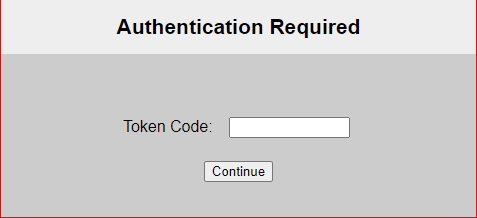
Default token page
The default token page contains a "Token Code:" text field.
Recommended customization
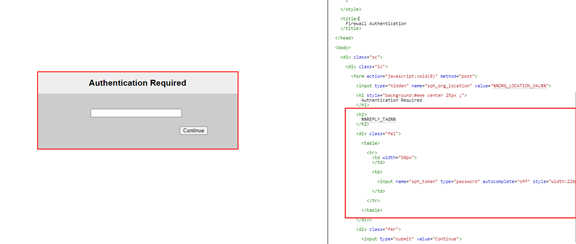
It's recommended to delete the "Token Code:" text. FortiWeb will use the variable %%REPLY_TAG%% to extract the corresponding text from the RADIUS server's responses and display it in the message. Ensure that the Reply Message setting (the name of this setting may vary depending on the server you use) in the RADIUS server is configured to include the content to be used by %%REPLY_TAG%%.
Example of the Password Changing Process
Login
-
A user is required to enter his credentials when logging in.
-
This page corresponds to the Site Publish Authentication > Login Page in System > Config > Replacement Message.
-
The text "Please enter your credentials to continue" is extracted from the RADIUS server response by the variable
%%REPLY_TAG%%.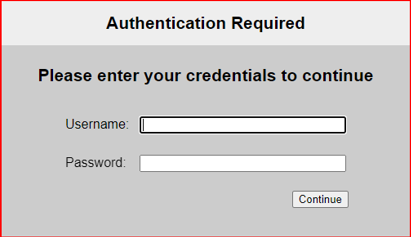
Token Page
-
A token code will be required for two-factor authentication.
-
This page corresponds to the Site Publish Authentication > Token Page in System > Config > Replacement Message.
-
This is the Token page. The text "Please enter the code." is extracted from the RADIUS server response by the variable
%%REPLY_TAG%%.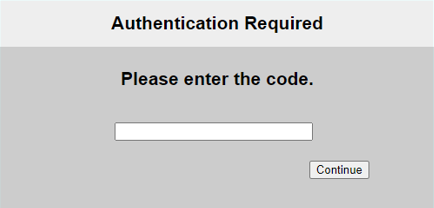
Password Expiry Notice
-
After successfully logging in, if the user's password has expired, they will see a message
-
This page corresponds to the Site Publish Authentication > Token Page in System > Config > Replacement Message.
-
The text "Your password has expired. Please choose a new one." is extracted from the RADIUS server response by the variable
%%REPLY_TAG%%.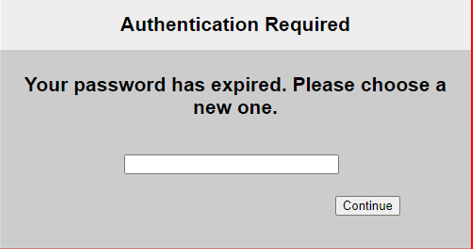
Password Confirmation
-
Another message will prompt the user to confirm the new password.
-
This page corresponds to the Site Publish Authentication > Token Page in System > Config > Replacement Message.
-
The text "Please confirm your new password." is extracted from the RADIUS server response by the variable
%%REPLY_TAG%%.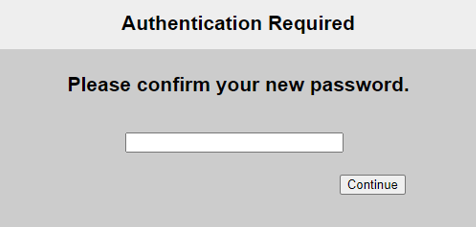
Password Change Successful
- The user will be directed to the login page again to log in with the new password.
- This page corresponds to the Site Publish Authentication > Login Page in System > Config > Replacement Message.
- The text "Password changed successfully. Please enter your credentials to continue" is extracted from the RADIUS server response by the variable
%%REPLY_TAG%%.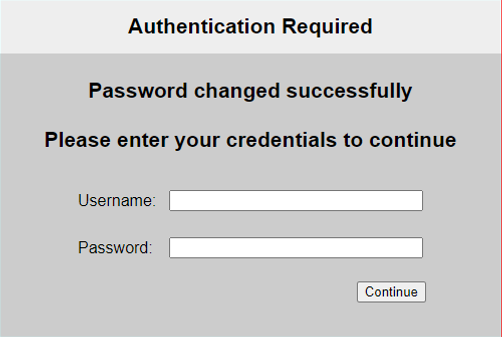
Related topics:
Configuring an NTLM server
NT LAN Manager (NTLM) queries can be made to a Microsoft Windows or Active Directory server that is configured for NTLM authentication. FortiWeb supports both NTLM v1 and NTLM v2.
FortiWeb can use NTLM queries to authenticate and authorize HTTP requests. For details, see Offloading HTTP authentication and authorization.
To configure an NTLM server
- Go to User > Remote Server and select the NTLM Server tab.
To access this part of the web UI, your administrator's account access profile must have Read and Write permission to items in the Auth Users category. For details, see Permissions. - Click Create New.
- In Name, type a unique name that can be referenced by other parts of the configuration. This is the name of the query only, not the end-user’s account name/login. The maximum length is 63 characters.
- For Server IP, type the IP address of the NTLM server to query.
- For Port, type the TCP port number where the NTLM server listens for queries.
- Click OK.
- To activate the user account, you must indirectly include it in a server policy that governs connections to your web servers. Continue with Offloading HTTP authentication and authorization. For an overview, see To configure and activate end-user accounts.
Configuring a Kerberos Key Distribution Center (KDC) server
You can specify a Kerberos Key Distribution Center (KDC) that FortiWeb can use to obtain a Kerberos service ticket for web applications on behalf of clients.
Because FortiWeb determines the KDC to use based on the realm of the web application, you do not have to specify the KDC in the site publish rule.
For details, see Using Kerberos authentication delegation and Offloaded authentication and optional SSO configuration.
To configure a KDC server
- Go to User > Remote Server and select the KDC Server tab.
To access this part of the web UI, your administrator's account access profile must have Read and Writepermission to items in the Auth Users category. For details, see Permissions. - Click Create New and complete the following settings:
Name Enter a name that can be referenced by other parts of the configuration. The maximum length is 63 characters. Delegated Realm Enter the domain of the domain controller (DC) that the Key Distribution Center (KDC) belongs to. Typically the UPN (User Principle Name) used for login has the format username@delegated_realm. Shortname Enter the shortname for the realm you specified (This is optional). A shortname is an alias of the delegated realm; it can be any set of characters except for symbols "@", "/" and "\". For example, the shortname can include the domain name of the realm that is not fully qualified. With a shortname being configured, the format of UPN can be username@shortname. - Click OK.
- Click Create New to add multiple servers for the realm.
- Configure these settings:
Server IPv4/IPv6
Enter the IP address of the KDC.
In most cases, the KDC is located on the same server as the DC.
Server Port
Enter the port the KDC uses to listen for requests.
- Click OK.
Configuring a Terminal Access Controller Access Control System (TACACS)+ server
TACACS+ authentication is now supported for FortiWeb admin users. FortiWeb can also use TACACS+ queries to authenticate administrators’ access to the web UI or CLI. For details, see Grouping remote authentication queries and certificates for administrators.
To authenticate an administrator, the FortiWeb appliance sends the administrator’s credentials to TACACS+ server for authentication. If the TACACS+ server replies to the query with a signal of successful authentication, the client is successfully authenticated with the FortiWeb appliance. If TACACS+ authentication fails or the query returns a negative result, the appliance refuses the connection.
When authenticating administrators, and your TACACS+ server is slow to answer, you may need to adjust the authentication timeout setting to prevent the query from failing. See the FortiWeb CLI Reference:
https://docs.fortinet.com/product/fortiweb/
To configure a TACACS+ server
- Go to User > Remote Server and select the TACACS+ Server tab.
To access this part of the web UI, your administrator's account access profile must have Read and Write permission to items in the Auth Users category. For details, see Permissions. - Click Create New.
A dialog appears. - Configure these settings:
- MSCHAP: this type only includes a START message and a REPLY message. The START message must include the username and data information, of which the username is stored in the user field, while the data in the data field; the data information must include session_id, MS-challenge, and MS-authentication.
- CHAP: this type only includes a START message and a REPLY message. The START message must include the username and data information, of which the username is stored in the user field, while the data in the data field; the data information must include session_id, challenge, and authentication.
- PAP: this type only includes a START message and a REPLY message. The START message must include the username and password information, of which the username is stored in the user field, while the password in the data field; no encryption is required for the message.
- ASCII: this type includes the START message, REPLY message, and CONTINUE message; both the START message and the CONTINUE message can carry the username information.
Available only if Specify in Authentication Type is selected. - Click OK.
- Return to User > Remote Server, select the TACACS+ Server tab, double-click the row of the query, then click the Test TACACS+ button to verify that FortiWeb can connect to the server, and that the query is correctly configured.
- To allow administrator accounts to access the FortiWeb web UI, select the query in a remote authentication query group. For details, see Grouping remote authentication queries and certificates for administrators.
| Name |
Enter a unique name that can be referenced in other parts of the configuration. The maximum length is 63 characters. |
| Server IP/Name | Enter the IP address or domain name of the TACACS+ server. |
| Server Secret | Enter the TACACS+ server secret key for the TACACS+ server. |
| Authentication Type |
Select Auto to automatically assign an authentication type or select Specify to specify a type. |
| Type | Select one authentication type of the TACACS+ server. |
See also
- Grouping remote authentication queries and certificates for administrators
- Configuring a RADIUS server
Adding servers to an authentication server pool
When you configure a site publishing rule that offloads authentication for a web application to FortiWeb, you use an authentication server pool to specify the method and server that FortiWeb uses to authenticate clients.
The pool can contain one or more servers that use either LDAP or RADIUS to authenticate clients. You add LDAP or RADIUS servers to an authentication server pool using the queries that correspond to the servers. For details, see Configuring an LDAP server and Configuring a RADIUS server).
FortiWeb attempts to authenticate clients using the server at the top of the list of pool members, and then continues to the next member down in the list if the authentication is unsuccessful, and so on. You can use the list options to adjust the position of each item in the list.
To configure an authentication server pool
- Go to Application Delivery > Site Publish > Authentication Server Pool.
- Click Create New, enter a name for the pool, and then click OK.
- Click Create New and complete the following settings:
- Click OK.
- Add any other additional servers you want in the pool.
- To use the pool, select it when you configure a site publish rule. For details, see Offloaded authentication and optional SSO configuration
| Authentication Validation Method |
Select whether this pool member uses LDAP or RADIUS to authenticate clients. |
|
LDAP Server or RADIUS Server |
Select the name of the authentication query that FortiWeb uses to pass credentials to your authentication server. |
| RSA SecurID |
Select to enable client authentication using a username and a RSA SecurID authentication code only. Users are not required to enter a password. When this option is enabled, the authentication delegation options in the site publish rule are not available. For details, see RSA SecurID authentication. Alternatively, you can use the default two-factor authentication feature to require users to enter a username, password, and a RSA SecurID authentication code. For details, see Two-factor authentication. |