

Slack Notification action
Configure a Slack Notification action to send alerts to Slack when a trigger occurs.
To configure the action, you need to do the following:
- Configure an incoming webhook in Slack.
- Configure a Slack Notification action in FortiWeb.
To create an Incoming Webhook in Slack:
- Go to the Slack website, and create a workspace.
- Create a Slack application for the workspace.
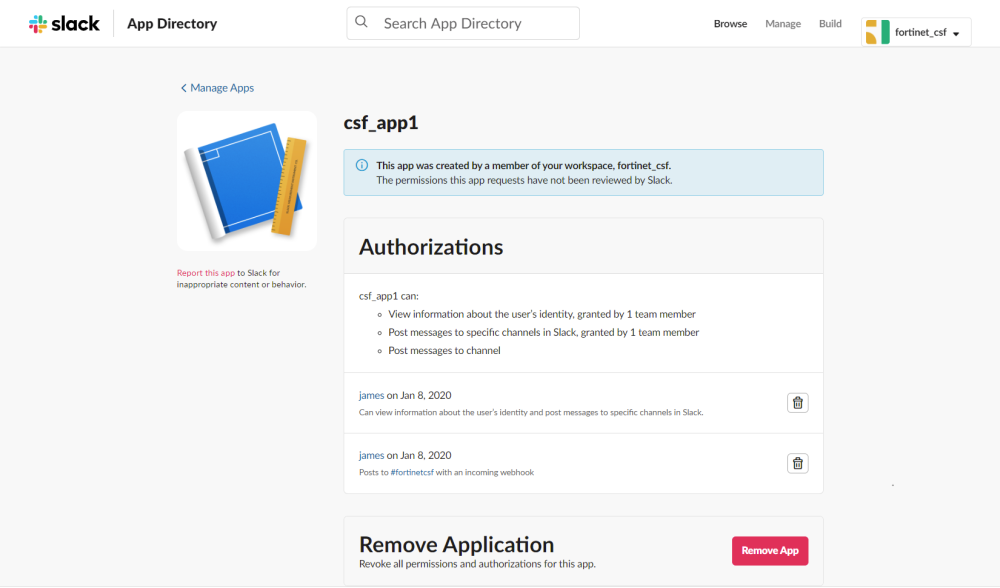
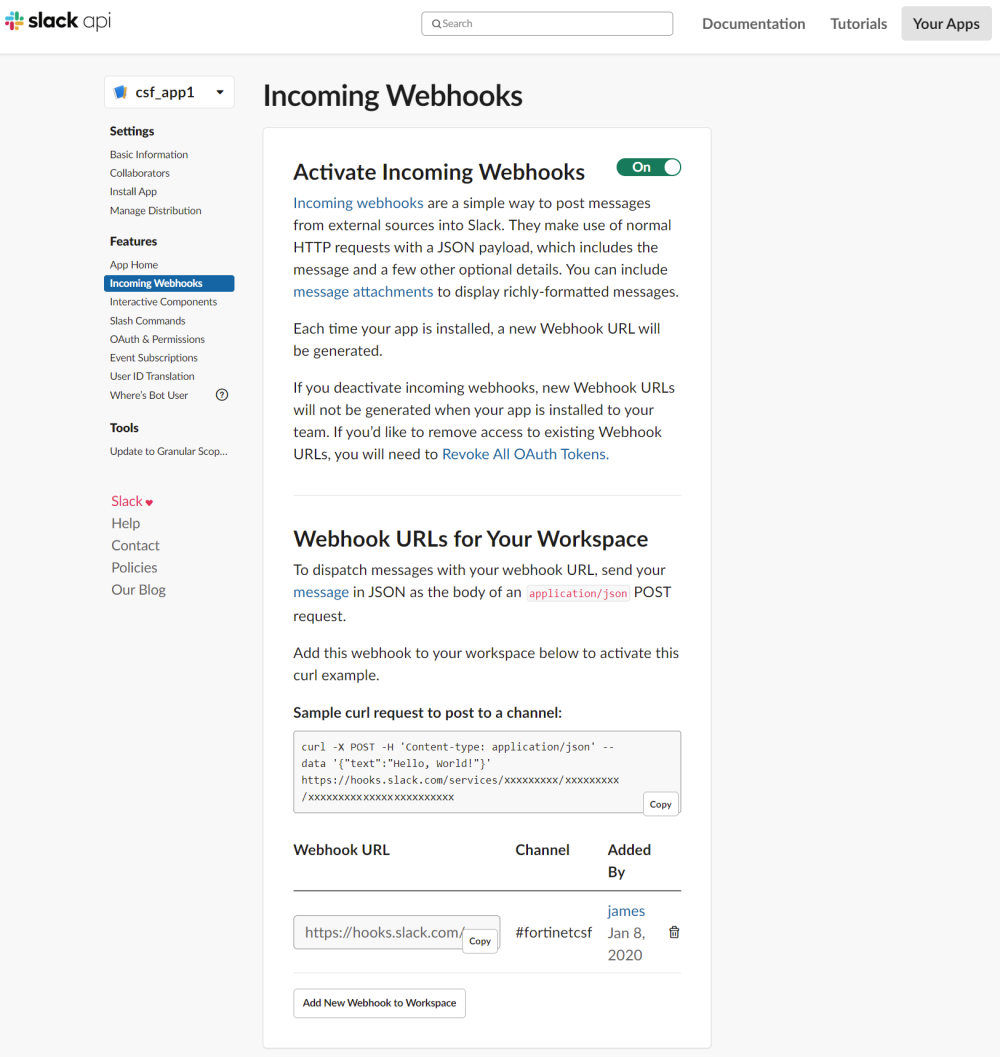
- Add an Incoming Webhook to a channel in the workspace (see Sending messages using Incoming Webhooks for more details).
- Activate the Incoming Webhook, and copy the Webhook URL to the clipboard. You will use it when you add a Slack Notification action in FortiWeb.
To configure a Slack Notification action:
- Log in to FortiWeb.
- Go to Security Fabric > Automation.
- Select the Action tab.
- Click Create New.
- Select Slack Notification.
- Enter a name and description.
- Paste the webhook URL you got from Slack. Please leave the "https://" out when you paste the URL because the system will automatically append "https://" to the URL you enter.
- Enter a Text message. FortiWeb will convert it to JSON format then send it to Slack.
- Click OK.
Alternatively, you can select JSON, then type the message directly in JSON format. This method is useful when you want the message to include advanced formatting such as speech, images, buttons, and input fields. See Creating interactive messages. Please be cautious when using the %%results%% variable in JSON messages. The output from this variable may include characters such as Tabs or Paragraph breaks, which can cause parsing errors when the message is displayed.
It's important to provide sufficient information in the message so that your IT team can understand the issue and take appropriate actions. We have provided some message examples for your reference: Notification message examples.