Fortinet white logo
Fortinet white logo

User Guide

NetFlow

NetFlow

NetFlow is a network monitoring protocol widely used for collecting and analyzing IP traffic. It provides visibility into network usage, application behavior, and potential threats by exporting flow records to a collector.

Starting from version 2.3.0 and above, FortiNDR Cloud sensor can operate as a NetFlow collector, enabling network devices to send flow data for behavioral analysis and threat detection.

To use this feature, point your flow exporters to FortiNDR Cloud sensor collector’s IP and port. The sensor listens on UDP/2055 (NetFlow v5, v9, IPFIX) and UDP/6343 (SFlow) by default, with ports configurable as needed.

To view the complete list of NetFlow fields, see NetFlow fields.

Note

A separate Log Ingestion license is required to collect NetFlow data. Without this license, the data will not be visible in the portal.

Prerequisites

Before configuring NetFlow collection, ensure your system meets the following requirements:

FortiNDR Cloud Sensor version

2.3.0 or above.

Minimum Interface Requirements by Platform:

Platform Type

Interfaces Required

VXLAN monitoring

(Azure, OCI, AWS)

1 × Management (also used for VXLAN monitoring)

1 × Collector (IPv4 stack enabled, uplink required)

Other platforms

1 × Management

1 × Monitoring (TAP, uplink required)

1 × Collector (IPv4 stack enabled, uplink required)

Sensor status Reported as Online in the FortiNDR Cloud portal.
Note

Refer to your NetFlow exporter configuration to verify supported transport protocols (UDP) and ensure inbound firewall rules allow traffic on the configured NetFlow(s) Flow ports.

Configuring NetFlow for FortiNDR Cloud

1. Verify Sensor Status

To verify the sensor status:
  1. Log into the sensor console using:
    • Username: config
    • Password: (The password set during initial installation)
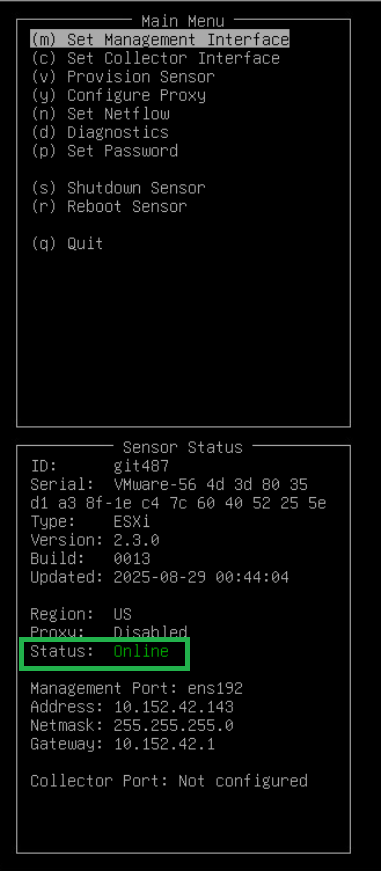
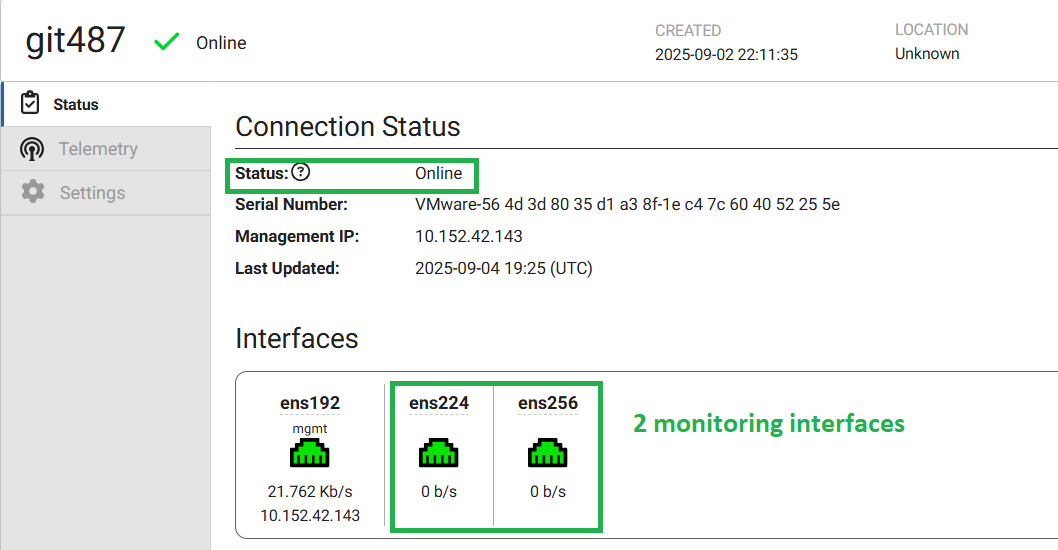
  2. Confirm the sensor is Online and both monitoring interfaces are detected from sensor console and FortiNDR Cloud portal.
2. Configure the collector Interface

To configure the collector interface:
  1. From the config menu, select Set Collector Interface (Press c).
    • Highlight the monitoring interface you want to use as the collector.

    • Ensure this interface has an IP stack enabled on the network.

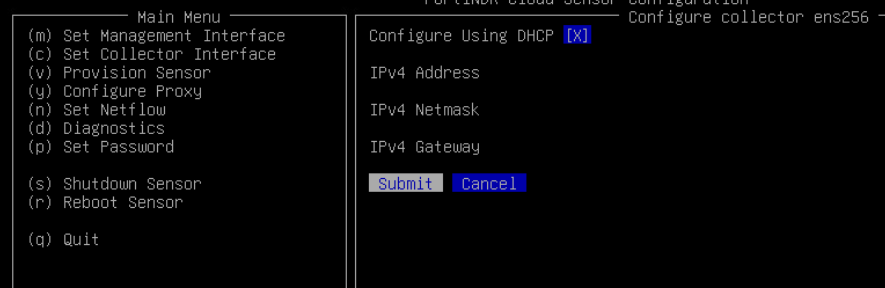
  2. If DHCP is available on the collector subnet, choose Configure Using DHCP and select Submit.
  3. To configure a static IP on collector interface:

    1. Uncheck the DHCP by pressing the space bar.

    2. Enter the desired Address, Netmask, and default Gateway.
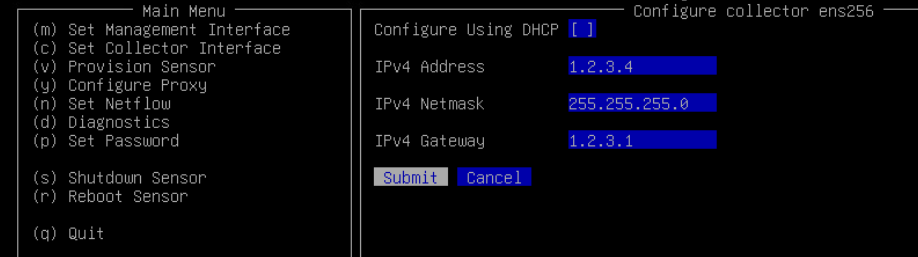
  4. The menu will redirect to the Interfaces section with the collector interface reflecting your settings.
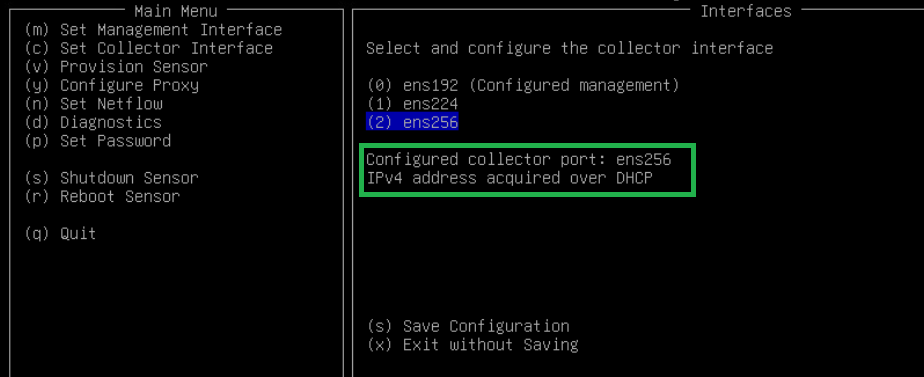
    1. Select Save Configuration. A confirmation dialog box will appear, requesting a sensor restart to apply the interface changes. Select Yes to proceed with the restart.
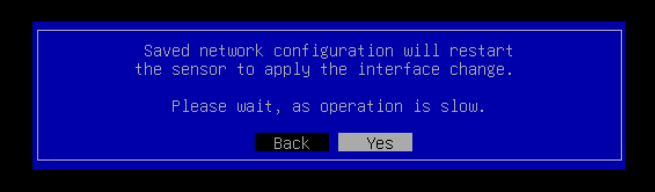
    2. Wait a few minutes until the restart completes and the message Successfully restarted sensord”.

    3. Press Enter to return to the main menu

The collector IP address will now appear in the TUI. Allow a few minutes for the sensor to update its status to Online.
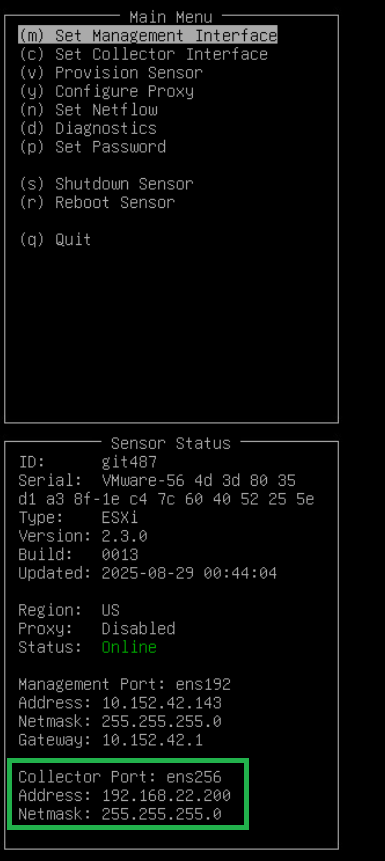
3. Enable the Netflow collector engine

To enable the collector engine:
  1. From the sensor config menu, select Set Netflow (or press n).
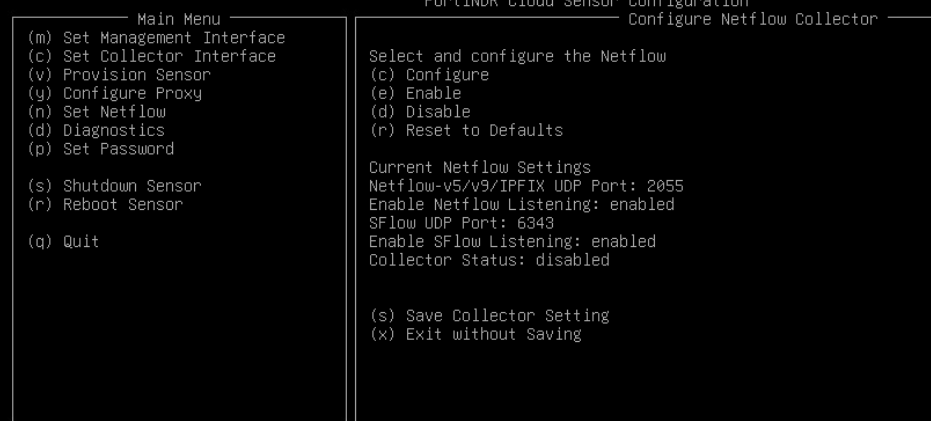
  2. Review the default NetFlow settings.
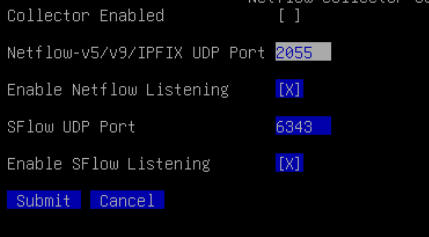
    • UDP/2055: Netflow v5, v9, IPFIX
    • UDP/6343: SFlow
    1. If changes are required, select Configure (press c), adjust the port or listening status, and select Submit.
    2. The menu will redirect back to the Set Netflow menu. To save changes, select Save Collector Setting (press s).
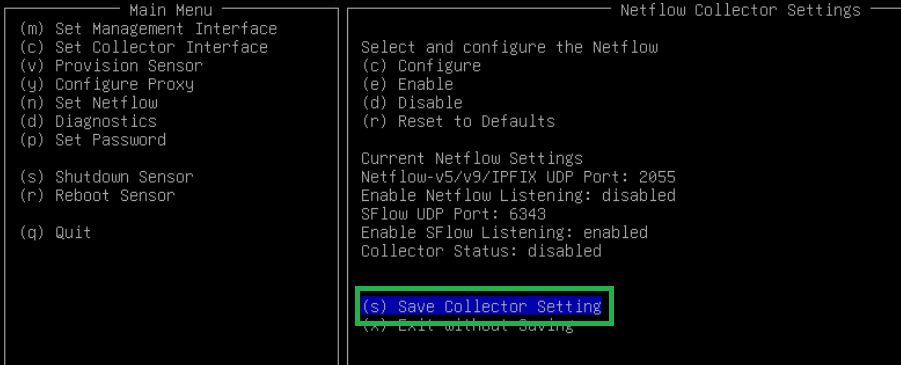
    3. A message will be displayed indicating settings are saved successfully. Press Enter to go back to the Set Netflow menu.

  3. From the Set Netflow menu, select Enable (press e) to start the NetFlow collector engine.
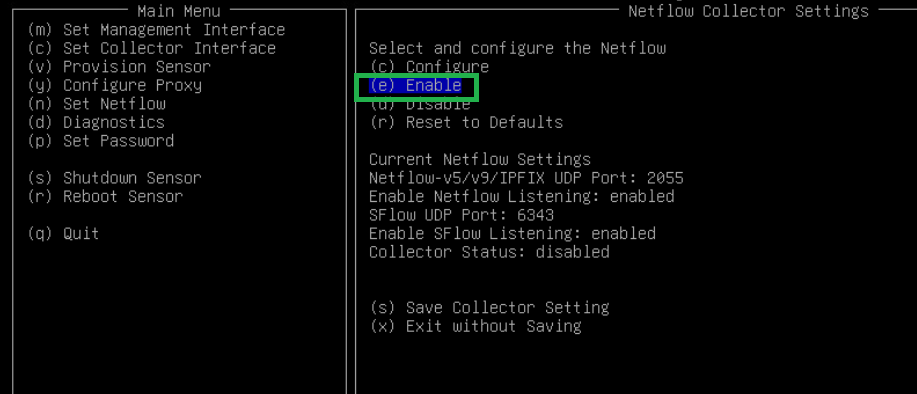
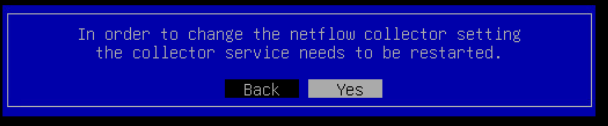
    1. A confirmation dialog box will appear, requesting a restart of collector service. Select Yes to proceed with the restart.
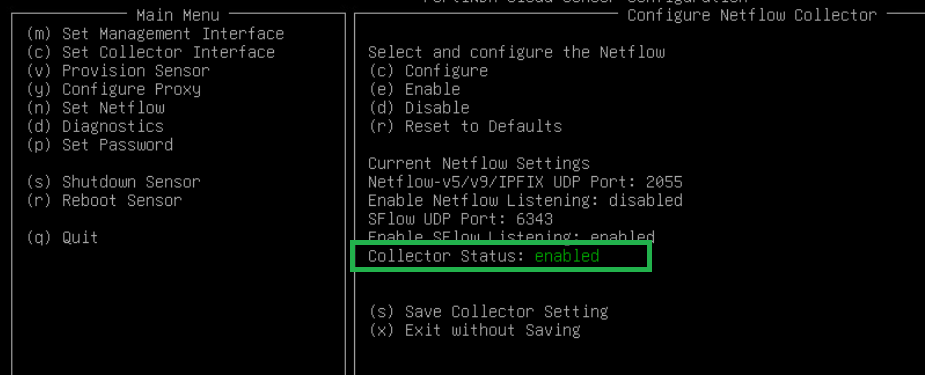
    2. After a few minutes, the status will appear as Enabled (in green).
  4. Important: The first time NetFlow is enabled, a full sensor reboot may be required. Select Reboot Sensor (press r) to reboot. Select Yes to proceed with the reboot

Verifications

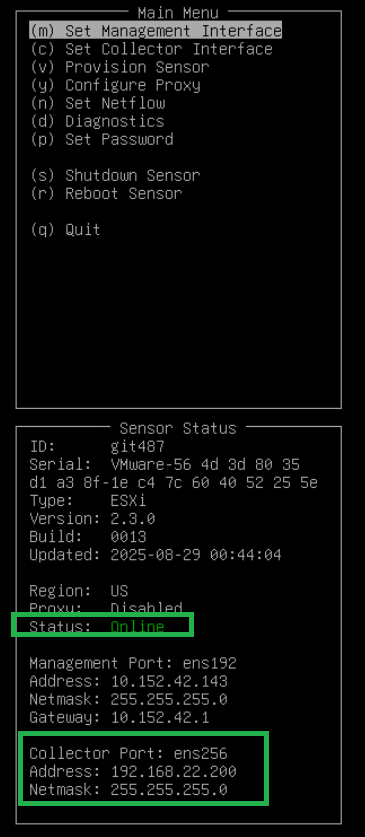
Once the sensor is back online, it is ready to receive and process NetFlow data.

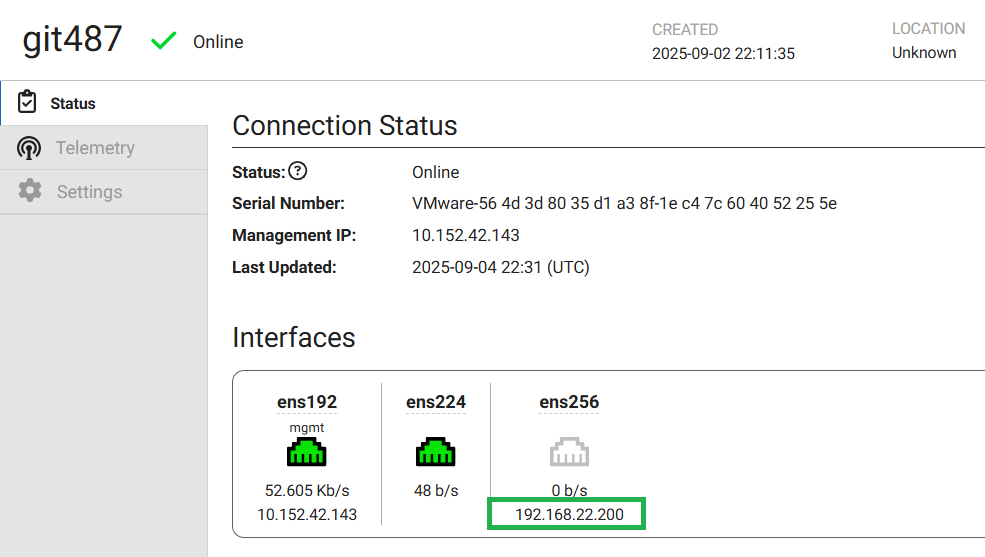
The collector IP address will also be visible in the FortiNDR Cloud portal.
NetFlow

NetFlow

NetFlow is a network monitoring protocol widely used for collecting and analyzing IP traffic. It provides visibility into network usage, application behavior, and potential threats by exporting flow records to a collector.

Starting from version 2.3.0 and above, FortiNDR Cloud sensor can operate as a NetFlow collector, enabling network devices to send flow data for behavioral analysis and threat detection.

To use this feature, point your flow exporters to FortiNDR Cloud sensor collector’s IP and port. The sensor listens on UDP/2055 (NetFlow v5, v9, IPFIX) and UDP/6343 (SFlow) by default, with ports configurable as needed.

To view the complete list of NetFlow fields, see NetFlow fields.

Note

A separate Log Ingestion license is required to collect NetFlow data. Without this license, the data will not be visible in the portal.

Prerequisites

Before configuring NetFlow collection, ensure your system meets the following requirements:

FortiNDR Cloud Sensor version

2.3.0 or above.

Minimum Interface Requirements by Platform:

Platform Type

Interfaces Required

VXLAN monitoring

(Azure, OCI, AWS)

1 × Management (also used for VXLAN monitoring)

1 × Collector (IPv4 stack enabled, uplink required)

Other platforms

1 × Management

1 × Monitoring (TAP, uplink required)

1 × Collector (IPv4 stack enabled, uplink required)

Sensor status Reported as Online in the FortiNDR Cloud portal.
Note

Refer to your NetFlow exporter configuration to verify supported transport protocols (UDP) and ensure inbound firewall rules allow traffic on the configured NetFlow(s) Flow ports.

Configuring NetFlow for FortiNDR Cloud

1. Verify Sensor Status

To verify the sensor status:
  1. Log into the sensor console using:
    • Username: config
    • Password: (The password set during initial installation)
  2. Confirm the sensor is Online and both monitoring interfaces are detected from sensor console and FortiNDR Cloud portal.

2. Configure the collector Interface

To configure the collector interface:
  1. From the config menu, select Set Collector Interface (Press c).
    • Highlight the monitoring interface you want to use as the collector.

    • Ensure this interface has an IP stack enabled on the network.

  2. If DHCP is available on the collector subnet, choose Configure Using DHCP and select Submit.

  3. To configure a static IP on collector interface:

    1. Uncheck the DHCP by pressing the space bar.

    2. Enter the desired Address, Netmask, and default Gateway.

  4. The menu will redirect to the Interfaces section with the collector interface reflecting your settings.

    1. Select Save Configuration. A confirmation dialog box will appear, requesting a sensor restart to apply the interface changes. Select Yes to proceed with the restart.

    2. Wait a few minutes until the restart completes and the message Successfully restarted sensord”.

    3. Press Enter to return to the main menu

The collector IP address will now appear in the TUI. Allow a few minutes for the sensor to update its status to Online.

3. Enable the Netflow collector engine

To enable the collector engine:
  1. From the sensor config menu, select Set Netflow (or press n).

  2. Review the default NetFlow settings.
    • UDP/2055: Netflow v5, v9, IPFIX
    • UDP/6343: SFlow
    1. If changes are required, select Configure (press c), adjust the port or listening status, and select Submit.
    2. The menu will redirect back to the Set Netflow menu. To save changes, select Save Collector Setting (press s).

    3. A message will be displayed indicating settings are saved successfully. Press Enter to go back to the Set Netflow menu.

  3. From the Set Netflow menu, select Enable (press e) to start the NetFlow collector engine.

    1. A confirmation dialog box will appear, requesting a restart of collector service. Select Yes to proceed with the restart.

    2. After a few minutes, the status will appear as Enabled (in green).

  4. Important: The first time NetFlow is enabled, a full sensor reboot may be required. Select Reboot Sensor (press r) to reboot. Select Yes to proceed with the reboot

Verifications

Once the sensor is back online, it is ready to receive and process NetFlow data.

The collector IP address will also be visible in the FortiNDR Cloud portal.