Fortinet white logo
Fortinet white logo

Administration Guide

Example 1: IPAM in a Security Fabric setup

Example 1: IPAM in a Security Fabric setup

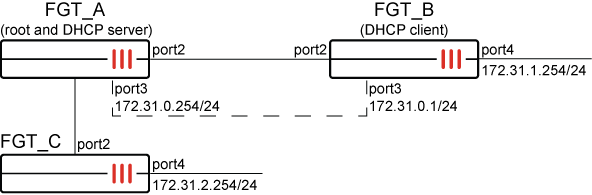
In this example, FGT_A is the Security Fabric root with IPAM enabled. FGT_B and FGT_C are downstream Fabric devices and retrieve IPAM information from FGT_A.

The Fabric interface on all FortiGates is port2. FGT_A acts as the DHCP server, and FGT_B acts as the DHCP client.
General configuration steps

This section breaks down the configuration for this example into smaller procedures:

  1. Configure the root FortiGate unit:

    1. Configure the IPAM Settings.

    2. Configure the IPAM Subnets.

    3. Configure the IPAM Rules.

    4. Assign an IP address using the IPAM.

  2. Configure the downstream FortiGate units:

    1. Configure FGT_B and FGT_C to receive an IP address using the IPAM.

    2. Configure FGT_B to receive an IP address using the DHCP.

  3. Verify IPAM allocations and DHCP clients.

Configuring IPAM in the GUI

Use the following steps to configure the example configuration in the GUI.

To configure the root FortiGate (FGT_A):
  1. Configure the IPAM settings:

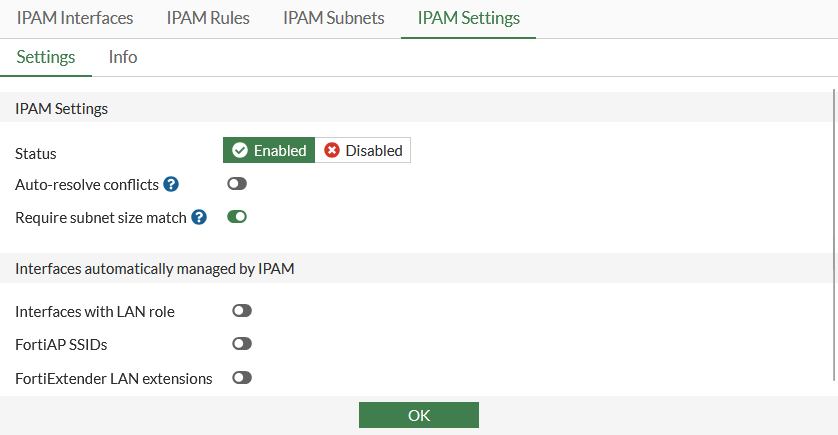
    1. Go to Network > IPAM and select the IPAM Settings tab.

    2. Set Status to Enabled.

    3. Click OK.

  2. Configure the IPAM subnets:

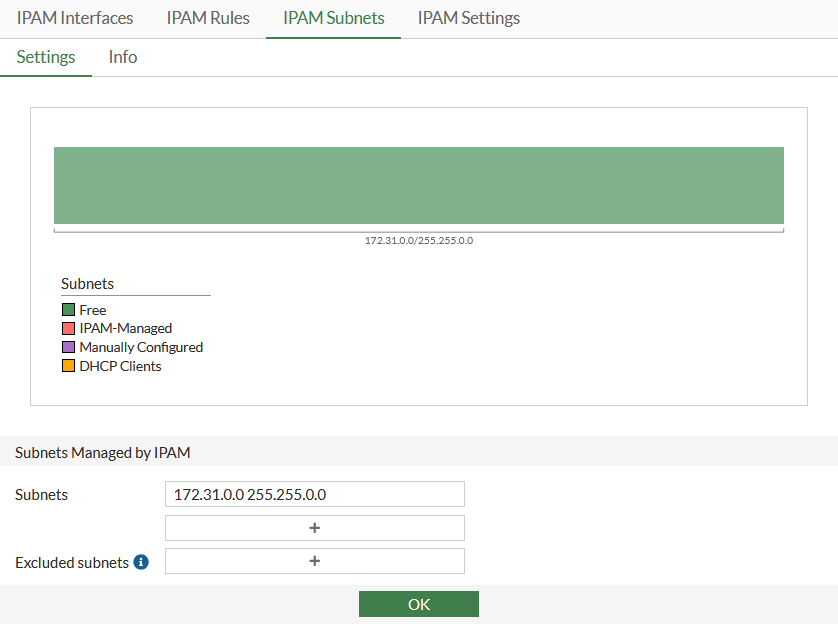
    1. Go to Network > IPAM and select the IPAM Subnets tab.

    2. Configure subnet 172.31.0.0/16

    3. Click OK.

  3. Configure the IPAM rules:

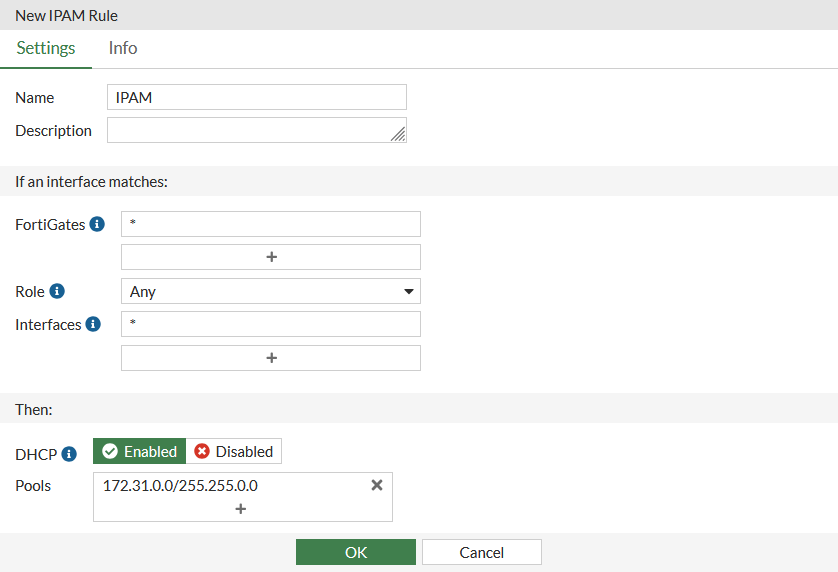
    1. Go to Network > IPAM and select the IPAM Rules tab.

    2. Click Create New and configure the settings:

      Option

      Value

      Name

      IPAM

      Description

      Optional

      FortiGates

      *

      Role

      Any

      Interfaces

      *

      DHCP

      Enabled

      Pools

      172.31.0.0/255.255.0.0
    3. Click OK.

  4. Assign an IP address using the IPAM:

    1. Go to Network > Interfaces and edit port3.

    2. Set Addressing Mode to IPAM

    3. Leave Network size as the default subnet.
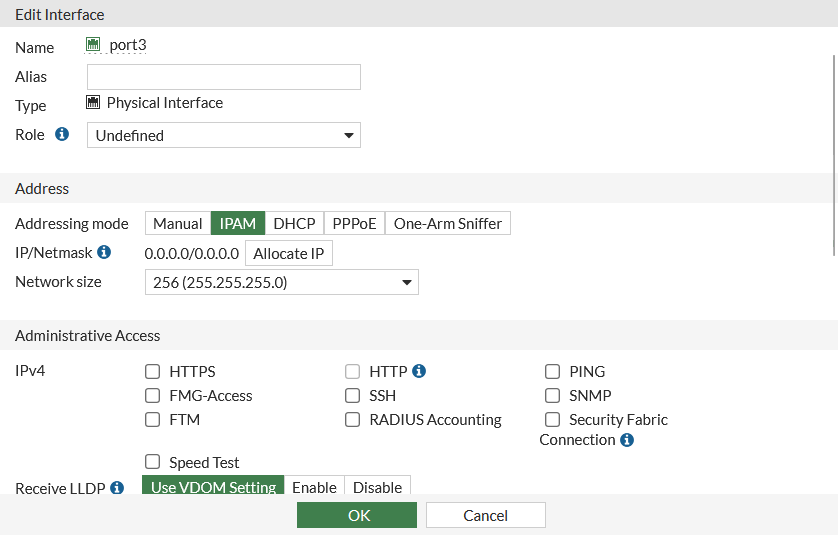
    4. Click OK.

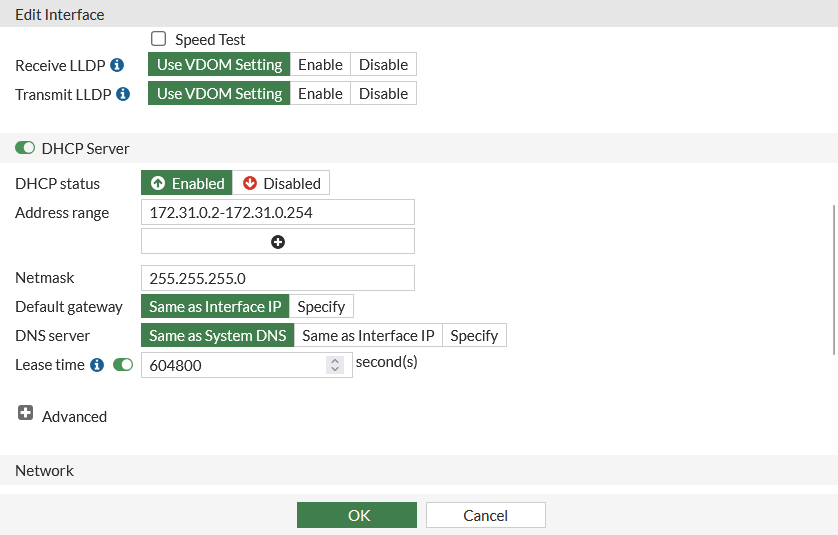
    Since IPAM is managing a 172.31.0.0/16 network, the IP/Netmask field in the Address section is automatically assigned a class C IP by IPAM. The Address range and Netmask fields in the DHCP Server section have also been automatically configured by IPAM.
To configure the downstream FortiGate units:
  1. Configure FGT_B and FGT_C to receive an IP address using the IPAM:

    1. Log in to FGT_B and set the Addressing Mode of port4 to IPAM. The subnet assigned from the pool on the root is 172.31.1.254/24.

    2. Log in to FG_C and set the Addressing Mode of port4 to IPAM. The subnet assigned from the pool on the root is 172.31.2.254/24.

    Note

    Any interface on a downstream FortiGate can be managed by the IPAM server. The interface does not have to be directly connected to the Fabric root FortiGate.

  2. Configure FGT_B to receive an IP address using the DHCP:

    1. Log in to FGT_B and set the Addressing Mode of port3 to DHCP.

    2. Click OK.

      The IP assigned from the DHCP pool on the root is 172.31.0.1/24.

To verify IPAM allocations and DHCP clients:

Log in to FGT_A, go to Network > IPAM and select the IPAM Interfaces tab to view the IP addresses allocated by IPAM (port3, port4, and port4)
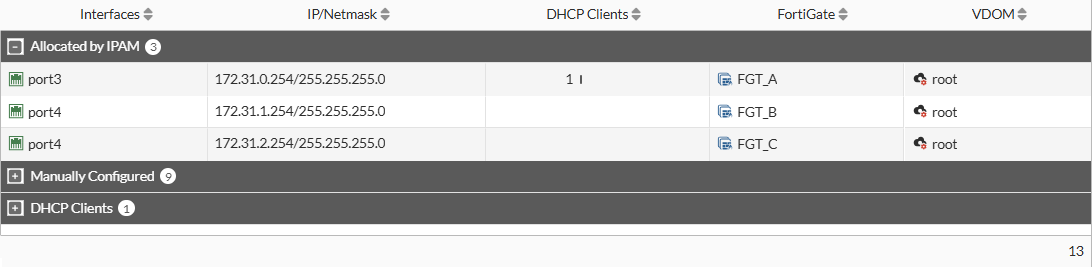
FGT_B, port3 is a DHCP client and the DHCP server interface (FGT_A port3) is managed by IPAM, so it is displayed in the DHCP Clients section:

Configuring IPAM in the CLI

Use the following steps to configure the example configuration in the CLI.

To configure the root FortiGate (FGT_A):

Enable IPAM and configure IPAM subnets and rules:

config system ipam
    set status enable
    config pools
        edit "1"
            set subnet 172.31.0.0 255.255.0.0
        next
    end
    config rules
        edit "IPAM"
            set device "*"
            set interface "*"
            set pool "1"
            set dhcp enable
        next
    end
end
To configure the downstream FortiGate units:
  1. On both the FGT_B and FGT_C, receive an IP address using the IPAM:

    config system interface
        edit "port4"
            set ip-managed-by-fortiipam enable
        next
    end
  2. On FGT_B, receive an IP address using the DHCP:

    config system interface
        edit "port3"
            set mode dhcp
        next
    end
To verify IPAM allocations and DHCP clients:
# diagnose sys ipam list entries
Entries: (sn, vdom, interface, subnet/mask, conflict)
  IPAM Entries:
  FGVMSLTM25016113 root port3 172.31.0.254/24  
  FGVMSLTM25016114 root port4 172.31.1.254/24  
  FGVMSLTM25016115 root port4 172.31.2.254/24  

  Static Entries:
  FGVMSLTM25016113 root fortilink 10.255.1.1/24 C
  FGVMSLTM25016113 root port1 172.16.200.1/24 C
…
  DHCP Entries:
  FGVMSLTM25016114 root port3 172.31.0.1/24

Example 1: IPAM in a Security Fabric setup

Example 1: IPAM in a Security Fabric setup

In this example, FGT_A is the Security Fabric root with IPAM enabled. FGT_B and FGT_C are downstream Fabric devices and retrieve IPAM information from FGT_A.

The Fabric interface on all FortiGates is port2. FGT_A acts as the DHCP server, and FGT_B acts as the DHCP client.

General configuration steps

This section breaks down the configuration for this example into smaller procedures:

  1. Configure the root FortiGate unit:

    1. Configure the IPAM Settings.

    2. Configure the IPAM Subnets.

    3. Configure the IPAM Rules.

    4. Assign an IP address using the IPAM.

  2. Configure the downstream FortiGate units:

    1. Configure FGT_B and FGT_C to receive an IP address using the IPAM.

    2. Configure FGT_B to receive an IP address using the DHCP.

  3. Verify IPAM allocations and DHCP clients.

Configuring IPAM in the GUI

Use the following steps to configure the example configuration in the GUI.

To configure the root FortiGate (FGT_A):
  1. Configure the IPAM settings:

    1. Go to Network > IPAM and select the IPAM Settings tab.

    2. Set Status to Enabled.

    3. Click OK.

  2. Configure the IPAM subnets:

    1. Go to Network > IPAM and select the IPAM Subnets tab.

    2. Configure subnet 172.31.0.0/16

    3. Click OK.

  3. Configure the IPAM rules:

    1. Go to Network > IPAM and select the IPAM Rules tab.

    2. Click Create New and configure the settings:

      Option

      Value

      Name

      IPAM

      Description

      Optional

      FortiGates

      *

      Role

      Any

      Interfaces

      *

      DHCP

      Enabled

      Pools

      172.31.0.0/255.255.0.0

    3. Click OK.

  4. Assign an IP address using the IPAM:

    1. Go to Network > Interfaces and edit port3.

    2. Set Addressing Mode to IPAM

    3. Leave Network size as the default subnet.

    4. Click OK.

    Since IPAM is managing a 172.31.0.0/16 network, the IP/Netmask field in the Address section is automatically assigned a class C IP by IPAM. The Address range and Netmask fields in the DHCP Server section have also been automatically configured by IPAM.

To configure the downstream FortiGate units:
  1. Configure FGT_B and FGT_C to receive an IP address using the IPAM:

    1. Log in to FGT_B and set the Addressing Mode of port4 to IPAM. The subnet assigned from the pool on the root is 172.31.1.254/24.

    2. Log in to FG_C and set the Addressing Mode of port4 to IPAM. The subnet assigned from the pool on the root is 172.31.2.254/24.

    Note

    Any interface on a downstream FortiGate can be managed by the IPAM server. The interface does not have to be directly connected to the Fabric root FortiGate.

  2. Configure FGT_B to receive an IP address using the DHCP:

    1. Log in to FGT_B and set the Addressing Mode of port3 to DHCP.

    2. Click OK.

      The IP assigned from the DHCP pool on the root is 172.31.0.1/24.

To verify IPAM allocations and DHCP clients:

Log in to FGT_A, go to Network > IPAM and select the IPAM Interfaces tab to view the IP addresses allocated by IPAM (port3, port4, and port4)

FGT_B, port3 is a DHCP client and the DHCP server interface (FGT_A port3) is managed by IPAM, so it is displayed in the DHCP Clients section:

Configuring IPAM in the CLI

Use the following steps to configure the example configuration in the CLI.

To configure the root FortiGate (FGT_A):

Enable IPAM and configure IPAM subnets and rules:

config system ipam
    set status enable
    config pools
        edit "1"
            set subnet 172.31.0.0 255.255.0.0
        next
    end
    config rules
        edit "IPAM"
            set device "*"
            set interface "*"
            set pool "1"
            set dhcp enable
        next
    end
end
To configure the downstream FortiGate units:
  1. On both the FGT_B and FGT_C, receive an IP address using the IPAM:

    config system interface
        edit "port4"
            set ip-managed-by-fortiipam enable
        next
    end
  2. On FGT_B, receive an IP address using the DHCP:

    config system interface
        edit "port3"
            set mode dhcp
        next
    end
To verify IPAM allocations and DHCP clients:
# diagnose sys ipam list entries
Entries: (sn, vdom, interface, subnet/mask, conflict)
  IPAM Entries:
  FGVMSLTM25016113 root port3 172.31.0.254/24  
  FGVMSLTM25016114 root port4 172.31.1.254/24  
  FGVMSLTM25016115 root port4 172.31.2.254/24  

  Static Entries:
  FGVMSLTM25016113 root fortilink 10.255.1.1/24 C
  FGVMSLTM25016113 root port1 172.16.200.1/24 C
…
  DHCP Entries:
  FGVMSLTM25016114 root port3 172.31.0.1/24