
Fortinet white logo
Fortinet white logo

Administration Guide

FGR-70F/FGR-70F-3G4G GPIO/DIO module

FGR-70F/FGR-70F-3G4G GPIO/DIO module

FortiGate Rugged 70F and FortiGate Rugged 70F-3G4G include a general purpose input output (GPIO) module, also known as a digital I/O (DIO) module. This module activates a digital output when triggered by a change in any digital input. For example, the digital input can be connected to a cabinet door to monitor the open/close status or low/high voltage status, and the output can be connected to a buzzer. When the DIO module detects a change from open to closed or a voltage change from low to high, it triggers the buzzer.

CLI for configuring DIO module alarms is available only on FortiGate Rugged 70F and FortiGate Rugged 70F-3G4G devices.

Use the config system digital-io command to configure the input status for the DIO module to monitor:

config system digital-io
    set input1-detection-mode {default | voltage}
    set input2-detection-mode {default | voltage}
    set output-keep-last-state {enable | disable}
end

set input1-detection-mode {default | voltage}

Configure the input mode:

  • default: Detect change from open to closed or closed to open.

  • voltage: Detect change from low to high voltage or high to low voltage.

set output-keep-last-state {enable | disable}

Enable/disable FortiGate to keep the alarm status after a reboot.

Use the execute digital-io set-output command to configure the output mode when an alarm is triggered, namely, the state of the normally closed to common (NC_COM) output and the normally open to common (NO_COM) output:

# execute digital-io set-output 
alternating     Alternates between default and opposite.
default         NC_COM=closed and NO_COM=open.
opposite        NC_COM=open and NO_COM=closed.

Use the diagnose sys digital-io state command to check the input and output status reported by the DIO module:

# diagnose sys digital-io state
Input1:    mode=default(open/closed) and state=open.
Input2:    mode=voltage(low/high) and state=low.
Output:    state=default, NO_COM=open, and NC_COM=closed.
output-keep-last-state: enable

Commands are also available to trigger SNMP traps and automation stitches for the DIO module. See SNMP traps and automation-stitch notifications for DIO module for more information.

For more information about the DIO module, see the FortiGate Rugged 70F Series QuickStart Guide and the Technical Tip: Overview of the Digital Input/Output (DIO) Module in FortiGate Rugged 70F Series community article.

Example

In this example, a FortiGate Rugged 70F is configured to monitor the open/close and low/high voltage status of a cabinet door, and the output is connected to a buzzer. When the status of the cabinet door changes, FortiGate triggers the buzzer
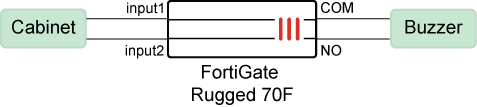
To configure the DIO module alarm:
  1. Configure the input-detection mode:

    In this example, the input-detection mode for input1 is set to default and input2 is set to voltage, and the last output state is retained if FortiGate reboots.

    config system digital-io
        set input1-detection-mode default
        set input2-detection-mode voltage
        set output-keep-last-state enable
    end
  2. Configure the output mode:

    In this example, the output is set to default. When triggered, the output is in a default state with the normally open to common (NO_COM) output being open, and the normally closed to common (NC_COM) output being closed. The output is triggered when the DIO module detects a change in the status of the inputs or detects an alarm event.

    # execute digital-io set-output default
  3. View the input/output status being reported by the DIO module:

    In this example, the default state of Input1 is open, and the default state of Input2 is low voltage, which means the cabinet door is open, and the voltage is low.

    # diagnose sys digital-io state
    Input1: mode=default(open/closed), state=open 
    Input2: mode=voltage(low/high), state=low 
    Output: state=default, NO_COM=open, NC_COM=closed
    output-keep-last-state: enable
  4. Close the cabinet door.

  5. View the input/output status being reported by the DIO module:

    The state of Input1 has changed to closed, and the state of Input2 has changed to high voltage.

    # diagnose sys digital-io state
    Input1: mode=default(open/closed), state=closed
    Input2: mode=voltage(low/high), state=high
    Output: state=default, NO_COM=open, NC_COM=closed
    output-keep-last-state: enable

    The change in state triggers the buzzer.

FGR-70F/FGR-70F-3G4G GPIO/DIO module

FGR-70F/FGR-70F-3G4G GPIO/DIO module

FortiGate Rugged 70F and FortiGate Rugged 70F-3G4G include a general purpose input output (GPIO) module, also known as a digital I/O (DIO) module. This module activates a digital output when triggered by a change in any digital input. For example, the digital input can be connected to a cabinet door to monitor the open/close status or low/high voltage status, and the output can be connected to a buzzer. When the DIO module detects a change from open to closed or a voltage change from low to high, it triggers the buzzer.

CLI for configuring DIO module alarms is available only on FortiGate Rugged 70F and FortiGate Rugged 70F-3G4G devices.

Use the config system digital-io command to configure the input status for the DIO module to monitor:

config system digital-io
    set input1-detection-mode {default | voltage}
    set input2-detection-mode {default | voltage}
    set output-keep-last-state {enable | disable}
end

set input1-detection-mode {default | voltage}

Configure the input mode:

  • default: Detect change from open to closed or closed to open.

  • voltage: Detect change from low to high voltage or high to low voltage.

set output-keep-last-state {enable | disable}

Enable/disable FortiGate to keep the alarm status after a reboot.

Use the execute digital-io set-output command to configure the output mode when an alarm is triggered, namely, the state of the normally closed to common (NC_COM) output and the normally open to common (NO_COM) output:

# execute digital-io set-output 
alternating     Alternates between default and opposite.
default         NC_COM=closed and NO_COM=open.
opposite        NC_COM=open and NO_COM=closed.

Use the diagnose sys digital-io state command to check the input and output status reported by the DIO module:

# diagnose sys digital-io state
Input1:    mode=default(open/closed) and state=open.
Input2:    mode=voltage(low/high) and state=low.
Output:    state=default, NO_COM=open, and NC_COM=closed.
output-keep-last-state: enable

Commands are also available to trigger SNMP traps and automation stitches for the DIO module. See SNMP traps and automation-stitch notifications for DIO module for more information.

For more information about the DIO module, see the FortiGate Rugged 70F Series QuickStart Guide and the Technical Tip: Overview of the Digital Input/Output (DIO) Module in FortiGate Rugged 70F Series community article.

Example

In this example, a FortiGate Rugged 70F is configured to monitor the open/close and low/high voltage status of a cabinet door, and the output is connected to a buzzer. When the status of the cabinet door changes, FortiGate triggers the buzzer

To configure the DIO module alarm:
  1. Configure the input-detection mode:

    In this example, the input-detection mode for input1 is set to default and input2 is set to voltage, and the last output state is retained if FortiGate reboots.

    config system digital-io
        set input1-detection-mode default
        set input2-detection-mode voltage
        set output-keep-last-state enable
    end
  2. Configure the output mode:

    In this example, the output is set to default. When triggered, the output is in a default state with the normally open to common (NO_COM) output being open, and the normally closed to common (NC_COM) output being closed. The output is triggered when the DIO module detects a change in the status of the inputs or detects an alarm event.

    # execute digital-io set-output default
  3. View the input/output status being reported by the DIO module:

    In this example, the default state of Input1 is open, and the default state of Input2 is low voltage, which means the cabinet door is open, and the voltage is low.

    # diagnose sys digital-io state
    Input1: mode=default(open/closed), state=open 
    Input2: mode=voltage(low/high), state=low 
    Output: state=default, NO_COM=open, NC_COM=closed
    output-keep-last-state: enable
  4. Close the cabinet door.

  5. View the input/output status being reported by the DIO module:

    The state of Input1 has changed to closed, and the state of Input2 has changed to high voltage.

    # diagnose sys digital-io state
    Input1: mode=default(open/closed), state=closed
    Input2: mode=voltage(low/high), state=high
    Output: state=default, NO_COM=open, NC_COM=closed
    output-keep-last-state: enable

    The change in state triggers the buzzer.