

Adding a FortiExtender
To add a FortiExtender to the FortiGate, create a virtual FortiExtender interface, then add a FortiExtender and assign the interface to the modem. Like other interface types, the FortiExtender interface can be used in static routes, SD-WAN (see Manage dual FortiExtender devices), policies, and other functions.
To create a virtual FortiExtender interface in the GUI:
-
Go to Network > Interfaces and click Create New > FortiExtender.
-
Enter a name for the interface.
-
Configure the remaining settings as needed. See Interface settings for more details.
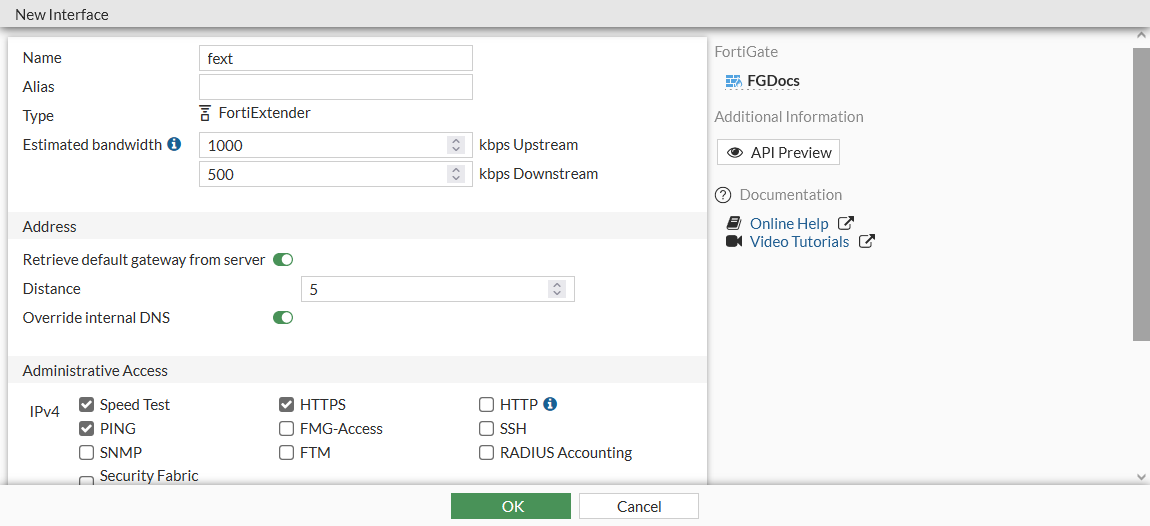
-
Click OK.
To add a FortiExtender in the GUI:
-
Go to Network > FortiExtender and click Create New > Extenders.
-
Enter your FortiExtender's serial number in the Serial number field.
-
Optionally, set an Alias for the FortiExtender.
-
In the State section, enable Authorized.
-
Set Interface to the FortiExtender interface.
-
Configure the remaining setting as required. See the FortiExtender Administration Guide (FGT-Managed) for more information.
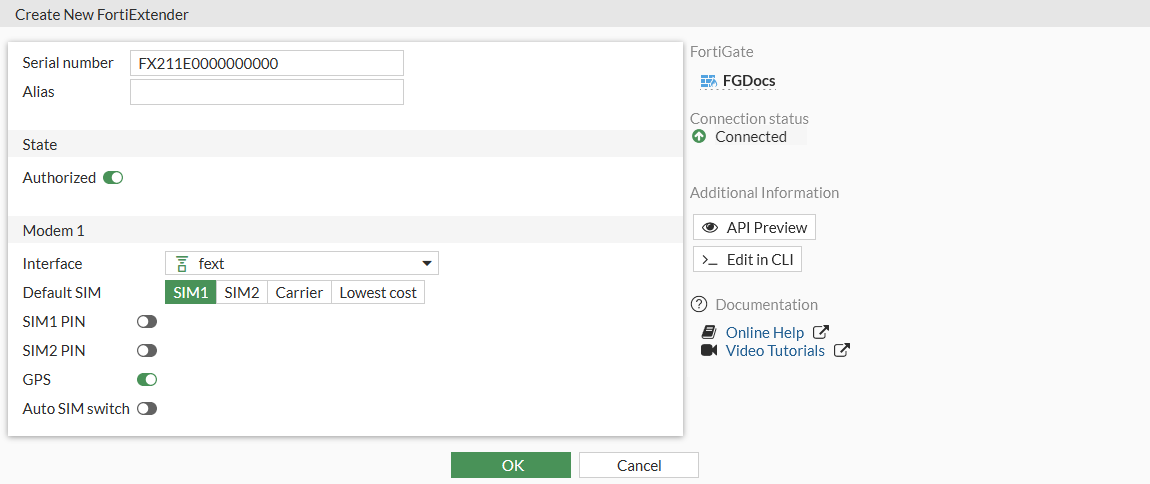
-
Click OK.
-
In the extenders list, right-click on the FortiExtender and select Diagnostics and Tools to review the modem and SIM status, and other details about the FortiExtender.
To create a virtual FortiExtender interface in the CLI:
config system interface
    edit "fext"
        set vdom "root"
        set mode dhcp
        set allowaccess ping https speed-test
        set type fext-wan
        set estimated-upstream-bandwidth 1000
        set estimated-downstream-bandwidth 500
    next
end
To configure the FortiExtender in the CLI:
config extension-controller extender
    edit "FX211E"
        set id "FX211E0000000000"
        set authorized enable
        config modem1
            set ifname "fext"
        end
    next
end
To verify the modem settings in the CLI:
get extender modem-status FX211E0000000000 1
Modem 0:
    physical_port:       2-1.2
    manufacture:         Sierra Wireless, Incorporated
    product:             Sierra Wireless, Incorporated
    ....