Fortinet white logo
Fortinet white logo

Administration Guide

Central Management

Central Management

Central Management allows you to manage remote FortiDeceptor appliances including Decoy VM deployments, and incident alert monitoring.

You can configure a FortiDeceptor hardware or VM appliance to be a Management Device or Remote Client. The Management Device has deception capabilities. You can use the Management Device to deploy decoys and lures to the Remote Clients on the network.

Note
  • When upgrading Central Managers, you must first upgrade all CM clients to version 6.2.0 before upgrading the CM manager itself to 6.2.0.

  • Cloud Manager is supported only in versions 5.3 through 6.1. Starting with version 6.2, FortiDeceptor no longer supports Cloud Manager.

  • FortiDeceptor 1KF models can run only in standalone mode on version 6.2.

Network communication requirements

To configure the CM settings, do one of the following:

  • Go to Dashboard > Status. In the System Information widget locate CM Settings and click Change.
  • Go to Central Management > Appliances and click CM Settings.

Communication between:

From:

Management device and regular client appliance Client to manager port1 IP and 9443 port
Management device and cloud client appliance

Management device to cloud client port1 public IP and 8443 port

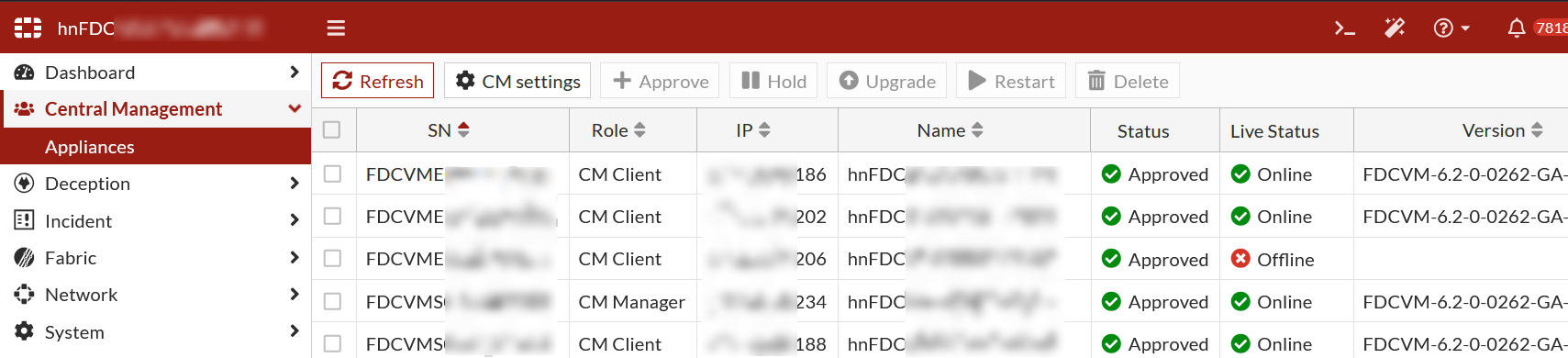
Use the buttons in the Central Management Appliances pane to manage Remote Clients.

Button

Description

Approve

Allow the selected clients to participate in Central Management.

Hold

Pause the selected clients’ participation in Central Management.

Delete

Pause the selected clients, then permanently delete the selected client.

This action does not:

  • Delete or change any data in the remote client.
  • Edit past incident and campaign records.

Refresh

Force re-sync of all data between manager and selected clients.

Restart

Send signal to selected clients to reboot.

Configuring Central Management

There are two methods of configuring Central Management:

  • Client-Initiated Connection (Client connects to CM Manager): The CM Manager is set to listen on a specific port (default is 9443), and the client is configured with the Manager’s information to establish the connection. This approach is commonly used for local clients.
  • Manager-Initiated Connection (CM Manager connects to Client): The CM Manager initiates the connection to the client. Here, the client is configured to wait for incoming connections, and the Manager is set up with the client’s IP address and port. This method is typically used for remote or cloud-based clients.

Configuring a client-Initiated connection

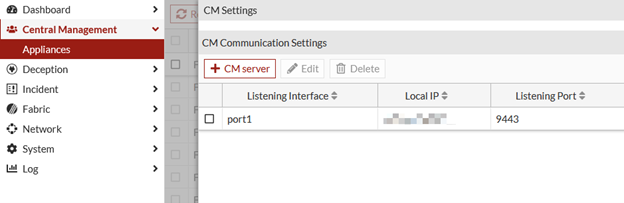
To configure a client-initiated connection, set the CM Manager to listen on a specific port (default 9443) and then enter the Manager details on the client, including its listening interface and port.

To configure a Client-Initiated Connection:
  1. Go to Central Management > Appliances and click CM Settings.
  2. Click +CM Server.
    1. Select the Listening Interface from the dropdown.
    2. Set the Port as 9443.
    3. Click Ok.

    Note
    • The default port is 9443, but other port numbers can also be used.

    • Ensure that each port has only one record.
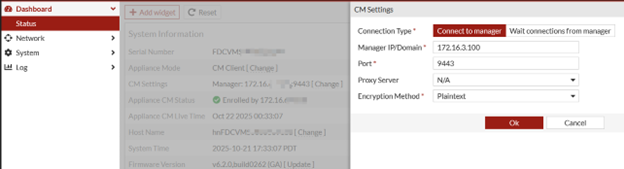
  3. On the local client, go to Dashboard > Status > System Information widget.
  4. Locate the CM Client setting and click Change. The CM Settings pane opens.
  5. Click Connect to manager and set the Port to 9443 and click Ok.
Configuring a manager-initiated connection

To configure a manager-initiated connection for a cloud client:
  1. On the cloud platform, open 8443 for port1 of this cloud client.
  2. On the GUI, go to Dashboard > Status > System Information.
  3. Locate the CM Client setting and click Change. The CM Settings pane opens.
    1. Click Wait connections from manager.
    2. Set Listening Interface to Port1.
    3. Set the Port to 8443.
    4. Click Ok.
      Note

      Each client can connect to only one manager.

  4. On the management device, go to Central Management > Appliances and click CM Settings.
    1. Click Connect to remote CM client.
    2. For Client IP, enter the remote client's IP address.
    3. For Port enter 8443.
To configure a manager-initiated connection on a local client:
  1. On the local client go to Dashboard > Status > System Information widget.
  2. Locate the CM Client setting and click Change. The CM Settings pane opens.
    1. Click Wait connections from manager.
    2. Set Listening Interfaceto Port1.
    3. Set the Port to 8443.
    4. Click Ok.
      Note

      Each client can connect to only one manager.

  3. On the management device, go to Central Management > Appliances and click CM Settings.
    1. Click Connect to remote CM client.
    2. For Client IP, enter the remote client's IP address.
    3. For Port enter 8443.

Configuring encryption methods

Encryption can be configured from either the CM Manager or client.

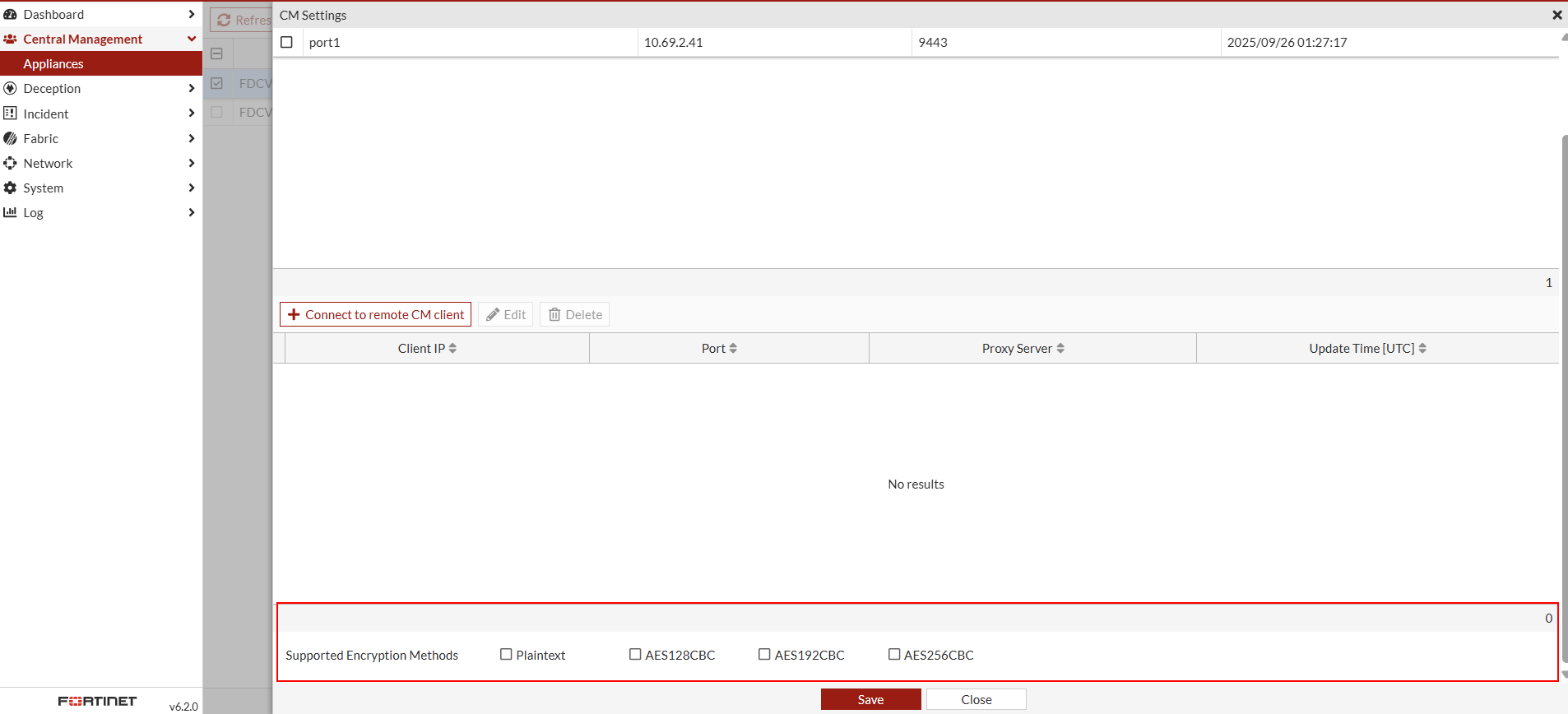
To configure encryption on the CM Manager:
  1. Go to Central Management > Appliances and click CM Settings.
  2. Select a listening device to edit and then scroll down to the page to Supported Encryption Methods.
  3. Select the encryption methods and click Save.
To configure encryption on the client:
  1. Go to Dashboard > Status > System Information widget.
  2. Locate the CM Client setting and click Change. The CM Settings pane opens.
  3. Select and Encryption Method from the list and click Save.

Removing a client from CM Manager

To remove a client connected to CM Manager:
  1. Go to Central Management > Appliances and click CM Settings.
    1. Select the client and click Hold.
    2. Click Delete.
To remove a CM Manager connected to a client:
  1. Go to Central Management > Appliances.
    1. Click CM Settings.
    2. Select the client and click Hold.
  2. Go to Dashboard > Status > System Information widget.
    1. Locate the CM Client setting and click Change. The CM Settings pane opens.
    2. Under Connect to remote CM client, select the client and click Delete.
    3. Click Save.
  3. Go back to Central Management > Appliances.
    1. Click CM Settings.
    2. Select the device that is on Hold and click Delete.

Central Management

Central Management

Central Management allows you to manage remote FortiDeceptor appliances including Decoy VM deployments, and incident alert monitoring.

You can configure a FortiDeceptor hardware or VM appliance to be a Management Device or Remote Client. The Management Device has deception capabilities. You can use the Management Device to deploy decoys and lures to the Remote Clients on the network.

Note
  • When upgrading Central Managers, you must first upgrade all CM clients to version 6.2.0 before upgrading the CM manager itself to 6.2.0.

  • Cloud Manager is supported only in versions 5.3 through 6.1. Starting with version 6.2, FortiDeceptor no longer supports Cloud Manager.

  • FortiDeceptor 1KF models can run only in standalone mode on version 6.2.

Network communication requirements

To configure the CM settings, do one of the following:

  • Go to Dashboard > Status. In the System Information widget locate CM Settings and click Change.
  • Go to Central Management > Appliances and click CM Settings.

Communication between:

From:

Management device and regular client appliance Client to manager port1 IP and 9443 port
Management device and cloud client appliance

Management device to cloud client port1 public IP and 8443 port

Use the buttons in the Central Management Appliances pane to manage Remote Clients.

Button

Description

Approve

Allow the selected clients to participate in Central Management.

Hold

Pause the selected clients’ participation in Central Management.

Delete

Pause the selected clients, then permanently delete the selected client.

This action does not:

  • Delete or change any data in the remote client.
  • Edit past incident and campaign records.

Refresh

Force re-sync of all data between manager and selected clients.

Restart

Send signal to selected clients to reboot.

Configuring Central Management

There are two methods of configuring Central Management:

  • Client-Initiated Connection (Client connects to CM Manager): The CM Manager is set to listen on a specific port (default is 9443), and the client is configured with the Manager’s information to establish the connection. This approach is commonly used for local clients.
  • Manager-Initiated Connection (CM Manager connects to Client): The CM Manager initiates the connection to the client. Here, the client is configured to wait for incoming connections, and the Manager is set up with the client’s IP address and port. This method is typically used for remote or cloud-based clients.

Configuring a client-Initiated connection

To configure a client-initiated connection, set the CM Manager to listen on a specific port (default 9443) and then enter the Manager details on the client, including its listening interface and port.

To configure a Client-Initiated Connection:
  1. Go to Central Management > Appliances and click CM Settings.
  2. Click +CM Server.
    1. Select the Listening Interface from the dropdown.
    2. Set the Port as 9443.
    3. Click Ok.

    Note
    • The default port is 9443, but other port numbers can also be used.

    • Ensure that each port has only one record.
  3. On the local client, go to Dashboard > Status > System Information widget.
  4. Locate the CM Client setting and click Change. The CM Settings pane opens.
  5. Click Connect to manager and set the Port to 9443 and click Ok.

Configuring a manager-initiated connection

To configure a manager-initiated connection for a cloud client:
  1. On the cloud platform, open 8443 for port1 of this cloud client.
  2. On the GUI, go to Dashboard > Status > System Information.
  3. Locate the CM Client setting and click Change. The CM Settings pane opens.
    1. Click Wait connections from manager.
    2. Set Listening Interface to Port1.
    3. Set the Port to 8443.
    4. Click Ok.
      Note

      Each client can connect to only one manager.

  4. On the management device, go to Central Management > Appliances and click CM Settings.
    1. Click Connect to remote CM client.
    2. For Client IP, enter the remote client's IP address.
    3. For Port enter 8443.
To configure a manager-initiated connection on a local client:
  1. On the local client go to Dashboard > Status > System Information widget.
  2. Locate the CM Client setting and click Change. The CM Settings pane opens.
    1. Click Wait connections from manager.
    2. Set Listening Interfaceto Port1.
    3. Set the Port to 8443.
    4. Click Ok.
      Note

      Each client can connect to only one manager.

  3. On the management device, go to Central Management > Appliances and click CM Settings.
    1. Click Connect to remote CM client.
    2. For Client IP, enter the remote client's IP address.
    3. For Port enter 8443.

Configuring encryption methods

Encryption can be configured from either the CM Manager or client.

To configure encryption on the CM Manager:
  1. Go to Central Management > Appliances and click CM Settings.
  2. Select a listening device to edit and then scroll down to the page to Supported Encryption Methods.
  3. Select the encryption methods and click Save.

To configure encryption on the client:
  1. Go to Dashboard > Status > System Information widget.
  2. Locate the CM Client setting and click Change. The CM Settings pane opens.
  3. Select and Encryption Method from the list and click Save.

Removing a client from CM Manager

To remove a client connected to CM Manager:
  1. Go to Central Management > Appliances and click CM Settings.
    1. Select the client and click Hold.
    2. Click Delete.
To remove a CM Manager connected to a client:
  1. Go to Central Management > Appliances.
    1. Click CM Settings.
    2. Select the client and click Hold.
  2. Go to Dashboard > Status > System Information widget.
    1. Locate the CM Client setting and click Change. The CM Settings pane opens.
    2. Under Connect to remote CM client, select the client and click Delete.
    3. Click Save.
  3. Go back to Central Management > Appliances.
    1. Click CM Settings.
    2. Select the device that is on Hold and click Delete.