

Integration with Splunk Watch List
This topic provides steps for integrating FortiDeceptor with Splunk, focusing on setting up data sources, creating lookups, searches, roles, users, and tokens.
To integrate FortiDeceptor with Splunk Watch List:
- Set up the Data Source
- Create a new lookup
- Create a new search
- Create a new role
- Create a new user
- Create a new token
- Configure the integration in FortiDeceptor
1. Set up the Data Source
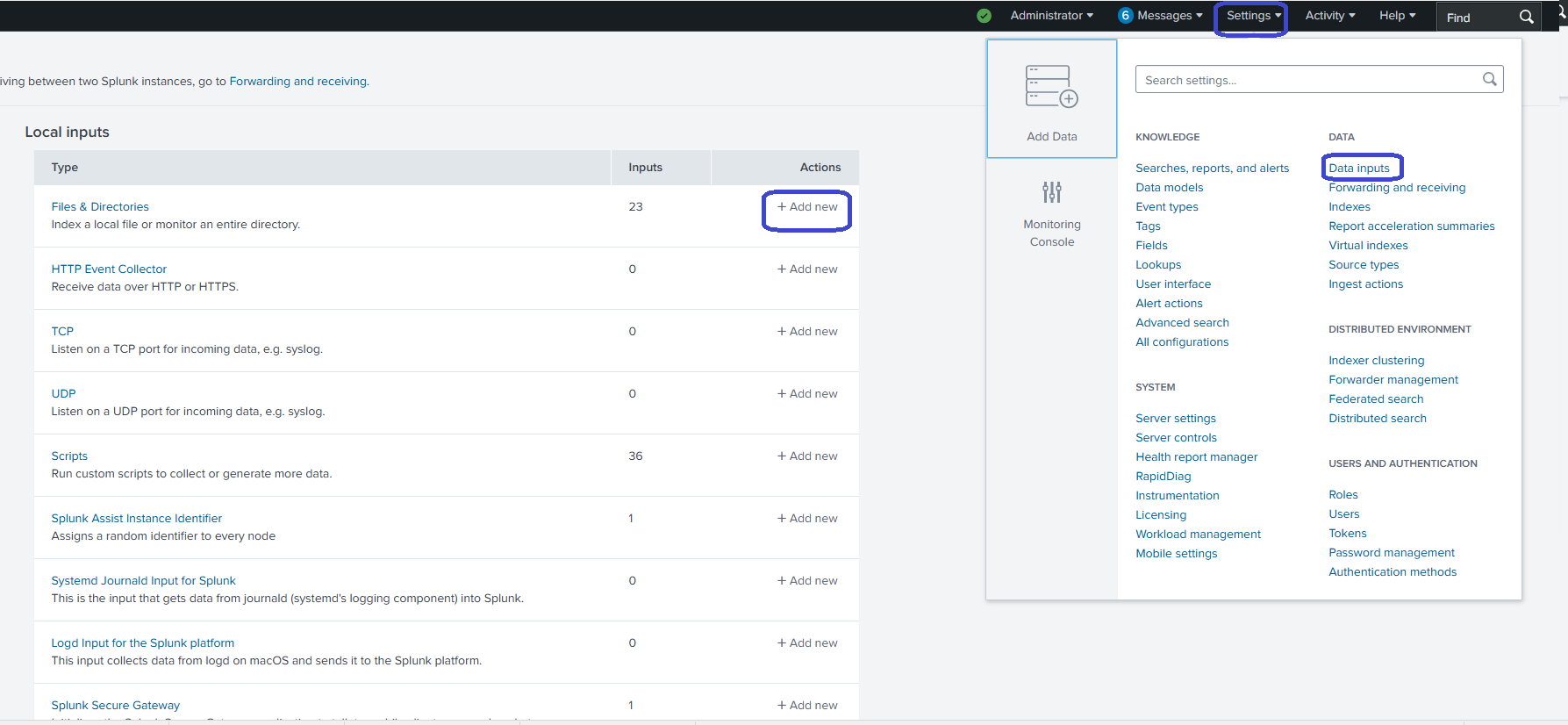
- Go to Settings > Data > Data Inputs > Add New.
- In the File or Directory field, click Browse and select auth logs from /var/log/auth.log.
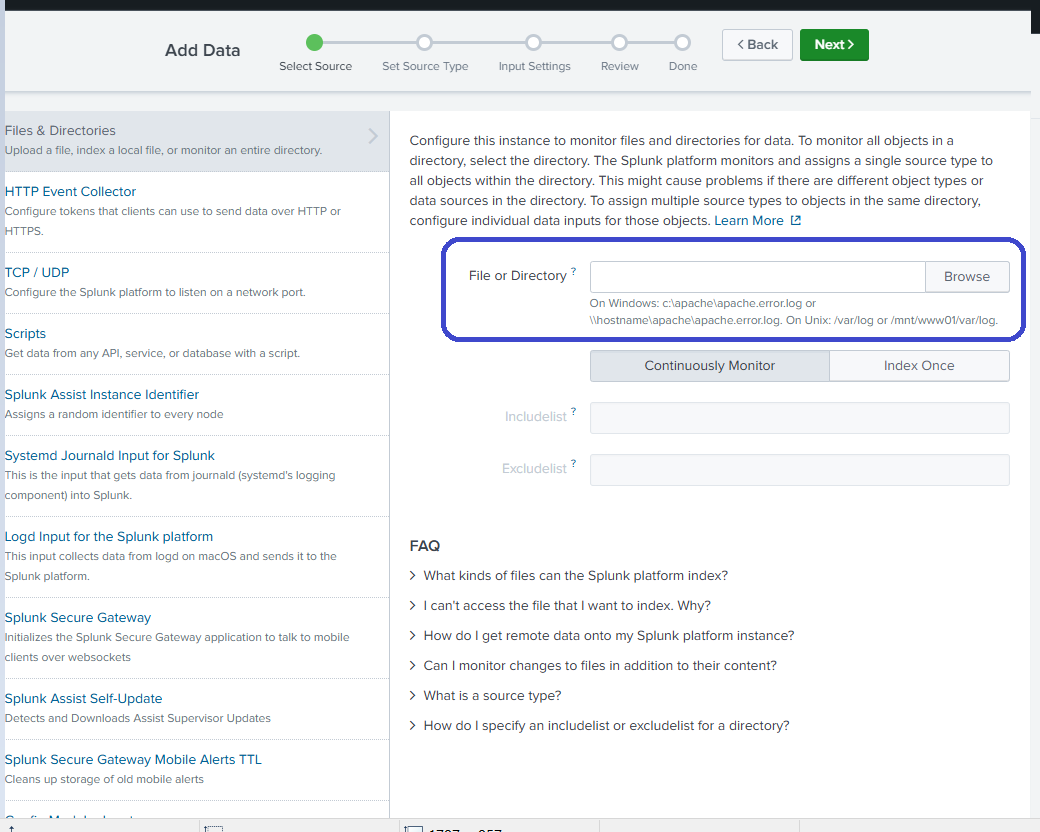
- Click Next.
2. Create a new lookup
For detailed information about creating a lookup in Splunk, see the product documentation.
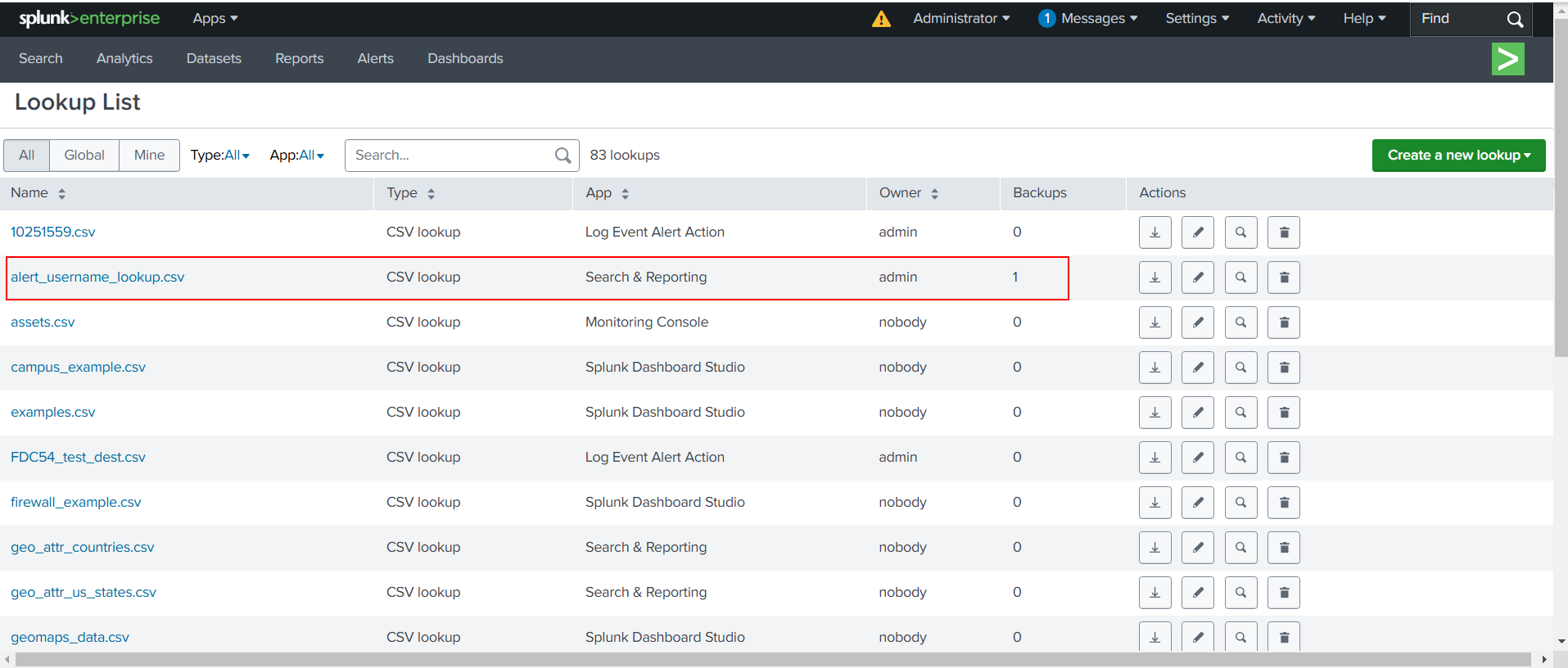
- In Splunk, go to Apps > Splunk App for Lookup File Editing.
-
In the Lookup Editor, click Lookups > Create New Lookup.
-
Choose to create a CSV lookup.
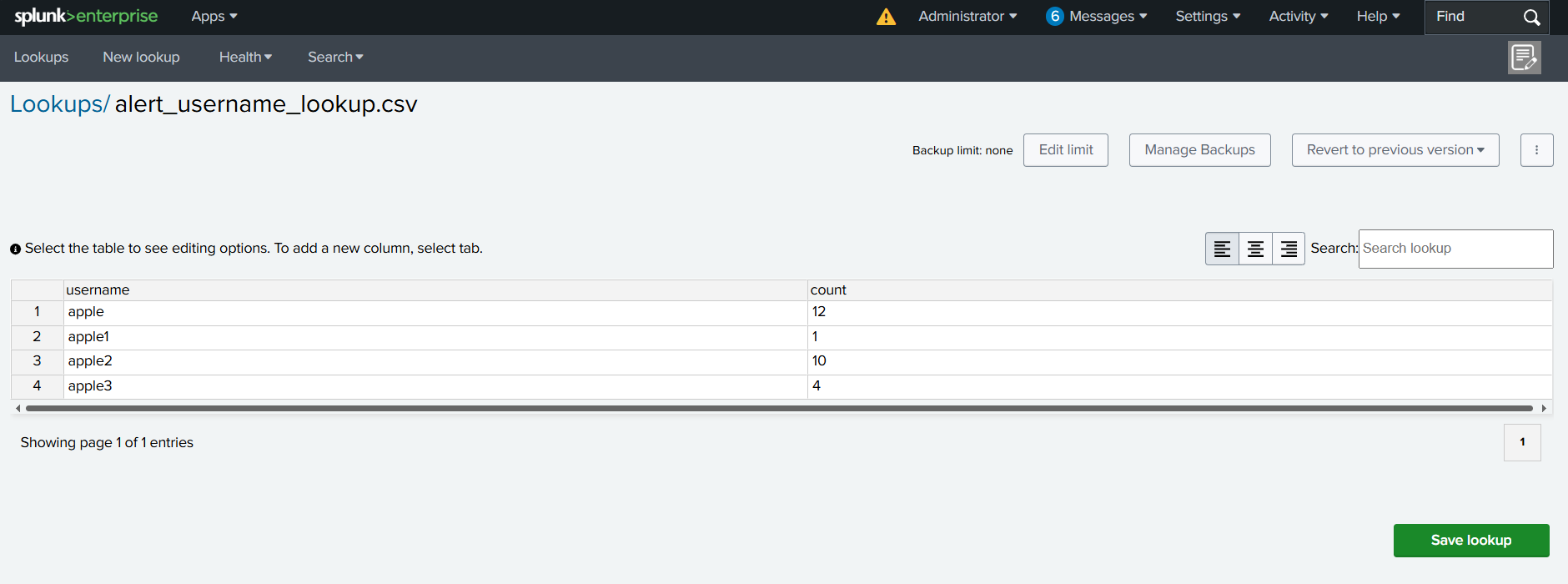
Below is an example of a FortiDeceptor CSV lookup in Splunk.
The Key Name column is used to match field values from your events is the username column.
3. Create a new search
- Go to Apps > Search & Reporting
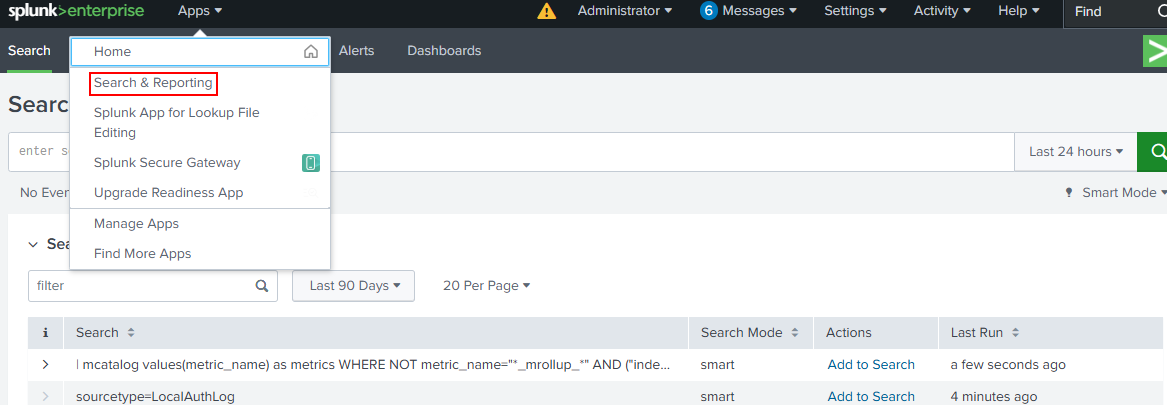
- In the New Search field, enter search statements and select the search period from the dropdown list (e.g., Last 24 hours).
Example:
source="/var/log/auth.log" host="virtual-machine" sourcetype="LocalAuthLog" | lookup alert_username_lookup.csv username as username OUTPUT username | search username=* | table username, _time
- To save the alert, click Save As > Alert and give a name, such as Alert for username.

4. Create a new role
- Go to Settings > USERS AND AUTHENTICATION > Roles.
- Click New Role.
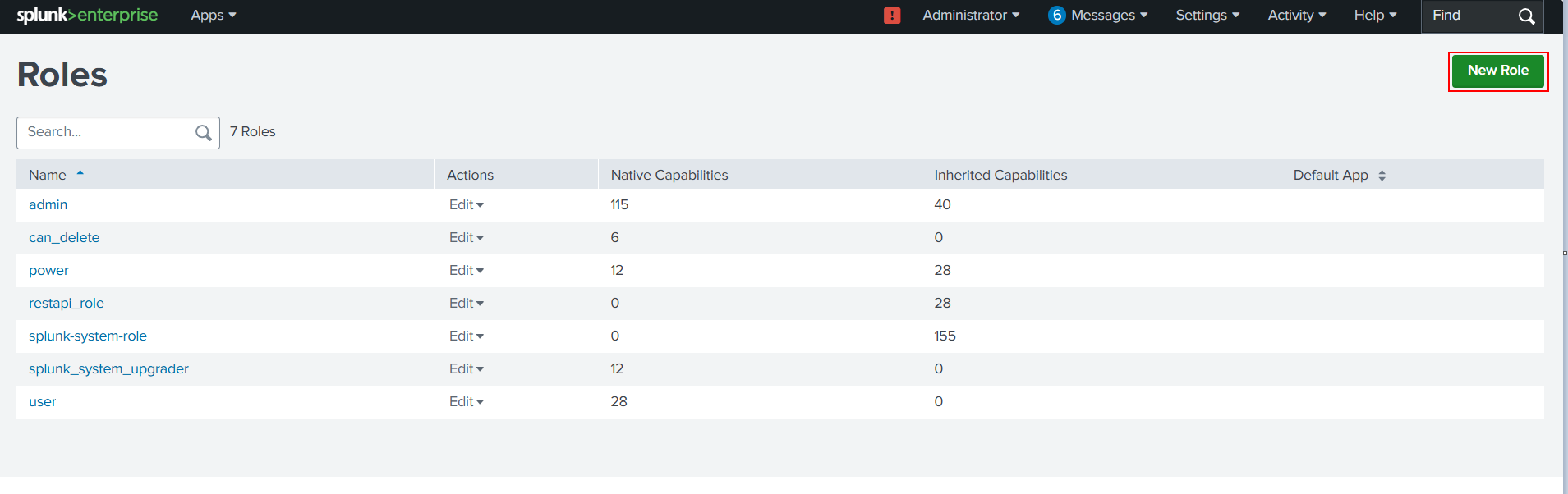
- Define the role:
- In the Role Name field, enter a name for the role (for example, restapi_role)
- In the Inheritance tab, select user.
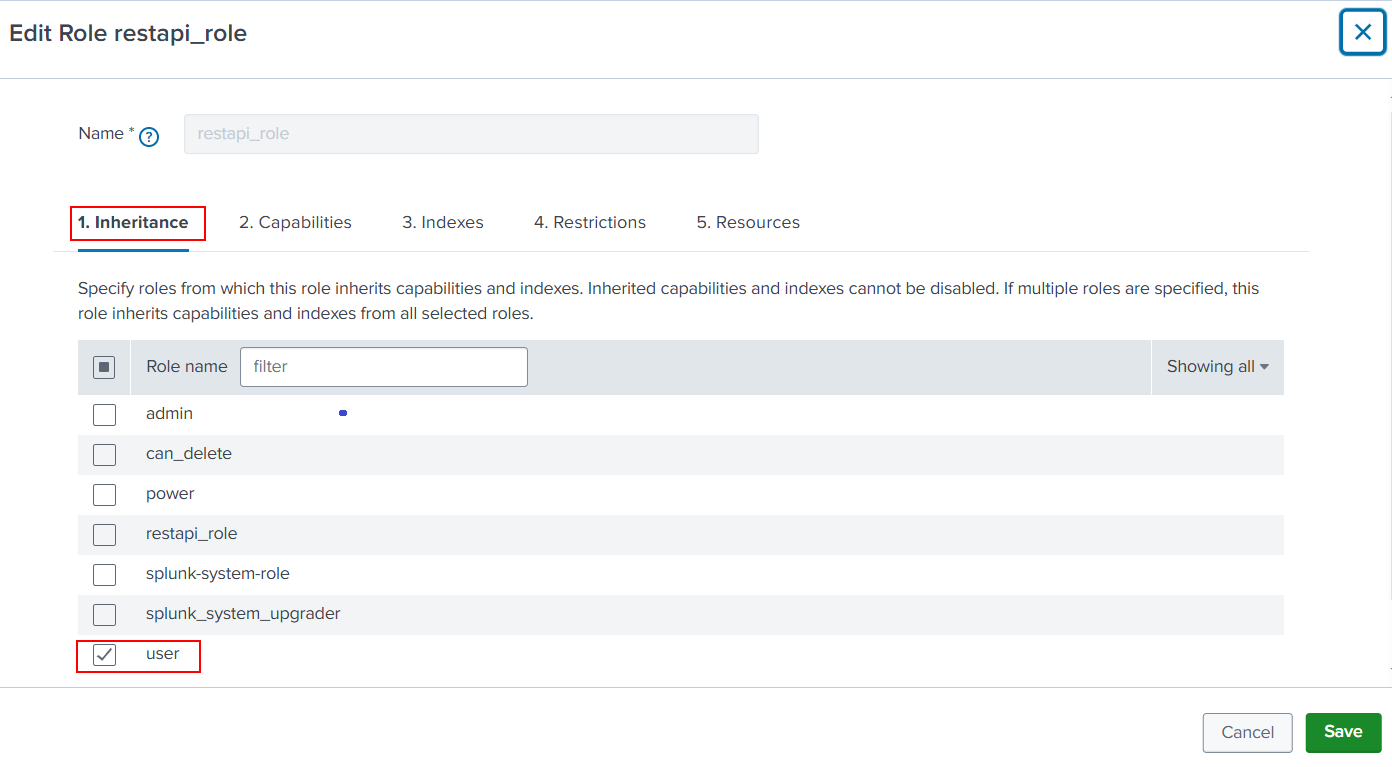
- You can use the defaults in the Capabilities, Indexes, Restrictions and Resources tabs.
- Click Save.
5. Create a new user
- Go to Settings > USERS AND AUTHENTICATION > Users.
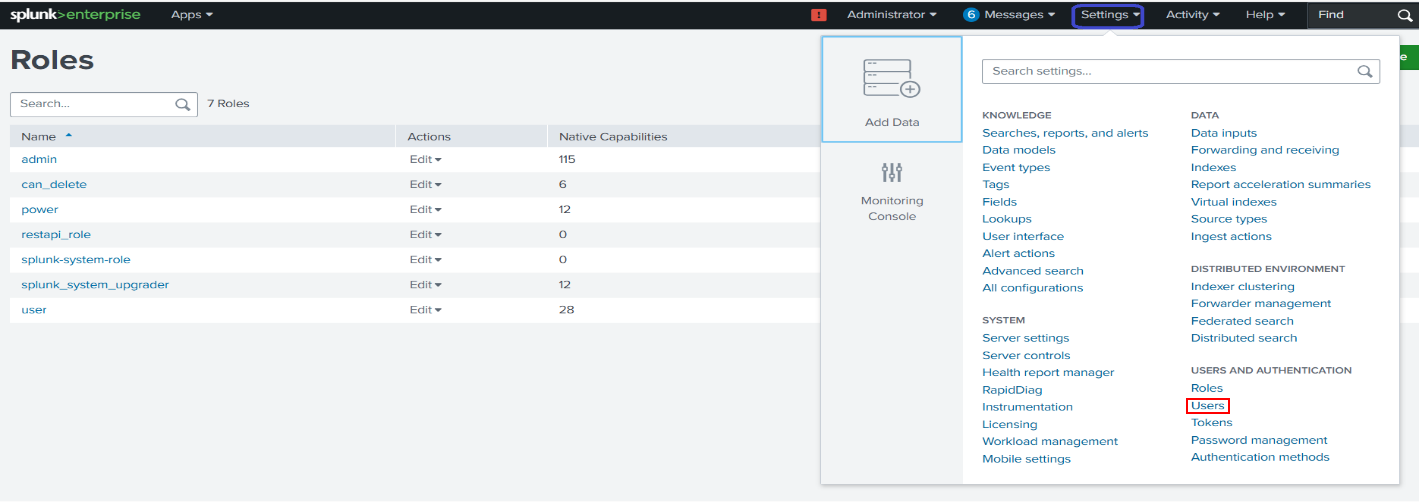
- Click New user.
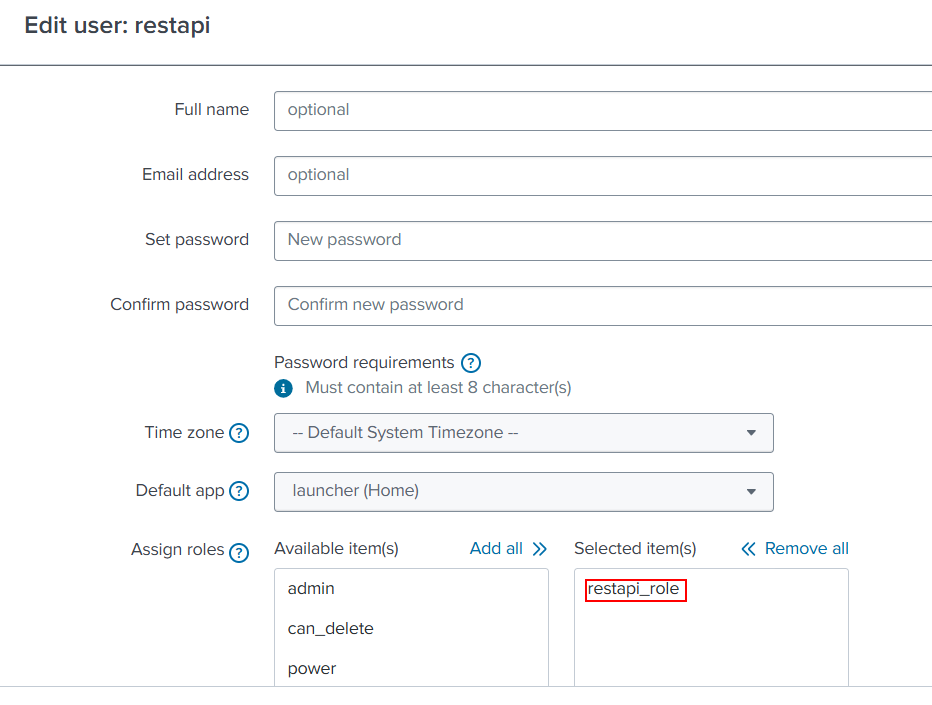
- Define the new user (Full name, Email address, etc)
- In the Assign roles area, assign the role you created in the previous steps. In this example, restapi_role.
6. Create a new token
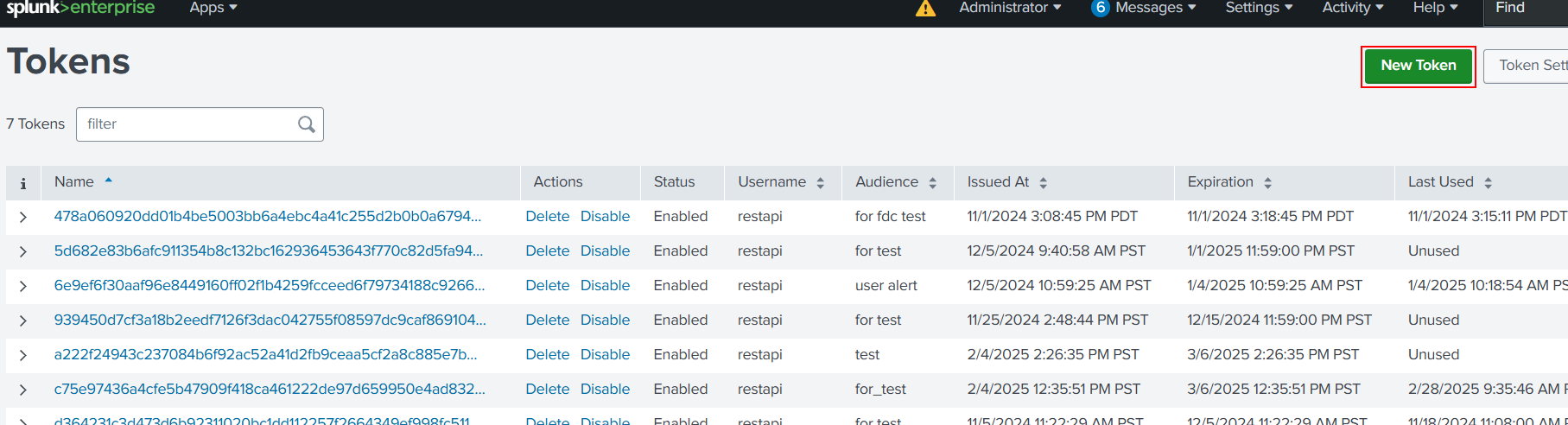
- Go to Settings > USERS AND AUTHENTICATION > Tokens.
- Click New Token.
- Click Create to generate a new token.
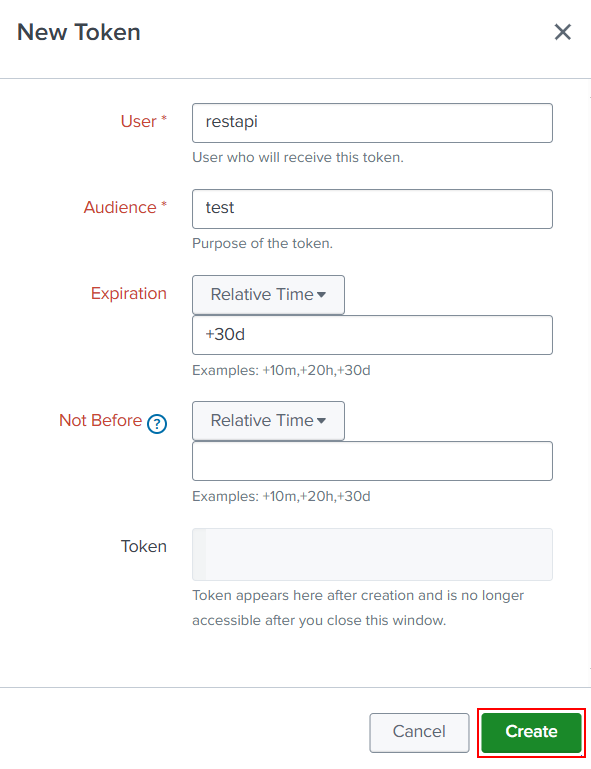
- Copy and save the token. You will need this token later.
7. Configure the integration in FortiDeceptor
- In FortiDeceptor go to Fabric > Quarantine Integration.
- Click Quarantine integration with new device. The Integrate With New Device pane opens.
- Configure the integration.
Integrate Method Select Splunk-Watch-List. IP/URL Enter the IP address of the Splunk instance API Token Enter the token you created in 6. Create a new token. Triggered Alert Name Enter the alert name you created in 3. Create a new search. Key Name in Lookup CSV Enter the name of the CSV you created in 2. Create a new lookup. 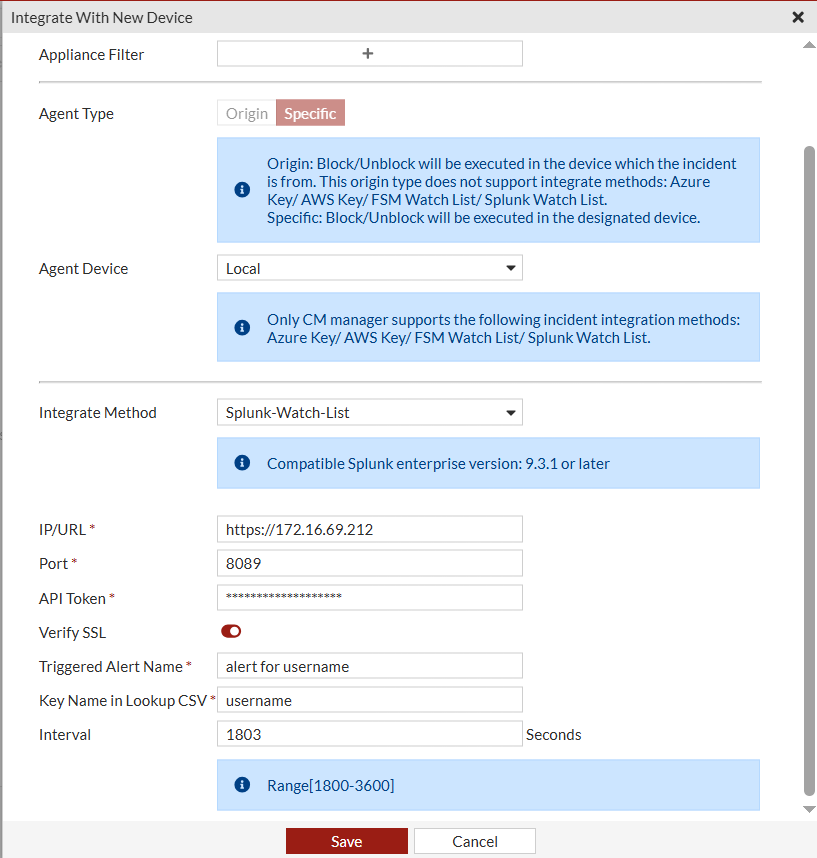
- Configure the other settings as required and click Save.
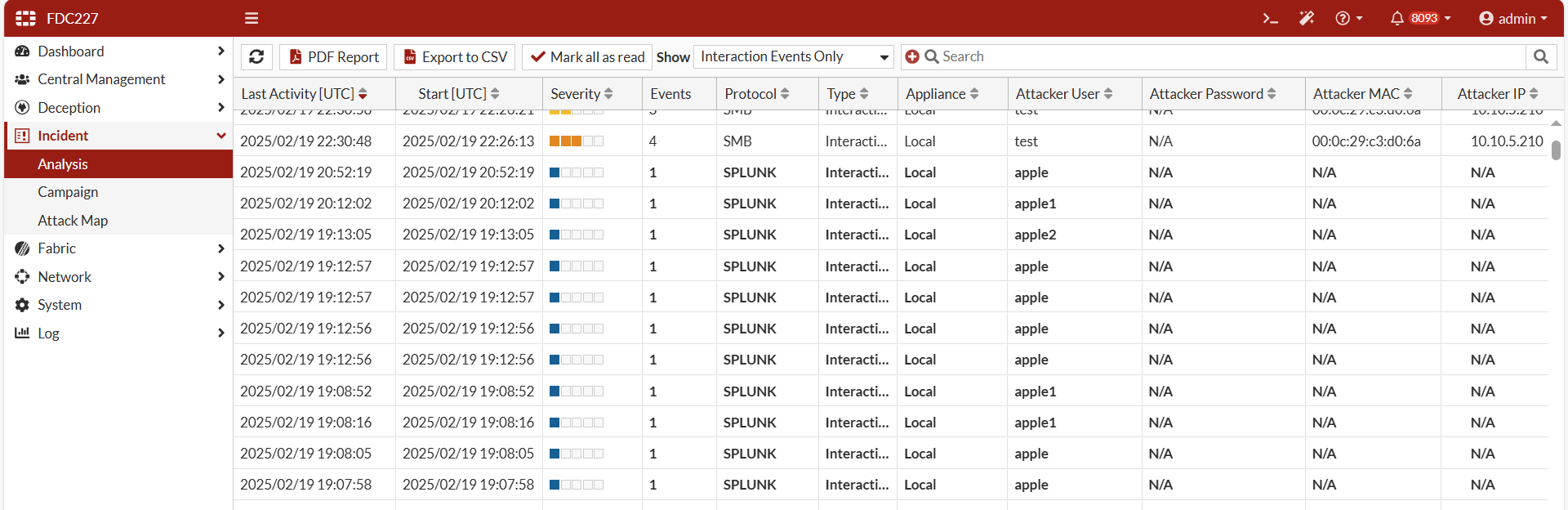
After the integration has been initialized, go to Incident > Analysis to view the events.
Artifacts list
| Extracted from the file system |
|
| Extracted from the registry |
|