
Fortinet white logo
Fortinet white logo

Administration Guide

Activating Windows 7/10 licenses after exceeding the activation limit

Activating Windows 7/10 licenses after exceeding the activation limit

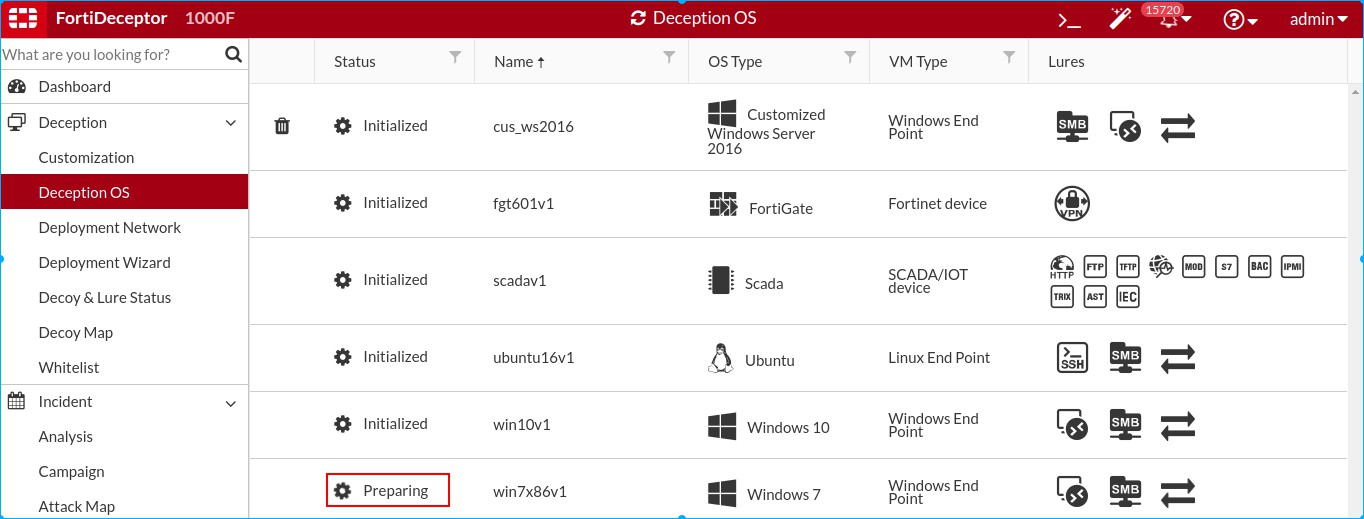
This topic outlines the steps to resolve the issue where the Windows 7 and 10 Deception OS image does not progress beyond Preparing for more than 30 minutes.
Requirements:

You will need to contact Microsoft’s Assisted Support team. Prepare the following information:

  • Licensing Agreement Type
  • Licensing Agreement Number & Details
  • Product Details
  • Company Name
  • Email Address
  • Product Key
Step 1: Check the Error Logs
  1. In FortiDeceptor, go to Log > All Events.
  2. Look for entries indicating activation failure and an Installation ID. Example log entries:
    “Failed to activate win7x86v1: key: 7269T-FGVQP-97P7R-97QM9-XXXXX, Installation ID: 006262033130386650086814647423101965877916107162009163, Error: 0x80072F8F”
    “Failed to initialize deception OS win7x86v1, prepare to retry” “Starting activate win7x86v1”
    
Step 2: Retrieve and Format the Installation ID
  1. Get the installation ID from the logs:

    “Failed to activate win7x86v1: key: 7269T-FGVQP-97P7R-97QM9-XXXXX, Installation ID: 006262033130386650086814647423101965877916107162009163, Error: 0x80072F8F”

  2. Split the installation ID into 9 groups of 6 digits. For example:

    006262033130386650086814647423101965877916107162009163

    Becomes:

    006262 033130 386650 086814 647423 101965 877916 107162 009163

Step 3: Contact Microsoft Activation Service
  1. Call the Microsoft Activation Service. You can find the Microsoft Volume License Key assisted support telephone numbers here:

    https://www.microsoft.com/en-us/licensing/existing-customer/activation-centers

  2. When prompted, select the second option in the help menu: Business Customer.
  3. Follow phone system instructions to enter the installation ID.
  4. The phone system will ask you to provide details about your account before it accepts your request.
  5. After verification, you will receive a Confirmation ID (8 groups of 6 digits). Write it down. You can end the call.
Step 4: Activate the license on FortiDeceptor
  1. On FortiDeceptor, run the following CLI command:

    > dcvm-confirm-id -a -kXXXXX-XXXXX-XXXXX-XXXXX-XXXXX

    -c042532258754869596628901610621951021013844450525

    Confirmation ID has been added.

    >

    Note

    Do not include a space between the -c flag and the Confirmation ID.

  2. Confirm the entry:

    > dcvm-confirm-id -l

    Example output:

    7269T-FGVQP-97P7R-97QM9-XXXXX 042532258754869596628901610621951021013844450525

  3. FortiDeceptor will process the activation with the provided confirmation ID. Wait a few minutes and check the result. Do not reboot FortiDeceptor.

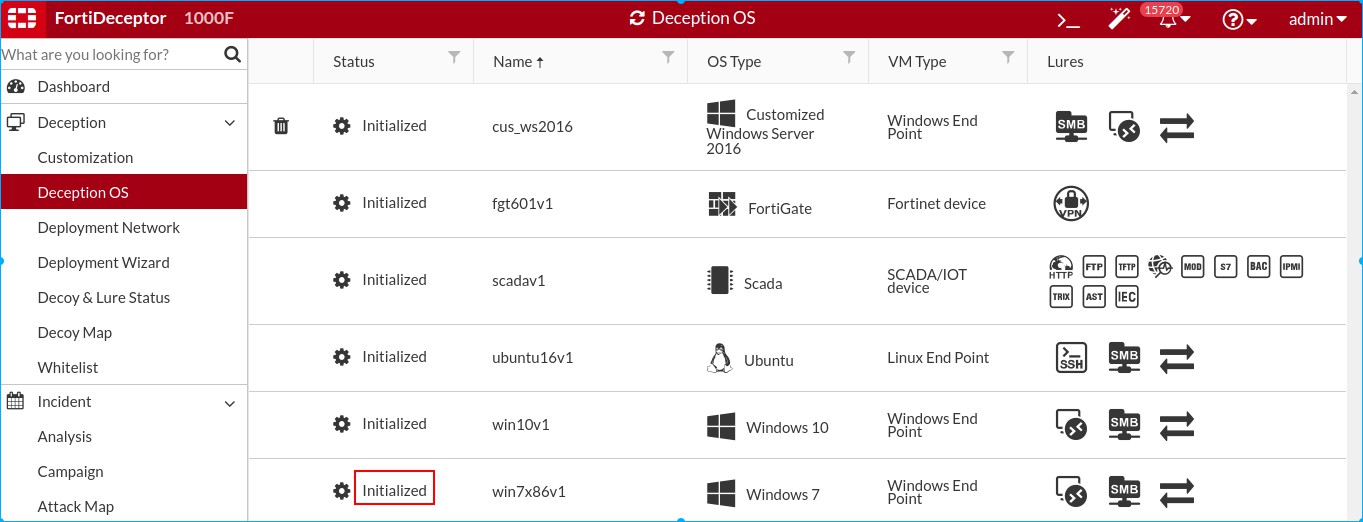
    If successful, the new Status will show Initialized:
    The log message will show:

    “Successfully activated win7x86v1”

  4. Remove the confirmation id

    > dcvm-confirm-id -d -kXXXXX-XXXXX-XXXXX-XXXXX-XXXXX

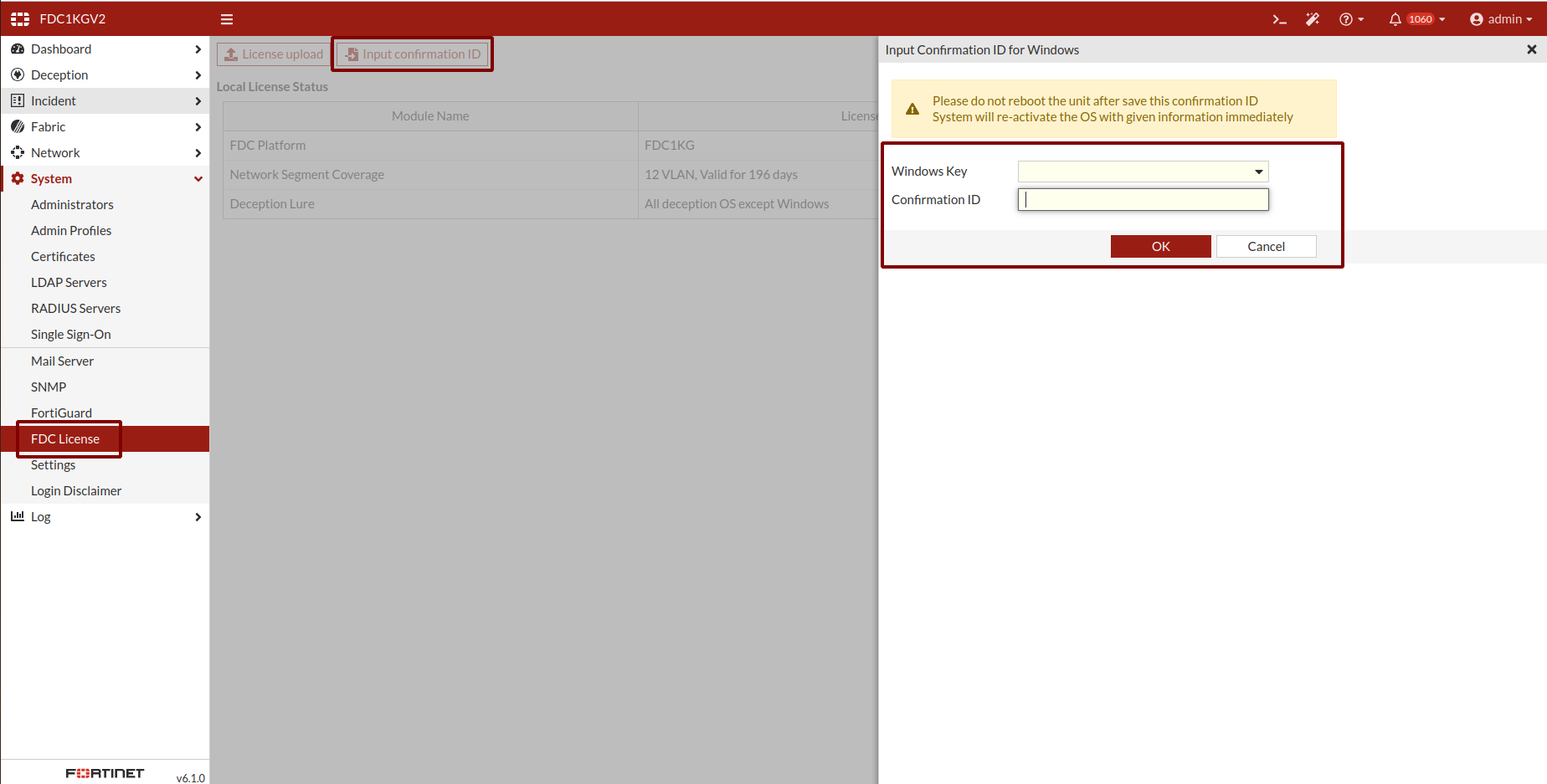
  5. Optionally, you can also go to System> FDC License to upload the confirmation ID.
Activating Windows 7/10 licenses after exceeding the activation limit

Activating Windows 7/10 licenses after exceeding the activation limit

This topic outlines the steps to resolve the issue where the Windows 7 and 10 Deception OS image does not progress beyond Preparing for more than 30 minutes.

Requirements:

You will need to contact Microsoft’s Assisted Support team. Prepare the following information:

  • Licensing Agreement Type
  • Licensing Agreement Number & Details
  • Product Details
  • Company Name
  • Email Address
  • Product Key
Step 1: Check the Error Logs
  1. In FortiDeceptor, go to Log > All Events.
  2. Look for entries indicating activation failure and an Installation ID. Example log entries:
    “Failed to activate win7x86v1: key: 7269T-FGVQP-97P7R-97QM9-XXXXX, Installation ID: 006262033130386650086814647423101965877916107162009163, Error: 0x80072F8F”
    “Failed to initialize deception OS win7x86v1, prepare to retry” “Starting activate win7x86v1”
    
Step 2: Retrieve and Format the Installation ID
  1. Get the installation ID from the logs:

    “Failed to activate win7x86v1: key: 7269T-FGVQP-97P7R-97QM9-XXXXX, Installation ID: 006262033130386650086814647423101965877916107162009163, Error: 0x80072F8F”

  2. Split the installation ID into 9 groups of 6 digits. For example:

    006262033130386650086814647423101965877916107162009163

    Becomes:

    006262 033130 386650 086814 647423 101965 877916 107162 009163

Step 3: Contact Microsoft Activation Service
  1. Call the Microsoft Activation Service. You can find the Microsoft Volume License Key assisted support telephone numbers here:

    https://www.microsoft.com/en-us/licensing/existing-customer/activation-centers

  2. When prompted, select the second option in the help menu: Business Customer.
  3. Follow phone system instructions to enter the installation ID.
  4. The phone system will ask you to provide details about your account before it accepts your request.
  5. After verification, you will receive a Confirmation ID (8 groups of 6 digits). Write it down. You can end the call.
Step 4: Activate the license on FortiDeceptor
  1. On FortiDeceptor, run the following CLI command:

    > dcvm-confirm-id -a -kXXXXX-XXXXX-XXXXX-XXXXX-XXXXX

    -c042532258754869596628901610621951021013844450525

    Confirmation ID has been added.

    >

    Note

    Do not include a space between the -c flag and the Confirmation ID.

  2. Confirm the entry:

    > dcvm-confirm-id -l

    Example output:

    7269T-FGVQP-97P7R-97QM9-XXXXX 042532258754869596628901610621951021013844450525

  3. FortiDeceptor will process the activation with the provided confirmation ID. Wait a few minutes and check the result. Do not reboot FortiDeceptor.

    If successful, the new Status will show Initialized:

    The log message will show:

    “Successfully activated win7x86v1”

  4. Remove the confirmation id

    > dcvm-confirm-id -d -kXXXXX-XXXXX-XXXXX-XXXXX-XXXXX

  5. Optionally, you can also go to System> FDC License to upload the confirmation ID.