
Fortinet white logo
Fortinet white logo

Administration Guide

Integration with Microsoft ATP

Integration with Microsoft ATP

1. Configure Azure

1.1 Configure the permissions

For the Application registration stage, you must have a Global administrator role in your Azure Active Directory (Azure AD) tenant.

1.2 Create an app in Microsoft Entra

For information about creating an app in the Azure Active Directory, see Create an App in Microsoft Entra ID in Microsoft Defender for Endpoint API.

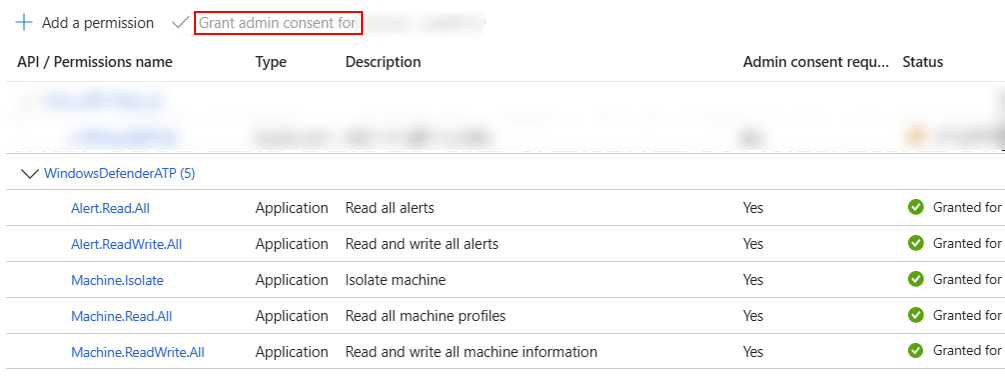
When setting up the application, ensure it has access to Defender for Endpoint. Assign the necessary permissions, including Read and write all alerts, Isolate machine, and Read and write all machine information, as shown in the image that follows.

Every time you add permission, you must click Grant consent for the new permission to take effect.
2. Onboard devices on Microsoft 365 Defender

2.1 Verify the tenant IDs are identical

  1. Login to Microsoft 365 Defender (https://security.microsoft.com/) with your Azure account.
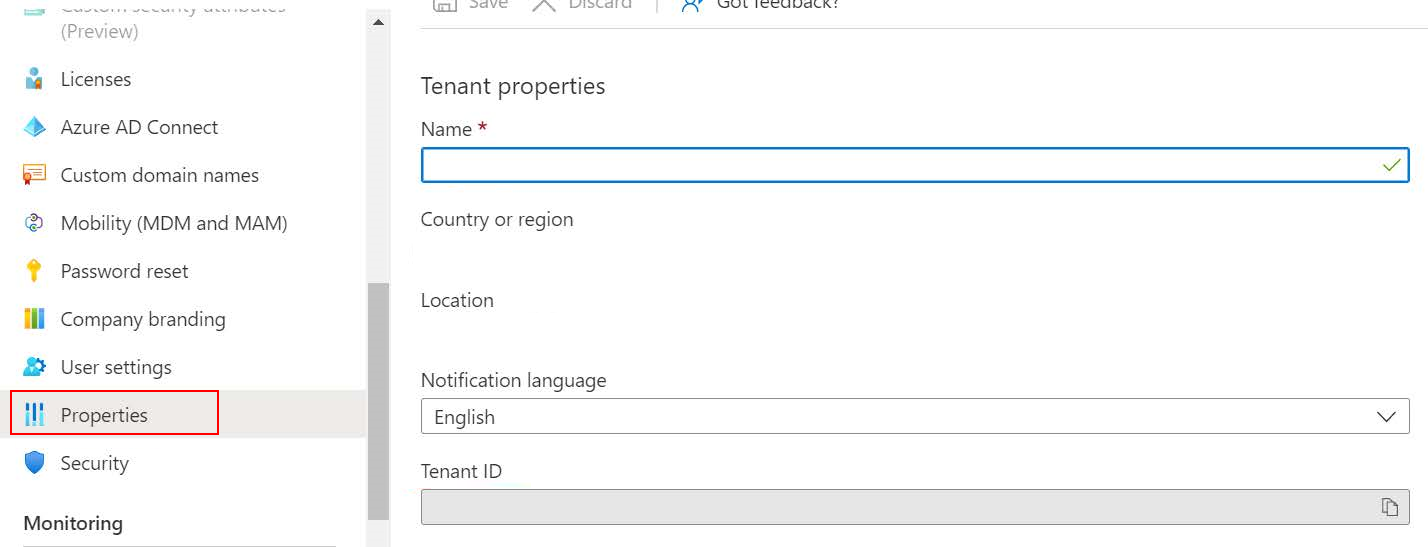
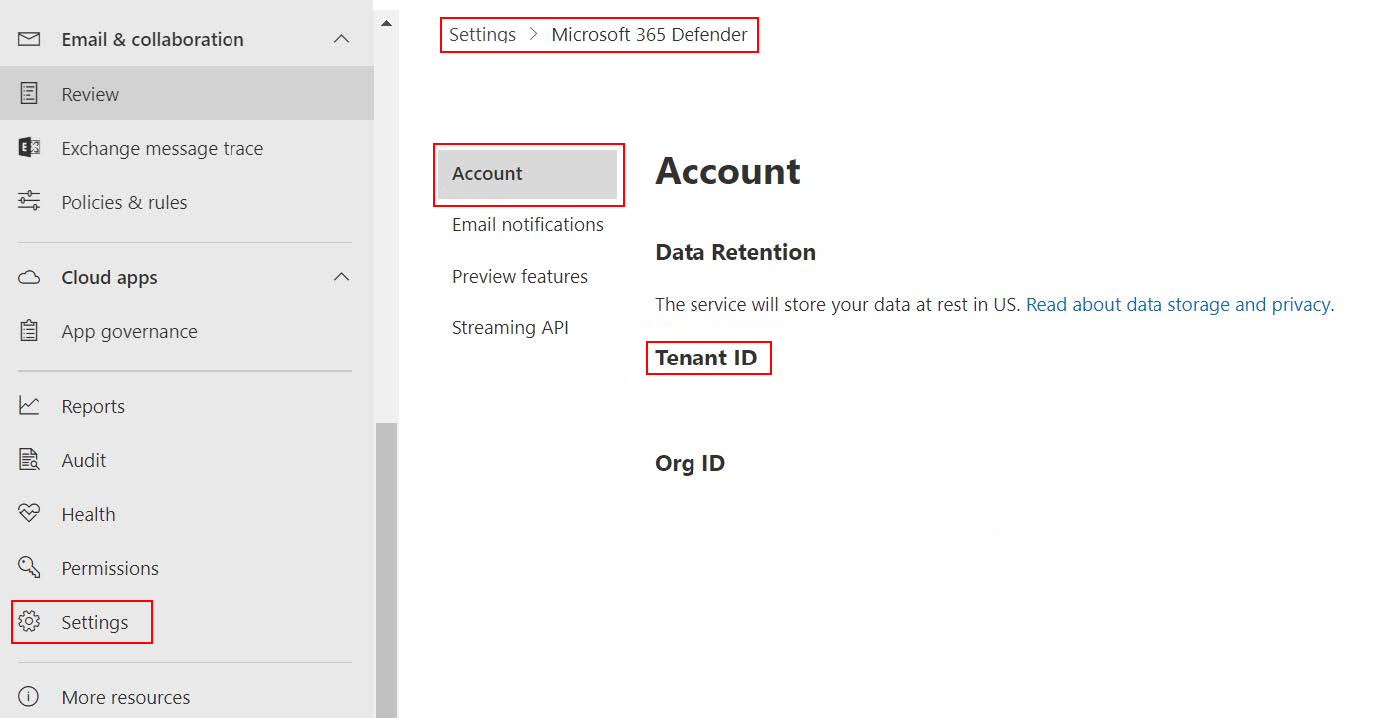
  2. Ensure the Tenant IDs in Azure and Microsoft 365 Defender are identical.
    • To view the Tenant ID in Azure, go to Azure Home > Azure Active Directory > Properties.
    • To view the Tenant ID in Microsoft 365 Defender, go to Settings > Microsoft 365 Defender > Account.
2.1 Onboard devices in Defender

  1. In Microsoft Defender, go to Settings > Endpoints > Device management > Onboarding .
  2. Onboard the endpoints you want to manage.

3. Configure FortiDeceptor

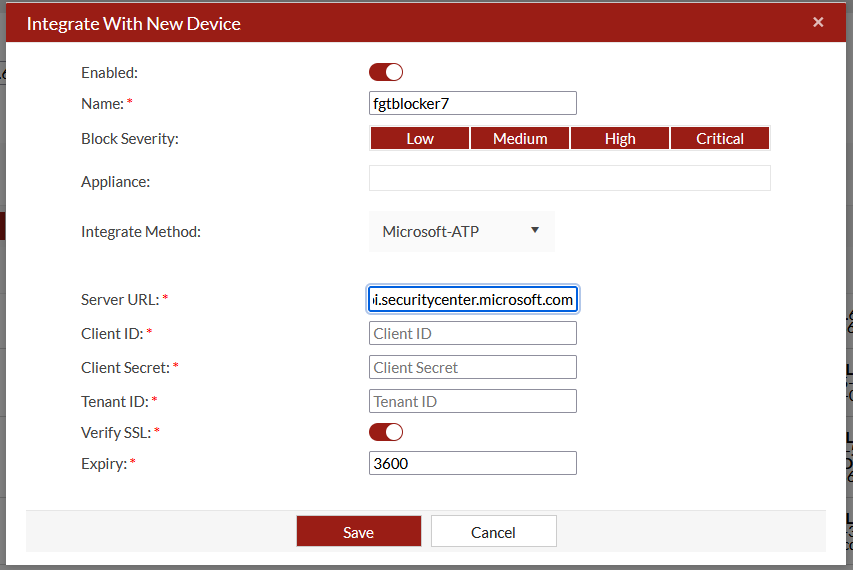
  1. In FortiDeceptor, go to Fabric > Quarantine Integration and click Quarantine Integration With New Device.

  2. Configure the integration settings and click Save.

    Integrate MethodSelect Microsoft-ATP.
    Server URL Enter the URL of API: https://api.securitycenter.microsoft.com.
    Client IDEnter the Azure Client ID.

    Client Secret

    Enter the Azure Client Secret.

    Tenant ID

    Enter the Azure Tenant ID.
  3. Verify the device status is Ready

Integration with Microsoft ATP

Integration with Microsoft ATP

1. Configure Azure

1.1 Configure the permissions

For the Application registration stage, you must have a Global administrator role in your Azure Active Directory (Azure AD) tenant.

1.2 Create an app in Microsoft Entra

For information about creating an app in the Azure Active Directory, see Create an App in Microsoft Entra ID in Microsoft Defender for Endpoint API.

When setting up the application, ensure it has access to Defender for Endpoint. Assign the necessary permissions, including Read and write all alerts, Isolate machine, and Read and write all machine information, as shown in the image that follows.

Every time you add permission, you must click Grant consent for the new permission to take effect.

2. Onboard devices on Microsoft 365 Defender

2.1 Verify the tenant IDs are identical

  1. Login to Microsoft 365 Defender (https://security.microsoft.com/) with your Azure account.
  2. Ensure the Tenant IDs in Azure and Microsoft 365 Defender are identical.
    • To view the Tenant ID in Azure, go to Azure Home > Azure Active Directory > Properties.

    • To view the Tenant ID in Microsoft 365 Defender, go to Settings > Microsoft 365 Defender > Account.

2.1 Onboard devices in Defender

  1. In Microsoft Defender, go to Settings > Endpoints > Device management > Onboarding .
  2. Onboard the endpoints you want to manage.

3. Configure FortiDeceptor

  1. In FortiDeceptor, go to Fabric > Quarantine Integration and click Quarantine Integration With New Device.

  2. Configure the integration settings and click Save.

    Integrate MethodSelect Microsoft-ATP.
    Server URL Enter the URL of API: https://api.securitycenter.microsoft.com.
    Client IDEnter the Azure Client ID.

    Client Secret

    Enter the Azure Client Secret.

    Tenant ID

    Enter the Azure Tenant ID.

  3. Verify the device status is Ready
