

Top Management
Top Management (TM) mode provides centralized control of multiple remote FortiDeceptor Central Management(CM) devices from a single console. In this mode, the top-level manager manages all remote FortiDeceptor managers as clients, focusing on administration, entity management, and permission control. The Top Manager also acts as a proxy console, allowing access to remote FortiDeceptor managers.
You can configure a FortiDeceptor hardware or VM appliance to function as a Top Management Device. This device does not provide deception capabilities but serves exclusively to manage other FortiDeceptor central management devices.
License requirements:
- Central Management License
Network communication requirements:
|
Communication between |
From |
|---|---|
|
Top Management device and Central Management devices |
Central Management device to Top Management device:
|
The communication port for Top Management mode must not be the same as the communication port used by Central Management devices and appliances.
Top management device console
When Top Management mode is enabled, the navigation pane displays only the Top Management, Network, System, and Log modules.
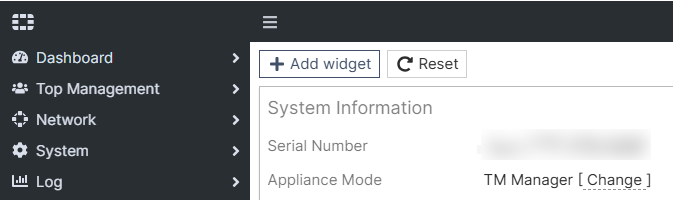
Use the toolbar to manage Central Management devices:
|
Button |
Description |
|---|---|
|
Approve |
Allow the selected CM Managers to be connected to this Top Management device. |
|
Hold |
Pause the selected CM Manager’s connection to this Top Management device. |
|
Delete |
Delete the selected CM Manager from this Top Management device. This action does not delete or change any data in the CM Manager device. If the CM Manager device is configured to connect to this TM device, its status will display as On-hold. To reconnect, click Approve. |
|
Refresh |
Force connection resynchronization between the Top Management and Central Management devices. |

Configuring top management
To configure Top Management:
- Enable TM Settings on the TM Device.
- Enable TM Settings on the CM Device.
- Approve the CM device on the TM Device.
- Create entities.
- Log into the CM device.
To configure TM Settings on the TM Device:
- Go to Dashboard > TM Settings and click +TM Server.
- Configure the Listening Interface and Port.
- Select the Supported Encryption Methods.
- Click Save.
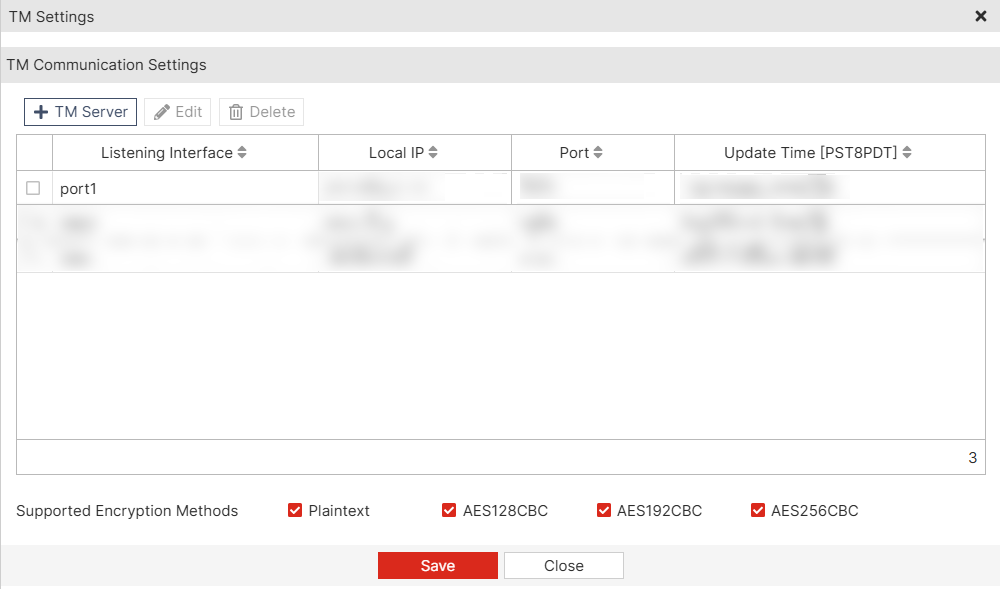
To configure TM Settings on the CM Device:
- Go to Dashboard > Status.
- In the System Information widget locate TM Settings and click Change.
- Enable Join Top Management.
- Configure the Manager IP, Port, Proxy Server and Encryption Method.
- Click Ok.
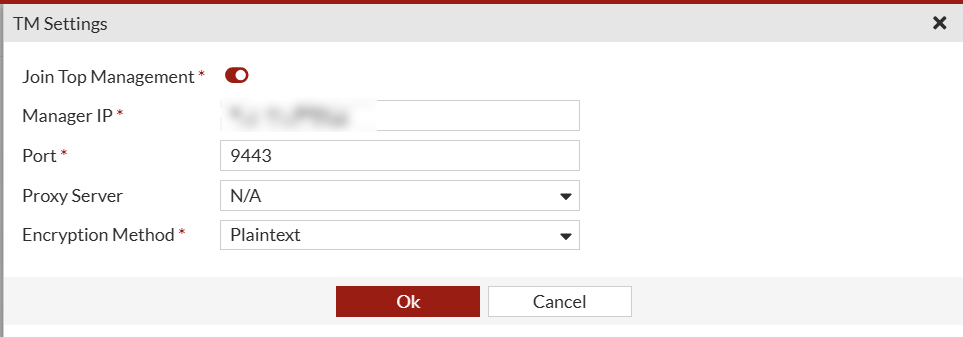
To approve a CM Device on the TM Device:
-
On the TM Device, go to Top Management > CM Managers . The Approval Status for the CM Manager (TM Client) will display On-Hold, and the Live Status displays Offline.
-
Select the CM Manager (TM Client) and click Approve. The Approval Status changes to Approved and the Live Status changes to Online.

To hold a CM Device on the TM Device:
-
On the TM Device, go to Top Management > CM Managers.
-
Select the CM Manager (TM Client) and click Hold. The Approval Status changes to On-Hold and the Live Status changes to Offline.
To delete a CM Device from the TM Device:
- On the TM Device, go to Top Management > CM Managers.
- Select the CM Manager (TM Client) you want to remove.
- Click Delete.
If the CM Manager device is configured to connect to this TM device, its status will display as On-hold. To reconnect, click Approve.
Entity management
In Top Management mode, an entity is a group within a TM device that organizes connected CM devices and associated admin users. Each entity has its own access rights, enabling different admins to manage specific CM devices independently.
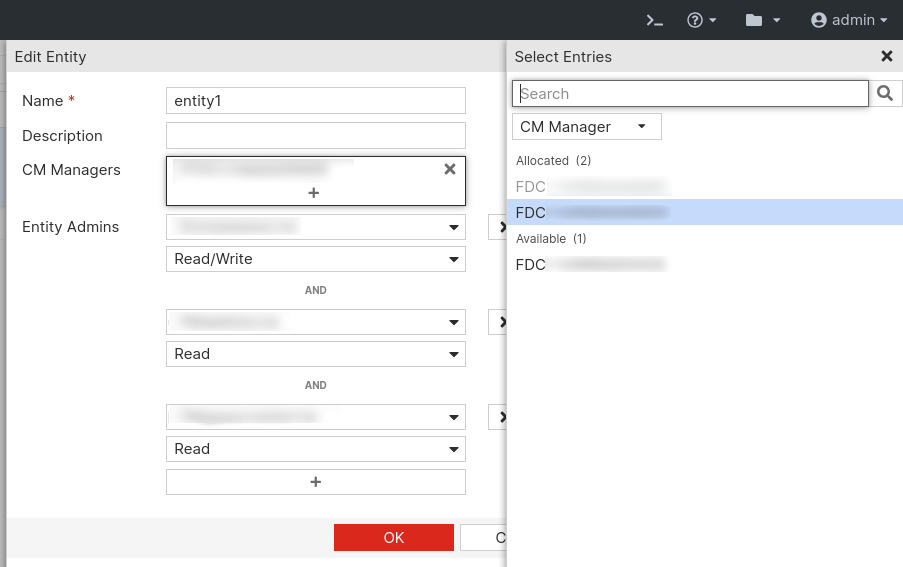
To create an entity:
-
On the TM Device, go to Top Management > Entities and click Create New.
-
Configure the entity and then click OK.
Name Enter a name for the entity. Description Enter a descriptive name for the entity. This field is optional. CM Managers Click the plus sign (+) to select the available CM Managers.
Admins shown in gray are assigned to other entities.
Entity Admins Click the drop-down menu to select an existing administrator on this TM device. To configure the administrator accounts go to System > Administrators.
Click the plus sign (+) to allow multiple admin accounts to access the CM Managers for this entity.
Click the drop-down to grant Read/Write or Read privileges to CM devices in the entity.
Accessing CM devices
To access CM devices from the TM device:
-
Log into FortiDeceptor with an admin account that is assigned to an entity.
-
The top-right corner of the page displays a folder icon. Click it to access the CM device of the current entity.
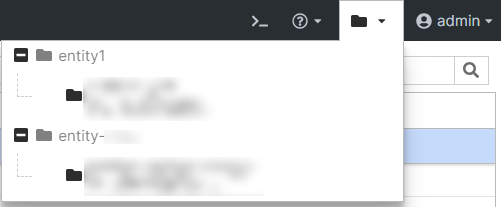
-
Click the CM device to view its dashboard, and start managing it.
