Fortinet white logo
Fortinet white logo

EMS Administration Guide

VMware ESXi

VMware ESXi

To recover your EMS user password on VMware ESXi:
  1. Turn off the EMS VM:

    1. Log in to your VMware ESXi or vSphere Client.

    2. Locate your EMS VM in the list of virtual machines.

    3. Right-click the VM and select Power > Power Off.

    Wait until the VM is completely powered off before continuing.

  2. Attach the recovery ISO to the VM’s virtual CD/DVD drive:

    1. Right-click the EMS VM and select Edit Settings.

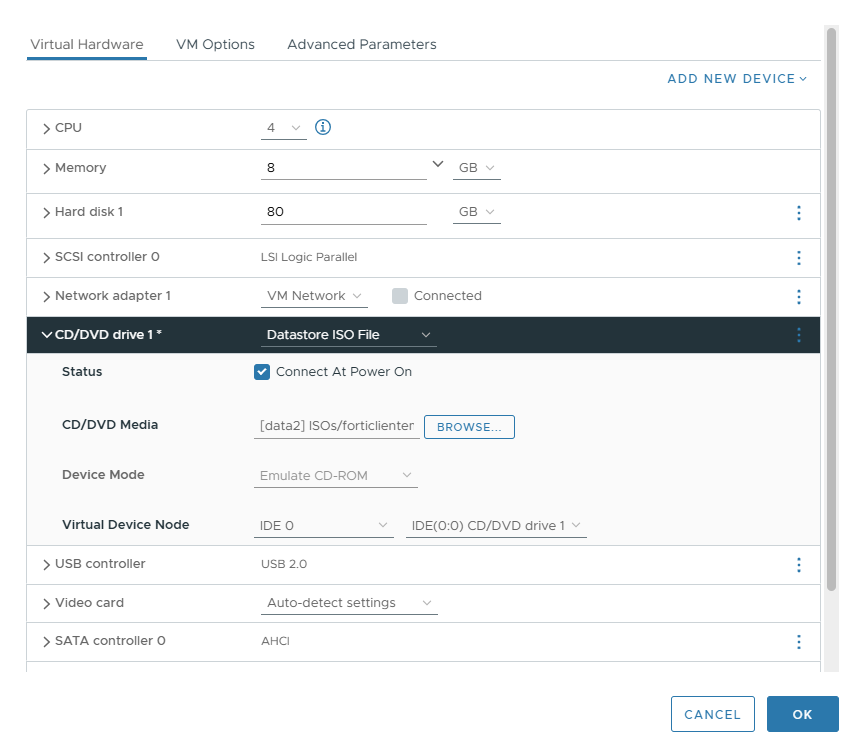
    2. In the Virtual Hardware tab, find the CD/DVD drive.

      If no DVD drive exists, click Add New Device > CD/DVD Drive to add one.

    3. Select Datastore ISO File as the media type.

    4. Browse to select the forticlientems_vm.7.4.5.2111.M.password.recovery.iso.zip file in your datastore.

    5. Check the option Connect at power on to enable automatic connection of the ISO when the VM boots.

    6. Click OK to apply the changes.

  3. Configure VM to enter BIOS on next boot:

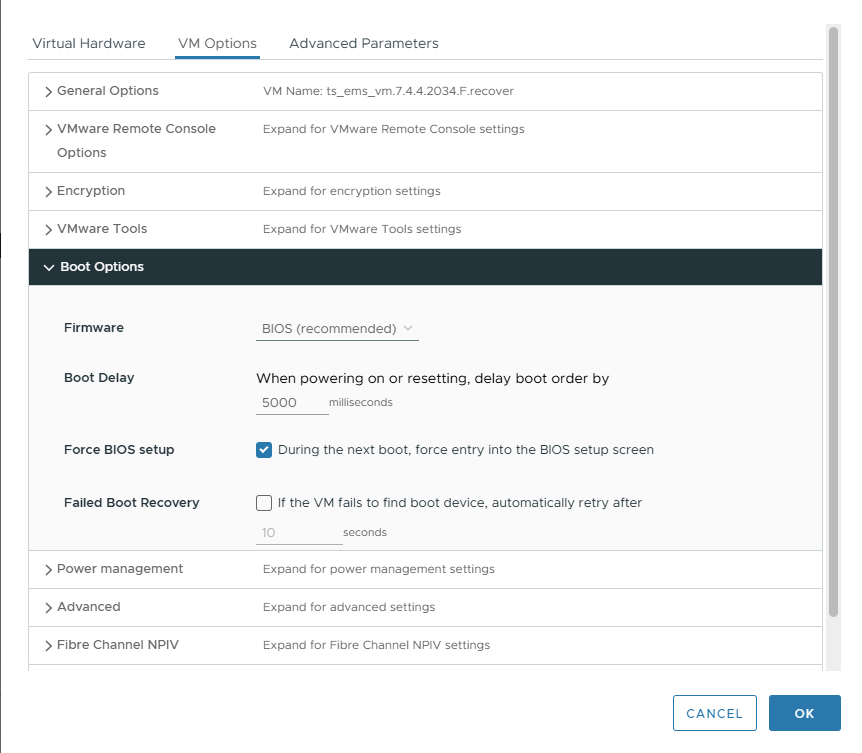
    1. With the VM still selected, go to the VM Options tab.

    2. Expand the Boot Options section and check the box Force BIOS Setup or Force Entry into BIOS Setup on next boot.

      This will make the VM enter the BIOS menu automatically upon starting.

    3. Save the changes.

  4. Set boot order to Boot from CD/DVD First:

    1. Power on the VM. The VM will enter the BIOS setup automatically (due to the forced BIOS entry).

    2. In the BIOS interface, navigate to the Boot menu or Boot Order settings and set the CD/DVD drive as the first boot device.
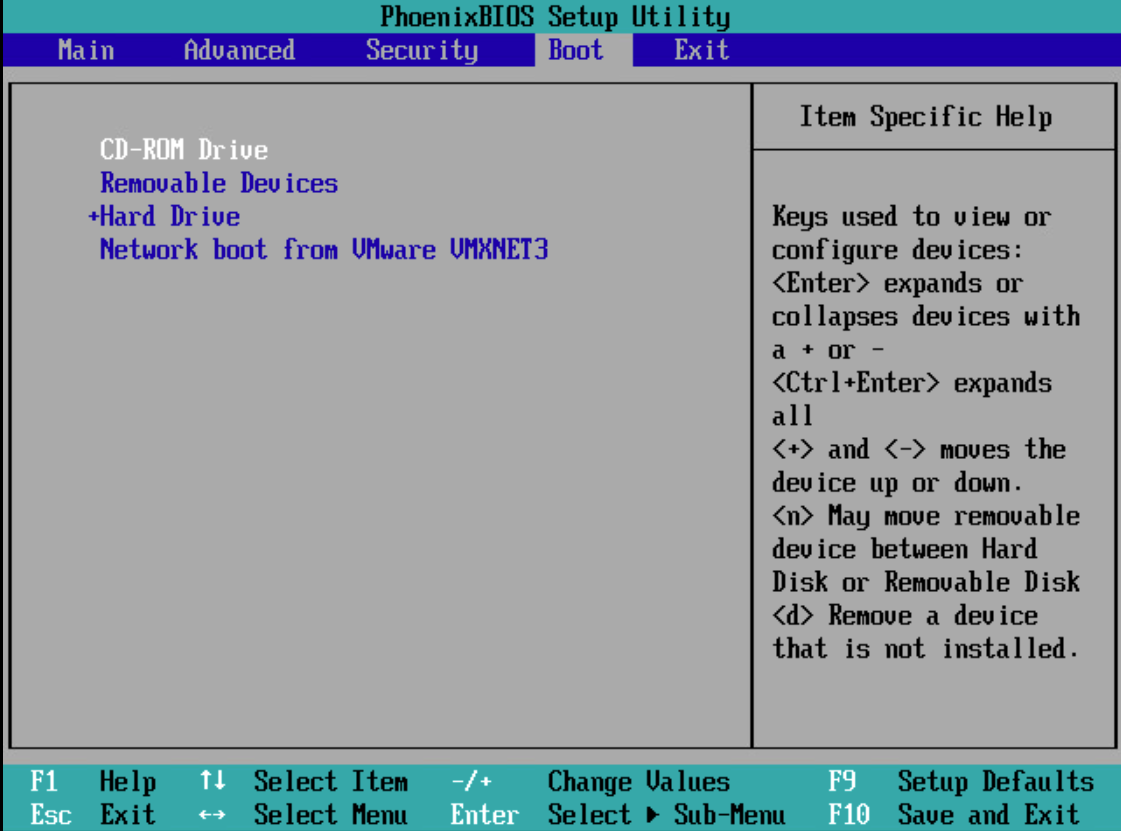
    3. Save and exit the BIOS.
  5. Boot from the recovery ISO and wait for the recovery process to complete. If the password recovery is successful, you should see a message similar to the following:

    SUCCESS: Password for ‘ems’ has been reset
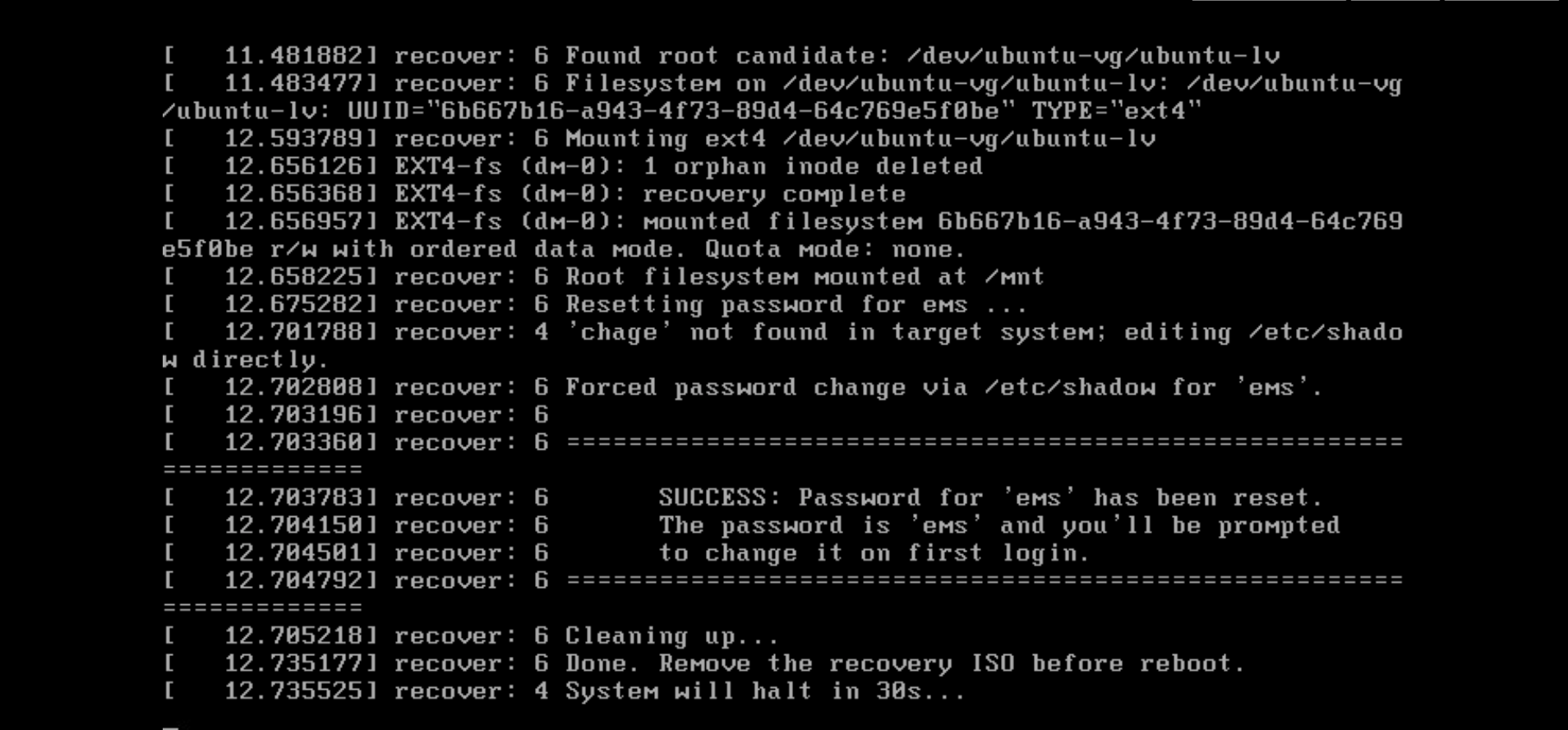
  6. Once the password reset is confirmed, remove the recovery ISO from the VM:

    1. Power off the VM again.

    2. Right-click the VM and select Edit Settings.

    3. In the Virtual Hardware tab, select the CD/DVD drive.

    4. Change the media option from Datastore ISO File to Client Device or Disconnected to unmount the ISO.

    5. Uncheck Connect at power on.

    6. Save the settings.

  7. To verify the result, start the VM again normally and try logging in with the default credentials (username and password are both ems). On the first login, you will be prompted to set a new password, which you should do immediately for security.

VMware ESXi

VMware ESXi

To recover your EMS user password on VMware ESXi:
  1. Turn off the EMS VM:

    1. Log in to your VMware ESXi or vSphere Client.

    2. Locate your EMS VM in the list of virtual machines.

    3. Right-click the VM and select Power > Power Off.

    Wait until the VM is completely powered off before continuing.

  2. Attach the recovery ISO to the VM’s virtual CD/DVD drive:

    1. Right-click the EMS VM and select Edit Settings.

    2. In the Virtual Hardware tab, find the CD/DVD drive.

      If no DVD drive exists, click Add New Device > CD/DVD Drive to add one.

    3. Select Datastore ISO File as the media type.

    4. Browse to select the forticlientems_vm.7.4.5.2111.M.password.recovery.iso.zip file in your datastore.

    5. Check the option Connect at power on to enable automatic connection of the ISO when the VM boots.

    6. Click OK to apply the changes.

  3. Configure VM to enter BIOS on next boot:

    1. With the VM still selected, go to the VM Options tab.

    2. Expand the Boot Options section and check the box Force BIOS Setup or Force Entry into BIOS Setup on next boot.

      This will make the VM enter the BIOS menu automatically upon starting.

    3. Save the changes.

  4. Set boot order to Boot from CD/DVD First:

    1. Power on the VM. The VM will enter the BIOS setup automatically (due to the forced BIOS entry).

    2. In the BIOS interface, navigate to the Boot menu or Boot Order settings and set the CD/DVD drive as the first boot device.

    3. Save and exit the BIOS.
  5. Boot from the recovery ISO and wait for the recovery process to complete. If the password recovery is successful, you should see a message similar to the following:

    SUCCESS: Password for ‘ems’ has been reset

  6. Once the password reset is confirmed, remove the recovery ISO from the VM:

    1. Power off the VM again.

    2. Right-click the VM and select Edit Settings.

    3. In the Virtual Hardware tab, select the CD/DVD drive.

    4. Change the media option from Datastore ISO File to Client Device or Disconnected to unmount the ISO.

    5. Uncheck Connect at power on.

    6. Save the settings.

  7. To verify the result, start the VM again normally and try logging in with the default credentials (username and password are both ems). On the first login, you will be prompted to set a new password, which you should do immediately for security.